
KOORUI 15B1
KOORUI 15.6 inch 1080P FHD Portable Monitor User Manual
Eredua: 15B1
1. Sarrera
Thank you for choosing the KOORUI 15.6 inch 1080P FHD Portable Monitor. This monitor is designed to provide a vibrant visual experience with its 1920x1080 resolution IPS display, 178° wide viewing angle, and eye care technology. Its lightweight and slim design makes it an ideal companion for extending your screen space for work, entertainment, or gaming on the go.
This manual provides essential information for setting up, operating, and maintaining your portable monitor. Please read it thoroughly before use to ensure proper functionality and to maximize your user experience.
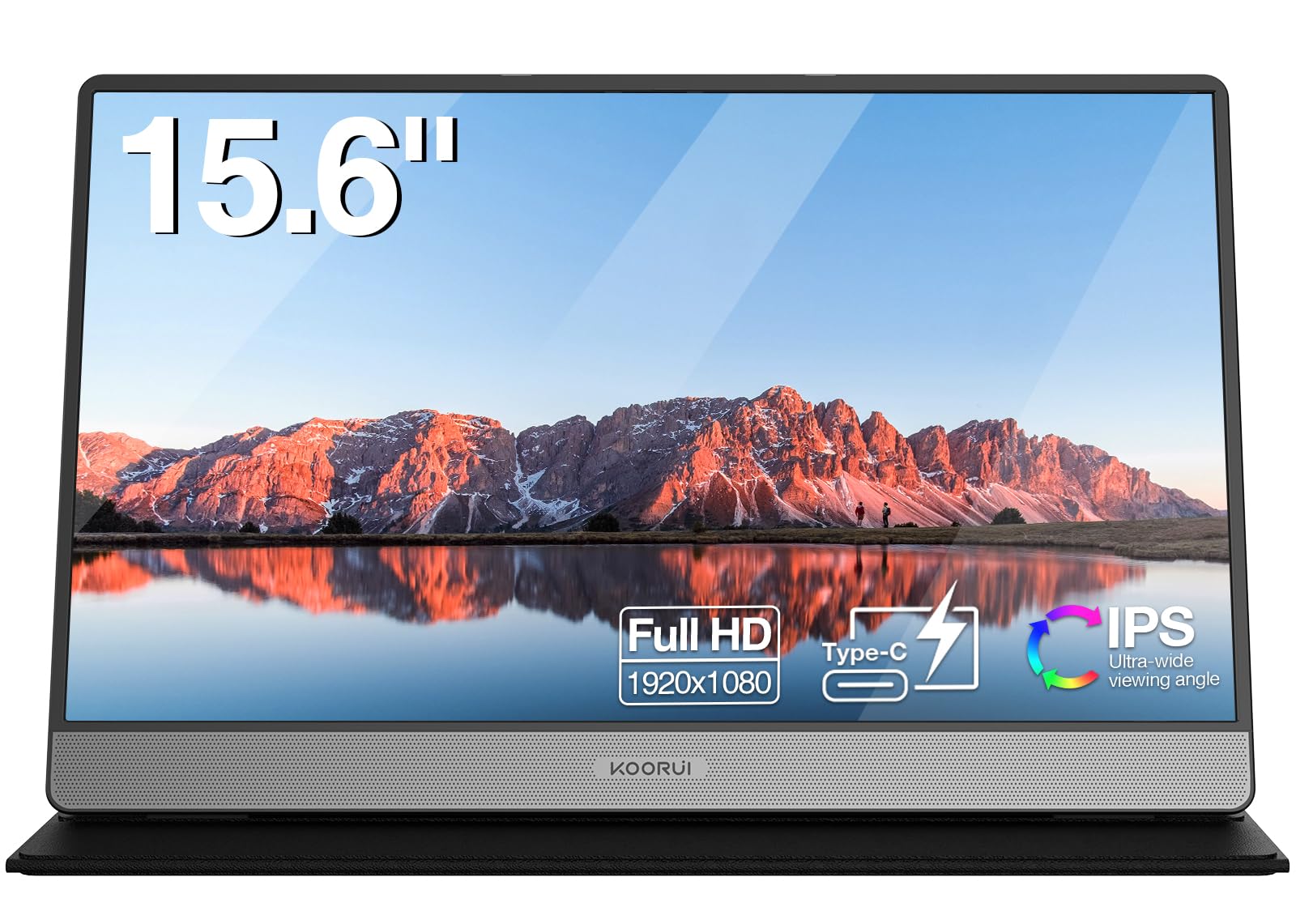
Image: The KOORUI 15.6 inch portable monitor, showcasinbere diseinu dotorea eta euskarri integratua.
2. Zer dago kutxan
Mesedez, egiaztatu paketearen edukia elementu guztiak daudela ziurtatzeko:
- KOORUI 15.6 inch Portable Monitor (Model: 15B1)
- Protective Case / Stand
- USB-C USB-C kablea
- Mini HDMI tik HDMI kablea
- Erabiltzailearen eskuliburua

Image: A visual representation of the complete package contents, including the monitor, protective case, USB-C cable, Mini HDMI cable, and user manual.
3. Produktua amaitu daview
3.1. Dimentsio fisikoak eta pisua
The KOORUI 15.6 inch portable monitor is designed for portability and convenience.
- Neurriak (L x W x H): Gutxi gorabehera 36.3 cm x 23.6 cm x 1.6 cm (14.3 x 9.1 x 0.4 hazbete)
- Pisua: Gutxi gorabehera 1.05 kg (2.3 lb)

Image: A diagram illustrating the monitor's dimensions (14.3 inches wide, 9.1 inches high, 0.4 inches thick) and its weight (1.05 kg).
3.2. Ataka eta kontrolak
Familiarize yourself with the ports and controls located on the sides of the monitor:
- Pizteko botoia: Monitorea pizten edo itzaltzen du.
- Menu/Volume Wheel: Navigates the On-Screen Display (OSD) menu and adjusts volume.
- Hizlariak: Audio irteerarako bozgorailu estereo integratuak.
- C motako atakak (x2): For power, data, audio, and video transmission.
- Mini HDMI ataka: Bideo sarrerarako.

Irudia: Xehetasun zehatza view of the monitor's side, highlighting the power button, menu/volume wheel, speakers, two Type-C ports, and the Mini HDMI port.
4. Konfigurazioa eta konexioa
The KOORUI portable monitor offers flexible connectivity options. Ensure your device supports video output via USB-C or HDMI.
4.1. Connecting via USB-C (Single Cable)
If your device (laptop, smartphone) has a full-featured USB-C port that supports DisplayPort Alternate Mode (DP Alt Mode) and power delivery, you can connect the monitor with a single USB-C cable.
- Connect one end of the provided USB-C cable to a full-featured USB-C port on your device.
- Connect the other end to one of the Type-C ports on the monitor.
- Ohar garrantzitsua: When using a single USB-C cable for both power and display, the monitor's brightness may be limited to 50% due to power constraints from the connected device. For full brightness, an external power source is recommended.

Image: A visual guide for single USB-C cable connection, indicating potential brightness limitation.
4.2. Connecting via Mini HDMI and USB-C (Dual Cable)
For devices with an HDMI output or to ensure full brightness, use the Mini HDMI cable for video and a USB-C cable for power.
- Connect one end of the provided Mini HDMI to HDMI cable to your device's HDMI port.
- Connect the Mini HDMI end to the Mini HDMI port on the monitor.
- Connect one end of the USB-C cable to a power adapter (not included) and plug it into a power outlet.
- Connect the other end of the USB-C cable to one of the Type-C ports on the monitor for power.
- Oharra: When using HDMI for video, a separate power supply via USB-C is always required for the monitor to function.

Image: A diagram illustrating the dual cable connection method, utilizing Mini HDMI for video input and a separate USB-C cable for power.
4.3. Gailuen bateragarritasuna
The monitor is compatible with a wide range of devices:
- Laptops (Windows, macOS)
- PCak
- Tabletak
- Smartphones (with compatible USB-C output)
- Gaming Consoles (PS4, PS5, Xbox, Nintendo Switch)
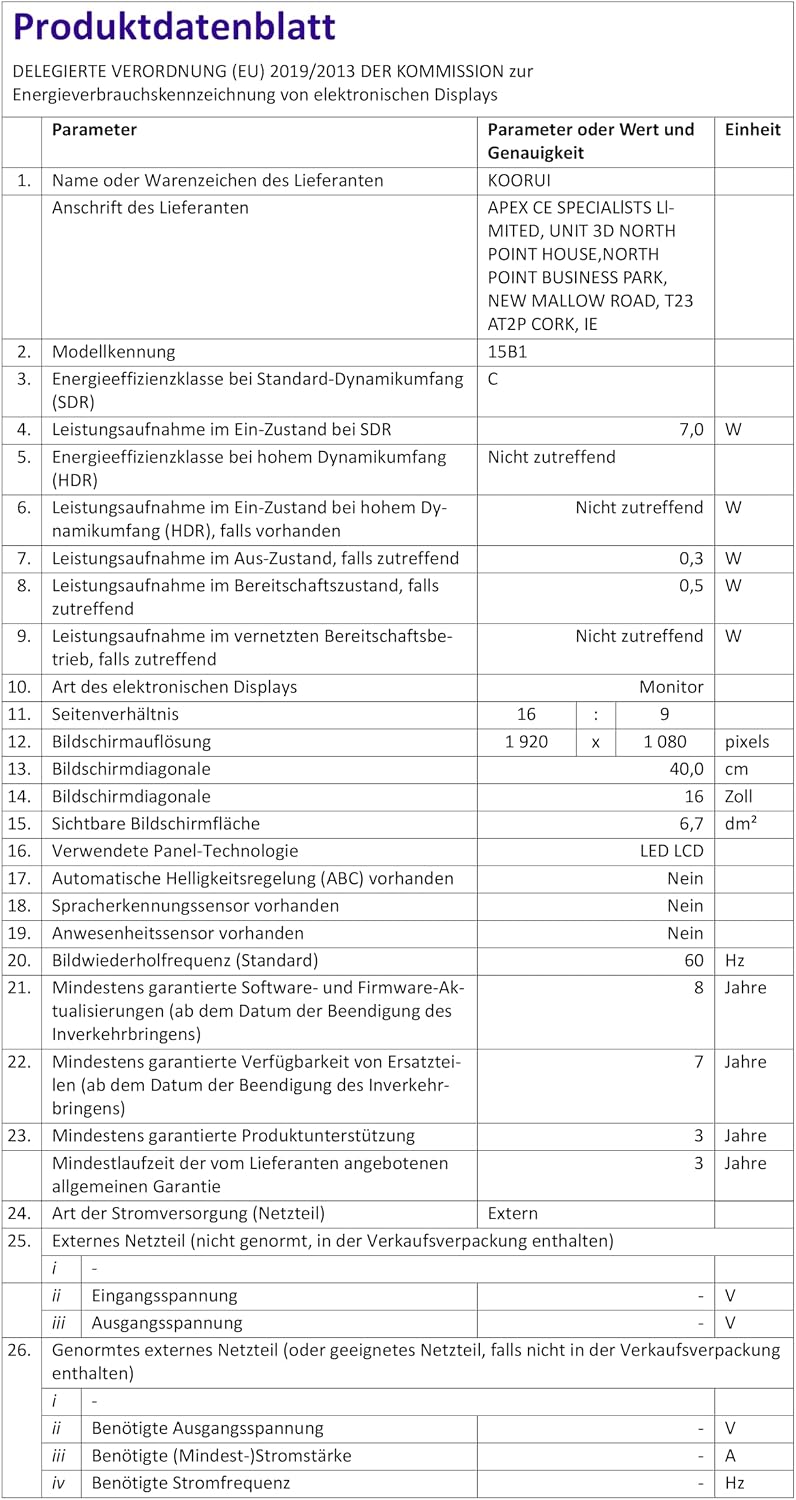
Image: An illustration of the monitor connected to different devices, highlighting its versatility for business and entertainment.
5. Funtzionamendu-argibideak
5.1. Piztu/Itzali
Press the Power button located on the side of the monitor to turn it on or off.
5.2. Distira eta bolumena doitzea
Use the Menu/Volume wheel to access the On-Screen Display (OSD) menu for various settings, including brightness and contrast. Rotate the wheel to adjust volume directly.
- Distira: Navigate to the 'Brightness' setting in the OSD menu.
- Bolumena: Rotate the Menu/Volume wheel up or down to adjust the speaker volume.
5.3. Bistaratzeko moduak
When connected to a computer, you can configure the display mode through your operating system settings (e.g., Windows Display Settings or macOS System Preferences).
- Bikoiztu modua: The portable monitor mirrors the content of your primary display.
- Hedatzeko modua: The portable monitor acts as an extension of your primary display, providing more screen real estate.
- Second Screen Only Mode: Only the portable monitor displays content, while the primary display is turned off.

Image: A visual guide to the three common display modes: Copy Mode (Duplicate), Extended Mode, and Second Screen Mode.

Image: The portable monitor in use, extending a laptop's display for enhanced workspace.
6. Mantentzea
6.1. Monitorea garbitzea
- Always disconnect the monitor from power before cleaning.
- Erabili lipurrik gabeko zapi leun bat dampUrarekin edo pantaila-garbitzaile leun eta ez-urratzaile batekin garbitu.
- Ez ihinztatu garbitzailea zuzenean pantailan.
- Avoid using harsh chemicals, alcohol, or ammonia-based cleaners, as they can damage the screen surface.
6.2. Screen Cover Care
The included screen cover protects the monitor and functions as a stand. Keep it clean and avoid placing heavy objects on it to prevent damage to the screen.
7. Arazoak
If you encounter issues with your KOORUI portable monitor, please refer to the following common solutions:
- Pantailarik ez / Pantaila beltza:
- Ziurtatu kable guztiak ondo konektatuta daudela.
- If using HDMI, confirm that a separate USB-C power cable is connected to the monitor.
- Verify your device's USB-C port supports video output (DisplayPort Alt Mode).
- Try connecting to a different device or using different cables to rule out cable or source issues.
- Low Brightness (50%):
- This often occurs when the monitor is powered solely by a single USB-C cable from the host device.
- To achieve full brightness, connect an external power adapter (5V/2.0A or higher) to one of the monitor's Type-C ports.
- Soinurik ez:
- Check the monitor's volume settings using the Menu/Volume wheel.
- Ensure your device's audio output is directed to the portable monitor.
- Note that some USB-C connections may not support audio output.
- Image Flickering or Instability:
- Ensure the monitor is receiving sufficient power. Connect an external power adapter if flickering occurs.
- Egiaztatu kableen konexioak solteak edo kalteak dauden.
- Update graphics drivers on your connected device.
8. Zehaztapenak
| Ezaugarri | Zehaztapena |
|---|---|
| Modelo zenbakia | 15B1 |
| Pantailaren tamaina | 15.6 hazbete |
| Ebazpena | FHD 1920 x 1080p |
| Panel mota | IPS (LCD) |
| Aspektu-erlazioa | 16:9 |
| Freskatze tasa | 60 Hz |
| Erantzun Denbora | 5 milisegundo |
| Kontraste-erlazioa | 3000:1 |
| Distira | 250 cd/m² |
| Viewangelua | 178 gradu |
| Konektibitatea | 2x USB Type-C, 1x Mini HDMI |
| Ezaugarri bereziak | Blue Light Filter, Integrated Speakers, Portable, Flicker-Free, FreeSync |
| Neurriak (L x W x H) | 36.25 x 23.62 x 1.62 cm |
| Pisua | 1.46 kilogramo |
| Potentzia Voltage | 240 Volt |

Irudia: Gertutik view of the monitor's integrated dual speakers, emphasizing its audio capabilities.

Image: The energy label for the KOORUI monitor, indicating its energy efficiency class 'C' and consumption of 7 kWh/1000h.
9. Bermearen informazioa
The KOORUI 15.6 inch Portable Monitor (Model 15B1) comes with a 3 urteko bermea from the date of purchase. This warranty covers manufacturing defects and ensures product quality.
Gorde erosketaren egiaztagiria bermearen erreklamazioetarako.
10. Bezeroarentzako arreta
For any questions, technical assistance, or if you encounter any damages, malfunctions, or missing accessories, please do not hesitate to contact KOORUI customer support. Our team is dedicated to providing premium service and technical support.
Refer to the contact information provided on the KOORUI official webwebgunean edo erosketa-dokumentazioan laguntza-kanal eguneratuenak ezagutzeko.
Lotutako dokumentuak15B1


Ask a question about this manual
Ask about setup, troubleshooting, compatibility, parts, safety, or missing instructions. Manuals+ will review the question and use this page’s manual context to help answer it.