
1. Produktua amaitu daview
The YEHUA USB C / Micro USB to RCA Converter Cable facilitates the connection of modern mobile devices (with USB C or Micro USB ports) to older displays equipped with RCA ports. This enables screen mirroring from your device to a larger screen, such as an HDTV, TV box, projector, or car display. The cable supports both USB C and Micro USB inputs via an integrated adapter and provides standard 3RCA (Yellow for video, White for left audio, Red for right audio) outputs.
Oharra: This cable is designed for one-way conversion from USB C/Micro USB to RCA and cannot be used in reverse (RCA to USB C/Micro USB).

Image: The YEHUA USB C / Micro USB to RCA Converter Cable, showing the USB C/Micro USB input, the converter box, and the three RCA output connectors (yellow, white, red).
2. Zer dago barne
- 1 x YEHUA USB C / Micro USB to 3RCA Converter Cable (approximately 78.7 inches / 2 meters in length)
- Integrated USB-A power cable
3. Konfiguratzeko argibideak
3.1 Pantaila batera konektatzea
- Connect RCA Plugs: Insert the three RCA male connectors (Yellow for video, White for left audio, Red for right audio) into the corresponding RCA input ports on your monitor, TV, projector, or other RCA-enabled display device.
- Energia eman: Connect the USB-A plug of the converter cable to a 5V/2A power adapter (not included) or a USB port that provides sufficient power. This is essential for the converter to function correctly.
- Konektatu gailu mugikorra: Attach the USB C or Micro USB end of the cable to your smartphone or iPad with a USB C port. The cable includes an adapter to switch between USB C and Micro USB.
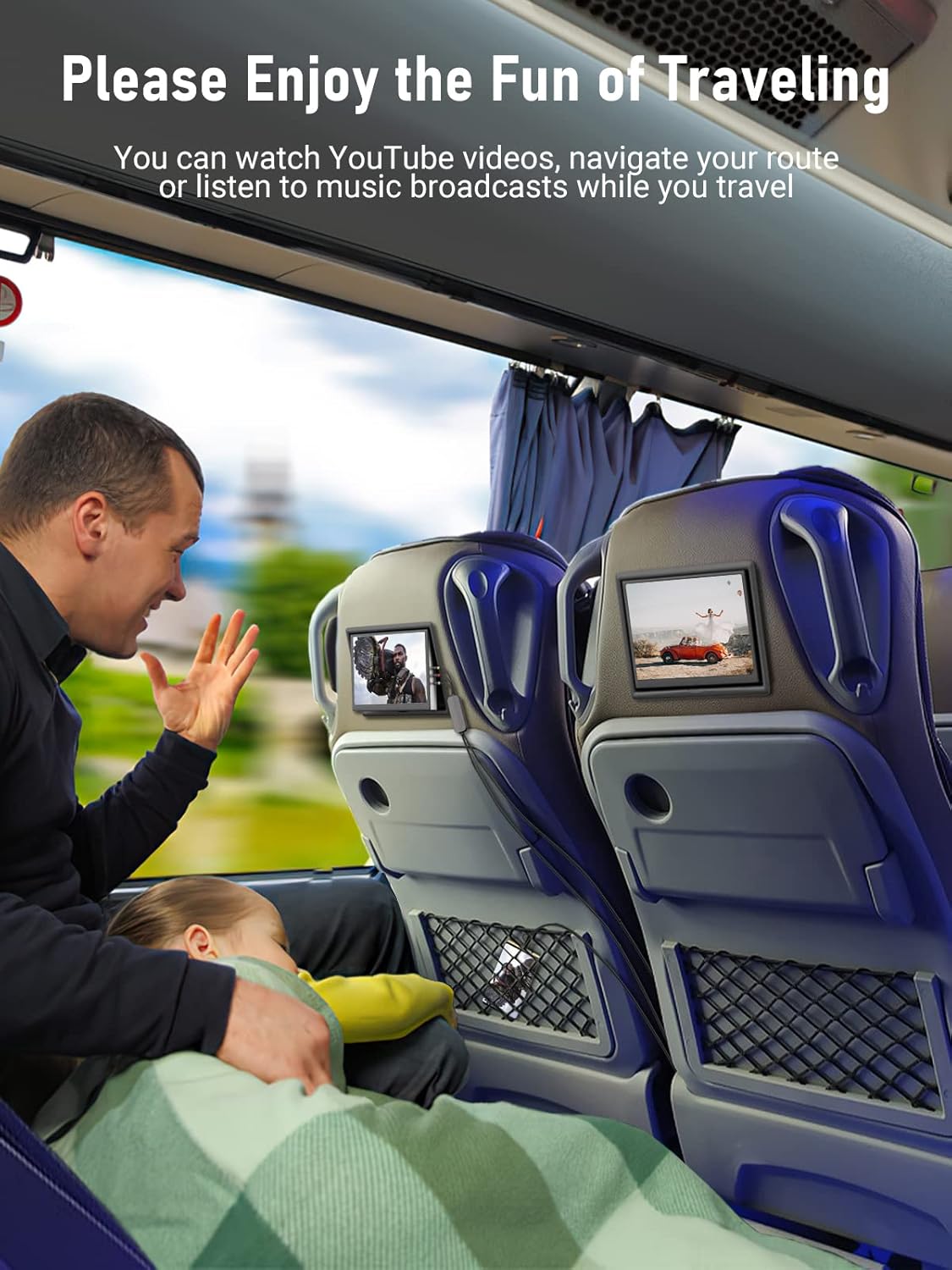
Image: A hand connecting the yellow, red, and white RCA plugs into the corresponding ports on the back of a television.

Image: A hand plugging the USB-A connector into a power adapter, which is then plugged into a wall outlet.
3.2 App Installation (for Android devices)
For Android phones, you will need to download and install the "Mirroring" application to enable the screen mirroring function. The display will show a prompt or QR code to guide you to the download page.
- Scan QR Code or Visit URL: Once connected, your display should show a QR code or a URL (adibidez, http://app2.mirror.sageres.com/mifi.mirror). Use your phone to scan the QR code or manually navigate to the URL to download the "Mirroring" app.
- Instalatu aplikazioa: Follow the on-screen instructions on your phone to install the "Mirroring" application.
- Eman baimenak: The app may request certain permissions (e.g., to record/project the screen, access photos/media). Grant the necessary permissions for the app to function.
- Start Mirroring: Open the "Mirroring" app and initiate the mirroring function.

Image: A four-step visual guide showing how to connect the cable, download the "Mirroring" app, unplug and replug the phone, and click "Allow Mirroring" to start.

Image: An eight-step detailed guide illustrating the process of scanning a QR code, downloading the app, starting the mirroring, and granting necessary permissions on an Android phone.
4. Funtzionamendu-argibideak
Once the setup is complete and the "Mirroring" app (if applicable) is running, your mobile device's screen content will be displayed on the connected RCA monitor. You can now use your mobile device as usual, and its screen will be mirrored to the larger display.
- Nabigazioa: Navigate your phone or iPad as you normally would. The display will show the mirrored content.
- Bideo erreprodukzioa: Play videos, browse websites, or view photos from your device on the larger screen.
- Audio irteera: Audio will be transmitted through the red and white RCA cables to your display's audio system or connected speakers.

Image: A smartphone connected to a car's display, mirroring a navigation app, demonstrating in-car use.
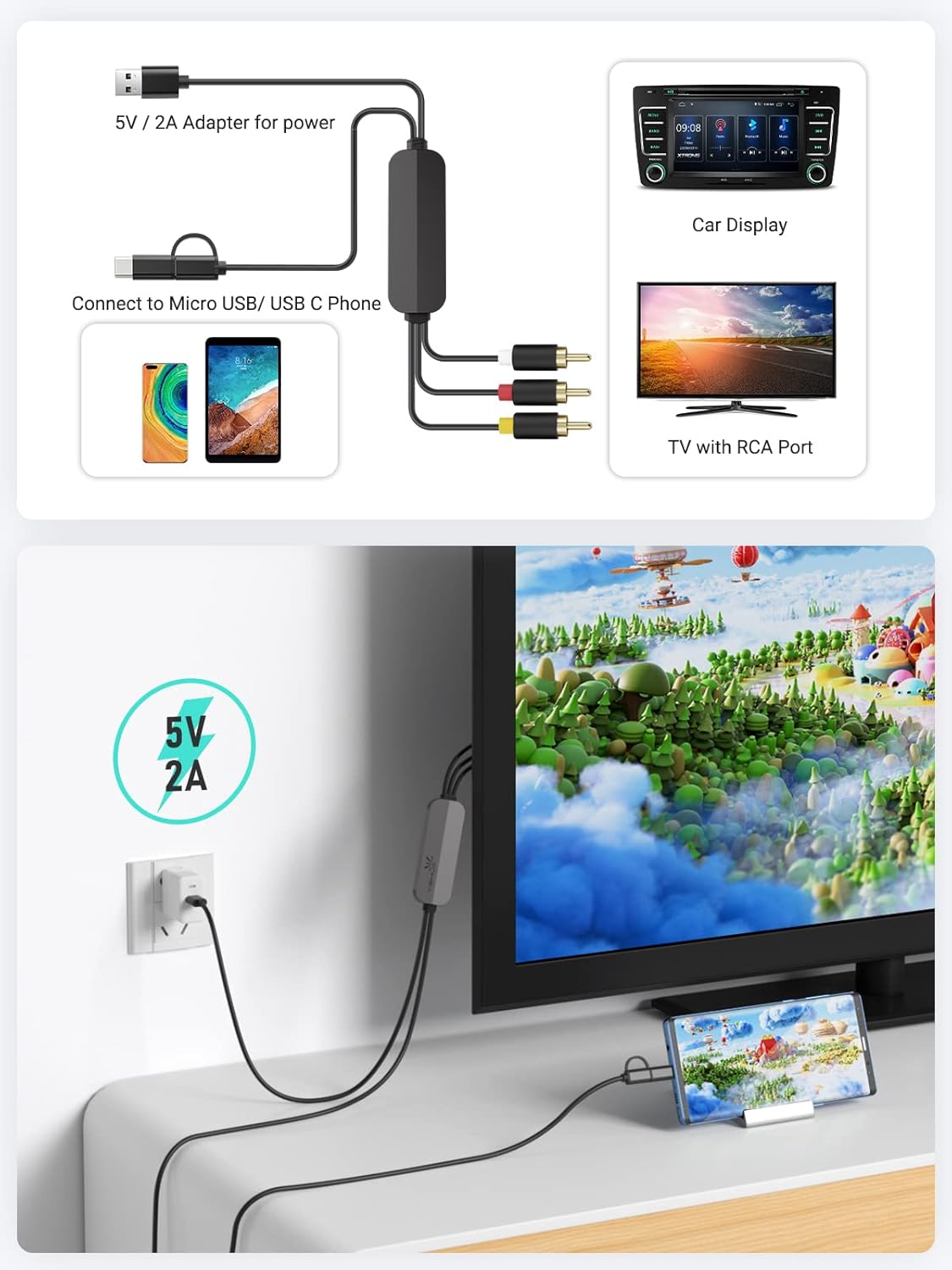
Image: A family watching a movie on a television, with the content being mirrored from a smartphone connected via the YEHUA RCA converter cable.
Video: This video demonstrates the connection process and screen mirroring functionality of the YEHUA USB C / Micro USB to RCA cable, showing how to connect it to a monitor, provide power, and use the mirroring app on a phone to display content on a larger screen.
5. Arazoak
- Ez dago pantailarik/seinalerik:
- Ensure the USB-A power cable is connected to a 5V/2A power source. Insufficient power can prevent the converter from operating.
- Verify that all RCA plugs (yellow, white, red) are securely connected to the correct input ports on your display.
- Confirm that your display is set to the correct input source (e.g., AV1, Video 1).
- For Android devices, ensure the "Mirroring" app is installed, running, and has all necessary permissions granted. Try unplugging and replugging your phone after app setup.
- Streak Pattern on Display:
- If you observe a streak pattern after a successful connection, check if the display connector ports are rusty or have poor contact. Clean the ports if necessary before plugging in the RCA cables.
- Audiorik ez:
- Ensure the white and red RCA audio cables are correctly connected.
- Check the volume settings on both your mobile device and the connected display.
- App Issues (Android):
- If the "Mirroring" app is not functioning, ensure your phone's operating system is up to date. Some older app versions might not be compatible with newer Android versions.
- Reinstall the app if issues persist.
6. Zehaztapenak
| Ezaugarri | Deskribapena |
|---|---|
| Marka | YEHUA |
| Modelo zenbakia | 6972313155255 |
| Konektore mota | USB Type C, Micro USB (via adapter), 3RCA (Yellow, White, Red) |
| Gailu bateragarriak | Android Phones, iPad with USB C Port, Monitors, Projectors, Speakers, Televisions with RCA input |
| Sarrera boltage | 5 Volts (requires 5V/2A power supply) |
| Potentzia Nominala | 10 Watt |
| Kablearen luzera | Gutxi gorabehera 78.7 hazbete (2 metro) |
| Materiala | ABS cable, Aluminum alloy shell, Acid-free Copper |

Irudia: Xehetasun zehatza view of the cable's construction, highlighting the aluminum alloy connectors, acid-free copper wiring, and ABS cable material.
7. Ohar garrantzitsuak
- Content Restrictions: Due to "HDCP" protocol protection, this adapter cannot be used to watch videos from streaming services such as Amazon Prime, Netflix, Disney+, Hulu, HBO, etc.
- Elikatze-iturria: Always use a 5V/2A power supply for optimal performance and stable operation of the RCA cable.
- Bateragarritasuna: The cable supports all Android phones and iPads with a USB C port.
8. Bezeroarentzako arreta
If you have any questions or encounter issues with your YEHUA product, please contact customer support. We aim to reply to your message within 24 hours and assist you in resolving any problems.
Harremanetarako informazioa:
- Posta elektronikoa: support@iyehua.cn
- Social Media: @YEHUA (check product packaging for specific platforms)