
1. Produktua amaitu daview
The GIGABYTE G24F 2 is a 23.8-inch gaming monitor designed for an immersive visual experience. It features a Super Speed IPS panel, Full HD (1920 x 1080) resolution, and a high refresh rate for smooth gameplay.

1.1. irudia: Aurrealdea view of the GIGABYTE G24F 2 gaming monitor.
Ezaugarri nagusiak:
- Panelaren tamaina: 23.8-inch SS IPS display
- Ebazpena: 1920 x 1080 (FHD)
- Erantzun denbora: 1 ms MPRT
- Freskatze-tasa: 165Hz (180Hz-raino overclockable)
- Kolorearen saturazioa: % 95 DCI-P3, % 125 sRGB
- Distira: 300 cd / m2 (TYP)
- Kontraste-erlazioa: 1100:1
- Konektibitatea: 2 x HDMI 2.0, 1 x DisplayPort 1.2 (HDR capable), 2 x USB 3.2 Gen 1 Downstream, 1 x USB 3.2 Gen 1 Upstream, 1 x Earphone Jack
- Ezaugarri bereziak: OSD Sidekick, Aim Stabilizer, Black Equalizer, Dashboard, Crosshair, Timer, Counter, Auto-Update, Smart OD, HDR Ready, Flicker-free, Kensington lock
2. Segurtasun informazioa
Mesedez, irakurri arretaz argibide guztiak monitore erabili aurretik. Gorde eskuliburu hau etorkizunean erreferentzia gisa.
- Ez jarri monitoreari euri edo hezetasun eraginpean sute edo deskarga elektrikoen arriskuak saihesteko.
- Ez ireki monitorearen casing. Ez dago erabiltzaileak konpondu beharreko piezarik barruan. Konponketa guztiak langile kualifikatuen esku utzi.
- Jarri monitoreak gainazal egonkor eta lau batean, eror ez dadin.
- Ziurtatu monitorearen inguruan behar bezala aireztatuta dagoela. Ez blokeatu aireztapen-irekidurak.
- Erabili fabrikatzaileak emandako korronte-egokigailua eta kableak soilik.
- Deskonektatu monitorearen entxufea tximista-ekaitzetan edo denbora luzez erabili gabe dagoenean.
- Clean the screen with a soft, lint-free cloth. Avoid using liquid cleaners directly on the screen.
3. Paketearen edukia
Egiaztatu elementu guztiak zure paketean daudela:
- GIGABYTE G24F 2 Monitor
- Monitorearen euskarria (oinarria eta lepoa)
- Elikatze-kablea
- HDMI kablea
- USB Cable (Upstream)
- Hasierako gida azkarra (QSG)
- Berme Txartela

3.1. Irudia: Atzealdea view of the monitor, illustrating the stand attachment area.
4. Konfigurazioa
4.1 Standa muntatzea
- Kontu handiz atera monitorearen eta euskarriaren osagaiak paketetik.
- Lotu euskarriaren lepoa monitorearen panelari. Ziurtatu ondo sartzen dela klik eginez edo torlojuekin lotuta dagoela, baldin badaude.
- Attach the stand base to the stand neck. Tighten the thumb screw or screws at the bottom of the base.
- Jarri muntatutako monitorea gainazal egonkor eta lau batean.
4.2 Monitorea konektatzea
Connect the monitor to your computer and other devices using the appropriate cables.

Figure 4.1: Monitor connectivity ports.
- Potentzia-konexioa: Konektatu elikatze-kablea monitorearen elikatze-sarrerara eta gero entxufe batera.
- Bideo-konexioa:
- For optimal performance, use the DisplayPort 1.2 cable to connect to your computer's graphics card.
- Alternatively, use one of the two HDMI 2.0 ports.
- USB konexio gorakorra: Connect the provided USB 3.2 Gen 1 Upstream cable from your computer to the monitor's upstream USB port to enable the monitor's downstream USB ports.
- USB Downstream Connections: Connect USB devices (e.g., keyboard, mouse) to the monitor's two USB 3.2 Gen 1 Downstream ports.
- Audio irteera: Connect headphones or external speakers to the Earphone Jack.
5. Monitorea funtzionatzea
5.1 Piztu/Itzali
Press the power button, usually located on the bottom or rear of the monitor, to turn the monitor on or off. The power indicator light will show the monitor's status.
5.2 Pantailan bistaratzeko (OSD) menua
The OSD menu allows you to adjust various monitor settings. Navigate the OSD using the joystick or buttons typically found on the rear of the monitor.

Figure 5.1: OSD Sidekick software for convenient monitor control.
For advanced control, install the OSD Sidekick software on your PC. This utility allows you to adjust monitor settings directly from your desktop.
5.3 Jokoen Ezaugarriak
The GIGABYTE G24F 2 includes several features to enhance your gaming experience:
- Helburu egonkortzailea: Reduces motion blur and improves visual clarity in fast-paced games.
- Berdinketa beltza: Jokoaren gune ilunetan ikusgarritasuna hobetzen du, gune distiratsuak gehiegi esposizionatu gabe.

Figure 5.2: Black Equalizer in action.
- Aginte-panela: Displays real-time hardware information (e.g., CPU/GPU temperature, usage) directly on the screen.

Figure 5.3: Dashboard displaying system metrics.
- Gurutzea: Provides a customizable on-screen crosshair to assist with aiming.

Figure 5.4: On-screen Crosshair.
- Timer/Counter: On-screen timers and counters for in-game tracking.
- Smart OD: Optimizes overdrive settings for the best response time.
- Eguneratze automatikoa: Ensures the monitor's firmware and OSD Sidekick software are up-to-date.
5.4 Pantailaren ezarpenak
- Freskatze-tasa: The monitor supports up to 165Hz, with an overclock option to 180Hz, for fluid motion.
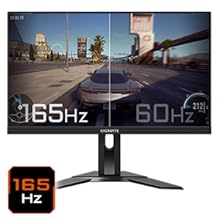
Figure 5.5: Visual comparison of 165Hz vs. 60Hz refresh rate.
- Erantzun denbora: Enjoy a 1ms MPRT (Moving Picture Response Time) for minimal ghosting.
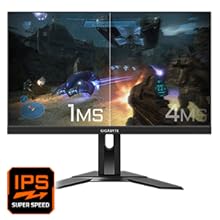
Figure 5.6: Visual comparison of 1ms vs. 4ms response time.
- Kolore gama: The monitor covers 95% DCI-P3 and 125% sRGB for vibrant and accurate colors.
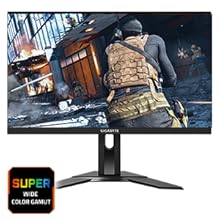
Figure 5.7: Wide color gamut for rich visuals.
- Argi urdin baxua: Reduces blue light emissions to protect your eyes during extended use.
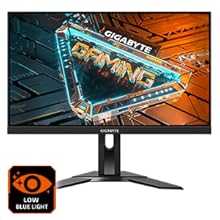
Figure 5.8: Low Blue Light feature for reduced eye strain.
- Keinurik gabekoa: Eliminates screen flickering for a more comfortable viewesperientzia.

Figure 5.9: Flicker-Free technology for comfortable viewing.
5.5 Product Feature Video
5.1. bideoa: Over batview of the GIGABYTE G24F 2 monitor's features and specifications.
6. Mantentzea
Mantentze egokiak zure monitorearen iraupena bermatzen du.
- Pantaila garbitzea: Garbitu pantaila astiro-astiro zapi leun, lehor eta pelusik gabeko batekin. Orba egoskorrak izanez gero, garbitu astiro-astiro.ampGarbitu oihala urarekin edo pantaila-garbitzaile espezializatu batekin (aplikatu oihalean, ez zuzenean pantailan).
- C garbiketaasing: Erabili zapi leun eta lehor bat monitorearen c garbitzeko.asing. Saihestu garbitzaile urratzaileak.
- Aireztapena: Ensure the ventilation openings on the monitor are clear of dust and obstructions.
- Itzali: Turn off and unplug the monitor when not in use for extended periods.
7. Arazoak
Monitorearekin arazoak badituzu, jo ezazu beheko taulara arazo ohikoenak eta irtenbideak ikusteko.
| Arazoa | Kausa posiblea | Irtenbidea |
|---|---|---|
| Ez dago irudirik pantailan | Power cable not connected; Video cable not connected; Incorrect input source selected | Egiaztatu elikadura eta bideo kablearen konexioak; hautatu sarrera-iturri zuzena OSD bidez. |
| Irudia lausoa edo distortsionatua dago | Incorrect resolution; Loose video cable | Ezarri pantailaren bereizmena 1920x1080ra; Ziurtatu bideo kablea ondo konektatuta dagoela. |
| Ez dago soinurik entzungailuetatik/bozgorailuetatik | Audio cable not connected; Volume too low; Incorrect audio output selected on PC | Check audio cable connection; Adjust volume; Select monitor as audio output on PC. |
| USB atakak ez dira funtzionatzen | USB kable gorakoirik ez dago konektatuta | Connect the USB 3.2 Gen 1 Upstream cable from the monitor to your PC. |
| Pantaila keinukaria | Refresh rate issue; Faulty cable | Ensure refresh rate is set correctly; Try a different video cable. |
8. Zehaztapenak
Detailed technical specifications for the GIGABYTE G24F 2 monitor.

8.1 irudia: Monitorearen neurriak.
| Ezaugarri | Xehetasuna |
|---|---|
| Marka | GIGABYTE |
| Ereduaren izena | G24F 2 |
| Modelo zenbakia | 9DG24F2-00-1ABIN |
| Pantailaren tamaina | 23.8 hazbete |
| Ebazpena | 1920 x 1080 pixel (FHD 1080p) |
| Aspektu-erlazioa | 16:9 |
| Bistaratzeko mota | LCD (SS IPS Panel) |
| Freskatze tasa | 165 Hz (180Hz OC) |
| Erantzun Denbora | 1 Milliseconds (MPRT) |
| Distira | 300 candela_per_square_meter (TYP) |
| Kontraste-erlazioa | 1100:1 |
| Kolore Saturazioa | % 95 DCI-P3, % 125 sRGB |
| Viewangelua | 178 gradu |
| Konektibitatea | 2 x HDMI 2.0, 1 x DisplayPort 1.2, 2 x USB 3.2 Gen 1 Downstream, 1 x USB 3.2 Gen 1 Upstream, 1 x Earphone Jack |
| Sinkronizazio egokitzailea | FreeSync Premium |
| Energia-kontsumoa | 17.5 Watt |
| Elementuaren pisua | 3.2 kilogramo |
| Elementuaren neurriak (L x W x H) | 5.3D x 54.1Z x 32.6A zentimetro |
| Muntatze Mota | Hormako Muntaia |
| Produktuaren Ezaugarriak | Flicker-Free, Height Adjustment, High Dynamic Range, Tilt Adjustment |
9. Bermea eta Laguntza
The GIGABYTE G24F 2 monitor comes with a 3 urteko bermea fabrikatzailearengandik.
For technical support, warranty claims, or further inquiries, please contact GIGABYTE customer service:
- Fabrikatzailea: GIGABYTE Technology (India) Pvt Ltd
- Helbidea: B-808, Naman Midtown, Elphinstone Road, Mumbai – 400013 – INDIA
- Telefonoa: +91-22-40633222
Gorde erosketaren egiaztagiria berme-zerbitzurako.


