
SENGBIRCH Keyboard for iPad Pro 12.9 (2018-2022)
SENGBIRCH iPad Pro 12.9-inch Keyboard Case User Manual
Model: Keyboard for iPad Pro 12.9 (2018-2022)
Brand: SENGBIRCH
1. Sarrera
This manual provides instructions for the SENGBIRCH Keyboard Case for iPad Pro 12.9-inch. This accessory transforms your iPad into a versatile workstation, offering a comfortable typing experience, multi-touch trackpad, and comprehensive protection.
Bateragarritasuna
Teklatu-zorro hau iPad Pro 12.9 hazbeteko modelo hauekin bateragarria da:
- iPad Pro 12.9-inch 6th Generation (2022): A2436, A2437, A2764, A2766
- iPad Pro 12.9-inch 5th Generation (2021): A2378, A2379, A2461, A2462
- iPad Pro 12.9-inch 4th Generation (2020): A2229, A2069, A2232, A2233
- iPad Pro 12.9-inch 3rd Generation (2018): A1876, A2014, A1895, A1983
It is not compatible with 9.7-inch iPad 5th or 6th generation devices.
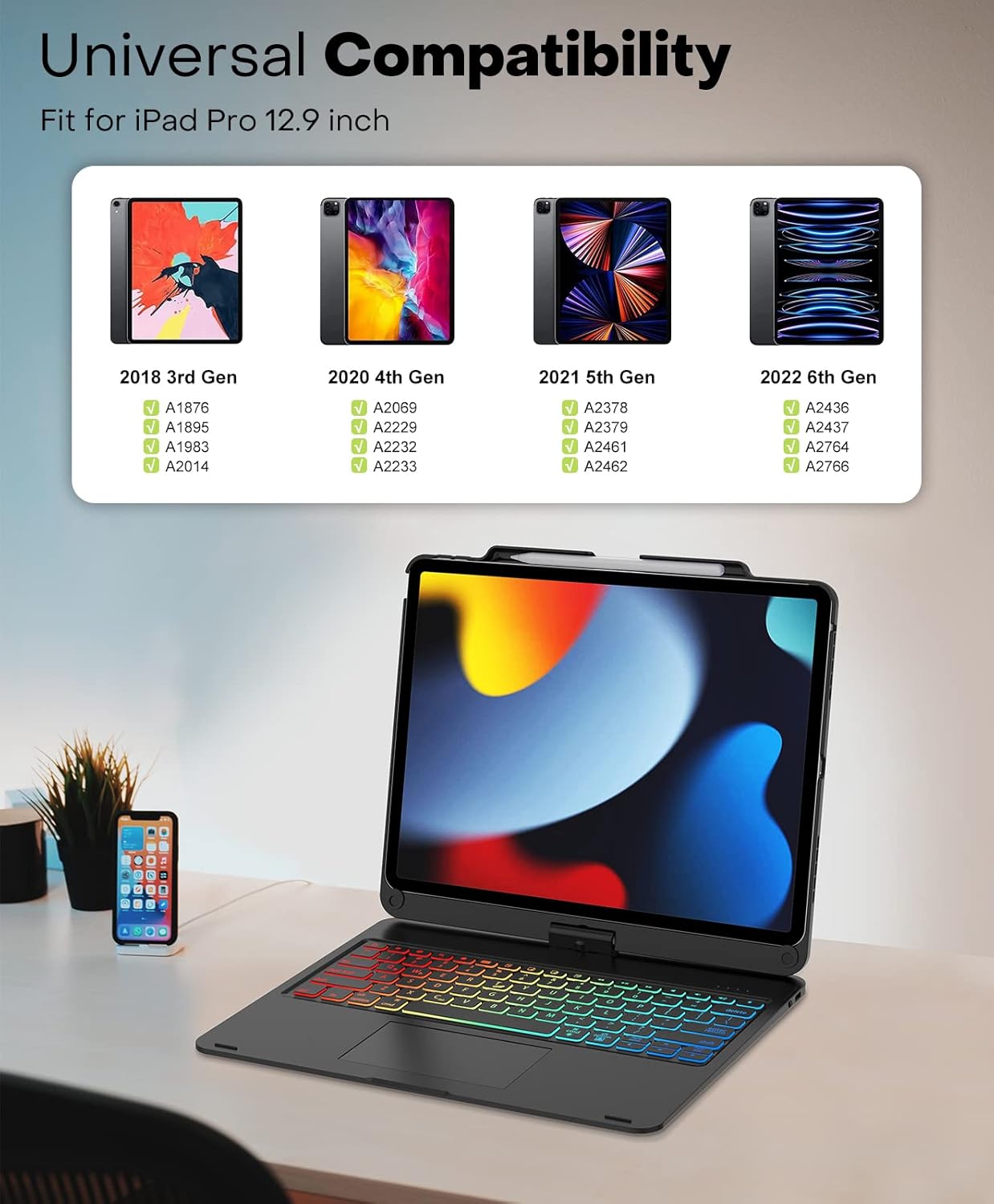
The image displays a compatibility chart, illustrating the various iPad Pro 12.9-inch models (2018 3rd Gen, 2020 4th Gen, 2021 5th Gen, 2022 6th Gen) and their corresponding model numbers that are compatible with this keyboard case.
2. Zer dago kutxan
Paketea irekitzean, elementu hauek aurkituko dituzu:
- 1 x Keyboard Case for iPad Pro 12.9 inch (3rd, 4th, 5th, 6th Generation)
- 1 x USB-C kargatzeko kablea
- 1 x Erabiltzailearen eskuliburua
Please note: The iPad tablet and Apple Pencil are NOT included.
3. Konfigurazioa
3.1 Installing Your iPad
Gently align your iPad Pro 12.9-inch with the case. The case features a magnetic attachment system. Ensure the iPad's camera aligns with the cutout on the case. The iPad will snap securely into place.

This image shows the iPad Pro 12.9-inch fully integrated into the SENGBIRCH keyboard case, highlighting the vibrant backlit keyboard and the multi-touch trackpad in use.
3.2 Bluetooth parekatzea
To connect the keyboard to your iPad:
- Ensure the keyboard is turned on and fully charged. Connect the provided USB-C cable to the keyboard's charging port and a power source.
- Turn on the keyboard using the power switch, usually located on the side or back of the keyboard.
- Zure iPad-ean, joan honera: Ezarpenak > Bluetootha.
- Turn on Bluetooth. Your iPad will search for available devices.
- Locate "MF-12 91AD" or a similar name in the "MY DEVICES" list and tap to connect.
- Once connected, the keyboard will automatically recognize and connect to your iPad each time it is turned on.

The image depicts the Bluetooth connection interface on an iPad, showing the keyboard case successfully paired and connected, along with icons representing compatibility with iOS, Windows, and Android operating systems.
4. Funtzionamendu-argibideak
4.1 Teklatuaren funtzioak
The keyboard provides a full QWERTY layout with dedicated function keys for iPadOS shortcuts. Key features include:
- Wider Key Pitch: Designed for comfortable and accurate typing, reducing errors.
- Laster teklak: Control media playback (next, back, pause, volume, mute) directly from the keyboard.
- Command Key Functions: Mimics many Apple keyboard functions, such as Command + Tab for app switching, and Command + C/V for copy/paste. Pressing the Command key alone can also bring up a shortcut overlay on the iPad screen.

Irudi honek hurbileko irudia eskaintzen du view teklatuaren, erakutsiasing its full layout with RGB backlighting, highlighting the key design and spacing for an enhanced typing experience.
4.2 Atzeko argiaren kontrola
The keyboard features 7-color backlighting with adjustable brightness levels:
- Koloreak: 1 solid cyan backlight and 6 tricolor backlights.
- Distira: 3 levels of brightness.
- Atzeko argiztapeneko etengailua: Sakatu Fn + Cmd atzeko argia pizteko/desaktibatzeko.
- Aldatu kolorea: Sakatu Fn + Alt/Option to cycle through backlight colors.
- Breathing Light Switch: Sakatu Fn + Q to activate/deactivate the breathing light effect.
- Distira doitzea: Sakatu Fn + W atzeko argiaren distira doitzeko.

This diagram illustrates the RGB backlight features of the keyboard, showing the available colors, brightness levels, and key combinations for controlling the backlight, including switching colors and activating a breathing light effect.
4.3 Ukipen anitzeko ukipen-panel
The integrated trackpad offers high precision and sensitivity, supporting multi-finger gestures for efficient navigation of your iPad. Common gestures include:
- Pasatu hatza: Navigate through content.
- Pixka bat: Handitu edo txikiagotu.
- Korritu: Move through documents or web orrialdeak.
- Multi-finger Gestures: Control various iPadOS functions, as detailed in the included user manual.

This image shows a hand interacting with the multi-touch trackpad on the keyboard case, illustrating its responsive surface for precise cursor control and gesture navigation.
4.4 360° Rotation and Viewmoduak
The case features a flexible 360-degree hinge, allowing you to rotate your iPad to various angles and modes:
- Ordenagailu eramangarriaren modua: Traditional laptop setup for typing and productivity.
- Zutik egoteko modua: Fold the keyboard back to use the iPad as a display for watching videos or presentations.
- Tablet modua: Fold the keyboard completely behind the iPad for handheld tablet use.
- Partekatzeko modua: Rotate the screen to share content with others.
The hinge allows for smooth adjustment to any desired viewing angle up to 130 degrees, providing versatility for work, entertainment, and sharing.

This image displays four different usage scenarios for the keyboard case: Laptop mode for typing, Stand mode for viewing, Tablet mode for handheld use, and Share mode for collaborative viewing, demonstrating the 360-degree swivel capability.
5. Mantentzea
5.1 Garbiketa
Teklatuaren zorroaren itxura eta funtzionaltasuna mantentzeko:
- Garbitu kanpoaldea leun batekin, damp oihal. Saihestu garbitzaile edo disolbatzaile urratzaileak.
- For the keyboard keys, use a soft, lint-free cloth. A small brush or compressed air can be used to remove debris between keys.
- Ziurtatu kargatzeko ataka hautsik eta hondakinik gabe dagoela.
5.2 Bateria zaintzea
The keyboard is powered by a built-in Lithium Ion battery. To prolong battery life:
- Kargatu teklatua guztiz lehenengo erabili aurretik.
- Saihestu muturreko tenperaturak.
- Denbora luzez gordetzen baduzu, kargatu bateria % 50era arte hilabete batzuk behin.
- Erabili emandako USB-C kablea kargatzeko.

This image highlights the USB-C charging port on the keyboard case, with a charging cable plugged in, indicating the method for recharging the device's internal battery.
6. Arazoak
6.1 Konexio arazoak
- Teklatua ez da konektatzen:
- Ziurtatu teklatua piztuta eta guztiz kargatuta dagoela.
- Egiaztatu Bluetooth gaituta dagoela zure iPad-ean.
- Forget the device in your iPad's Bluetooth settings and re-pair it.
- Berrabiarazi zure iPada eta teklatua.
- Konexio etengabea:
- Ziurtatu beste Bluetooth gailuek ez dutela interferentziarik eragiten.
- Keep the keyboard and iPad within close proximity.
6.2 Keyboard/Trackpad Not Responding
- Ziurtatu teklatua Bluetooth bidez konektatuta dagoela.
- Egiaztatu teklatuaren bateriaren maila.
- Berrabiarazi iPad-a.
- If specific keys are not working, ensure no debris is lodged beneath them.
7. Zehaztapenak
| Ezaugarri | Xehetasuna |
|---|---|
| Produktuaren neurriak | 11.14 x 9.53 x 0.59 hazbete |
| Elementuaren pisua | 2.66 kilo |
| Fabrikatzailea | SENGBIRCH |
| Elementuaren eredu-zenbakia | Keyboard for iPad Pro 12.9 (2018-2022) |
| Pilak | 1 litio ioi bateria behar da (barne) |
| Konektibitate Teknologia | Bluetooth konexioa, USB-C |
| Teklatuaren deskribapena | Wireless / Rechargeable / Touchpad / Backlight |
| Ezaugarri bereziak | Ergonomic, Backlit, Hotkeys and Media Keys, Rechargeable, Trackpad |
| Kolorea | 360 Black (RGB Backlighting) |
| Gako kopurua | 81 |
8. Bermea eta Laguntza
For warranty information and customer support, please refer to the official SENGBIRCH webgunera edo jarri harremanetan zuzenean bezeroarentzako arreta-zerbitzuarekin.
You can visit the SENGBIRCH Store on Amazon for more information: SENGBIRCH Amazon Store
A Safety Information PDF is also available: Segurtasunari buruzko informazioa (PDF)