
1. Sarrera
This manual provides detailed instructions for the assembly, installation, operation, and maintenance of your AMANSON H07 ATX Mid Tower PC Case. Please read this manual thoroughly before beginning installation to ensure proper setup and safe operation. Keep this manual for future reference.

Figure 1.1: AMANSON H07 ATX Mid Tower PC Case with illuminated internal components.
2. Segurtasun informazioa
- Always disconnect the power supply from the wall outlet before performing any installation or maintenance inside the PC case.
- Handle all components with care to prevent damage.
- Erabili eskumuturreko uhal antiestatiko bat deskarga elektrostatikoek (ESD) eragindako kalteak saihesteko osagai elektroniko sentikorrei.
- Mantendu pieza txikiak eta ontziratzeko materialak haurren eskura ez dauden lekuetan.
- Ziurtatu ordenagailuaren kaxa behar bezala aireztatuta dagoela gehiegi berotzea saihesteko.
3. Paketearen edukia
Egiaztatu elementu guztiak paketean daudela:
- AMANSON H07 ATX Mid Tower PC Case
- Osagarrien kutxa (torlojuak, euskarriak, kable-bridak, etab.)
- Erabiltzailearen eskuliburua (dokumentu hau)
4. Osagaia baino gehiagoview
The AMANSON H07 PC case features a panoramic design with tempered glass panels for full visibility of your internal components. It supports various motherboard sizes and extensive cooling configurations.

Figure 4.1: Top I/O Panel with power button, USB 3.0, USB 2.0, and audio ports.
The top I/O panel includes:
- Pizteko botoia
- Berrezarri botoia
- 2x USB 2.0 ataka
- 1x USB 3.0 ataka
- Audio In/Out Jacks
5. Konfigurazioa eta instalazioa
5.1. Kasua prestatzea
The AMANSON H07 features tool-less hinged tempered glass side panels for easy access. Gently open the side panel by pulling it from the rear edge. The panels can also be removed by lifting them off their hinges for full access during installation.

Figure 5.1: Hinged tempered glass side panel for easy access.
5.2. Plaka amaren instalazioa
The H07 supports E-ATX, ATX, Micro-ATX, and ITX motherboards. Install the necessary standoffs for your motherboard form factor. Carefully align your motherboard with the standoffs and I/O shield, then secure it with screws.
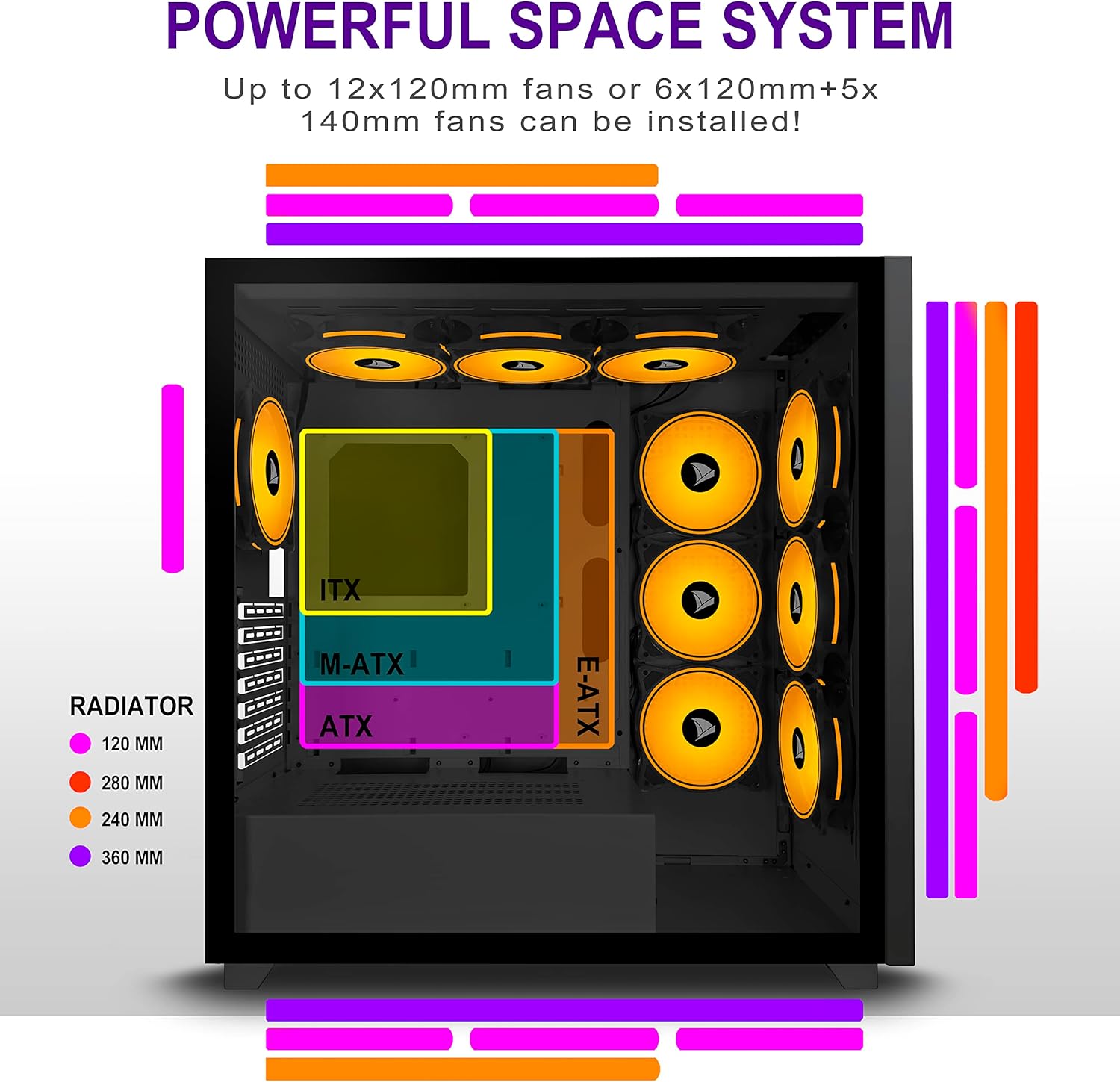
Figure 5.2: Motherboard and cooling component placement options.
5.3. Elikatze-horniduraren instalazioa
Install your power supply unit (PSU) into the dedicated compartment at the bottom rear of the case. Secure it with screws from the rear of the case.
5.4. Biltegiratze gailuaren instalazioa
The case provides multiple mounting points for storage devices. Install your 3.5" HDDs and 2.5" SSDs into the designated trays and mounting locations. Refer to the case diagram for specific locations.

Figure 5.3: Storage drive mounting options for HDDs and SSDs.
5.5. Expansion Card (GPU) Installation
Remove the necessary PCI-E slot covers from the rear of the case. Insert your graphics card or other expansion cards into the motherboard's PCI-E slots and secure them with screws.
5.6. Kableen kudeaketa
Utilize the cable routing cutouts and tie-down points behind the motherboard tray to manage cables. This improves airflow and maintains a clean aesthetic.
6. Funtzionamendu-argibideak
6.1. Piztu/Itzaltzea
Press the power button located on the top I/O panel to turn on your PC. To shut down, use the operating system's shutdown function or press and hold the power button for several seconds.
6.2. Using Front I/O Ports
Connect USB devices to the USB 2.0 or USB 3.0 ports. Use the audio jacks for headphones, microphones, or speakers.
7. Mantentzea
7.1. Garbiketa
Garbitu aldizka kaxaren kanpoaldea zapi leun eta lehor batekinamp cloth. For internal cleaning, use compressed air to remove dust from fans and components. Ensure the PC is powered off and unplugged before cleaning.
7.2. Hauts-iragazkiak
The AMANSON H07 may include removable dust filters. Clean these filters periodically to maintain optimal airflow and cooling performance.
8. Arazoak
- PC does not power on: Check all power connections, including the PSU to the wall, the PSU to the motherboard, and the front panel power switch cable to the motherboard.
- Overheating issues: Ensure all fans are properly installed and functioning. Verify that dust filters are clean and not obstructing airflow. Check thermal paste application on CPU cooler.
- USB ports not working: Confirm that the front panel USB cables are correctly connected to the motherboard headers.
- Audio jacks not working: Verify that the front panel audio cable is correctly connected to the motherboard's audio header.
9. Zehaztapenak
Below are the technical specifications for the AMANSON H07 PC Case:
| Ezaugarri | Xehetasuna |
|---|---|
| Eredua | H07 |
| Kasu mota | Mid dorrea |
| Plaka amaren bateragarritasuna | E-ATX, ATX, Micro ATX, ITX |
| Materiala | Beira Tenplatua |
| Produktuaren neurriak (LxWxH) | 19.69 x 13.78 x 19.69 hazbete (500 x 350 x 500 mm) |
| Elementuaren pisua | 24.2 kilo |
| USB 2.0 ataka kopurua | 2 |
| USB 3.0 ataka kopurua | 1 |
| Number of Expansion Slots | 8 |
| Hozteko metodoa | Airea |
| Elikatze-iturriaren muntaketa mota | Beheko mendia |

Figure 9.1: AMANSON H07 PC Case dimensions (520mm height, 510mm length, 250mm width).
10. Bermearen informazioa
Please refer to the product packaging or the official AMANSON website for specific warranty terms and conditions. Keep your proof of purchase for warranty claims.
11. Laguntza
For technical assistance or customer support, please visit the official AMANSON website or contact their customer service department. Contact details can typically be found on the product packaging or the brand's webgunea.