
Canon G2730
Canon PIXMA MegaTank G2730 All-in-One Printer User Manual
Eredua: G2730
Sarrera
Welcome to the user manual for your Canon PIXMA MegaTank G2730 All-in-One Inktank Colour Printer. This document provides essential information for setting up, operating, maintaining, and troubleshooting your printer. The PIXMA G2730 is designed for efficient printing, scanning, and copying, featuring a high-capacity ink tank system for cost-effective and high-volume output.

1. irudia: Aurrealdea view of the Canon PIXMA MegaTank G2730 printer.
Konfigurazio Gida
1. Unboxing eta Hasierako Ikuskapena
Kontu handiz atera osagai guztiak paketetik. Ziurtatu elementu hauek daudela:
- Canon PIXMA MegaTank G2730 Printer
- Elikatze kablea
- USB kablea
- Argibide eskuliburua (dokumentu hau)
- 1 set of GI71S Cyan, Magenta, Yellow, and Black ink bottles
Kendu babes-zinta eta ontziratze-material guztiak inprimagailutik.
2. Tinta-tangak betetzea
The PIXMA G2730 features an integrated ink tank system. Follow these steps to fill the ink tanks:
- Open the ink tank cover on the printer.
- Ireki tinta botila dagokion kolorerako (beltza, ziana, magenta, horia).
- Align the ink bottle nozzle with the inlet of the correct ink tank. The nozzles are designed to fit seamlessly, preventing accidental mixing.
- Allow the ink to flow into the tank until it reaches the upper limit line. Do not squeeze the bottle.
- Bete ondoren, kendu botila eta itxi ondo tinta-deposituaren tapoia.
- Errepikatu lau kolore guztietarako.

Figure 2: Printer with included ink bottles, ready for filling.

Figure 3: Illustration of the easy ink refill process, designed to prevent mixing accidents.
3. Energia konexioa eta hasierako konfigurazioa
Connect the power cord to the printer and then to a power outlet. Press the power button to turn on the printer. Follow the on-screen instructions on the printer's control panel to complete the initial setup, including language selection and print head alignment.

Figure 4: The three simple steps to get your printer ready for use.
4. Gidariaren instalazioa
Connect the printer to your computer using the provided USB cable. Install the printer drivers from the included CD-ROM or download the latest drivers from the official Canon webgunea.
- OS sistemaren bateragarritasuna Windows 11 / 10 / 8.1 / 7 SP1, macOS 10.14.6 – 12 or later, Chrome OS.
- Hardware Interfazea: USB 2.0.
Inprimagailuaren funtzionamendua
1. Papera kargatzea
Open the paper support and paper output tray. Adjust the paper guides to fit the paper size. Load up to 100 sheets of A4 paper into the rear tray.
- Supported Page Sizes: A4, A5, A6, B5, LTR, LGL, Executive, Oficio2, B-Oficio, M-Oficio, Legal (India), Foolscap, F4, 4 x 6", 5 x 7", 7 x 10", 8 x 10", Envelopes, Square, Card Size, Custom Size (Width: 55 - 216 mm, Length: 89 - 1,200 mm).
- Max Paper Thickness: 64 to 275 GSM.
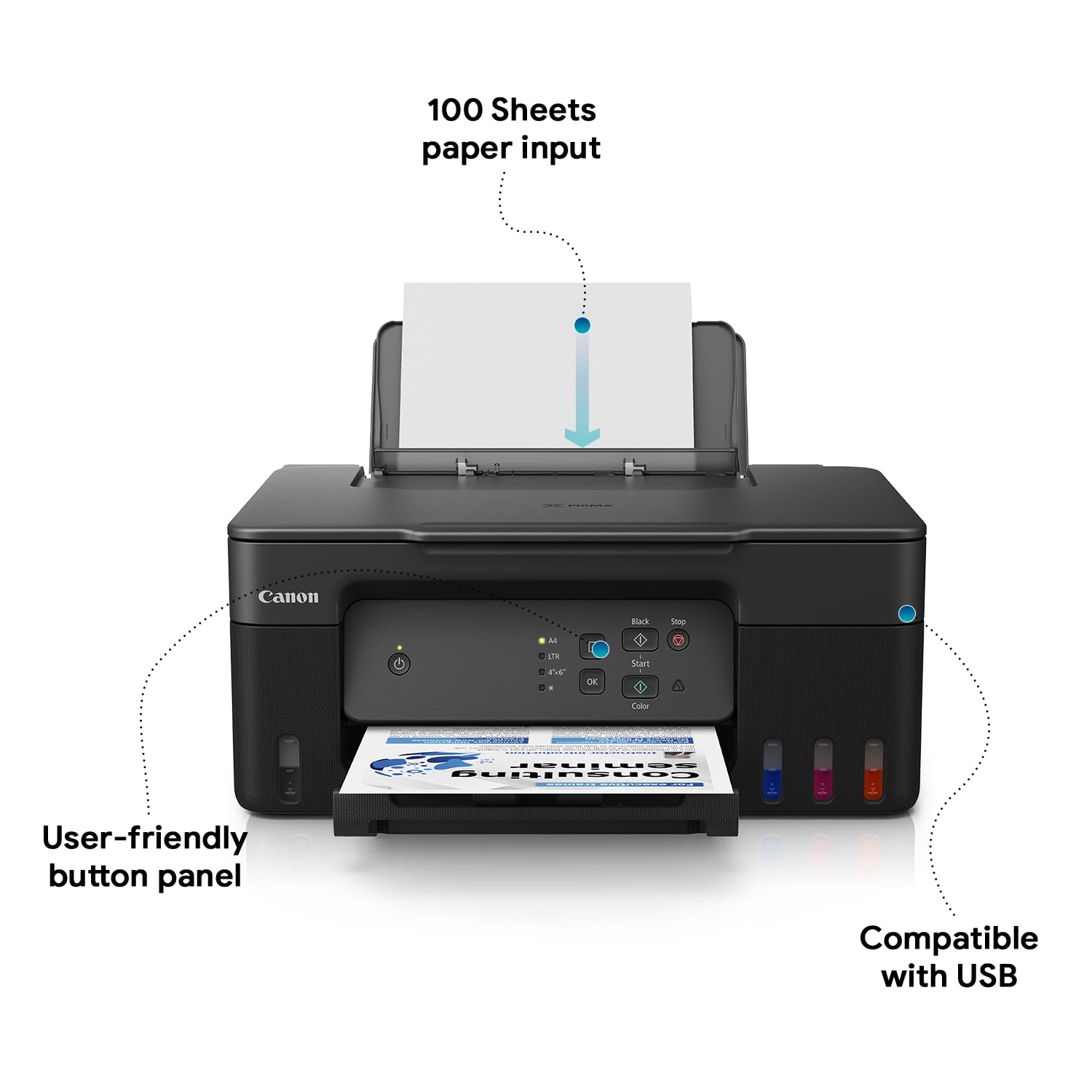
Figure 5: Paper input tray with a capacity of 100 sheets.
2. Dokumentuak eta argazkiak inprimatzea
From your computer, open the document or photo you wish to print. Select "Print" from the application's menu. In the print dialog box, select your Canon PIXMA G2730 printer and adjust settings such as paper size, print quality, and color/monochrome.
- Gehienezko inprimatze-bereizmena: 4800 x 1200 dpi.
- Inprimatzeko abiadura: 11 images per minute (mono), 6 images per minute (color).
- Mugarik gabeko inprimaketa: Supported for sizes up to A4.

Figure 6: The printer delivers precise results with high resolution and borderless printing.

Figure 7: The printer supports various printing needs including documents and photos.
3. Dokumentuak eskaneatzea
Place the document face-down on the scanner glass. Use the Canon IJ Scan Utility software on your computer or the control panel buttons on the printer to initiate a scan. You can choose to save the scan as an image or PDF.
- Eskaner mota: Ohe laua.
- Kolorearen sakonera: 24 bit.
4. Dokumentuak kopiatzea
Place the document face-down on the scanner glass. On the printer's control panel, press the "Black" button for a monochrome copy or the "Color" button for a color copy. You can adjust the number of copies using the control panel.
- Max Copy Speed (Black and White): 11 ppm.
- Gehienezko kopia bereizmena: 4800 x 1200 dpi.
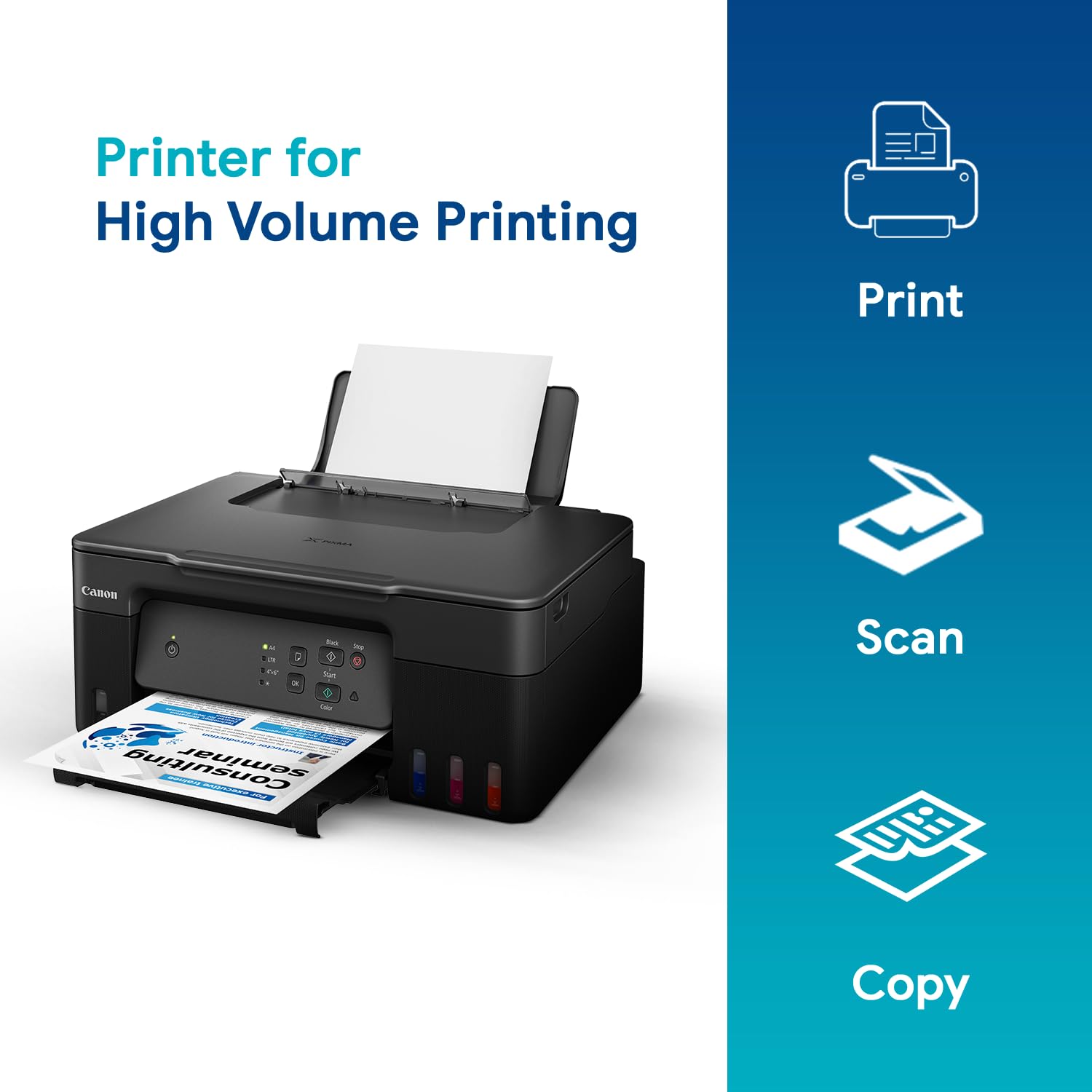
Figure 8: The printer's multi-function capabilities: Print, Scan, and Copy.
Mantentzea
1. Ink Refill
Monitor the ink levels through the transparent ink tanks on the front of the printer. When an ink tank is low, refill it using the genuine Canon GI71S ink bottles as described in the "Filling the Ink Tanks" section under Setup. Regular refilling prevents air from entering the ink tubes, which can affect print quality.

Figure 9: Small and standard ink bottles are available to meet different print volume requirements.
2. Replacing the Maintenance Cartridge
The printer uses a user-replaceable maintenance cartridge to collect waste ink. When the printer indicates that the maintenance cartridge is full or nearing capacity, replace it to ensure continued optimal performance and extend the printer's lifespan. Refer to the printer's display for instructions on how to access and replace the cartridge.

Figure 10: The easy-to-replace maintenance cartridge simplifies upkeep.
3. Inprimagailua garbitzea
Aldian-aldian garbitu inprimagailuaren kanpoaldea oihal leun eta lehor batekinamp cloth. For print quality issues, perform print head cleaning or deep cleaning from the printer's utility software on your computer.
Arazoak konpontzea
This section addresses common issues you might encounter with your Canon PIXMA G2730 printer.
1. Inprimagailuak ez du erantzuten
- Egiaztatu potentzia: Ziurtatu inprimagailua piztuta dagoela eta kablea ondo konektatuta dagoela.
- Egiaztatu USB konexioa: Verify the USB cable is firmly connected to both the printer and the computer. Try a different USB port or cable.
- Berrabiarazi gailuak: Turn off both the printer and your computer, then turn them back on.
- Gidariaren instalazioa: Confirm that the correct printer drivers are installed on your computer.
2. Inprimatze-kalitate eskasa
- Tinta mailak egiaztatu: Ziurtatu tinta-depositu guztiek nahikoa tinta dutela. Beharrezkoa bada, bete berriro.
- Inprimatze-burua garbitzea: Use the printer utility software to perform a print head cleaning. If quality does not improve, try a deep cleaning.
- Egiaztatu paper mota: Ziurtatu inprimatze-ezarpenetarako paper mota zuzena erabiltzen ari zarela.
- Inprimatu buruaren lerrokatzea: Perform print head alignment from the printer's control panel or utility software.
3. Paper-trapaketak
- Kendu paper trabatua: Carefully pull out any jammed paper from the paper output slot or the rear tray. Avoid tearing the paper.
- Check Paper Loading: Ensure paper is loaded correctly and the paper guides are adjusted to the paper width.
- Saihestu gainkargatzea: Do not load more than the maximum recommended number of sheets (100 sheets for A4).
Zehaztapenak
| Ezaugarri | Zehaztapena |
|---|---|
| Inprimagailu mota | Inkjet All-in-One (Print, Scan, Copy) |
| Konektibitatea | USB 2.0 |
| Inprimatzeko bereizmena (gehienez) | 4800 x 1200 ppp |
| Inprimatzeko abiadura (Monokromoa) | 11 images per minute (ipm) |
| Inprimatze-abiadura (koloretan) | 6 images per minute (ipm) |
| Eskaner mota | Ohe laua |
| Copy Speed (Mono) | 11 ppm |
| Gehienezko sarrera-orriaren edukiera | 100 orri (A4) |
| Tinta bateragarria | GI71 Cyan, Magenta, Yellow, Black |
| OS bateragarritasuna | Windows 11 / 10 / 8.1 / 7 SP1, macOS 10.14.6 – 12 or later, Chrome OS |
| Produktuaren neurriak | 33.7D x 41.6Z x 17.7A zentimetro |
| Elementuaren pisua | 6 kg |
| Power Consumption (Printing) | 14W |
For detailed specifications and performance metrics, refer to the official Canon product page or the technical data sheet.
Bermea eta Laguntza
Bermearen informazioa
The Canon PIXMA MegaTank G2730 printer comes with a 2 urteko berme estandarra. This warranty covers manufacturing defects and ensures repair or replacement of faulty components under normal usage conditions. Please retain your purchase receipt as proof of purchase for warranty claims.
- Berme mota: Mugatua
Bezeroarentzako Arreta
For technical assistance, troubleshooting beyond this manual, or warranty service, please contact Canon customer support.
- Canon India Customer Service: Refer to the official Canon India website for the latest contact information, including phone numbers and service center locations.
- Sareko baliabideak: Visit the Canon support website for drivers, software, FAQs, and additional user guides.
Ask a question about this manual
Ask about setup, troubleshooting, compatibility, parts, safety, or missing instructions. Manuals+ will review the question and use this page’s manual context to help answer it.