
Sarrera
This manual provides detailed instructions for setting up, operating, maintaining, and troubleshooting your TECURS MK206 Wireless Gaming Mechanical Keyboard. Please read this manual thoroughly to ensure proper use and to maximize your keyboard's features.
Produktua amaituview
The TECURS MK206 is an 80% TKL (Tenkeyless) mechanical keyboard designed for gaming and daily use, offering versatile connectivity options and customizable RGB lighting.
Ezaugarri nagusiak:
- Triple Connection Modes: USB-C Wired, 2.4G Wireless, Bluetooth (up to 3 devices).
- 87-Key Compact Layout.
- Red Mechanical Switches for quiet and fast actuation.
- 18 Colorful RGB Backlit Effects with adjustable speed and brightness.
- Programmable Software (Windows only) for lighting and key customization.
- Ergonomic Design with adjustable tilt angles.
- Durable Rechargeable Battery.
- N-teklaren birjartzea.
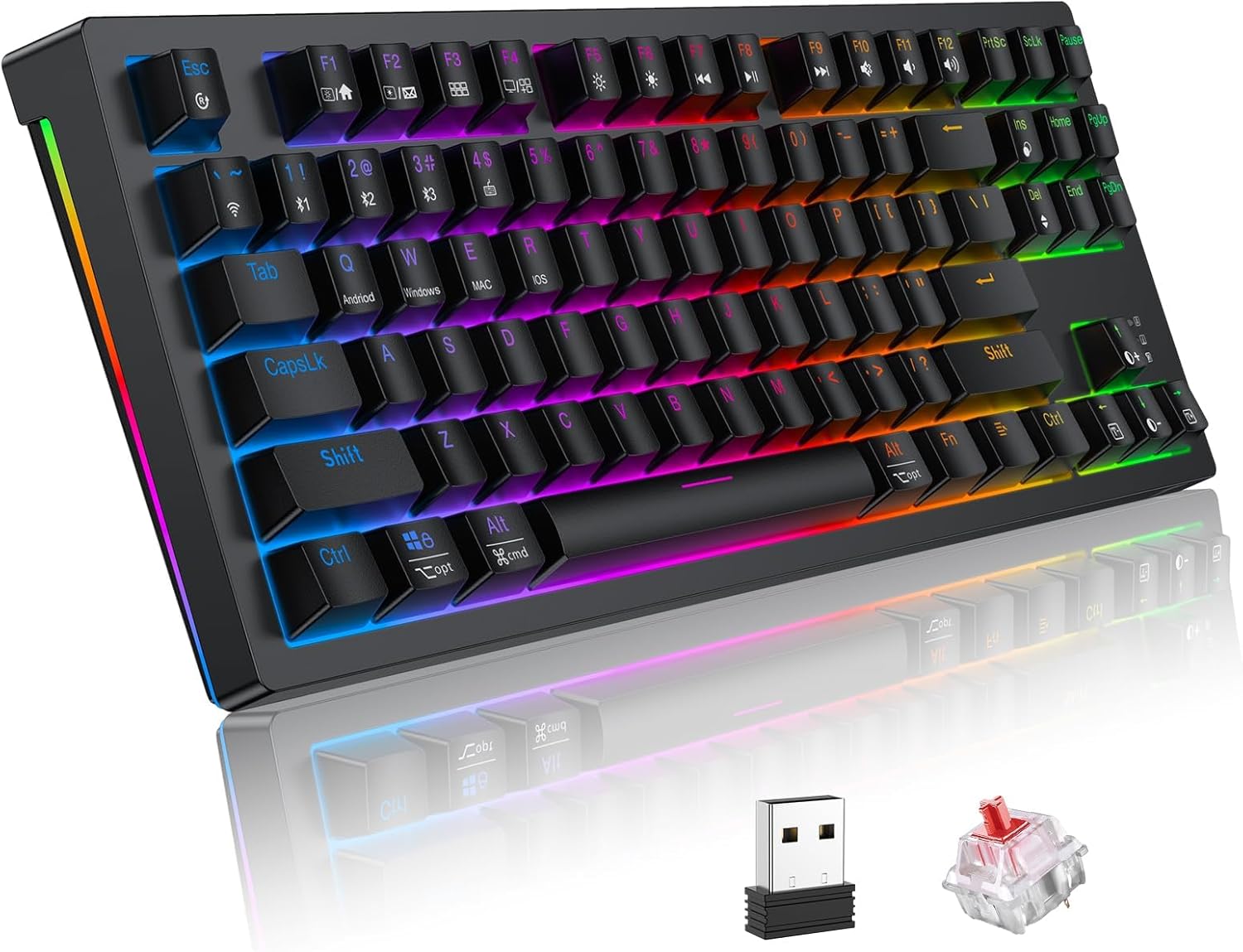
Image: TECURS MK206 Wireless Gaming Mechanical Keyboard, showcasing its compact design, included USB dongle, and a sample red mechanical switch.
Konfigurazioa
Paketearen edukia:
- TECURS MK206 Mechanical Keyboard
- USB-C kablea
- 2.4G Haririk gabeko Hargailua
- Keycap tiratzailea
- Erabiltzailearen eskuliburua (dokumentu hau)
Teklatua konektatzea:
The keyboard supports three connection modes: Wired, 2.4G Wireless, and Bluetooth.
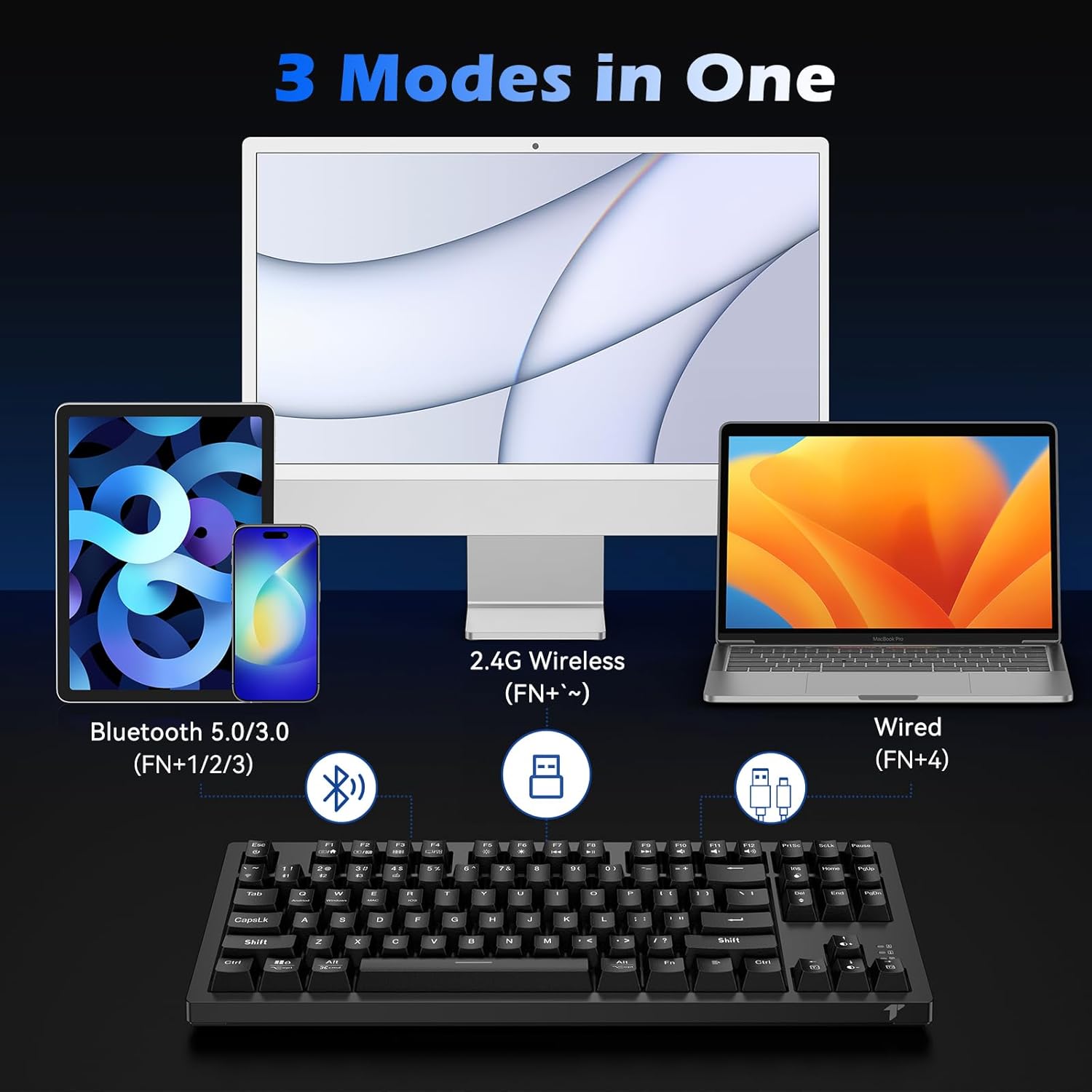
Image: Diagram illustrating the three connection modes: Bluetooth 5.0/3.0, 2.4G Wireless, and USB-C Wired.
1. Wired Mode (Fn+4):
Connect the provided USB-C cable from the keyboard to an available USB port on your computer. The keyboard will automatically switch to wired mode and begin charging.
2. 2.4G Wireless Mode (Fn+~):
Insert the 2.4G wireless receiver into a USB port on your computer. Turn on the keyboard. Press Fn + ~ (tilde key) to activate 2.4G wireless mode. The keyboard should connect automatically.
3. Bluetooth Mode (Fn+1, Fn+2, or Fn+3):
The keyboard can store up to three Bluetooth devices.
- Piztu teklatua.
- Luze sakatu Fn + 1 (edo 2, edo 3) for 3-5 seconds until the indicator light flashes rapidly, indicating pairing mode.
- On your device (PC, Mac, Tablet, Smartphone), search for Bluetooth devices and select "TECURS Keyboard" (or similar name).
- Behin konektatuta, adierazle-argia keinuka geldituko da.
- Bluetooth gailu parekatutakoen artean aldatzeko, sakatu besterik ez duzu egin behar Fn + 1, Fn + 2, edo Fn + 3.
Funtzionamendu-argibideak
RGB atzeko argiztapenaren kontrola:
The keyboard features 18 colorful RGB backlight effects.
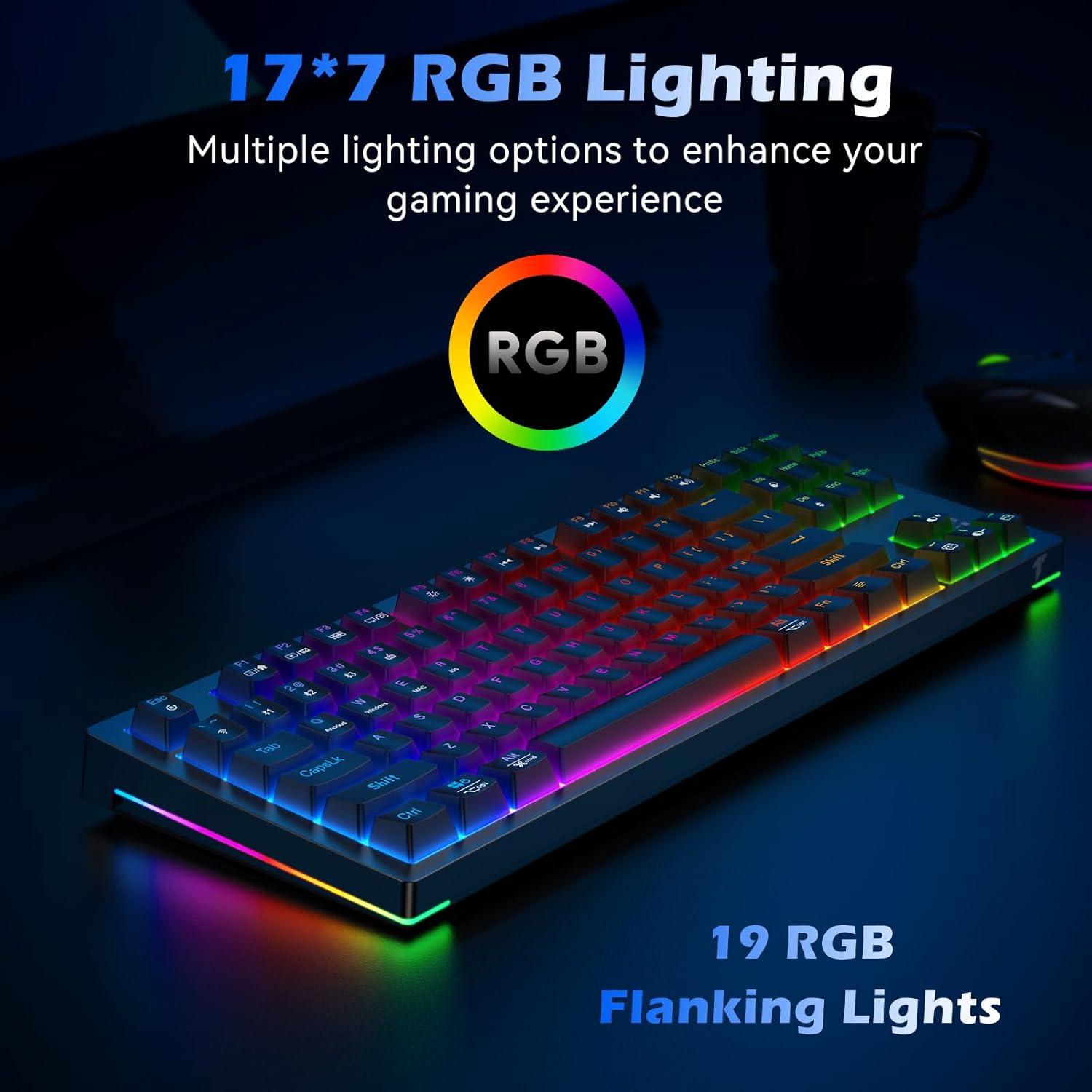
Image: The TECURS MK206 keyboard illuminated with vibrant RGB backlighting, highlighting the 19 RGB flanking lights.
- Fn + Ins: Cycle through backlight modes.
- Fn + Del: Change backlight colors (for certain modes).
- Fn + PgUp: Atzeko argiaren distira handitu.
- Fn + PgDn: Decrease backlight brightness (can turn off).
- Fn + Ezkerreko Gezia: Atzeko argiaren abiadura txikitu.
- Fn + Eskuineko gezia: Atzeko argiaren abiadura handitu.
Multimedia eta funtzio teklak:
Erabili Fn key in combination with the F-keys for multimedia and system functions.

Image: Close-up of the keyboard's F-keys, illustrating their dual functions when combined with the Fn key, including media controls and lighting adjustments.
| Tekla-konbinazioa | Funtzioa |
|---|---|
| Fn + F1 | Nire Ordenagailua |
| Fn + F2 | Search |
| Fn + F3 | Kalkulagailua |
| Fn + F4 | Multimedia erreproduzitzailea |
| Fn + F5 | Aurreko Pista |
| Fn + F6 | Hurrengo Pista |
| Fn + F7 | Erreproduzitu/Pausatu |
| Fn + F8 | Gelditu |
| Fn + F9 | Isildu |
| Fn + F10 | Bolumena jaitsi |
| Fn + F11 | Bolumena igo |
| Fn + F12 | Blokeatu teklatua |
| Fn + Irabazi | Blokeatu/Desblokeatu Windows tekla |
Programmable Software (Windows Only):
For advanced customization of lighting effects and key functions, download the dedicated software from the official TECURS webgunea.
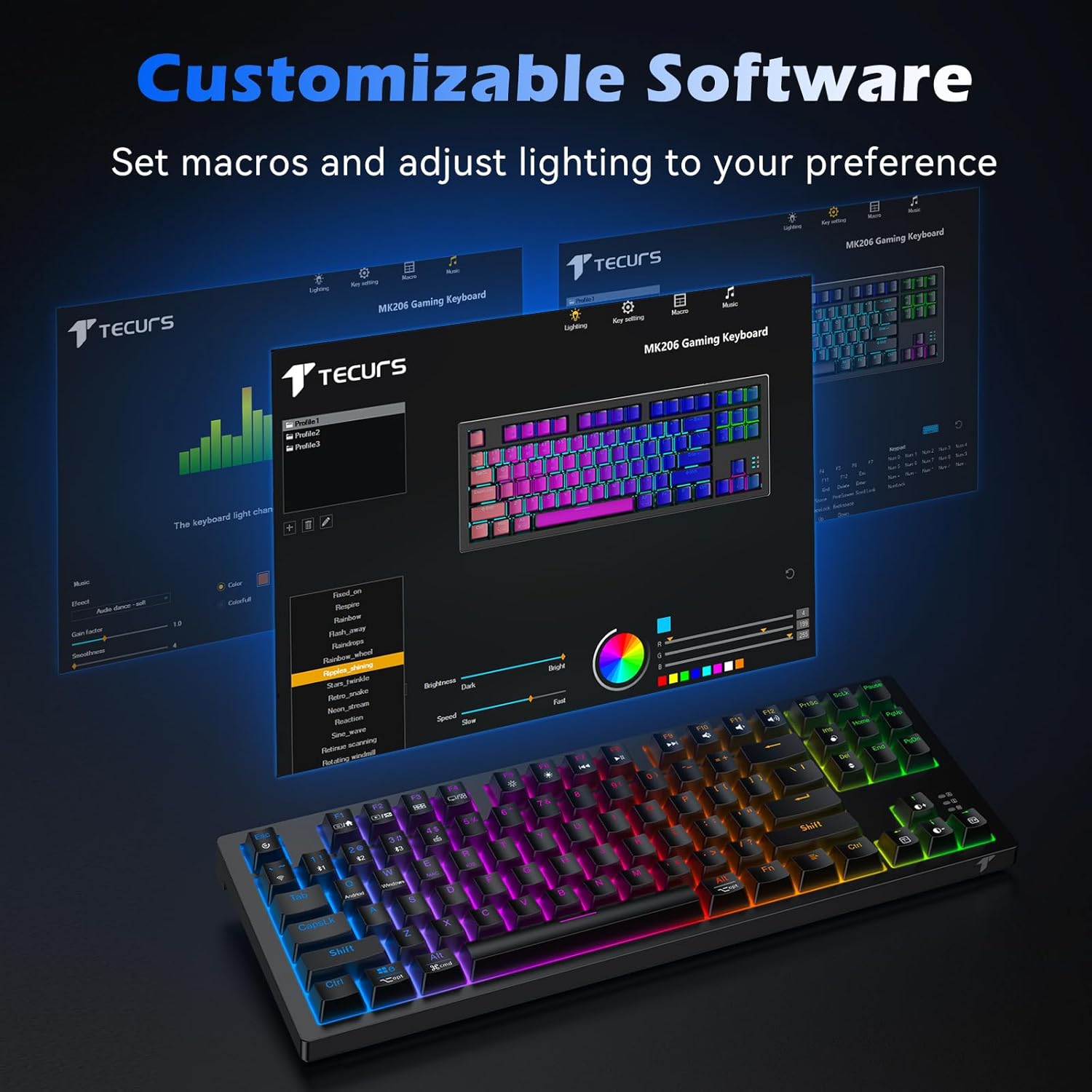
Image: Screenshot of the TECURS MK206 Gaming Keyboard's customizable software interface, showing options for macro settings and lighting adjustments.
Note: The programmable software is not compatible with Mac systems.
Mantentzea
Garbiketa:
To clean your keyboard, disconnect it from all power sources. Use a soft, dry cloth to wipe down the keycaps and chassis. For deeper cleaning, you can use a keycap puller (included) to remove keycaps and clean underneath with a small brush or compressed air.

Image: Hands using a keycap puller and a small brush to clean the TECURS MK206 keyboard, demonstrating how to maintain the mechanical switches.
Bateria zaintzea:
The keyboard has a built-in rechargeable lithium battery.
- Kargatu teklatua emandako USB-C kablea erabiliz.
- To conserve battery life, turn off the RGB lighting (Fn + PgDn repeatedly) or switch off the keyboard when not in use.
- Saihestu teklatua muturreko tenperaturen eraginpean jartzea.
Arazoak konpontzea
Ohiko arazoak eta irtenbideak:
- Teklatuak ez du erantzuten:
1. Ensure the keyboard is charged. Connect it via USB-C cable to check if it works in wired mode.
2. For wireless modes, ensure the correct mode is selected (Fn + ~ for 2.4G, Fn + 1/2/3 for Bluetooth).
3. For 2.4G, ensure the USB receiver is properly inserted.
4. For Bluetooth, ensure your device's Bluetooth is on and the keyboard is paired. Try re-pairing if necessary.
5. Try restarting your computer.
- RGB argiztapena ez dabil edo trabatuta dago:
1. Ensure the backlight is not turned off (Fn + PgDn).
2. Try cycling through different lighting modes (Fn + Ins).
3. If using the programmable software, ensure settings are correctly applied.
- Giltzak ez dira erregistratzen edo bi aldiz idazten ari dira:
1. Clean under the affected keycaps (refer to Maintenance section).
2. Ensure the keyboard firmware is up to date (check TECURS official webgunea).
3. If the issue persists, it may indicate a hardware problem.
- Programmable software not detecting keyboard:
1. Ensure the keyboard is connected via USB-C wired mode when using the software.
2. Verify you have downloaded the correct software version from the TECURS official webgunea.
3. The software is only compatible with Windows systems.
Video: An official product video from Tecurs Mall demonstrating the TECURS Gaming Keyboard's Bluetooth Mechanical features for PC/XBOX/PS4. This video highlights the keyboard's multi-device compatibility and mechanical key action.
Zehaztapenak
| Ezaugarri | Xehetasuna |
|---|---|
| Modelo zenbakia | MK206 |
| Neurriak | 14.4 x 5.3 x 1.4 hazbete |
| Elementuaren pisua | 1.7 kilo |
| Konektibitatea | Bluetooth / 2.4G Wireless / Wired (USB-C) |
| Gako kopurua | 87 |
| Aldatu mota | Etengailu Mekaniko Gorriak |
| Atzeko argiztapena | RGB (18 efektu) |
| Bateria | 1 Lithium Ion battery required (built-in rechargeable) |
| Gailu bateragarriak | Laptop, PC, Xbox, Tablet, Smartphone |
| Sistema Eragileak | Windows XP/Vista/7/8/10/11, Mac OS, Linux OS, Android |
Bermea eta Laguntza
For warranty information and technical support, please visit the official TECURS webwebgunera edo jarri harremanetan bezeroarentzako arreta-zerbitzura. Gorde erosketa-agiria berme-erreklamazioetarako.
Official TECURS Store: TECURS Amazon Store