
TECURS B0C5QJ6F34
TECURS Wireless Gaming Keyboard
Erabiltzailearen eskuliburua
Produktua amaituview
The TECURS Wireless Gaming Keyboard is designed for an optimal typing and gaming experience. It features advanced 2.4 GHz wireless technology for stable and fast data transmission, ensuring no delays or drops within a 33-foot range. The keyboard utilizes silent membrane technology, providing a responsive typing experience with minimal noise, ideal for quiet environments. Its full-size, ergonomic design includes an inclination angle for comfortable typing during extended use. Dedicated multimedia keys offer convenient control over media functions, and the monochromatic backlight with adjustable brightness enhances visibility in various lighting conditions. This keyboard is widely compatible with Windows XP, Windows 8, and Windows 10 operating systems, making it suitable for desktops, laptops, and other devices.

Image: The TECURS Wireless Gaming Keyboard, showcasing its full-size layout with vibrant, multi-color backlighting. A compact USB receiver is visible to the right of the keyboard, indicating its wireless connectivity.
Konfigurazioa eta Instalazioa
Setting up your TECURS Wireless Gaming Keyboard is a straightforward process, designed for quick plug-and-play functionality.
- Deskonprimitu teklatua: Carefully remove the keyboard and the USB receiver from its packaging.
- Aurkitu USB hargailua: The compact USB receiver is typically stored in a compartment on the keyboard or included separately in the box.
- Konektatu hargailua: Insert the USB receiver into an available USB port on your computer (desktop or laptop).
- Piztu teklatua: Ensure the keyboard is charged or has sufficient battery. There might be a power switch on the keyboard; turn it to the 'ON' position if present.
- Konexio automatikoa: The keyboard should automatically connect to your computer within a few seconds. No additional drivers are typically required for basic functionality.
- Hasierako karga: For optimal performance, it is recommended to fully charge the keyboard before its first use. Use the provided USB charging cable to connect the keyboard to a USB power source.
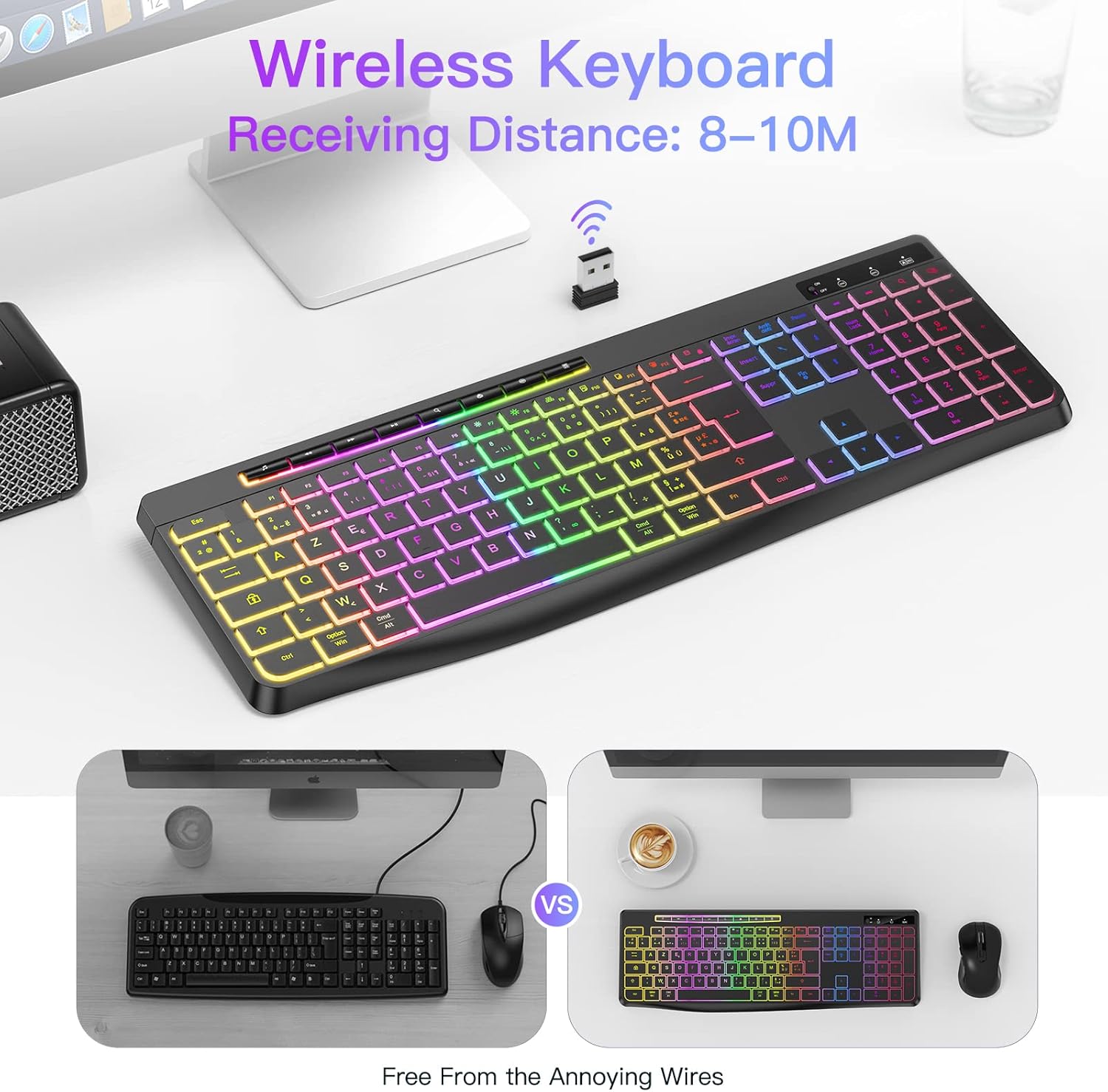
Image: The TECURS Wireless Keyboard positioned on a desk, with its USB receiver prominently displayed. An icon above the receiver indicates a wireless signal, illustrating the 8-10 meter receiving distance.
Funtzionamendu-argibideak
Oinarrizko Erabilera
Once connected, the keyboard functions like a standard full-size keyboard. Its silent membrane keys provide a comfortable and quiet typing experience, suitable for various environments.

Image: A person's hands are shown typing on the TECURS keyboard, which features colorful backlighting. The image emphasizes the low noise operation, with a muted speaker icon, suggesting its suitability for quiet environments like a bedroom where a child is sleeping in the background.
Multimedia gakoak
The keyboard includes dedicated multimedia keys for quick access to media controls. These keys are typically located along the top row (F-keys) and can be activated directly or by pressing the Fn key in combination with the respective F-key.
- Bolumen kontrola: Doitu bolumena igo, jaitsi edo isilarazi.
- Multimedia erreprodukzioa: Play/pause, stop, previous track, next track.
- Beste funtzio batzuk: Access calculator, web browser, email, etc. (refer to keyboard legends for specific functions).

Irudia: Xehetasun zehatza view of the keyboard highlighting its dimensions (437mm length, 149mm width, 20mm thickness) and key features. Insets show compatibility with Mac/Windows, the row of individual multimedia buttons, and the adjustable stand at the back of the keyboard.
Atzeko argiaren kontrola
The keyboard features a monochromatic backlight with adjustable brightness. This allows you to customize the illumination to suit your environment and preference.
- Toggle Backlight: Use the dedicated backlight key (often indicated by a light bulb icon or combined with Fn + Korritzeko blokeoa or similar) to turn the backlight on/off.
- Doitu distira: Use the brightness control keys (often Fn + Orria gora / Orria behera or similar) to increase or decrease the backlight intensity.
Note: The backlight may automatically turn off after a period of inactivity to conserve battery. Press any key to reactivate it.

Image: A split image demonstrating the keyboard's backlight feature. The left side shows the keyboard with the backlight off, indicating a "Backlight 15 Days" battery life. The right side shows the keyboard with the backlight on, indicating "Light on 10 Hours" battery life, with a 1000mAh battery icon at the top.
Mantentzea eta zaintzea
Proper maintenance ensures the longevity and optimal performance of your TECURS Wireless Gaming Keyboard.
- Garbiketa:
- Deskonektatu teklatua ordenagailutik garbitu aurretik.
- Erabili lipurrik gabeko zapi leun bat dampUrarekin edo garbiketa-soluzio leun batekin garbitu gainazala garbitzeko.
- Saihestu produktu kimiko gogorrak, garbitzaile urratzaileak edo gehiegizko hezetasuna.
- Erabili aire konprimatua teklen arteko hautsa eta hondakinak kentzeko.
- Bateria zaintzea:
- The keyboard uses a rechargeable Lithium-ion battery.
- Saihestu bateria maiz erabat deskargatzea, haren iraupena luzatzeko.
- Charge the keyboard using the provided USB cable and a standard USB power source.
- Teklatua denbora luzez gordetzen baduzu, kargatu % 50era arte eta gorde leku fresko eta lehor batean.
- Biltegiratzea: Gorde teklatua leku garbi eta lehor batean, tenperatura altuetatik eta eguzki-argitik babestuta.
Arazoak konpontzea
If you encounter issues with your TECURS Wireless Gaming Keyboard, refer to the following common troubleshooting steps:
| Arazoa | Irtenbide posiblea |
|---|---|
| Keyboard not responding / No connection. |
|
| Atzeko argia ez dabil edo ilun dago. |
|
| Teklak itsaskorrak dira edo ez dute erantzuten. |
|
Produktuaren zehaztapenak
| Ezaugarri | Xehetasuna |
|---|---|
| Marka | TECURS |
| Modelo zenbakia | B0C5QJ6F34 |
| Kolorea | Beltza |
| Konektibitate Teknologia | 2.4 GHz haririk gabekoa (USB hargailua) |
| Sistema eragileen bateragarritasuna | Windows XP, Windows 8, Windows 10 |
| Gailu bateragarriak | Joko kontsola, ordenagailu eramangarria, ordenagailua |
| Teklatuaren deskribapena | Mintza |
| Ezaugarri bereziak | Multimedia Shortcuts, Backlit |
| Gako kopurua | 104 |
| Atzeko argiaren koloreen kudeaketa | Single Color (Monochromatic) |
| Bateria mota | Litio-ioi (Kargagarria) |
| Gako Bizitza | 50,000,000 klik |
Bermea eta Laguntza
For warranty information, technical support, or any inquiries regarding your TECURS Wireless Gaming Keyboard, please contact TECURS customer service directly. Details can typically be found on the product packaging, the official TECURS webgunearen bidez edo produktua erosi zen dendariaren bidez.
The manufacturer, TECURS, is committed to providing quality products and support to its customers.
Ask a question about this manual
Ask about setup, troubleshooting, compatibility, parts, safety, or missing instructions. Manuals+ will review the question and use this page’s manual context to help answer it.