
ciciglow ciciglowxn5zg1ifqs
G20 Mirascreen 1080P Display TV Dongle User Manual
Model: ciciglowxn5zg1ifqs
1. Sarrera
The ciciglow G20 Mirascreen 1080P Display TV Dongle is a versatile media receiver designed to mirror content from your mobile devices or computers to a larger screen such as a TV, projector, or monitor. It supports 1080P video output and high-quality sound, providing an enhanced viewing and sharing experience. This device utilizes various wireless display protocols including Miracast, AirPlay, and DLNA for broad compatibility.
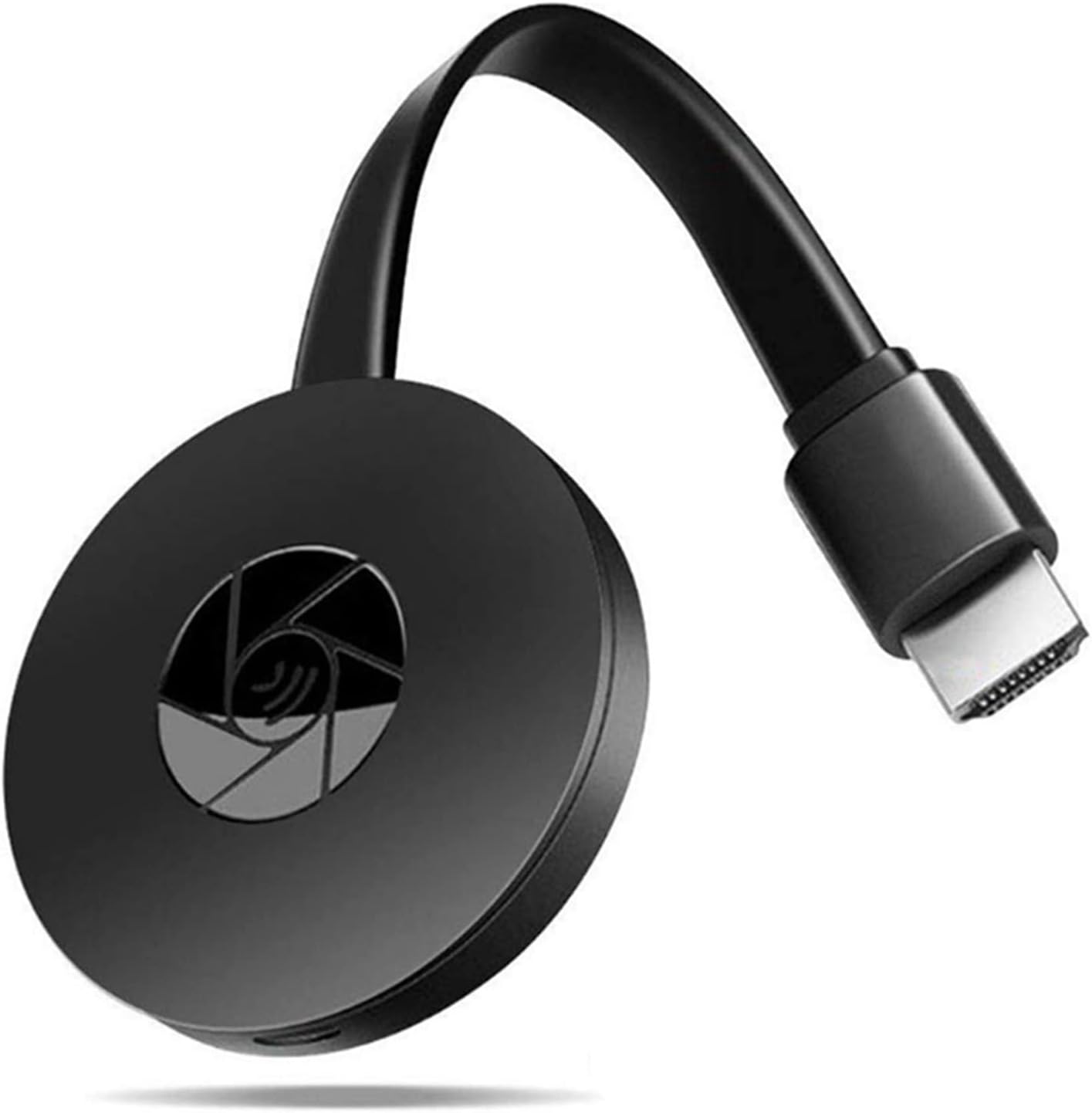
Image: The G20 Mirascreen 1080P Display TV Dongle, a compact black device with an HDMI connector.
2. Ezaugarri nagusiak
- High-Definition Output: Supports 1080P video and high-quality audio output for clear visuals and immersive sound.
- Bateragarritasun zabala: Compatible with Android 4.4+, OS X 10.9+, iOS 8.0+, and Windows 8.1/10 devices.
- Multiple Protocols: Supports Miracast, AirPlay, and DLNA for flexible screen mirroring options.
- Haririk gabeko konexio egonkorra: Equipped with an external antenna for a stable wireless signal up to 10 meters (802.11a/b/g/n/ac).
- Plug and Play: No application or software driver installation is required for operation.
- Erabilera polifazetikoa: Ideal for video streaming, web browsing, photo viewing, real-time camera sharing, and media playback on a larger screen.

Image: Diagram illustrating the G20 Mirascreen's support for various wireless display protocols including DLNA, AirPlay, and Miracast, connecting mobile devices to TVs.
3. Konfigurazio gida
Before you begin, ensure your TV or display has an available HDMI port and a USB port for power (or a 5V/1A USB power adapter).
3.1. Hasierako konexioa
- Telebistara konektatu: Insert the HDMI connector of the G20 Mirascreen dongle into an available HDMI port on your TV, projector, or monitor.
- Energia eman: Connect the USB power cable (included) to the dongle's micro USB port and then plug the USB-A end into a 5V/1A USB power source. This can be a USB port on your TV or a separate USB wall adapter.
- Hautatu Sarrera: Turn on your TV/display and use its remote control to select the corresponding HDMI input source to which the dongle is connected.
- Dongle Interface: Once powered on and the correct HDMI input is selected, the dongle's main interface will appear on your screen, displaying connection instructions and network information.

Image: Visual guide for connecting the dongle via HDMI and USB power, and its compatibility with various operating systems.
3.2. Pre-Purchase Checklist (Important Considerations)
To ensure optimal performance and compatibility, please verify the following:
- Does your TV or display support HDMI ports?
- Does your mobile phone or tablet support iOS 8+ or Android 4.4+?
- Does your computer support OS X 10.8+ or Windows 8.1+?
- Does your mobile device's operating system have a built-in mirroring function (e.g., Screen Mirroring, Smart View, AirPlay)?
4. Funtzionamendu-argibideak
The G20 Mirascreen dongle operates without the need for additional applications or software drivers. The connection method depends on your device's operating system and preferred mirroring protocol.
4.1. Connecting iOS Devices (AirPlay)
- Ensure your iOS device (iPhone, iPad) and the G20 dongle are connected to the same Wi-Fi network.
- On your iOS device, swipe down from the top-right corner (or up from the bottom for older models) to open Control Center.
- Tap on "Screen Mirroring" or "AirPlay Mirroring".
- Select the G20 Mirascreen device from the list of available devices. Your iOS device's screen will now be mirrored to the display.

Image: An iPhone wirelessly mirroring its display to a large television screen, demonstrating the AirPlay functionality of the G20 Mirascreen dongle.
4.2. Connecting Android Devices (Miracast/Smart View)
- On your Android device, navigate to the settings menu.
- Look for "Cast," "Screen Mirroring," "Smart View," "Wireless Display," or similar options. The exact name may vary by device manufacturer.
- Enable the screen mirroring feature and scan for available devices.
- Select the G20 Mirascreen device from the list. Your Android device's screen will now be mirrored to the display.

Image: A smartphone displaying a snowboarder video, which is simultaneously mirrored in Full HD 1080p on a large television screen using the G20 Mirascreen dongle.
4.3. Connecting Windows Devices
- On your Windows 8.1/10 PC, press the Windows tekla + P to open the Project menu.
- Hautatu "Konektatu haririk gabeko pantaila batera".
- Your PC will scan for available Miracast devices. Select the G20 Mirascreen from the list.
- Choose your preferred projection mode (e.g., Duplicate, Extend, Second screen only).

Image: A business meeting scenario where a presentation is being wirelessly mirrored from a mobile device to a large display screen, facilitated by the G20 Mirascreen dongle.
5. Mantentzea eta Zainketa
- Mantendu gailua lehor. Hezetasunak zirkuitu elektronikoak kaltetu ditzake.
- Do not use harsh chemicals, cleaning solvents, or strong detergents to clean the device. Wipe it with a soft, dry cloth.
- Store the device in a cool, dry place away from extreme temperatures.
- Saihestu gailua kolpe gogorrak erortzea edo jasaten.
- Ez saiatu gailua desmuntatzen edo aldatzen. Honek bermea baliogabetuko du eta kalteak eragin ditzake.
6. Arazoak
| Arazoa | Kausa posiblea | Irtenbidea |
|---|---|---|
| Ez da telebistan/monitorean bistaratzen. | Incorrect HDMI input selected; insufficient power; loose connection. |
|
| Cannot find the dongle for mirroring. | Device not in mirroring mode; Wi-Fi network issue; device compatibility. |
|
| Lagging or choppy video/audio. | Weak Wi-Fi signal; interference; distance from dongle. |
|
| Dongle gets hot. | Funtzionamendu normala; erabilera luzea. |
|
7. Produktuaren zehaztapenak
| Ezaugarri | Xehetasuna |
|---|---|
| Ereduaren izena | ciciglowxn5zg1ifqs |
| Marka | ciciglow |
| Kolorea | Beltza |
| Ebazpena | 1080p full HD |
| Konektibitate Teknologia | Wi-Fi, HDMI |
| Konektore mota | HDMI |
| Haririk gabeko protokoloak | Miracast, DLNA, AirPlay |
| Wi-Fi estandarra | 802.11a/b/g/n/ac |
| Potentzia Sarrera | 5V / 1A (via Micro USB) |
| Onartutako OS | Android 4.4+, iOS 8.0+, OS X 10.9+, Windows 8.1/10 |
| Elementuaren pisua | 3.17 ontza |
| Paketearen neurriak | 4.72 x 4.61 x 1.65 hazbete |
| Jatorrizko Herrialdea | Txina |

Image: Technical specifications highlighting the RK3036 processor, 256MB memory, Wi-Fi standard, and plug-and-play functionality of the device.
8. Bermearen informazioa
For warranty details and terms, please refer to the product packaging or contact ciciglow customer support directly. Keep your proof of purchase for any warranty claims.
9. Bezeroarentzako arreta
If you encounter any issues or have questions regarding your G20 Mirascreen dongle, please contact ciciglow customer support through the retailer where you purchased the product or visit the official ciciglow webharremanetarako informazioa lortzeko gunea.
Informazio gehiagorako, bisitatu dezakezu ciciglow Store on Amazon.