
1. Sarrera
Desview TP170 is a professional teleprompter designed for use with DSLR cameras, mirrorless cameras, camcorders, and tablets up to 17 inches. It features a high-definition beamsplitter glass, durable aluminum alloy construction, and remote control capabilities, making it suitable for various video production scenarios.
2. Ezaugarri nagusiak
- 17-inch High-Definition Beamsplitter Glass: Features 70/30 visible light transmission and 7H hardness for clear text display without ghosting, even in bright conditions.
- Bateragarritasun zabala: Supports DSLR/mirrorless cameras, camcorders, and tablets up to 17 inches.
- Bluetooth Remote Control & App: Control prompting text with the dedicated "Desview" app (iOS/Android) and included Bluetooth remote.
- Wider Angle Shooting: Designed to prevent vignetting with lenses wider than 24mm (horizontal) and 35mm (vertical). Includes a detachable sun hood.
- Aluminiozko Aleazio Premiumaren Eraikuntza: Durable and robust design with a high-quality feel.
- Eramangarrizko zorroa: Comes with a protective aluminum case for convenient storage and transport.
3. Paketearen edukia
Paketea irekitzean, egiaztatu osagai guztiak daudela:
- Teleprompter oinarria
- Beamsplitter Glass + Sunshade Hood
- PTZ (Pan-Tilt-Zoom) Unit
- Prompting Device Clip
- Urruneko Kontrola
- Convenient Aluminum Storage Suitcase
- Other accessories (e.g., screws, cables)
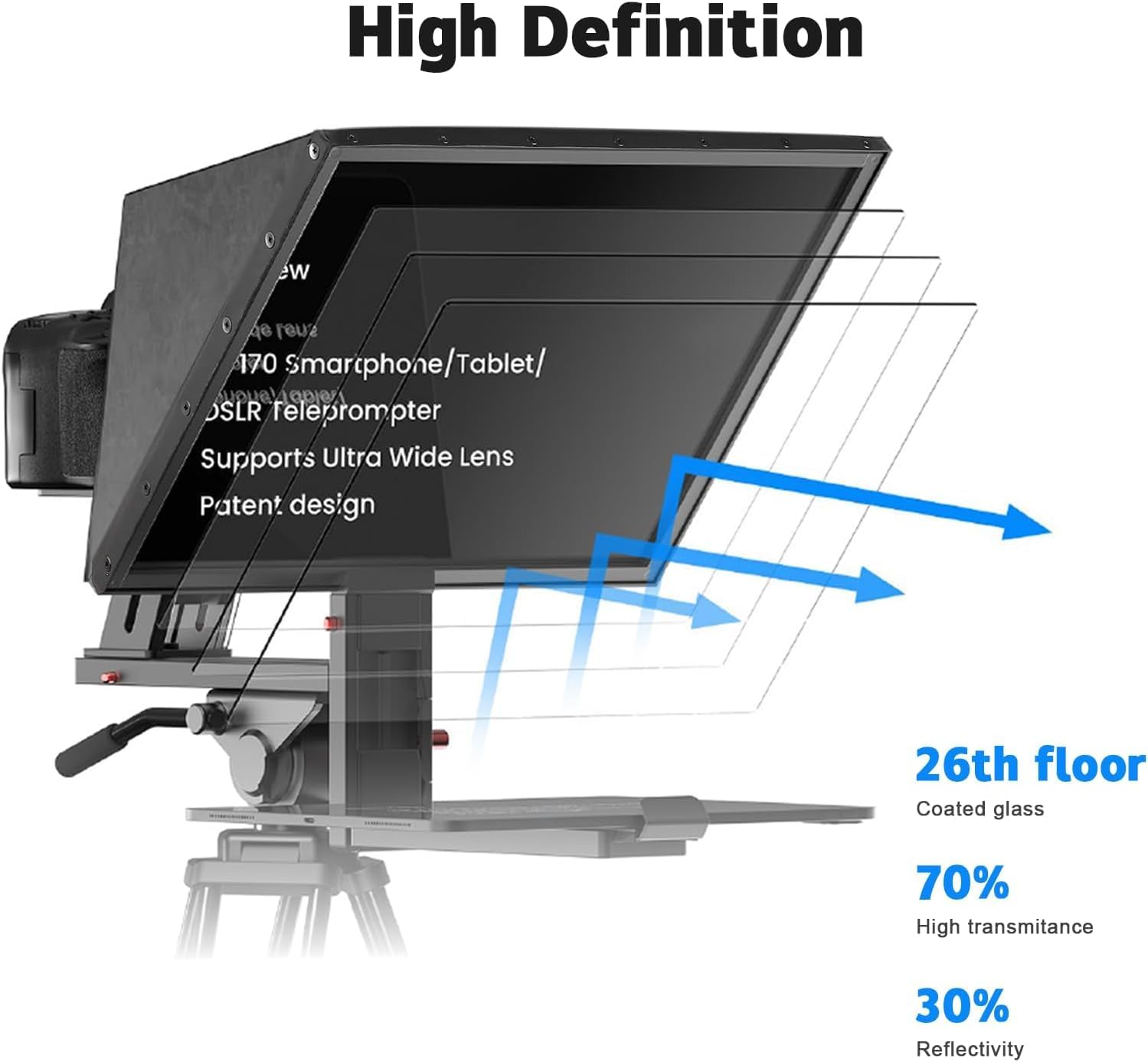
Figure 3.1: Desview TP170 Teleprompter components.
4. Konfigurazio gida
Follow these steps for proper assembly and setup of your Desview TP170 Teleprompter.
4.1. Video Guide: Teleprompter TP170 Use Techniques
Video 4.1: A detailed video demonstrating the assembly and usage of the Desview TP170 Teleprompter. This video covers unboxing, component identification, assembly steps, camera mounting, and prompting device setup.
4.2. Urratsez urratseko muntaketa
- Attach Teleprompter Base to Tripod: Secure the teleprompter base to your camera tripod using the appropriate mounting screws. Ensure it is stable.
Figure 4.2.1: Securing the teleprompter base to a tripod quick release plate.
- Mount the PTZ Unit: Attach the PTZ unit to the teleprompter base. This unit allows for vertical adjustment of the camera.

Figure 4.2.2: The PTZ unit attached to the base, illustrating adjustable stroke (50mm) and extension height (60-95mm).
- Install Beamsplitter Glass and Sunshade Hood: Carefully insert the beamsplitter glass into the teleprompter hood. Then, attach the magnetic sunshade hood to the front of the teleprompter.

Figure 4.2.3: Beamsplitter glass specifications.

Figure 4.2.4: Camera mounted with sunshade hood.
- Muntatu kamera: Attach your DSLR, mirrorless camera, or camcorder to the camera plate on the PTZ unit. Adjust its position to ensure the lens is centered with the beamsplitter glass.

Figure 4.2.5: DSLR camera mounted on the teleprompter.
- Attach Prompting Device Clip and Device: Slide the prompting device clip onto the base. Place your tablet or smartphone (up to 17 inches) onto the clip.

Figure 4.2.6: Horizontal and vertical prompting setup with a tablet.
5. Funtzionamendua
5.1. Using the Desview App and Bluetooth Remote
Desview TP170 teleprompter is controlled via a dedicated mobile application and a Bluetooth remote control.
- Deskargatu aplikazioa: Bilatu "Desview" on the App Store (iOS) or Google Play (Android) and install the application on your prompting device (tablet or smartphone).
- Connect Bluetooth Remote: Pair the included Bluetooth remote control with your prompting device.
- Load Script: Open the Desview app and load your script.
- Control Prompting: Use the Bluetooth remote to control functions such as turning pages, pausing, adjusting scroll speed, and changing text/background colors.

Figure 5.1.1: Desview app and Bluetooth remote control in use.

Figure 5.1.2: Bluetooth remote control functions.
5.2. Connecting External Devices for Prompting
The teleprompter supports various external devices for displaying scripts:
- Smartphone Prompting: Connect your smartphone to the teleprompter's display input (if available) or use it directly on the prompting device clip. Ensure the display is mirrored or extended.
- Laptop Prompting: Connect a laptop to the teleprompter's display input for larger script display. This is useful for longer scripts or complex presentations.
Video 5.2.1: Demonstrates smartphone prompting (0:42 in video) and laptop prompting (0:47 in video) with the Desview TP170 Teleprompter.
5.3. Horizontal and Vertical Prompting
The teleprompter supports both horizontal and vertical orientations for your prompting device. Use the vertical L-bracket as needed to adjust the orientation.
Figure 5.3.1: Teleprompter configured for horizontal and vertical prompting.
6. Mantentzea eta Zainketa
- Izpi-banatzailearen beira garbitzea: Use a soft, lint-free cloth and a specialized glass cleaning solution. Avoid abrasive materials that could scratch the surface.
- Garbiketa orokorra: Wipe down the aluminum alloy frame and other components with a dry or slightly damp oihal. Ez erabili produktu kimiko gogorrak.
- Biltegiratzea: When not in use, store the teleprompter in its provided aluminum carry case to protect it from dust, moisture, and physical damage.
- Manipulazioa: Always handle the teleprompter with care, especially the beamsplitter glass, to prevent breakage or misalignment.

Figure 6.1: Storing the teleprompter in its carry case.
7. Arazoak
| Arazoa | Kausa posiblea | Irtenbidea |
|---|---|---|
| Text appears blurry or ghosted. | Beamsplitter glass is dirty or improperly installed. | Clean the beamsplitter glass with a soft cloth and appropriate cleaner. Ensure the glass is seated correctly in its frame. |
| Urrutiko agintea ez da erantzuten. | Low battery, not paired, or out of range. | Replace batteries. Re-pair the remote with your device via Bluetooth. Ensure the remote is within operating range. |
| Kameraren irudian binetatzea (txoko ilunak)tage. | Camera lens too wide or improperly positioned. | Adjust camera position to center the lens. Ensure your lens is within the recommended focal length (e.g., >24mm horizontal, >35mm vertical). |
| Prompting device not fitting the clip. | Device size exceeds maximum supported. | Ensure your tablet or smartphone is up to 17 inches. Adjust the clip to its maximum extension. |
8. Zehaztapenak
| Ezaugarri | Xehetasuna |
|---|---|
| Modelo zenbakia | Desview-TP170 |
| Produktuaren neurriak | 7.87 x 14.17 x 11.42 hazbete |
| Elementuaren pisua | 9.5 libra (4.32 kilogramo) |
| Izpi-banatzaile beira | 17 inch, 7H hardness, 70/30 visible light transmission |
| Gailu bateragarriak | DSLR/Mirrorless Camera, Camcorder, Tablets/iPads up to 17 inches |
| Materiala | Aluminiozko aleazioa |
| Kolorea | Beltza |
| Kontrola | Bluetooth Remote Control, "Desview" App (iOS/Android) |
| UPC | 723884578723 |
9. Bermea eta Laguntza
For warranty information and technical support, please refer to the official Desview webwebgunera edo jarri harremanetan bezeroarentzako arreta-zerbitzura zuzenean. Gorde erosketa-agiria erosketaren frogagiri gisa berme-erreklamazioetarako.
Official Desview Webgunea: www.desview.com