
1. Sarrera
This manual provides detailed instructions for the setup, operation, and maintenance of your INPHIC M6Pro Wireless Tri-Mode Ergonomic Mouse. Please read this manual thoroughly before using the product to ensure proper functionality and longevity.
2. Produktua amaitu daview
The INPHIC M6Pro is a versatile wireless mouse designed for comfort and efficiency. It features multiple connectivity options, customizable performance, and smart features to enhance your computing experience.
Ezaugarri nagusiak:
- Konektibitate bikoitza: Supports both 2.4G wireless and Bluetooth 5.0 connections for flexible device pairing.
- Diseinu ergonomikoa: Right-handed design with a 39mm height, wide thumb rest, and non-slip grips for enhanced comfort and stability during extended use.
- Customizable Performance: Offers 5-speed DPI adjustment ranging from 800 to 2400 DPI, allowing you to tailor cursor sensitivity. Features silent click buttons for quiet operation.
- Ezaugarri adimendunak: Includes RGB lighting effects, a stepped battery indicator, and optimized three-dimensional side buttons designed to prevent accidental clicks.
- Energia-eraginkortasuna: Equipped with a 500mAh rechargeable battery and a convenient Type-C charging port for prolonged use.
3. Paketearen edukia
- INPHIC M6Pro Wireless Mouse
- USB hargailua (saguaren barruan gordeta)
- USB-C kargatzeko kablea
- Erabiltzailearen eskuliburua
4. Konfigurazioa
4.1 Sagua kargatzea
Before first use, fully charge the mouse. Connect the provided USB-C charging cable to the Type-C port on the front of the mouse and to a USB power source.

Image: The INPHIC M6Pro mouse being charged via its Type-C port. The battery indicator lights are visible, showing charging status.
The battery indicator lights will flash in a cycle while charging. Once fully charged, all battery indicator lights will remain steadily lit.
Video: Demonstrates the mouse charging process, showing the battery indicator lights flashing during charging and remaining solid when fully charged.
4.2 2.4G Haririk gabeko Konexioa
- Locate the USB receiver stored in the compartment at the bottom of the mouse.
- Konektatu USB hargailua zure ordenagailuko USB ataka erabilgarri batean.
- Turn on the mouse using the ON/OFF switch located at the bottom.
- Ensure the mode switch at the bottom is set to the '2.4G' position (red light will be on). The mouse should automatically connect to your device.
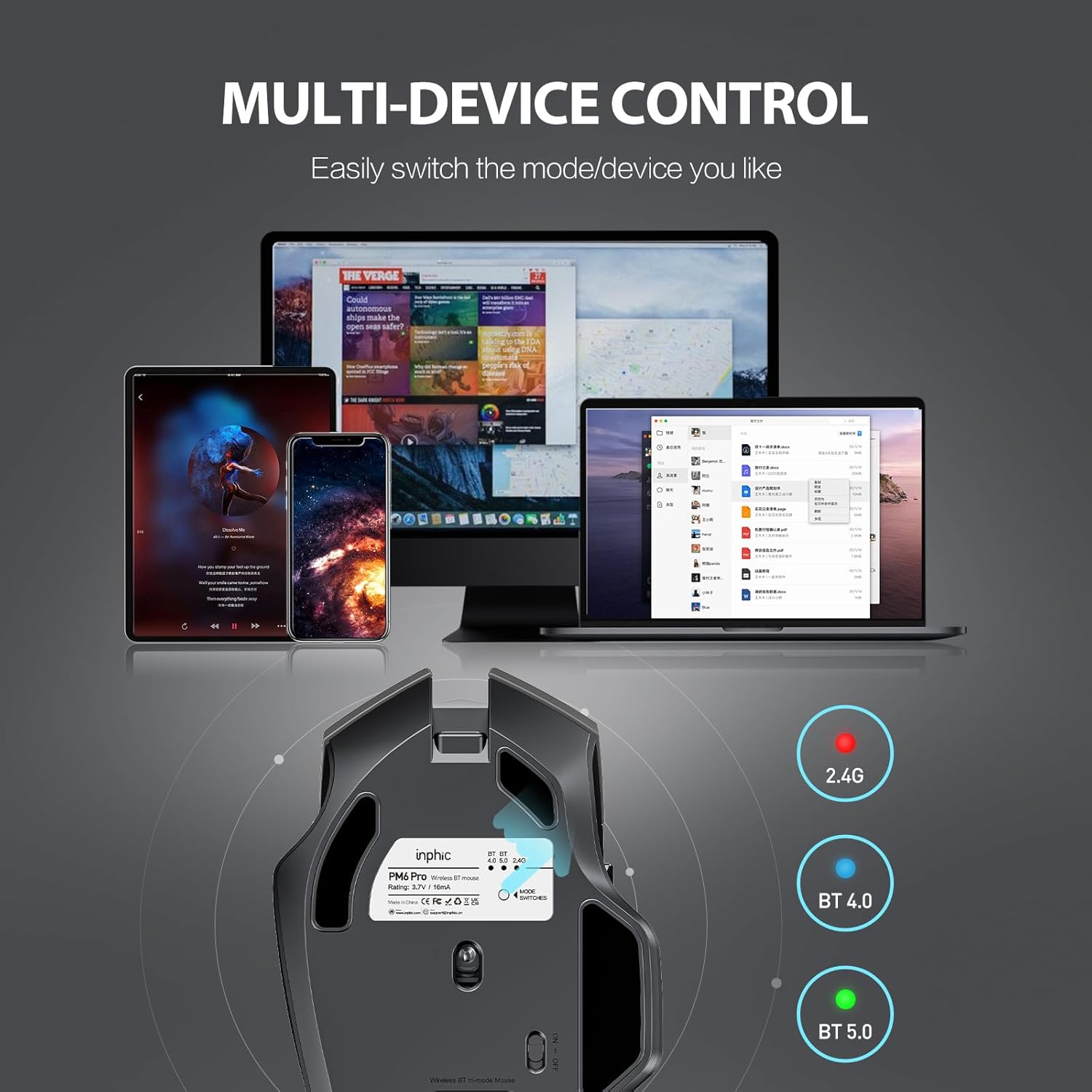
Image: The underside of the mouse, highlighting the USB receiver storage and the mode switch for 2.4G, BT 4.0, and BT 5.0 connections.
4.3 Bluetooth Connection (BT 5.0 / BT 4.0)
- Turn on the mouse using the ON/OFF switch at the bottom.
- Short-press the 'MODE SWITCHES' button at the bottom to cycle through connection modes until the desired Bluetooth indicator (BT 5.0 or BT 4.0) lights up.
- For pairing, long-press the 'MODE SWITCHES' button until the selected Bluetooth indicator light flashes rapidly. This indicates the mouse is in pairing mode.
- On your device (computer, tablet, etc.), go to Bluetooth settings and search for new devices. Select 'INPHIC M6Pro' (or similar name) to pair.
Video: Demonstrates how to switch between 2.4G and Bluetooth modes (BT 4.0, BT 5.0) and enter pairing mode by pressing the mode switch button on the mouse's underside.
5. Funtzionamendu-argibideak
5.1 DPI doikuntza
The mouse features a DPI switch button located behind the scroll wheel. Press this button to cycle through 5 DPI settings (800, 1200, 1600, 2000, 2400 DPI) to adjust cursor sensitivity to your preference.

Image: A diagram illustrating the location of the DPI switch button and other buttons on the mouse.
5.2 Botoien funtzioak
The INPHIC M6Pro mouse is equipped with 6 buttons:
- Ezkerreko tekla: Ezkerreko klik funtzio estandarra.
- Eskuineko giltza: Eskuineko botoiarekin klik egiteko funtzio estandarra.
- Korritzeko gurpila: Gora/behera mugitzen da eta erdiko klik egiteko botoiaren funtzioa betetzen du.
- DPI etengailua: Kurtsorearen sentikortasuna (DPI) doitzen du.
- Aurrera egiteko botoia: Aurrera nabigatzen du web nabigatzaileak edo file esploratzaileak.
- Atzera botoia: Atzeraka nabigatzen du web nabigatzaileak edo file esploratzaileak.

Irudia: Xehetasun handikoa view of the mouse's underside, showing the power switch, LED indicator, and USB receiver slot.
5.3 Ergonomic Design and Silent Operation
The mouse features a curved, skin-like material design for a comfortable grip, reducing hand strain during prolonged use. The widened thumb rest further enhances comfort and control.
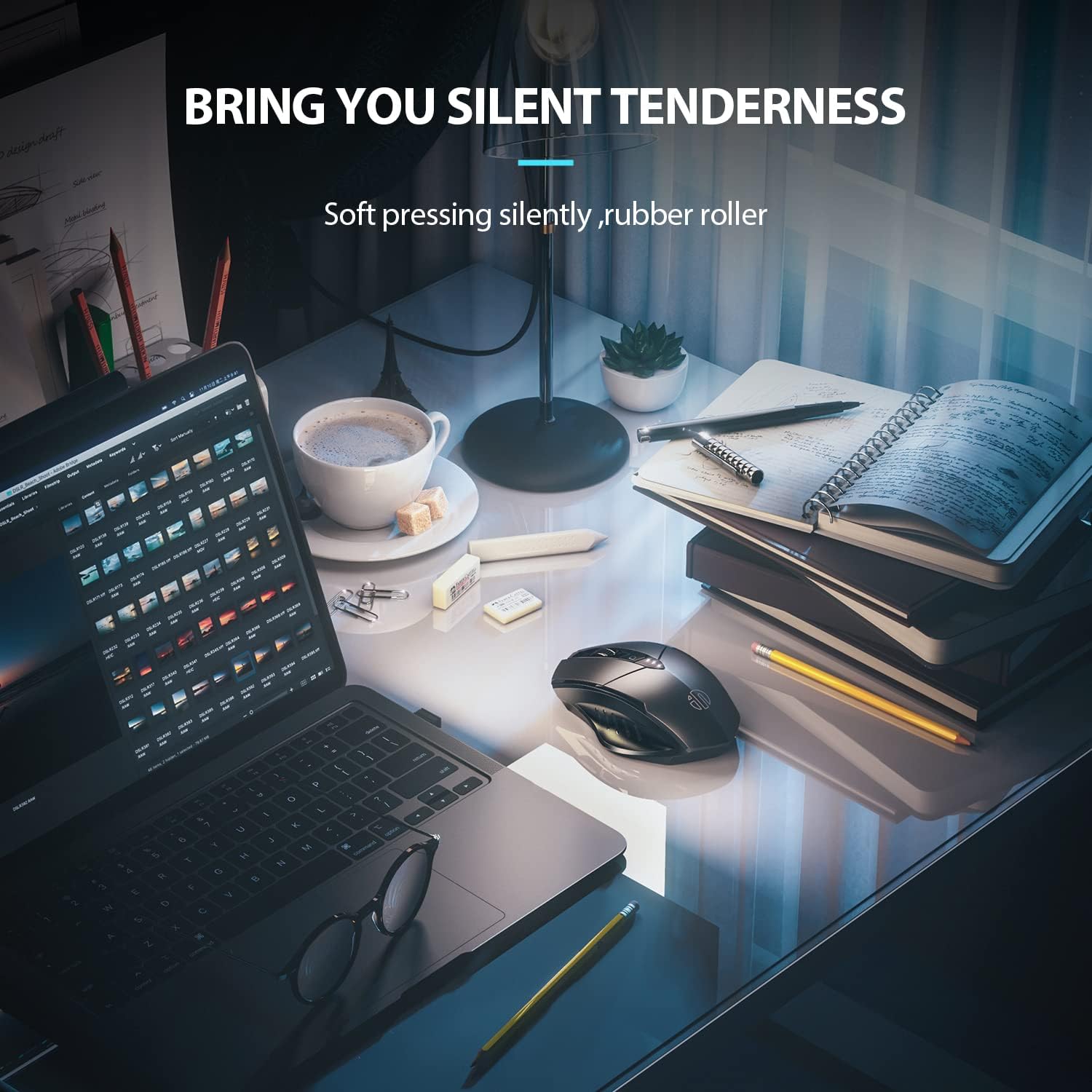
Image: The ergonomic shape of the mouse, designed for a comfortable user experience.

Image: A close-up showing the widened thumb rest for a more comfortable grip.
The left and right click buttons are designed for silent operation, allowing you to work without disturbing others.

Image: Illustrates the silent click feature of the mouse, ideal for quiet environments.
6. Mantentzea
To ensure the longevity and optimal performance of your INPHIC M6Pro mouse, follow these maintenance guidelines:
- Garbiketa: Use a soft, dry cloth to wipe the mouse. For stubborn dirt, slightly dampGarbitu zapi bat urarekin edo garbiketa-soluzio leun batekin. Saihestu produktu kimiko gogorrak edo material urratzaileak.
- Biltegiratzea: When not in use for extended periods, turn off the mouse to conserve battery life. Store it in a cool, dry place away from direct sunlight and extreme temperatures.
- Bateria zaintzea: Avoid fully discharging the battery frequently. Charge the mouse when the battery indicator shows low power.
- USB hargailua: Keep the USB receiver in its designated storage slot at the bottom of the mouse when traveling to prevent loss.
7. Arazoak
If you encounter issues with your INPHIC M6Pro mouse, refer to the following common solutions:
| Arazoa | Kausa posiblea | Irtenbidea |
|---|---|---|
| Mouse not responding (2.4G) | USB receiver not properly connected or mouse is off. | Ensure the USB receiver is securely plugged into a USB port. Turn on the mouse and ensure the mode switch is set to 2.4G. Try a different USB port. |
| Saguak ez du erantzuten (Bluetooth) | Not paired, out of range, or incorrect Bluetooth mode selected. | Ensure the mouse is in the correct Bluetooth mode (BT 5.0 or BT 4.0) and in pairing mode (flashing light). Re-pair the mouse with your device. Ensure the mouse is within 10 meters of your device. |
| Kurtsorearen mugimendua irregularra edo motela da | Low battery, incorrect DPI setting, or dirty sensor. | Charge the mouse. Adjust the DPI setting using the DPI button. Clean the optical sensor at the bottom of the mouse with a soft cloth. |
| Buttons not clicking or unresponsive | Bateria baxua edo konexio arazoa. | Charge the mouse. Re-establish the connection (2.4G or Bluetooth). |
| Bateria ez da kargatzen | Kable edo energia-iturri akastuna. | Try a different USB-C cable and a different USB power source. Ensure the cable is properly connected to the mouse's Type-C port. |
8. Zehaztapenak
| Ezaugarri | Xehetasuna |
|---|---|
| Modelo zenbakia | M6Pro |
| Konektibitate Teknologia | 2.4G Wireless, Bluetooth 5.0, Bluetooth 4.0 (Tri-Mode) |
| Mugimenduak detektatzeko teknologia | Optikoa |
| DPI ezarpenak | 800, 1200, 1600, 2000, 2400 |
| Botoiak | 6 (Ezkerra, Eskuina, Gurpila, DPI etengailua, Aurrera, Atzera) |
| Bateria mota | Litio polimero kargagarria (500 mAh) |
| Kargatzeko ataka | C motakoa |
| Produktuaren neurriak | 4.65 x 1.57 x 0.04 hazbete |
| Elementuaren pisua | 3.35 ontza |
| Sistema eragile bateragarriak | Windows Vista/7 and above, Mac OS X 10.10 and above, iOS 13 and above, Android 5.0 and above, Linux kernel 2.6+, Chrome OS |
9. Bermea eta Laguntza
INPHIC products are designed for reliability and performance. For warranty information or technical support, please refer to the contact details provided with your product packaging or visit the official INPHIC webgunea. Gorde erosketa-agiria erosketaren frogagiri gisa berme-erreklamazioetarako.