
1. Sarrera
This user manual provides comprehensive instructions for the setup, operation, and maintenance of your FULLJA 17-inch Dual-WiFi Digital Picture Frame. This device allows you to instantly share photos and videos with loved ones from anywhere using the VPhoto app or email, supporting both 2.4 GHz and 5 GHz Wi-Fi networks. With its large display, ample storage, and versatile features, it is designed to preserve and display your precious memories with ease.
2. Segurtasun informazioa
Please read all safety instructions carefully before using the device to ensure proper operation and to prevent damage or injury. Keep this manual for future reference.
- Ez jarri gailua uraren edo gehiegizko hezetasunaren eraginpean.
- Saihestu gailua bero-iturrien ondoan jartzea, hala nola erradiadoreen, bero-erregistroen, sukaldeen edo beste aparatuen ondoan (adibidez, bero-iturrien ondoan). ampberoa sortzen duten argitzaileak).
- Erabili gailuarekin hornitutako korronte-egokigailua soilik.
- Ez blokeatu aireztapen-irekidurak. Instalatu fabrikatzailearen argibideen arabera.
- Babestu korronte-kablea ibiltzetik edo atxilotzetik, batez ere entxufeetan, erosotasun-harguneetan eta gailutik irteteko puntuan.
- Deskonektatu gailua tximista-ekaitzetan edo denbora luzez erabiltzen ez duzunean.
- Jarri zerbitzu-zerbitzu guztiak zerbitzu-pertsonal kualifikatuari. Mantentze-lanak egin behar dira gailua edozein modutan hondatu denean, hala nola, elikadura-kablea edo entxufea hondatuta dagoenean, likidoa isuri denean edo objektuak gailuan erori direnean, gailua euri edo hezetasunarekin egon bada, ez du normalean funtzionatzen. , edo erori egin da.
- Garbitu zapi lehor batekin bakarrik.
3. Paketearen edukia
Egiaztatu elementu guztiak paketean daudela:
- 1x FULLJA 17-inch Digital Picture Frame
- 1x Erabiltzailearen eskuliburua
- 1x korronte egokitzailea
- 1x Bracket (for stand)
- 1x Urruneko Kontrola
- 1x Mikro USB kablea

Image: FULLJA Brand Logo
This image displays the official FULLJA brand logo, typically found on product packaging and documentation.

Image: FULLJA 17-inch Digital Picture Frame
This image shows the 17-inch FULLJA Digital Picture Frame in a vertical orientation, resting on a surface.
4. Produktua amaitu daview
4.1. Osagaiak eta kontrolak
Familiarize yourself with the various parts of your digital picture frame:
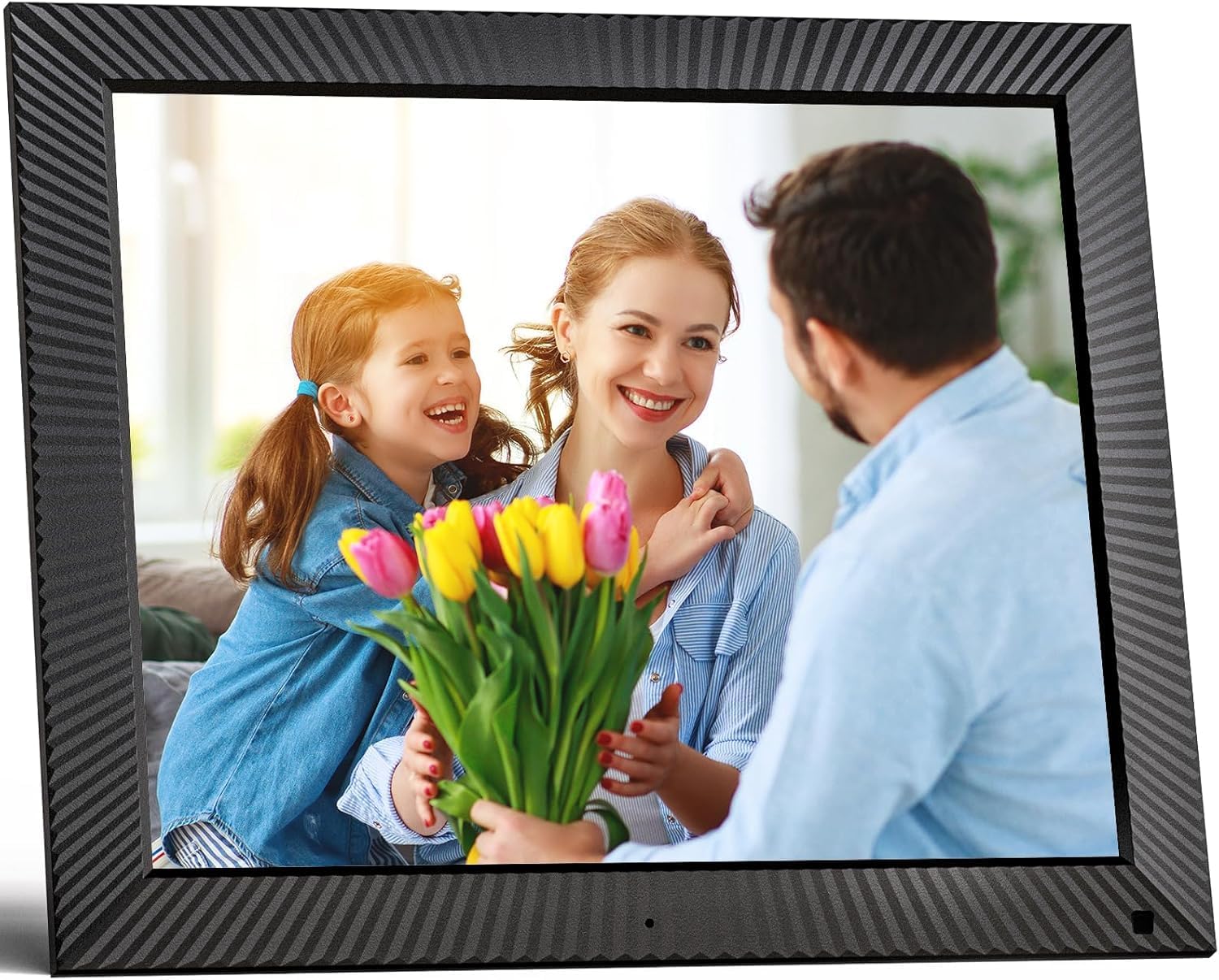
Irudia: Aurrealdea view of the FULLJA 17-inch Digital Picture Frame
This image displays the front of the digital picture frame, showcasing its large screen with a family photo displayed. The frame has a textured black border.

Image: Features of the FULLJA 17-inch Digital Picture Frame
This image highlights key features of the 17-inch digital picture frame, including its touch screen, HD 1280x1024 pixel resolution, 4:3 aspect ratio, and remote control functionality. It shows the frame in both landscape and portrait orientations, with a view of the back panel and stand.
- Bistaratzeko pantaila: 17-inch IPS display with 1280x1024 resolution. Touch-enabled for direct interaction.
- Pizteko botoia: Located on the back or side, used to turn the frame on/off or put it into standby.
- USB ataka: For connecting USB sticks to transfer photos/videos.
- TF txartelaren zirrikitua: For inserting TF (MicroSD) cards (up to 64GB) to expand storage or transfer media.
- Mikro USB ataka: For connecting to a computer for data transfer or firmware updates.
- DC potentzia sarrera: Korronte-egokigailua konektatzeko.
- Mugimendu-sentsorea: Detects presence to automatically turn the screen on/off, saving energy.
- Bozgorailu integratua: For audio playback with videos or background music.
- Horman muntatzeko zuloak: VESA compatible holes on the back for wall mounting.
- Stand Bracket: Attachable bracket for desktop placement in portrait or landscape orientation.
4.2. Urruneko kontrola
The included remote control provides convenient access to various functions without touching the screen.
- Potentzia: Turn the frame on/off.
- Menua/Ezarpenak: Access the main menu and settings.
- Nabigazio botoiak (Gora/Behera/Ezkerra/Eskuina): Nabigatu menuetan eta aukeretan.
- Ados/Sartu: Berretsi hautaketak.
- Itzuli/Irten: Aurreko pantailara itzuli edo menu batetik irten.
- +/- bolumena: Doitu audioaren bolumena.
- Erreproduzitu/Pausatu: Kontrolatu multimedia erreprodukzioa.
- Hurrengoa/Aurrekoa: Skip to the next or previous photo/video.
5. Konfigurazioa
5.1. Hasierako piztea
- Deskonprimitu argazki-marko digitala eta osagarri guztiak.
- Attach the stand bracket to the back of the frame if you intend to place it on a desk or shelf. Ensure it is securely fastened.
- Connect the power adapter to the DC power input port on the frame, then plug the adapter into a wall outlet.
- The frame will automatically power on or you may need to press the power button.
- Jarraitu pantailan agertzen diren argibideei zure hizkuntza eta ordu-eremua hautatzeko.
5.2. Wi-Fira konektatzen
A Wi-Fi connection is essential for sharing photos via the app or email.
- Menu nagusitik, joan honera: Ezarpenak.
- Hautatu Wi-Fi.
- The frame will scan for available networks. Select your desired 2.4 GHz or 5 GHz network from the list.
- Sartu zure Wi-Fi pasahitza pantailako teklatua erabiliz.
- Sakatu Konektatu. Once connected, a Wi-Fi icon will appear on the screen.

Image: Digital Picture Frame with Wi-Fi Sharing
This image illustrates the capability of the digital picture frame to share photos and videos wirelessly via Wi-Fi. It shows the frame displaying a family photo, with a smartphone in the foreground indicating app-based sharing.
5.3. Installing the VPhoto App
The VPhoto app is available for both iOS and Android devices and is the primary method for sharing content remotely.
- Bilatu "VPhoto" in the Apple App Store (for iOS) or Google Play Store (for Android).
- Deskargatu eta instalatu aplikazioa telefonoan edo tabletan.
- Open the VPhoto app and create an account or log in.
- To connect your frame, go to the Ezarpenak menu on your digital picture frame and find the unique binding code.
- In the VPhoto app, select Gehitu gailua and enter the binding code displayed on your frame.
- Once connected, you can start sending photos and videos to your frame. Up to 30 app accounts can be bound to one frame.

Image: Sharing Options for Digital Picture Frame
This image demonstrates the various ways to share content with the digital picture frame, including the free VPhoto app for iOS and Android, unlimited cloud storage with 32GB built-in, and the ability to invite multiple family members to share. It shows the frame displaying a photo and a smartphone screen with the VPhoto app interface.
6. Funtzionamendu-argibideak
6.1. Argazkiak eta bideoak bidaltzea
There are multiple ways to send media to your FULLJA digital picture frame:
- VPhoto aplikazioaren bidez: Open the VPhoto app, select the photos/videos you wish to send (up to 50 at a time), choose your connected frame, and tap send.
- Posta elektroniko bidez: Each frame has a unique email address. You can send photos and short videos as attachments to this email address. The frame will automatically receive and display them.
- Via USB Stick/TF Card: Insert a USB stick or TF card into the respective port. Navigate to the Argazkien karpeta or Bideoa section on the frame, select the external storage, and copy files to the internal memory if desired.

Image: Digital Picture Frame with 32GB Internal Storage
This image highlights the frame's built-in 32GB internal storage, capable of storing approximately 80,000+ photos. The main frame displays a photo of a mother and child, surrounded by smaller circular images representing the vast number of memories that can be stored.
6.2. Oinarrizko funtzioak
- Slideshow Playback: Photos and videos will automatically play in a slideshow. You can adjust the display interval and transition effects in the settings.
- Photo/Video Browsing: Tap the screen or use the remote to manually browse through your media.
- Bolumen kontrola: Adjust the volume for videos or background music using the touch screen controls or the remote.
- Biratu automatikoa: The frame automatically adjusts the display orientation (portrait or landscape) based on how it is positioned.
6.3. Funtzio aurreratuak
- Mugimendu-sentsorea: Enable this feature in settings to have the frame automatically turn on when motion is detected and off when no motion is detected for a set period, saving energy.
- Auto Screen On/Off: Set specific times for the frame to automatically turn on and off daily.
- Erlojua eta egutegia: Access the built-in clock and calendar functions from the main menu.
- Alarma: Ezarri alarmak abisuetarako.
- Pantaila zatitua: Display multiple photos simultaneously (check settings for layout options).
- Testu-oinen azpitituluak: Add captions to your photos via the VPhoto app.
- Musika erreprodukzioa: Play background music during slideshows (ensure music files are on the frame's internal storage or connected USB/TF card).

Image: Digital Picture Frame with Function Icons
This image showcases the multi-functional capabilities of the digital picture frame, including Wi-Fi connectivity, weather display, clock, calendar, photo and video playback, music, and slideshow features. Two frames are shown, one on a wall and one on a cabinet, with icons representing these functions below.
7. Mantentzea
7.1. Markoa garbitzea
- Deskonektatu beti markoa garbitu aurretik.
- Erabili zapi leun, lehor eta lihorik gabeko bat pantaila eta markoa astiro-astiro garbitzeko.
- For stubborn smudges on the screen, lightly dampen the cloth with water or a screen-cleaning solution (specifically designed for electronics) and wipe carefully. Do not spray liquid directly onto the screen.
- Avoid using abrasive cleaners, waxes, or solvents as they may damage the surface.
7.2. Software eguneraketak
Periodically check for software updates in the frame's settings menu to ensure optimal performance and access to new features. Updates are typically downloaded and installed over Wi-Fi.
7.3. Biltegiratze kudeaketa
While the frame has 32GB of internal storage and unlimited cloud storage, you may occasionally want to manage local files:
- Sartu Argazkien karpeta or File Kudeatzailea in the settings to view, delete, or organize stored media.
- Transferitu dezakezu files to/from a USB stick or TF card to manage internal storage.
8. Arazoak
If you encounter issues with your digital picture frame, refer to the following common problems and solutions:
| Arazoa | Balizko Kausa / Irtenbidea |
|---|---|
| Markoa ez da pizten. |
|
| Ezin da wifira konektatu. |
|
| Photos/Videos not appearing on frame. |
|
| Pantaila izoztu egiten da edo ez du erantzuten. |
|
| Mugimendu sentsorea ez dabil. |
|
9. Zehaztapenak
| Ezaugarri | Xehetasuna |
|---|---|
| Modelo zenbakia | B0CCVBSM87 |
| Marka | FULLJA |
| Pantailaren tamaina | 17 hazbete |
| Bistaratzeko ebazpena | 1280 x 1024 pixel (IPS) |
| Aspektu-erlazioa | 4:3 |
| Barne Biltegiratzea | 32 GB |
| Kanpoko biltegiratze euskarria | USB stick, TF card (MicroSD) up to 64GB |
| Wi-Fi konexioa | 2.4 GHz / 5 GHz Dual-Band |
| Kontrol-metodoa | Touch Screen, Remote Control, VPhoto App |
| Mugimendu-sentsorea | Bai |
| Biratu automatikoa | Bai |
| Horman muntagarria | Bai |
| Produktuaren neurriak | 29.67 x 43.51 x 2.51 cm |
| Produktuaren pisua | 2.52 kg |
| Kolorea | Beltza |
10. Bermea eta Laguntza
10.1. Berme mugatua
The FULLJA 17-inch Dual-WiFi Digital Picture Frame comes with a urtebeteko berme mugatua from the date of purchase. This warranty covers defects in materials and workmanship under normal use. It does not cover damage caused by accident, misuse, abuse, neglect, unauthorized modification, or improper installation.
To make a warranty claim, please retain your proof of purchase and contact FULLJA customer support.
10.2. Bezeroarentzako arreta
For any questions, technical assistance, or support inquiries, please contact FULLJA customer service. We offer lifetime support and aim to provide a prompt response within 24 hours.
Please refer to the contact information provided on the product packaging or the official FULLJA webgunea laguntza-kanal eguneratuenetarako.