
1. Sarrera
The ASUS ROG Gladius III Wireless Aimpoint Gaming Mouse is designed for precision and comfort, offering versatile connectivity and advanced features for an optimized gaming experience. This manual provides essential information for setting up, operating, maintaining, and troubleshooting your device.
Ezaugarri nagusiak:
- ROG AimPoint Optical Sensor: Experience unparalleled accuracy with a 36,000 DPI sensor, <1% CPI deviation, 650 IPS tracking speed, and 50g acceleration.
- Hiru moduko konexioa: Seamlessly switch between ultrafast 2.4 GHz RF wireless, Bluetooth fast pairing (up to three devices), and wired USB modes.
- Diseinu arina: Weighing only 79 grams, the mouse provides swift and controlled movements.
- Beroan alda daitezkeen etengailuak: Customize click feel and extend lifespan with easily replaceable 3-pin mechanical and 5-pin optical micro switches.
- Bateriaren iraupen hedatua: Enjoy up to 119 hours of wireless gameplay in 2.4 GHz RF mode or up to 143 hours in Bluetooth mode.
- Diseinu ergonomikoa: The classic asymmetrical shape ensures lasting comfort for various right-handed grip styles.
2. Paketearen edukia
Egiaztatu elementu guztiak zure paketean daudela:
- ROG Gladius III Wireless Aimpoint Mouse
- ROG mouse grip tapes
- USB donglea
- USB dongle luzatzailea
- ROG Paracord (USB-C to USB-A cable)
- Micro switches (spare)
- ROG switch remover
- ROG eranskailua
- ROG Mouse Feet (spare)
- Erabiltzailearen eskuliburua (dokumentu hau)
- Berme liburuxka

Irudia: Goian view of the ASUS ROG Gladius III Wireless Aimpoint Gaming Mouse, showcasinbere diseinu ergonomikoa eta korritze gurpila.
3. Konfigurazioa
3.1 Sagua kargatzea
Before first use, it is recommended to fully charge the mouse. Connect the ROG Paracord cable to the USB-C port on the front of the mouse and the USB-A end to your computer or a USB power adapter. The mouse can be used while charging in wired mode.
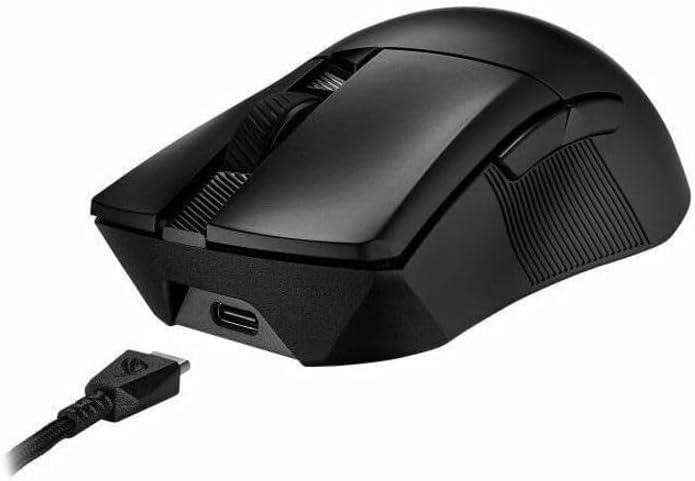
Image: The ASUS ROG Gladius III Wireless Aimpoint Gaming Mouse connected to a USB cable, illustrating wired mode and charging.
3.2 Sagua konektatzea
The ROG Gladius III Wireless Aimpoint offers three connectivity options:
- 2.4 GHz RF Wireless Mode:
- Sartu USB dongle-a ordenagailuko USB ataka libre batean.
- Turn on the mouse and set the switch on the bottom to 2.4 GHz RF modua.
- The mouse should automatically connect. For optimal signal, use the USB dongle extender to place the dongle closer to the mouse.
- Bluetooth modua:
- Turn on the mouse and set the switch on the bottom to Bluetootha modua.
- Press and hold the pairing button on the bottom of the mouse until the LED indicator blinks blue.
- On your computer, go to Bluetooth settings and select the ROG Gladius III Wireless Aimpoint to pair.
- The mouse can store up to three Bluetooth profiles.
- Kable bidezko USB modua:
- Connect the ROG Paracord cable to the mouse and your computer.
- Sagua automatikoki kable bidezko modura aldatuko da eta kargatzen hasiko da.

Image: The ASUS ROG Gladius III Wireless Aimpoint Gaming Mouse positioned on a desk next to a keyboard, demonstrating its wireless capability in a typical setup.
3.3 Applying Grip Tapes
The included ROG mouse grip tapes can be applied to the sides of the mouse for enhanced grip and a personalized aesthetic. Ensure the mouse surface is clean and dry before applying.

Image: The ASUS ROG Gladius III Wireless Aimpoint Gaming Mouse shown with its patterned grip tape applied to the sides, highlighting the customizable grip feature.
4. Sagua erabiltzea
4.1 Botoien funtzioak
- Ezkerreko/eskuineko klik: Saguaren funtzio estandarrak.
- Korritzeko gurpila: Gora/behera joan, erdiko botoiarekin klik egin.
- Alboko botoiak: Programmable for various functions, typically forward/back.
- DPI botoia: Located behind the scroll wheel, cycles through preset DPI levels.
- Profile Botoia: Located on the bottom of the mouse, cycles through onboard profiles.
4.2 DPI doikuntza
Press the DPI button to cycle through different sensitivity levels. The LED indicator will change color to indicate the current DPI setting. Default settings can be customized via the Armoury Crate software.

Image: An illustration detailing the ROG AimPoint Sensor's capabilities, including 36,000 DPI resolution, 650 inches per second maximum speed, and 50g maximum acceleration.
4.3 Software Customization (Armoury Crate)
For advanced customization of DPI settings, button assignments, lighting effects, and calibration, download and install the ASUS Armoury Crate software from the official ASUS support website. This software allows you to fine-tune the mouse to your preferences.
5. Mantentzea
5.1 Garbiketa
To maintain optimal performance, regularly clean your mouse. Use a soft, dry cloth to wipe the surface. For optical sensor, use a cotton swab lightly dampened with isopropyl alcohol. Avoid harsh chemicals or abrasive materials.
5.2 Beroan alda daitezkeen etengailuak
The ROG Gladius III Wireless Aimpoint features hot-swappable switch sockets, allowing you to replace the micro switches without soldering. This extends the mouse's lifespan and allows for personalized click feel.
- Ziurtatu sagua itzalita dagoela.
- Carefully remove the top cover of the mouse.
- Use the included ROG switch remover tool to gently extract the existing micro switches.
- Insert new compatible 3-pin mechanical or 5-pin optical micro switches into the sockets, ensuring correct orientation.
- Jarri goiko estalkia.

Irudia: Barneko bat view of the mouse highlighting the ROG Push-Fit Switch Socket and a separate ROG Micro Switch, demonstrating the hot-swappable feature.
5.3 Mouse Feet Replacement
If the mouse feet show significant wear, they can be replaced with the spare set included in the package. Carefully peel off the old feet and apply the new ones, ensuring the surface is clean for proper adhesion.
6. Arazoak
6.1 Saguak ez du erantzuten
- Ensure the mouse is powered on and fully charged.
- Check the connectivity mode switch (2.4 GHz RF, Bluetooth, or Wired) and ensure it matches your connection method.
- For 2.4 GHz RF, ensure the USB dongle is securely plugged into your computer. Try a different USB port.
- Bluetooth-erako, ziurtatu Bluetooth gaituta dagoela ordenagailuan eta sagua parekatuta dagoela. Saiatu gailua berriro parekatzen.
- In wired mode, ensure the USB cable is securely connected to both the mouse and the computer.
- Berrabiarazi ordenagailua.
6.2 Erratic Tracking or Lag
- Garbitu saguaren beheko aldean dagoen sentsore optikoa.
- Ziurtatu sagua gainazal egoki batean erabiltzen ari zarela (adibidez, sagu-alfonbra batean). Saihestu gainazal oso islatzaileak edo gardenak.
- For wireless modes, ensure there are no obstructions or sources of interference (e.g., other wireless devices, large metal objects) between the mouse and the receiver/computer.
- Update mouse drivers and Armoury Crate software to the latest version.
- Try adjusting the DPI settings.
6.3 Bateria ez da kargatzen
- Ensure the USB cable is properly connected to both the mouse and a working USB port or power adapter.
- Saiatu beste USB kable edo USB ataka batekin.
- Ensure the mouse is not in an extremely hot or cold environment, which can affect charging.
7. Zehaztapenak
| Ezaugarri | Zehaztapena |
|---|---|
| Modelo zenbakia | P711 ROG GIII WL AIMPOINT/BLK |
| Konektibitatea | Bluetooth, 2.4 GHz RF, USB 2.0 (Wired) |
| Sentsore | ROG AimPoint Optical Sensor |
| Ebazpena | 100 - 36,000 DPI |
| Gehienezko Abiadura | 650 IPS |
| Gehiegizko azelerazioa | 50 G |
| Pisua | 79 grams (without cable) |
| Neurriak (LxWxH) | 4.86 x 2.68 x 0.1 hazbete (gutxi gorabehera 123.4 x 68 x 40 mm) |
| Bateriaren iraupena | Up to 119 hours (2.4 GHz RF), Up to 143 hours (Bluetooth) |
| Etengailuak | ROG Micro Switches (70-million-click lifespan), Hot-swappable |
| OS bateragarria | Windows, macOS |

Irudia: Goitik behera view of the mouse with overlaid measurements, indicating its length of 4.86 inches and width of 2.68 inches.
8. Bermea eta Laguntza
8.1 Bermearen informazioa
The ASUS ROG Gladius III Wireless Aimpoint Gaming Mouse comes with a limited warranty. Please refer to the included warranty booklet for detailed terms and conditions, including coverage period and limitations. Keep your proof of purchase for warranty claims.
8.2 Laguntza Teknikoa
For technical assistance, driver downloads, software updates, or further product information, please visit the official ASUS support webgunea:
You may also contact ASUS customer service directly using the contact information provided in your warranty booklet or on the support webgunea.