
BOXPUT BPR1S PLUS
BOXPUT BPR1S Plus Air Mouse Remote User Manual
Model: BPR1S PLUS
1. Sarrera
The BOXPUT BPR1S Plus is a versatile air mouse remote control designed for seamless interaction with various Android devices. It combines 2.4G wireless and Bluetooth connectivity, offering precise control with its 6-axis gyroscope, voice input capabilities, and comprehensive IR learning functionality. This manual provides detailed instructions for setting up, operating, and maintaining your BPR1S Plus remote.

Image 1.1: The BPR1S Plus Air Mouse Remote and its accompanying USB receiver.
2. Produktua amaitu daview
2.1 Ezaugarri nagusiak
- Konektibitate bikoitza: Supports both 2.4G wireless (with USB receiver) and Bluetooth (BT 5.0) modes.
- 6 ardatzeko giroskopioa: Enables precise air mouse functionality for intuitive cursor control.
- Ahotsaren sarrera: Integrated microphone for voice search and commands.
- IR Ikaskuntza: All buttons support IR learning for controlling other infrared devices.
- Irte luzea: Operates effectively up to 10 meters (33 feet) away.
- Diseinu ergonomikoa: Comfortable and lightweight for extended use.
2.2 Components and Button Layout
The BPR1S Plus remote features a clear and intuitive button layout. Refer to the diagram below for a detailed overview of each button's function.
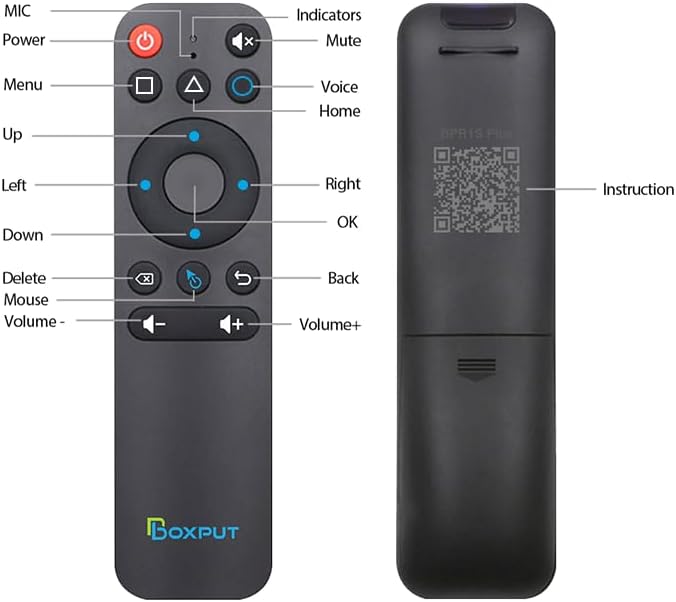
2.1. irudia: Aurrealdea eta atzealdea view of the BPR1S Plus remote with labeled buttons and QR code for electronic manual.
Botoiaren funtzioak:
- Pizteko botoia: Turns the device on/off. Supports IR learning.
- Mikrofonoa: Activates voice input.
- Ezkutatu: Audioa desaktibatu/aktibatzen du.
- Menua: Opens menu options.
- Ahotsa: Activates voice assistant.
- Hasiera: Hasierako pantailara itzultzen da.
- Nabigazio-panela (Gora, Behera, Ezkerra, Eskuina, Ados): For directional navigation and selection.
- Ezabatu: Deletes characters or items.
- Sagua: Toggles air mouse mode on/off.
- Itzuli: Aurreko pantailara itzultzen da.
- Bolumena - / +: Adjusts volume down or up.
3. Konfigurazioa eta parekatzea
3.1 Bateriaren instalazioa
The BPR1S Plus remote requires two AAA batteries (not included). Open the battery compartment on the back of the remote and insert the batteries, ensuring correct polarity (+/-). Close the compartment securely.
3.2 2.4G Haririk gabeko Parekatzea
For 2.4G wireless operation, use the included USB receiver.
- Konektatu USB hargailua zure gailuko USB ataka libre batean (adibidez, Android TV Box, ordenagailua).
- Ensure the remote control is within 50 cm (approximately 20 inches) of the USB receiver for faster pairing.
- The remote should automatically pair with the receiver. No additional drivers or complex setup is required.

Image 3.1: Visual guide for 2.4G pairing process.
3.3 Bluetooth konexioa
Bluetooth bidez konektatzeko, jarraitu urrats hauek:
- To pair a new device, press the "Ados" botoia eta "Back" button simultaneously until the indicator light on the remote flashes.
- Keep the remote control within 1 meter (approximately 3 feet) of the device for faster pairing.
- On your device, open Bluetooth settings and search for available devices.
- Hautatu "BOXPUT | BPR1S Plus" from the list to complete the pairing.

Image 3.2: Visual guide for Bluetooth pairing process.
4. Funtzionamendu-argibideak
4.1 Air Mouse Function
The BPR1S Plus features a 6-axis gyroscope for precise air mouse control. Press the "Mouse" button to activate or deactivate the air mouse mode. When active, move the remote in the air to control the cursor on your screen. This is particularly useful for navigating interfaces not optimized for traditional remote control.
4.2 Voice Input
Sakatu "MIC" or "Voice" button to activate the voice input function. Speak clearly into the remote's microphone. The voice function's compatibility varies:
- Bluetooth modua: Voice function is applicable to some ATV devices (e.g., TCL Smart TV, Shield TV Box, HAKO mini, Google TV). It may not be compatible with all AOSP devices.
- 2.4G modua: Voice function supports both AOSP Android and ATV devices.
Note: The voice search function typically works for built-in voice input search boxes or specific applications, and generally cannot search across all applications.
4.3 IR Learning (Infrared Learning)
The BPR1S Plus allows all its buttons to learn infrared signals from other remotes, enabling it to control IR-compatible devices. This is particularly useful for consolidating multiple remotes into one.
- Place the BPR1S Plus remote and the original IR remote head-to-head, approximately 1-3 cm apart.
- Press and hold the button on the BPR1S Plus remote that you wish to program (e.g., Power button) until its indicator light starts flashing slowly.
- While holding the BPR1S Plus button, press the corresponding button on the original IR remote that you want to learn. The indicator light on the BPR1S Plus remote will flash rapidly, then turn solid, indicating successful learning.
- Askatu bi botoiak.
- Repeat for any other buttons you wish to program.
- To exit IR learning mode, press any unprogrammed button or wait for the remote to time out.
After successful IR learning, the programmed buttons will send IR signals. If no IR learning is performed for a button, it will function in 2.4G or BT mode accordingly. If the power button has completed IR learning, it will prioritize sending the IR signal in 2.4G or BT mode.

Image 4.1: Diagram illustrating the IR learning process between two remote controls.
5. Bateragarritasuna
The BOXPUT BPR1S Plus air mouse remote control is designed to be compatible with almost all Android devices, including:
- Android telebista kaxak
- Android TV Sticks
- Other Android-based entertainment equipment
If you are uncertain about compatibility with your specific media player, it is recommended to consult the device's manufacturer or the product support for the BPR1S Plus.

5.1 irudia: Adibideaamples of compatible Android devices such as TV boxes and sticks.
6. Arazoak
This section addresses common issues you might encounter with your BPR1S Plus remote.
6.1 Urruneko agintea ez da erantzuten
- Egiaztatu bateriak: Ziurtatu AAA bateria berriak behar bezala instalatuta daudela.
- Parekatu berriro: Try re-pairing the remote with your device (refer to Section 3.2 for 2.4G or 3.3 for Bluetooth).
- USB hargailua: If using 2.4G, ensure the USB receiver is securely plugged into the device and not obstructed. Try a different USB port.
- Distantzia: Ensure the remote is within the effective operating range (up to 10 meters).
- Oztopoak: Remove any physical obstructions between the remote and the device/receiver.
6.2 Air Mouse Cursor Drifting or Inaccurate
- Recalibrate Gyroscope: While the remote is connected, place it on a flat, stable surface for a few seconds. This often helps recalibrate the gyroscope.
- Interferentzia: Move away from strong electromagnetic interference sources.
6.3 Voice Function Not Working
- Mode Check: Verify if you are in 2.4G or Bluetooth mode. Voice compatibility differs (see Section 4.2).
- Aplikazioen bateragarritasuna: Ensure the application you are using supports voice input from external devices.
- Microphone Obstruction: Check if the microphone on the remote is clear and not covered.
6.4 IR Learning Issues
- Distance and Alignment: Ensure the remotes are 1-3 cm apart and perfectly aligned head-to-head during learning.
- Bateria maila: Low batteries in either remote can affect IR learning.
- Denboraldia: Ensure you press and hold the buttons for the correct duration as described in Section 4.3.
- Source Remote: Some older or proprietary IR remotes may have signals that are difficult to learn.
7. Zehaztapenak
| Ezaugarri | Xehetasuna |
|---|---|
| Modelo zenbakia | BPR1S PLUS |
| Konektibitatea | 2.4G RF haririk gabekoa, Bluetooth 5.0 |
| Ezaugarri bereziak | 6-Axis Gyroscope, Voice Search, IR Learning (Full Keys) |
| Gailu bateragarriak | Android Devices (TV Box, TV Stick, etc.) |
| Eragiketa-eremua | Gehienez 10 metro (33 oin) |
| Energia iturria | 2 x AAA bateria (ez daude barne) |
| Produktuaren neurriak | 6.54 x 1.61 x 0.79 hazbete |
| Elementuaren pisua | 1.44 ontza |
| Kolorea | Beltza |
8. Bermea eta Laguntza
For warranty information and technical support, please refer to the official BOXPUT website or contact their customer service directly. The electronic manual, accessible via the QR code on the back of the remote, may also provide updated information and troubleshooting tips.

Image 8.1: Location of the electronic manual QR code on the back of the remote.
Ask a question about this manual
Ask about setup, troubleshooting, compatibility, parts, safety, or missing instructions. Manuals+ will review the question and use this page’s manual context to help answer it.