
1. Sarrera
This manual provides detailed instructions for the setup, operation, maintenance, and troubleshooting of your SENGBIRCH Keyboard Case. This keyboard case is designed for specific Samsung Galaxy Tab 14.6-inch models, offering enhanced productivity and protection.
Bateragarritasuna:
- Samsung Galaxy Tab S10 Ultra 14.6-inch (2024 New)
- Samsung Galaxy Tab S9 Ultra 14.6 inch (SM-X910/X916/X918, 2023 Released)
- Samsung Galaxy Tab S8 Ultra 14.6 inch (MODEL: SM-X900/X906, 2022 Release)
Note: This keyboard case is NOT compatible with Samsung Galaxy 12.4 inch Tab S8+ Plus/S7 FE/S7+ Plus and 11 inch Tab S8/S7. Please verify your tablet's model number before use.
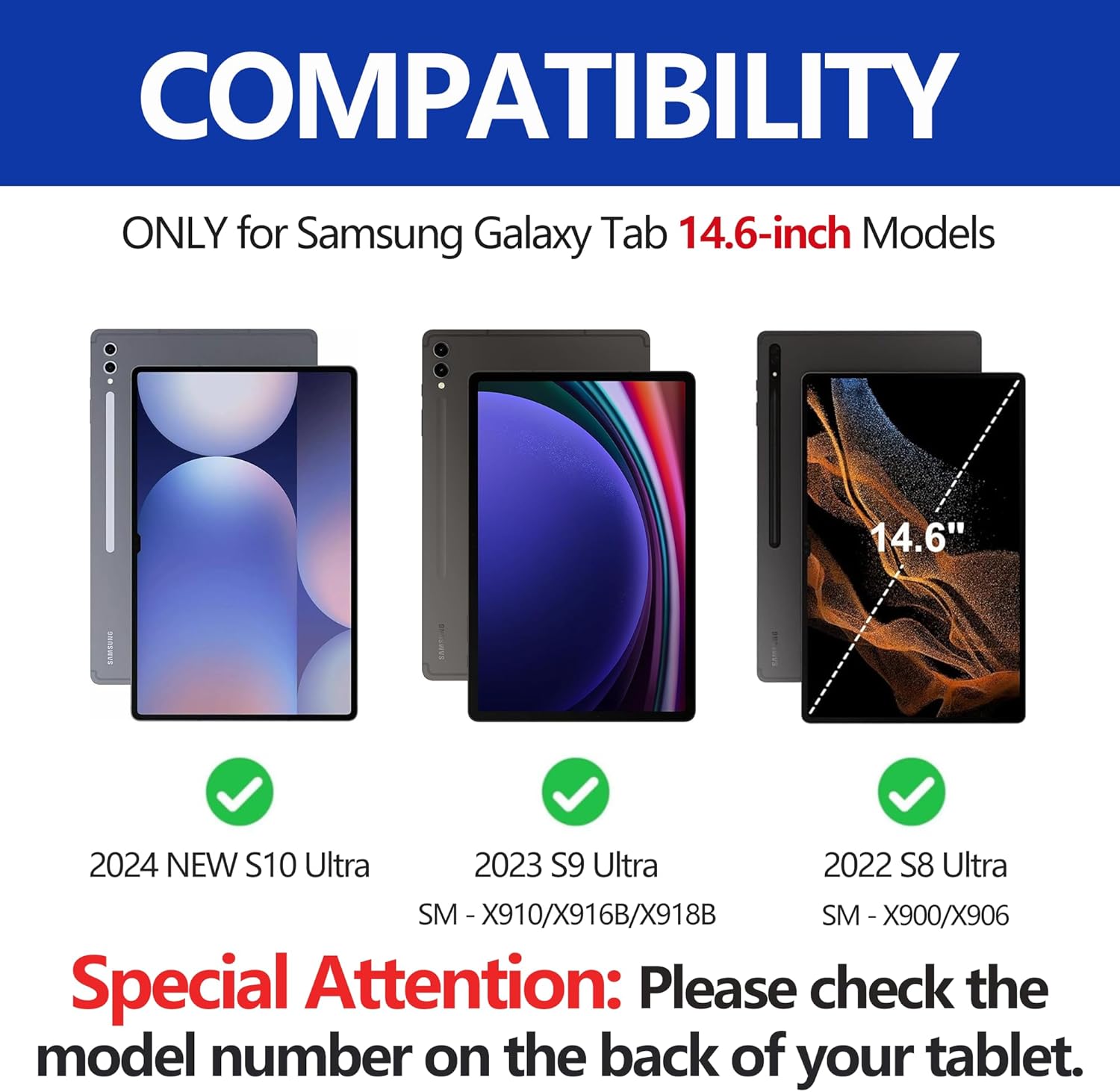
Image: Visual guide to compatible Samsung Galaxy Tab Ultra models (S10 Ultra, S9 Ultra, S8 Ultra).
2. Konfigurazioa
2.1 Paketearen edukia
Aurrera jarraitu aurretik, ziurtatu elementu guztiak daudela:
- SENGBIRCH Keyboard Case
- Detachable Bluetooth Keyboard
- USB Cable (for keyboard charging)
- Erabiltzailearen eskuliburua (dokumentu hau)
2.2 Teklatua kargatzea
The keyboard comes with a built-in rechargeable Lithium-ion battery. Before first use, fully charge the keyboard.
- Connect the provided USB cable to the keyboard's USB-C charging port.
- Konektatu USB kablearen beste muturra USB elikatze-egokitzaile batera (ez dago barne) edo ordenagailuaren USB ataka batera.
- The charging indicator light on the keyboard will illuminate. It typically takes 2-3 hours for a full charge.
- Once fully charged, the indicator light will change or turn off. A full charge provides approximately 70 hours of continuous work time.

Image: Keyboard showing USB-C charging port and battery life details.
2.3 Teklatua Bluetooth bidez parekatzea
Follow these steps to connect the keyboard to your Samsung Galaxy Tab:
- Ziurtatu teklatua kargatuta dagoela.
- Turn on the keyboard by sliding the power switch to the 'ON' position. The Bluetooth indicator light will flash, indicating it's in pairing mode.
- On your Samsung Galaxy Tab, go to Ezarpenak > Konektatutako gailuak > Bluetootha.
- Aktibatu Bluetooth-a. Tabletak eskuragarri dauden gailuak bilatuko ditu.
- Select 'Bluetooth Keyboard' or a similar name from the list of found devices.
- If prompted, enter the pairing code displayed on your tablet screen using the keyboard, then press Sartu.
- Once paired, the Bluetooth indicator light on the keyboard will stop flashing, and your tablet will show the keyboard as 'Connected'.
2.4 Inserting the Tablet into the Case
Carefully place your Samsung Galaxy Tab into the protective shell of the keyboard case. Ensure all ports and buttons align correctly with the case cutouts. The case is designed to provide a secure fit and comprehensive protection.

Image: The keyboard case with a tablet inserted, showcasing produktuaren diseinu orokorra.
2.5 S Pen Placement and Charging
The case features a dedicated area for your S Pen, allowing for convenient storage and charging without obstruction. The S Pen magnetically attaches to a specific location on the back of the tablet. Close the case to secure the S Pen and prevent loss.

Image: Illustration of the S Pen holder and how it secures the S Pen when the case is closed.
3. Funtzionamendu-argibideak
3.1 Keyboard Functions and Backlight Control
The keyboard features 7 vibrant solid colors of backlight and 3 adjustable brightness levels. This allows for comfortable typing in various lighting conditions.
- To turn on/off the backlight: Press the Fn + Bonbilla ikonoa giltza.
- To change backlight color: Press the Fn + RGB ikonoa giltza.
- To adjust backlight brightness: Press the Fn + Gora gezia or Behera gezia giltzak.
The keyboard layout is specifically customized for 14.6-inch tablets, featuring responsive keys with laser-carved characters for durability. The scissors mechanical keyboard design provides a quiet and smooth typing experience.

Image: Display of the keyboard's 7 RGB backlight colors and the function keys for control.
3.2 Egokigarria Viewangeluak
The case is designed with built-in anti-slip grooves that support 3 viewing angles, allowing you to choose the most comfortable position for typing, viewing, reading, or sketching.
- Angle 1: 115 degrees
- Angle 2: 120 degrees
- Angle 3: 130 degrees

Image: The keyboard case adjusted to show its three different viewangeluak.
3.3 Detachable Magnetic Keyboard
The ultra-slim and lightweight keyboard is magnetically attached to the case, allowing for easy detachment when you prefer to use your tablet without the keyboard or position it separately for optimal comfort.
3.4 Sistema eragilearen bateragarritasuna
The keyboard supports all major operating systems with Bluetooth connectivity, including iOS, Android, and Windows, ensuring versatile use with various devices.

Irudia: Adibamples of the keyboard case being used in different settings for various tasks.
4. Mantentzea
4.1 Karkasa eta teklatua garbitzea
Teklatuaren zorroaren itxura eta funtzionaltasuna mantentzeko:
- Garbitu kaxaren kanpoaldea zapi leun batekin,amp oihal. Saihestu produktu kimiko gogorrak edo garbitzaile urratzaileak.
- For the keyboard, use a soft, dry cloth. A can of compressed air can be used to remove debris from between the keys.
- Ziurtatu teklatua itzalita dagoela garbitu aurretik.
4.2 Bateria zaintzea
To prolong the battery life of your keyboard:
- Saihestu bateria maiz erabat deskargatzea.
- Charge the keyboard regularly, even if not in constant use.
- Gorde teklatua leku fresko eta lehor batean denbora luzez erabiltzen ez duzunean.
5. Arazoak
5.1 Teklatua ez da konektatzen
- Egiaztatu bateria: Ziurtatu teklatua guztiz kargatuta dagoela.
- Piztu: Verify the keyboard's power switch is in the 'ON' position.
- Bluetootha aktibatuta: Make sure Bluetooth is enabled on your tablet.
- Parekatu berriro: Delete the keyboard from your tablet's Bluetooth device list and attempt to re-pair it.
- Berrabiarazi gailuak: Berrabiarazi tableta eta teklatua.
5.2 Atzeko argiaren arazoak
- Distira maila: Ensure the brightness is not set to the lowest level. Adjust using Fn + Gora gezia.
- Toggle Backlight: Sakatu Fn + Bonbilla ikonoa to ensure the backlight is toggled on.
- Bateria maila: Low battery can affect backlight performance. Charge the keyboard.
5.3 Tablet Fit Issues
- Modeloaren egiaztapena: Double-check that your tablet model is listed as compatible in Section 1.
- Txertatze egokia: Ensure the tablet is inserted correctly and fully seated within the case's protective shell.
- Pantaila babesleak: While designed to accommodate, some thicker screen protectors might affect the fit. Ensure the screen protector is properly applied and not lifting.
6. Zehaztapenak
| Produktuaren neurriak | 13.07 x 8.98 x 0.59 hazbete |
| Elementuaren pisua | 1.85 kilo |
| Fabrikatzailea | SENGBIRCH |
| Modelo zenbakia | 14.6-in S10 Ulitra/S9 Ultra/S8 Ultra Tab |
| Pilak | 1 litio ioizko bateria (barne) |
| Konektibitate Teknologia | Bluetooth konexioa, USB-C |
| Teklatuaren deskribapena | Atzeko argiztatutako teklatua |
| Ezaugarri bereziak | Backlit, Ergonomic, Adjustable Viewangeluak |
| Gako kopurua | 81 |
| Teklatuaren atzeko argia | RGB (7 kolore) |
| Estiloa | Klasikoa |
7. Bermea eta Laguntza
For warranty information and customer support, please refer to the product packaging or contact SENGBIRCH customer service directly. Keep your purchase receipt for warranty claims.