
1. Produktua amaitu daview
The Orange Pi 5 Plus WiFi 6 Module Wireless Card R6 is a highly integrated wireless communication module designed for the Orange Pi 5 Plus Single Board Computer. It provides advanced Wi-Fi 6 (802.11ax) and Bluetooth 5.2 connectivity, offering high-speed data transfer rates up to 1201Mbps. This module utilizes a PCIe M.2 E-Key interface for Wi-Fi and a USB2.0 interface for Bluetooth, ensuring seamless integration and robust performance.
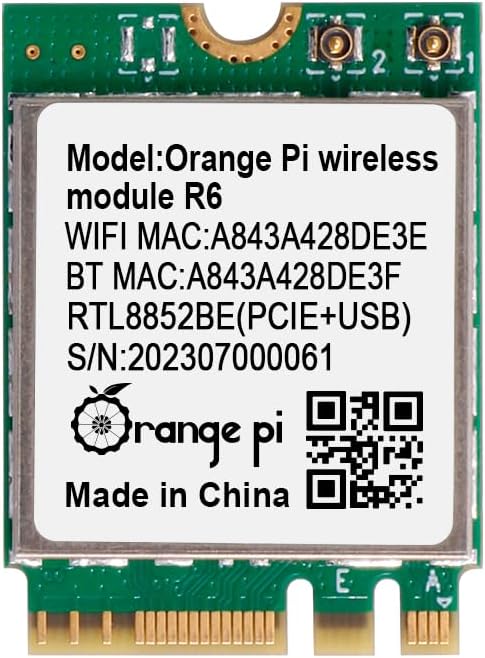
1. irudia: Aurrealdea view of the Orange Pi 5 Plus WiFi 6 Module R6, displaying its model, MAC addresses (e.g., WiFi MAC: A843A428DE3E), and Realtek RTL8852BE chip details.
2. Segurtasun informazioa
- Always power off and disconnect the Orange Pi 5 Plus from its power source before installing or removing the module.
- Handle the module by its edges to avoid touching sensitive components and to prevent electrostatic discharge (ESD) damage.
- Ensure proper ventilation around the Orange Pi 5 Plus to prevent overheating.
- Keep the module away from liquids and extreme temperatures.
- Do not attempt to modify or repair the module yourself. Refer to qualified personnel for service.
3. Paketearen edukia
Egiaztatu elementu guztiak zure paketean daudela:
- 1 x Orange Pi 5 Plus Wireless Module R6
- 2 x Antenna Cables (typically included for external antenna connection)
4. Instalazio gida
Follow these steps to install the Orange Pi 5 Plus WiFi 6 Module R6 into your Orange Pi 5 Plus Single Board Computer:
- Prestaketa: Ensure your Orange Pi 5 Plus is powered off and disconnected from all power sources. Place it on a clean, static-free surface.
- Locate the M.2 E-Key Slot: Identify the M.2 E-Key slot on your Orange Pi 5 Plus board. This slot is specifically designed for Wi-Fi and Bluetooth modules.
- Txertatu modulua: Gently align the notch on the Orange Pi R6 module with the key in the M.2 E-Key slot. Insert the module at a slight angle (approximately 30 degrees) into the slot until the gold contacts are fully seated.
- Modulua ziurtatu: Once seated, gently push the module down towards the board. Secure it with a small screw (not typically included with the module, but usually provided with the Orange Pi 5 Plus board or M.2 accessories) into the standoff at the end of the module.
- Antenak konektatu: Carefully attach the provided antenna cables to the small connectors on the module. These are typically U.FL or IPEX connectors. Ensure they snap securely into place. Route the antenna cables away from other components and connect them to external antennas if applicable.
- Piztea eta gidariaren instalazioa: Reconnect power to your Orange Pi 5 Plus and boot the operating system. Most modern Linux distributions (like Ubuntu or Armbian for Orange Pi) should automatically detect the Realtek RTL8852BE-CG chip and install the necessary drivers. If not, you may need to manually install drivers or update your system's kernel. Refer to the Orange Pi official documentation or community forums for specific driver installation instructions for your chosen OS.

2. irudia: Angeludun view of the Orange Pi R6 module, illustrating its M.2 E-Key connector for proper insertion.

3. Irudia: Atzealdea view of the Orange Pi R6 module, highlighting the antenna connection points.
5. Funtzionamendu-argibideak
5.1. Wi-Fi konexioa
- Once your Orange Pi 5 Plus is booted, navigate to your operating system's network settings.
- Enable Wi-Fi if it is not already active.
- Hautatu nahi duzun haririk gabeko sarea (SSID) eskuragarri dauden sareen zerrendatik.
- Sartu sareko pasahitza (beharrezkoa bada) eta egin klik 'Konektatu' botoian.
- Your Orange Pi 5 Plus should now be connected to the internet via Wi-Fi 6.
5.2. Bluetooth parekatzea
- Go to your operating system's Bluetooth settings.
- Ensure Bluetooth is enabled and set to 'discoverable' or 'pairing mode'.
- Put your Bluetooth device (e.g., headphones, keyboard, mouse) into pairing mode.
- On your Orange Pi 5 Plus, scan for new Bluetooth devices.
- Hautatu zure gailua zerrendatik eta jarraitu pantailan agertzen diren argibideei parekatze-prozesua osatzeko.
6. Mantentzea
- Keep the module and the Orange Pi 5 Plus in a clean, dust-free environment.
- Avoid exposing the module to excessive physical shock or vibration.
- Regularly check for and install operating system updates, which may include updated drivers for improved performance and stability.
7. Arazoak
7.1. Module Not Detected
- Egiaztatu instalazio fisikoa: Ensure the module is correctly seated in the M.2 E-Key slot and secured with a screw.
- Verify M.2 Slot Functionality: Confirm that the M.2 E-Key slot on your Orange Pi 5 Plus is enabled and functioning correctly (refer to Orange Pi documentation).
- Gidariaren arazoak: Ensure the correct drivers for the Realtek RTL8852BE-CG chip are installed for your operating system.
7.2. No Wi-Fi or Bluetooth Connectivity
- Antena konexioa: Double-check that the antenna cables are securely connected to the module and any external antennas. Loose connections can severely impact performance.
- Software Enablement: Ensure Wi-Fi and Bluetooth are enabled in your operating system's settings.
- Interferentzia: Move the Orange Pi 5 Plus away from potential sources of interference (e.g., microwaves, cordless phones).
7.3. Slow Wi-Fi Speeds
- Routerraren hurbiltasuna: Ensure the Orange Pi 5 Plus is within a reasonable range of your Wi-Fi router.
- Bideratzailearen ezarpenak: Verify your router supports Wi-Fi 6 (802.11ax) and is configured for optimal performance.
- Kanalen interferentzia: Use a Wi-Fi analyzer tool to check for crowded Wi-Fi channels in your area and adjust your router's channel if necessary.
8. Zehaztapen Teknikoak
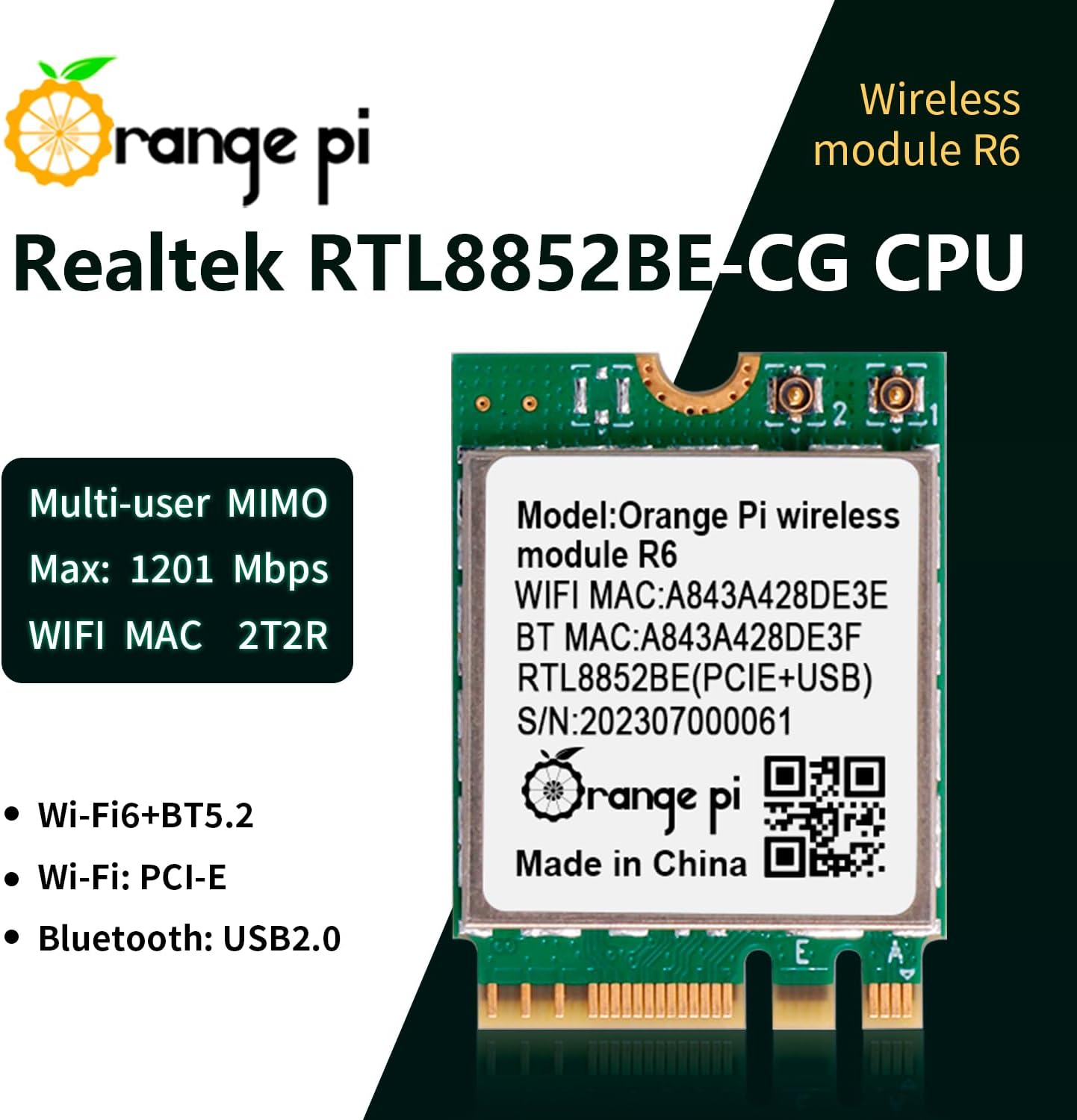
Figure 4: Orange Pi R6 module highlighting its core specifications and features.
| Parametroa | Balioa |
|---|---|
| Major Chip | Realtek RTL8852BE-CG |
| Haririk gabeko estandarra | IEEE802.11a/b/g/n/ac/ax (Wi-Fi 6) |
| Bluetooth estandarra | BT V2.1+EDR/4.2/5.2 |
| Datuen transferentzia-tasa (gehienez) | 1201 Mbps |
| Maiztasun Banda | 2.4~2.4835GHz, 5.0~5.8 GHz |
| Interface (Wi-Fi) | PCI-E (M.2 E-Key) |
| Interface (Bluetooth) | USB2.0 |
| Funtzionamendu-tenperatura | 10~+70°C ambient temperature |
| Biltegiratze Tenperatura | 40~+85°C ambient temperature |
| Neurriak (LxWxH) | 22 mm x 30 mm x 2.33 mm (0.87 x 1.18 x 0.09 hazbete) |
| Elementuaren pisua | 0.634 ontza |
| Gailu bateragarriak | Orange Pi 5 Plus |
9. Bermearen informazioa
This Orange Pi product is covered by a limited manufacturer's warranty. Please refer to the official Orange Pi website or your purchase documentation for specific warranty terms and conditions. Typically, the warranty covers defects in materials and workmanship under normal use.
10. Laguntza eta Kontaktua
For technical support, driver downloads, or further assistance with your Orange Pi 5 Plus WiFi 6 Module R6, please visit the official Orange Pi webgunea:
- Ofiziala Webgunea: www.orange-pi.com
- Komunitate foroak: Engage with other users and find solutions on the Orange Pi community forums.
- Posta elektronikoko laguntza: Contact Orange Pi customer service directly for specific inquiries.
Always ensure you have your product model (R6) and any relevant purchase information ready when contacting support.