
CUPEISI YQ10S MAX
CUPEISI YQ10S MAX Android 15 Tablet User Manual
Model: YQ10S MAX | Brand: CUPEISI
1. Sarrera
This manual provides detailed instructions for the setup, operation, maintenance, and troubleshooting of your CUPEISI YQ10S MAX Android 15 Tablet. Please read this manual thoroughly before using your device to ensure proper functionality and to maximize your user experience. Keep this manual for future reference.

Image 1.1: CUPEISI YQ10S MAX Android 15 Tablet with included accessories (keyboard, mouse, stylus, and protective case).
2. Paketearen edukia
Egiaztatu behean zerrendatutako elementu guztiak zure produktuaren paketean daudela:
- CUPEISI YQ10S MAX Android 15 Tablet
- Haririk gabeko teklatua
- Bluetooth sagua
- Foldable Protective Cover
- Estilista
- C motako kablea
- Kargagailua
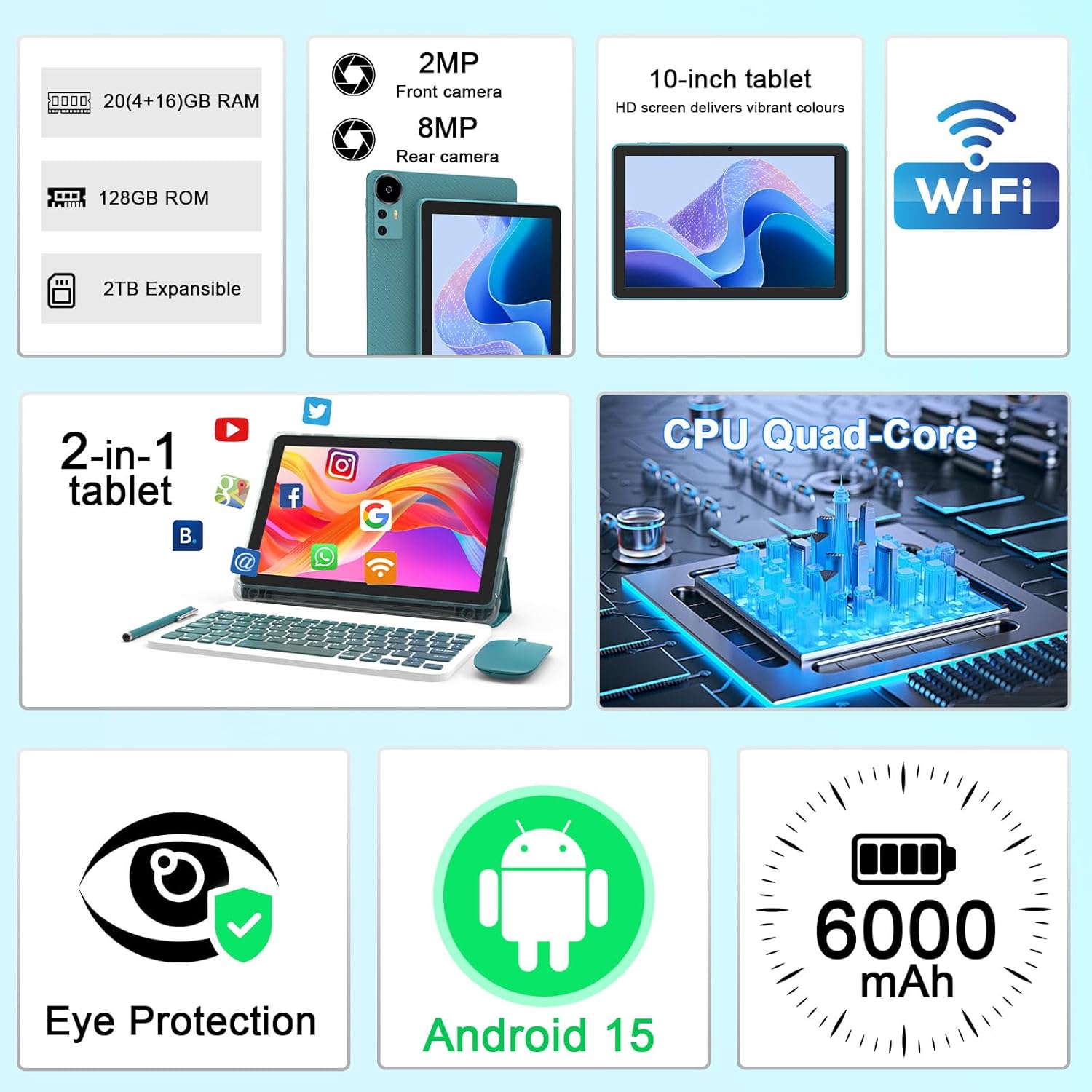
2.1. irudia: Amaituview of key features and included components.
3. Hasierako konfigurazioa
3.1 Piztu/Itzaltzea
- Pizteko: Press and hold the power button located on the side of the tablet until the screen illuminates.
- Itzaltzeko: Press and hold the power button, then select 'Power off' from the options that appear on the screen.
- Berrabiarazteko: Sakatu eta eutsi pizteko botoiari, eta ondoren hautatu 'Berrabiarazi' aukeren artean.
3.2 Tableta kargatzea
Lehenengo aldiz erabili aurretik, kargatu tableta guztiz. Erabili emandako C motako kablea eta kargagailua.
- Konektatu C motako kablea tabletaren kargatzeko atakara.
- Konektatu kablearen beste muturra korronte-egokigailura.
- Entxufatu korronte-egokigailua hormako entxufe batera.
- The battery icon on the screen will indicate charging status. A full charge typically takes several hours.

Image 3.1: Battery and charging information.
3.3 Connecting Accessories (Keyboard, Mouse, Stylus)
The tablet supports Bluetooth connectivity for the included keyboard and mouse.
- Gaitu Bluetootha: Joan zaitez Ezarpenak > Konektatutako gailuak > Bluetootha eta piztu ezazu.
- Pair Keyboard/Mouse: Put the keyboard or mouse into pairing mode (refer to their individual instructions if needed). Select the device name from the list of available Bluetooth devices on your tablet to pair.
- Larrua: The included stylus is typically passive and does not require pairing. It can be used directly on the screen for navigation or drawing.
3.4 Wi-Fi konexioa
Connect your tablet to a Wi-Fi network for internet access.
- Joan zaitez Ezarpenak > Sarea eta Internet > Wi-Fi.
- Aktibatu Wi-Fia. Tabletak eskuragarri dauden sareak bilatuko ditu.
- Hautatu nahi duzun sarea zerrendatik.
- Eskatzen bazaizu, idatzi sareko pasahitza eta sakatu Konektatu.
4. Oinarrizko Funtzionamendua
4.1 Navigating Android 15
Your tablet runs on Android 15, offering an intuitive user interface. Swipe gestures, tap actions, and the navigation bar (Back, Home, Recents) are standard for interaction. The Google Mobile Services (GMS) certification ensures access to the Google Play Store and other Google applications.

Image 4.1: Android 15 operating system features.
4.2 Pantailaren ezarpenak
The 10.1-inch IPS display with 1280x800 resolution provides clear visuals. You can adjust display settings to suit your preferences:
- Distira: Adjust screen brightness from the quick settings panel or in Ezarpenak > Bistaratzea.
- Irakurketa modua: Enable 'Reading Mode' in display settings to reduce blue light emission, which can enhance comfort during extended reading sessions.
- Letra-tamaina: Customize text size for better readability.

Image 4.2: Details of the 10.1-inch HD screen display.
4.3 Biltegiratze kudeaketa
The tablet features 128GB of internal storage and 20GB RAM (4GB physical + 16GB virtual expansion). Storage can be expanded up to 2TB using a microSD card (not included).
- Biltegiratzea egiaztatu: Joan zaitez Ezarpenak > Biltegiratzea to view internal and external storage usage.
- Sartu MicroSD txartela: Locate the microSD card slot on the tablet, insert the card gently until it clicks into place.

Image 4.3: Storage and RAM configuration.
4.4 Kameraren erabilera
The tablet is equipped with an 8MP rear camera and a 2MP front camera.
- Open Camera App: Sakatu Kameraren ikonoa hasierako pantailan edo aplikazioen tiraderan.
- Kamera aldatu: Erabili kameraren etengailuaren ikonoa aurreko eta atzeko kameren artean txandakatzeko.
- Argazkiak/Bideoak atera: Sakatu obturadorearen botoia argazki bat ateratzeko edo bideo grabaketa hasteko/gelditzeko.

Image 4.4: Camera specifications and modes.
4.5 Multimedia erreprodukzioa
The tablet supports Widevine L1, enabling high-definition streaming from platforms like Netflix, Hulu, YouTube, and Prime Video.
- Ensure a stable internet connection for optimal streaming quality.
- Download streaming apps from the Google Play Store.

Image 4.5: Widevine L1 support for multimedia streaming.
4.6 Multzoka egitea
Android 15 enhances multitasking capabilities. Use the 'Recents' button to switch between open applications or utilize split-screen mode for running two apps simultaneously.
- Pantaila zatitua: From the 'Recents' view, tap the app icon at the top of an app's card and select 'Split screen'. Choose a second app to open alongside it.
- The included keyboard and mouse facilitate a laptop-like experience for productivity tasks.

Image 4.6: Tablet used in 2-in-1 mode with keyboard and mouse.
5. Zainketa eta Mantentzea
5.1 Garbiketa
- Erabili zapi leun eta lihorik gabeko bat tabletaren pantaila eta gorputza garbitzeko.
- Saihestu produktu kimiko gogorrak, garbitzaile urratzaileak edo aerosolak erabiltzea.
- Ensure the tablet is powered off and unplugged before cleaning.
5.2 Bateria zaintzea
- Saihestu tableta tenperatura altuetan (beroan edo hotzean) jartzea.
- Ez utzi tableta guztiz deskargatuta denbora luzez.
- Use only the provided charger and cable to prevent damage to the battery.
5.3 Software eguneraketak
- Egiaztatu eta instalatu software eguneraketak aldizka, errendimendu, segurtasun eta funtzio berrietarako sarbidea optimoa bermatzeko.
- Joan zaitez Ezarpenak > Sistema > Sistema eguneratzea eskuragarri dauden eguneratzeak egiaztatzeko.
6. Arazoak
If you encounter issues with your tablet, refer to the following common problems and solutions:
6.1 Energia arazoak
- Tableta ez da pizten: Ziurtatu bateria kargatuta dagoela. Konektatu kargagailua eta itxaron minutu batzuk berriro pizten saiatu aurretik.
- Tablet freezes: Berrabiarazteko, sakatu eta eutsi pizteko botoia 10-15 segundoz.
6.2 Konexio arazoak
- Wi-Fia ez da konektatzen: Check if Wi-Fi is enabled in settings. Restart your router and the tablet. Ensure you are entering the correct password.
- Bluetooth gailua ez da parekatzen: Ensure the Bluetooth accessory is in pairing mode and within range. Restart Bluetooth on the tablet and try pairing again.
6.3 Performance Lags
- Errendimendu motela: Close unused applications running in the background. Clear cache data for frequently used apps. Consider adding a microSD card for additional storage if internal storage is nearly full.
- Aplikazioak huts egiten ari dira: Ensure apps are updated to their latest versions. Clear the app's cache and data (Ezarpenak > Aplikazioak > [Aplikazioaren izena] > Biltegiratzea).
7. Produktuaren zehaztapenak
| Ezaugarri | Zehaztapena |
|---|---|
| Marka | CUPEISI |
| Ereduaren izena | CP31M (Item model number: YQ10S MAX) |
| Sistema eragilea | Android 15 |
| Pantailaren tamaina | 10.1 hazbete |
| Pantailaren bereizmena | 1280 x 800 pixel (HD) |
| Prozesadorea | 2.0 GHz Quad-core |
| RAM | 20 GB (4 GB fisikoa + 16 GB hedapena) |
| Barne Biltegiratzea | 128 GB |
| Biltegiratze zabalgarria | Up to 2TB with microSD card (not included) |
| Haririk gabeko mota | 802.11ax (Wi-Fi 6.0, 2.4G/5G) |
| Bluetootha | BT 5.0 |
| Atzeko kamera | 8 MP |
| Aurrealdeko kamera | 2 MP |
| Bateria Edukiera | 6000 mAh |
| Bateriaren batez besteko iraupena | 6-8 Hours (usage dependent) |
| Neurriak (LxWxH) | 9.7 x 6.5 x 0.3 hazbete |
| Elementuaren pisua | 0.176 ontza |
| Kolorea | NavyBlue |
8. Bermea eta Laguntza
For warranty information, please refer to the warranty card included in your product packaging or contact CUPEISI customer support directly. If you require technical assistance or have questions not covered in this manual, please reach out to our support team through the contact information provided with your purchase.
Ask a question about this manual
Ask about setup, troubleshooting, compatibility, parts, safety, or missing instructions. Manuals+ will review the question and use this page’s manual context to help answer it.