
TECURS KB566
TECURS KB566 Wireless Keyboard and Mouse Set User Manual
Model: KB566 | Brand: TECURS
Sarrera
This manual provides detailed instructions for the TECURS KB566 Wireless Keyboard and Mouse Set. Designed for wide compatibility, this set offers a seamless and efficient experience across various operating systems and devices.

Image: The TECURS KB566 wireless keyboard with blue backlighting and the accompanying wireless mouse, showcasing the sleek design of the set.
Konfigurazio Gida
1. Gailuak kargatzea
Before first use, ensure both the keyboard and mouse are fully charged. Use the provided USB Type-C cable to connect them to a power source.
- Teklatua: Connect the Type-C cable to the charging port located on the top edge of the keyboard.
- Sagua: Connect the Type-C cable to the charging port on the front of the mouse.
- A full charge typically takes approximately 3 hours for the keyboard and 25 hours for the mouse (with backlight off).
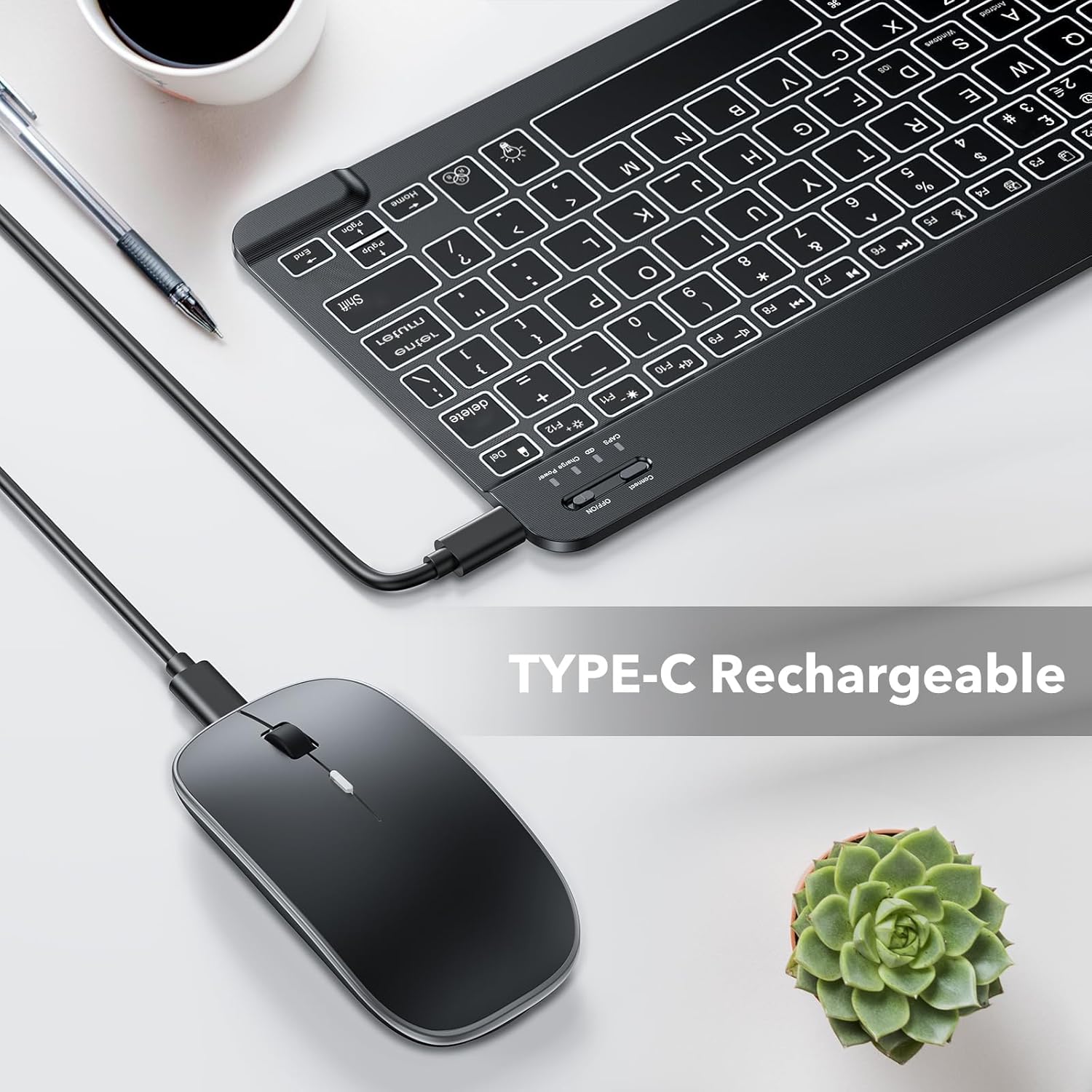
Image: The TECURS KB566 keyboard and mouse connected via USB-C cables for charging, highlighting the Type-C rechargeable feature.
2. Zure gailuarekin parekatzea
The TECURS KB566 set utilizes Bluetooth connectivity for wireless operation. Follow these steps to pair your keyboard and mouse with your device:
- Aktibatu: Slide the "ON/OFF" switch on the keyboard and mouse to the "ON" position.
- Aktibatu Bluetootha: On the keyboard, press the "Connect" button (usually near the ON/OFF switch) to enter pairing mode. The Bluetooth indicator light will flash.
- Gaitu Bluetooth zure gailuan: Go to the Bluetooth settings on your computer, tablet, or smartphone.
- Bilatu Gailuak: Your device will scan for available Bluetooth devices. Look for "TECURS KB566 Keyboard" and "TECURS KB566 Mouse" in the list.
- Hautatu eta bikotea osatu: Select each device from the list to initiate the pairing process. Follow any on-screen prompts.
- Berretsi konexioa: Once paired, the Bluetooth indicator light on the keyboard will stop flashing and remain solid or turn off, indicating a successful connection.
The keyboard is compatible with Windows, Android, and iOS operating systems, making it suitable for a wide range of devices including iPads, iPhones, laptops, and PCs.

Image: A visual representation of the TECURS KB566 keyboard and mouse being compatible with various devices such as phones, tablets, and laptops, along with icons for iOS, Android, and Windows operating systems.
Funtzionamendu-argibideak
1. Keyboard Backlight Control
The keyboard features 7 colored backlights to enhance visibility and aesthetics.
- Argia piztu/itzali: Sakatu bonbilla ikonoaren tekla (usually near the Home key) to toggle the backlight on or off.
- Argiaren kolorea etengailua: Sakatu RGB icon key (usually next to the light bulb icon) to cycle through the available backlight colors.

Image: Multiple TECURS KB566 keyboards displaying different backlight colors, along with icons indicating how to turn the light on/off and switch colors.
2. Mouse DPI Adjustment
The wireless mouse offers adjustable DPI settings for precise cursor control.
- The mouse supports 3 DPI levels: 800, 1200, and 1600.
- To change the DPI, press the DPI button (often located behind the scroll wheel) to cycle through the settings. Each press will change the sensitivity.

Image: The TECURS KB566 silent wireless mouse with icons highlighting its features: quiet click, 3-level DPI (800/1200/1600), ergonomic shape, and 7 color options for its lighting.
3. Funtzionamendu isila
Both the keyboard and mouse are designed for quiet operation, minimizing noise during use. The mouse features quiet click buttons, making it ideal for shared workspaces or late-night use without disturbing others.
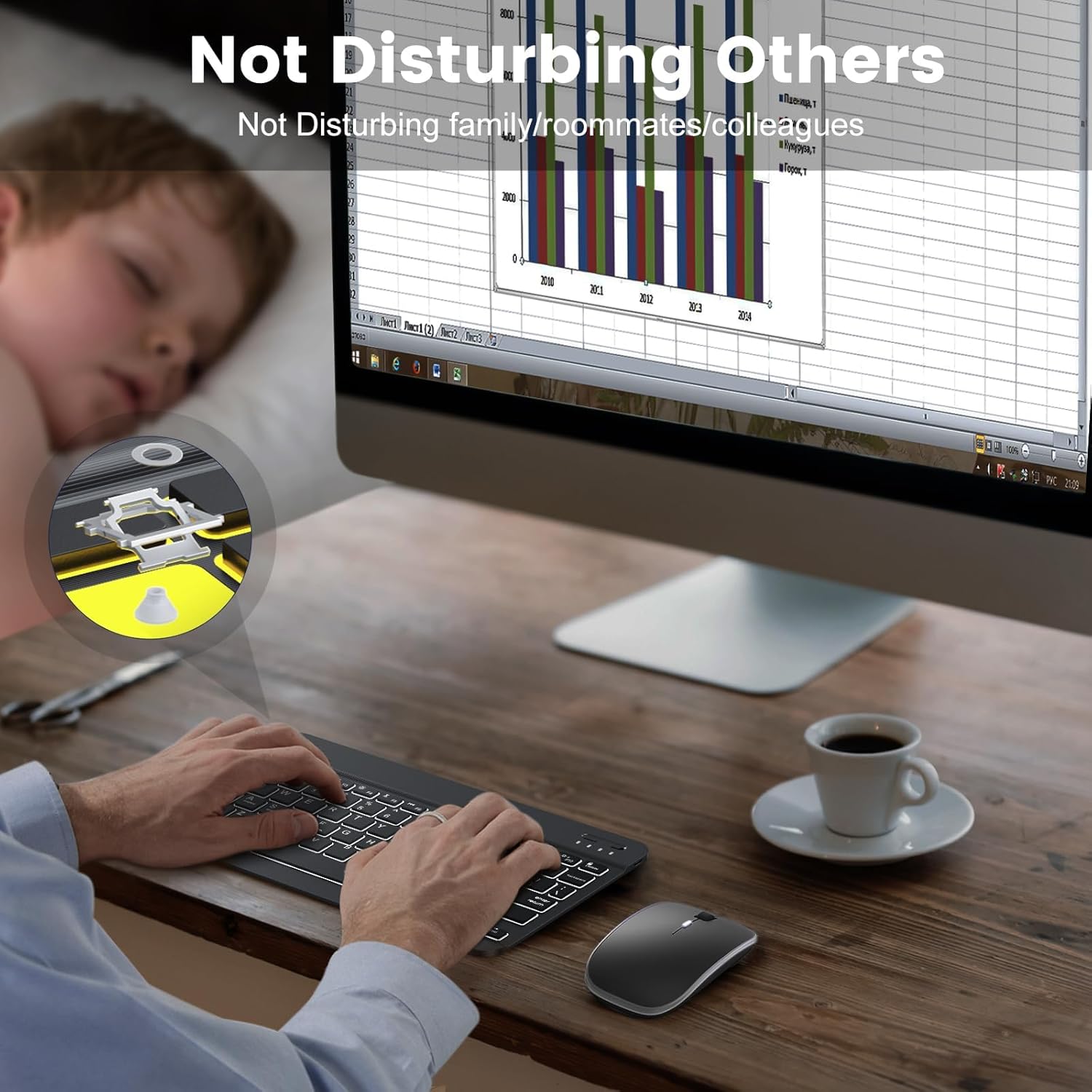
Image: A person using the TECURS KB566 keyboard and mouse quietly at a desk, with an inset showing a sleeping person, emphasizing the
Ask a question about this manual
Ask about setup, troubleshooting, compatibility, parts, safety, or missing instructions. Manuals+ will review the question and use this page’s manual context to help answer it.