
1. Sarrera
Welcome to the user manual for your new Samsung Crystal CU8579 75-inch 4K UHD Smart TV. This manual provides essential information for setting up, operating, maintaining, and troubleshooting your television. Please read it thoroughly to ensure safe and optimal use of your product.
The Samsung Crystal CU8579 features Kristal kolore dinamikoa for realistic color spectra, an AirSlim Diseinua for a sleek profile, and a powerful Kristal prozesadorea 4K for enhanced picture quality. Enjoy a seamless smart experience with the integrated Samsung SmartHub eta Gaming Hub, complemented by Object Tracking Sound Lite audio-esperientzia murgiltzeko.
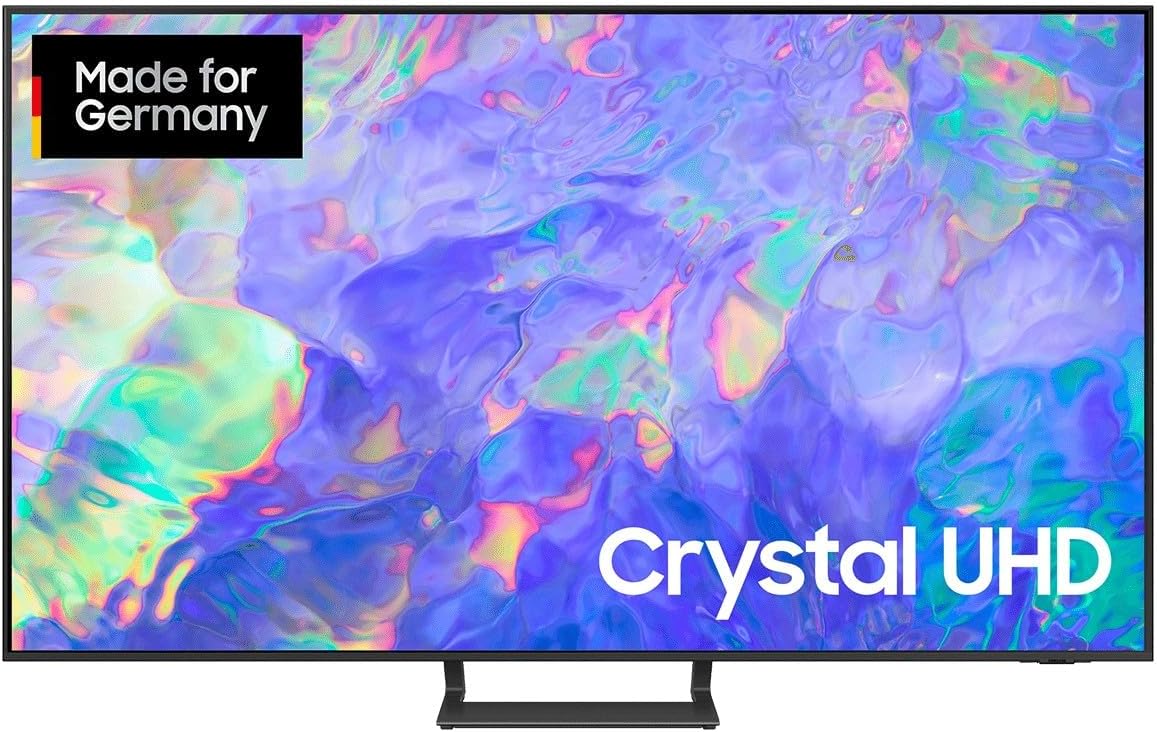
1.1. irudia: Aurrealdea view of the Samsung Crystal CU8579 75-inch 4K UHD Smart TV.
2. Segurtasun informazio garrantzitsua
Before using your TV, please read all safety instructions carefully. Failure to follow these instructions may result in electric shock, fire, or damage to the product.
- Potentzia: Only use the provided power cord. Do not overload wall outlets. Ensure the power plug is fully inserted.
- Aireztapena: Ez blokeatu aireztapen-irekidurak. Utzi nahikoa leku telebistaren inguruan aire-fluxu egokia izan dadin.
- Ura eta hezetasuna: Ez jarri telebista euripean edo hezetasunean. Ez jarri likidoz betetako objekturik, hala nola loreontziak, telebistaren gainean.
- Garbiketa: Deskonektatu telebista garbitu aurretik. Erabili zapi leun eta lehor bat. Ez erabili garbitzaile likidorik edo aerosol-garbitzailerik.
- Lekua: Jarri telebista gainazal egonkor eta lau batean. Saihestu eguzki-argitan edo bero-iturrietatik gertu jartzea.
- Haurrak: Zaindu haurrak telebistara igo edo harekin jolastu ez dezaten.

Image 2.1: General safety guidelines for electronic devices.
3. Paketearen edukia
Please check that all items are present in your product box. If any items are missing or damaged, contact your retailer.
- Samsung Crystal CU8579 75" 4K UHD Smart TV
- Smart Remote Control (SolarCell Remote)
- Elikatze-kablea
- Euskarriko osagaiak (oinarria eta lepoa)
- Erabiltzailearen eskuliburua (dokumentu hau)
- Berme Txartela / Arauzko Gida

Image 3.1: Illustration of typical package contents.
4. Konfigurazioa
4.1 Paketatzea
Carefully remove the TV from its packaging. It is recommended to have two people for this process due to the size and weight of the 75-inch model. Keep the packaging materials for future transport or storage.

Image 4.1: Unpacking the television.
4.2 Assembling the Stand / Wall Mounting
You have two options for placement: using the included stand or wall mounting (wall mount sold separately).
Standaren muntaia:
- Jarri telebistaren pantaila beherantz gainazal bigun eta lau batean, marradurak saihesteko.
- Lotu euskarriaren lepoa telebistari emandako torlojuak erabiliz.
- Attach the stand base to the neck, securing it with screws.
- Kontu handiz altxatu telebista zutik jarri arte.

Image 4.2: Stand assembly instructions.
Horman muntatzea:
If you choose to wall mount your TV, ensure you use a VESA-compliant wall mount kit that is appropriate for the size and weight of your 75-inch TV. Follow the instructions provided with your wall mount kit. Remove the stand before wall mounting.

4.3 irudia: Adibideaample of a wall-mounted television.
4.3 Konektatzeko kableak
Connect all necessary cables to your TV before plugging it into a power outlet.
Sare elektrikoa
Connect the power cable to the TV's power input, then plug the other end into a wall outlet.

Image 4.4: Connecting the power cable.
HDMI gailuak:
Connect external devices such as Blu-ray players, game consoles, or set-top boxes to the HDMI ports on the back of your TV.

Image 4.5: Connecting an HDMI cable.
Antena/Kablea:
If you are using an antenna or cable connection, connect the coaxial cable to the 'ANT IN' port on the TV.
Amaituview Portuak:

4.6. irudia: Atzekoa view of TV ports including HDMI, USB, and Ethernet.
4.4 Hasierako piztea eta oinarrizko ezarpenak
Once all cables are connected, plug the TV into a power outlet. The TV will automatically turn on or you can press the Power button on the remote control. Follow the on-screen instructions to complete the initial setup, which includes language selection, network connection, and channel scanning.

Image 4.7: Initial setup wizard screen.
5. Telebistaren funtzionamendua
5.1 Urruneko kontrola
Your Samsung TV comes with a Smart Remote Control (SolarCell Remote). Familiarize yourself with its buttons and functions.

Image 5.1: Samsung Smart Remote Control.
The SolarCell Remote charges via indoor lighting or USB-C. To check the battery level, navigate to Settings > General > Power and Energy Saving > Remote Control Battery.

Image 5.2: SolarCell Remote charging via ambient light.
5.2 Oinarrizko funtzioak
- Piztu/Itzali: Sakatu urrutiko pizteko botoia.
- Bolumen kontrola: Erabili bolumena igotzeko/jaisteko botoiak.
- Kanal aldaketa: Erabili kanala gora/behera botoiak.
- Iturburuaren hautaketa: Sakatu Iturria botoia konektatutako gailuen artean aldatzeko (HDMI, telebista, etab.).
5.3 Smart Hub eta aplikazioak
The Samsung Smart Hub provides access to a wide range of apps, streaming services, and other smart features. Press the Home button on your remote to open the Smart Hub.

Image 5.3: Samsung Smart Hub home screen.
You can download and manage apps from the App Store within the Smart Hub.

Image 5.4: Smart Hub app selection.
5.4 Jokoen Gunea
The Gaming Hub provides a dedicated space for cloud gaming services and connected consoles, offering a streamlined gaming experience.

Image 5.5: Samsung Gaming Hub interface.
5.5 Kanpoko gailuak konektatzea
USB gailuak:
Plug USB storage devices into the TV's USB ports to view argazkiak atera, bideoak erreproduzitu edo musika entzun.

Image 5.6: Connecting a USB device.
Bluetooth gailuak:
You can connect Bluetooth headphones or other audio devices to your TV. Go to Settings > Sound > Sound Output > Bluetooth Speaker List to pair devices.

Image 5.7: Bluetooth device pairing screen.
5.6 Irudi eta soinu ezarpenak
Access the TV's settings menu to customize picture and sound preferences. Press the Settings button on your remote or navigate via the Smart Hub.

Image 5.8: TV settings menu.
- Irudi modua: Choose from various modes like Standard, Dynamic, Movie, or Filmmaker Mode.
- Soinu modua: Select modes such as Standard, Adaptive Sound, or Ampbizitu.
- Adituen ezarpenak: Fine-tune brightness, contrast, sharpness, color, and other advanced options.
6. Mantentzea
6.1 Telebista garbitzea
Telebistaren itxura eta errendimendua mantentzeko, jarraitu garbiketa-jarraibide hauek:
- Deskonektatu beti telebista garbitu aurretik.
- Erabili mikrofibrazko zapi leun eta lehor bat pantaila eta markoa astiro-astiro garbitzeko.
- Marka egoskorretarako, arinki garbituampen the cloth with distilled water. Do not spray liquid directly onto the TV.
- Saihestu garbitzaile urratzaileak, argizariak edo disolbatzaileak erabiltzea.

Image 6.1: Proper method for cleaning a TV screen.
6.2 Software eguneraketak
Regularly update your TV's software to ensure optimal performance, security, and access to new features. You can set your TV to update automatically or check for updates manually via Ezarpenak > Laguntza > Software eguneratzea > Eguneratu orain.

Image 6.2: Software update screen.
7. Arazoak
If you encounter problems with your TV, refer to the following common issues and solutions before contacting customer support.

Image 7.1: General troubleshooting scenario.
- Potentziarik gabe:
- Ensure the power cable is securely connected to both the TV and the wall outlet.
- Check if the outlet is working by plugging in another device.
- Saiatu beste entxufe batekin.
Image 7.2: No power indicator.
- Irudirik ez / Irudi distortsionatua:
- Check the input source. Press the Source button on the remote to select the correct input.
- Ensure HDMI cables are securely connected.
- Try a different HDMI cable or port.
- If using an antenna, check the connection and perform a channel scan.
Image 7.3: No picture displayed.
- Soinurik ez:
- Check the volume level. Ensure the TV is not muted.
- If using external audio devices (soundbar, receiver), ensure they are powered on and correctly connected.
- Check the sound output settings in the TV menu.
Image 7.4: No sound output.
- Urruneko kontrola ez dabil:
- Ensure there are no obstructions between the remote and the TV.
- Check the remote's battery level (for SolarCell Remote, ensure it's charged).
- Point the remote directly at the TV's remote sensor.
Image 7.5: Remote control not functioning.
- Sareko konexio arazoak:
- Check your Wi-Fi router and modem to ensure they are powered on and working.
- Restart your router and modem.
- Joan zaitez Settings > General > Network > Network Status to diagnose the connection.
- Try connecting via an Ethernet cable if Wi-Fi issues persist.
Image 7.6: Network connection error.
8. Zehaztapenak
Below are the key technical specifications for the Samsung Crystal CU8579 75-inch 4K UHD Smart TV.

Image 8.1: Visual representation of TV specifications.
| Ezaugarri | Zehaztapena |
|---|---|
| Marka | Samsung |
| Modelo zenbakia | CU8579 |
| Pantailaren tamaina | 75 hazbete |
| Bistaratzeko Teknologia | LED |
| Ebazpena | 4K (3840 x 2160) |
| Freskatze tasa | 50 Hz |
| Sistema eragilea | Tizen |
| Konektibitatea | Bluetooth, Ethernet, HDMI (3 ports), USB (3 ports), Wi-Fi |
| Ezaugarri bereziak | Dynamic Crystal Color, Crystal Processor 4K, Object Tracking Sound Lite, Samsung Smart Hub & Gaming Hub, 3D Virtual Surround Sound |
| Kolorea | Beltza |
| Produktuaren neurriak (LxWxH) | 33.9 x 167.8 x 102.7 cm |
| Irudi formatua | 16:9 |
9. Bermea eta Laguntza
9.1 Bermearen informazioa
Your Samsung TV is covered by a limited warranty. Please refer to the warranty card included in your package for specific terms, conditions, and duration of coverage. Keep your proof of purchase for warranty claims.

9.1 irudia: Adibideaample of a warranty document.
9.2 Bezeroarentzako laguntza
If you require further assistance or encounter issues not covered in this manual, please contact Samsung Customer Support. You can find contact details on the Samsung official webgunean edo zure berme-txartelean.
- Bisitatu Samsung-en laguntza ofiziala webMaiz egiten diren galderen, deskargen eta zerbitzu-eskaeren gunea.
- Contact the customer service hotline provided in your product documentation.

Image 9.2: Customer support assistance.