
1. Sarrera
Thank you for choosing the LIONWEI 12-in-1 USB C Docking Station. This manual provides detailed instructions for setting up, operating, and troubleshooting your device. Please read this manual thoroughly before use to ensure optimal performance and safety.
Produktuaren Ezaugarriak
- 12-in-1 Konexioa: Expands a single USB C or Thunderbolt 3/4 port into 12 versatile ports.
- Triple Display Output: Supports up to three external monitors via HDMI (4K@60Hz), DisplayPort (4K@60Hz), and VGA (1080P@60Hz).
- Abiadura handiko datuen transferentzia: Features 2x USB C 3.0 ports and 1x USB A 3.0 port, all offering 5Gbps data transfer speeds. Includes 1x USB 2.0 port for peripherals.
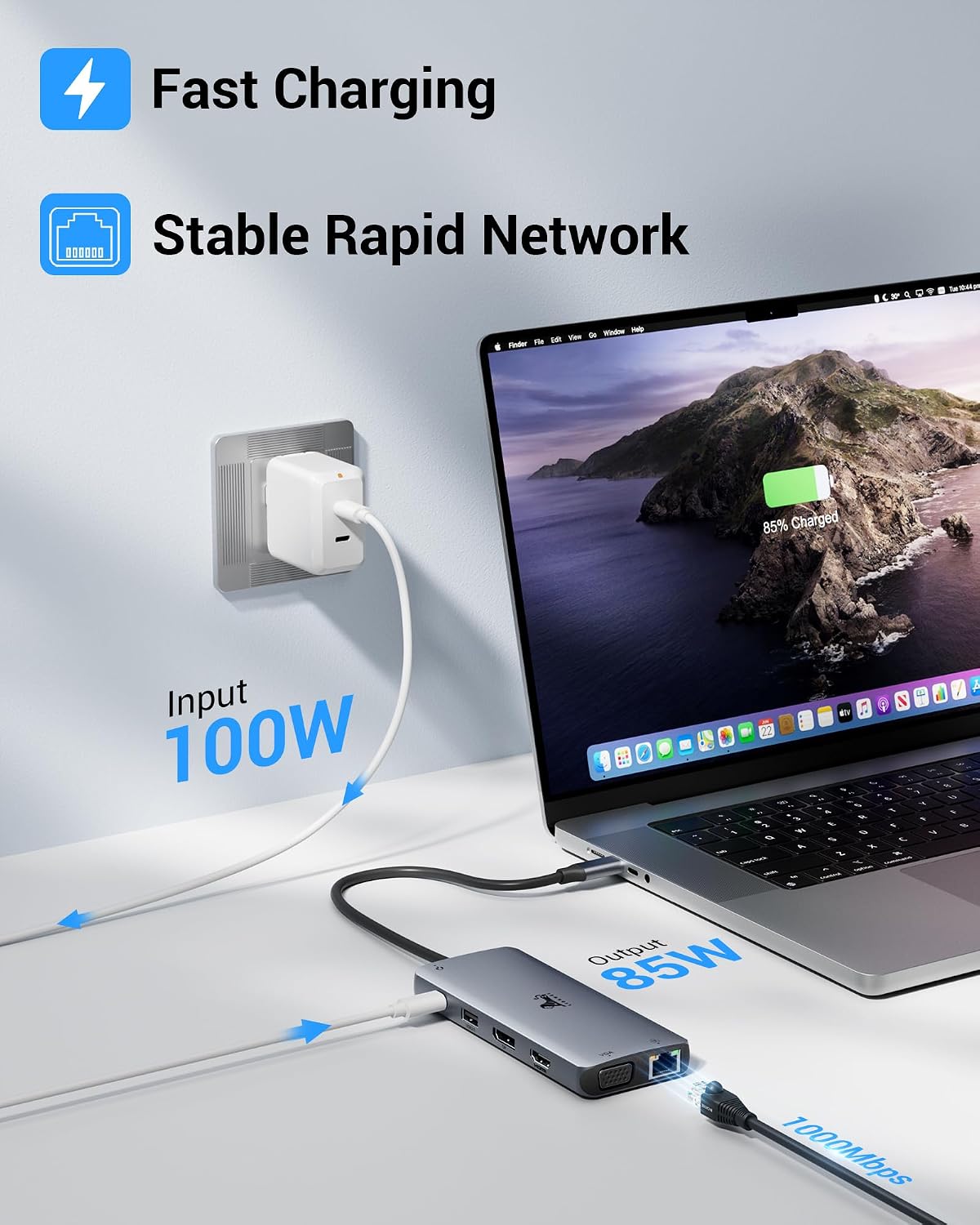
- Potentzia entrega: USB C PD3.0 port supports up to 100W input, providing up to 85W power delivery to your host laptop.
- Gigabit-Ethernet: RJ45 port provides stable and fast wired network connectivity (10/100/1000 Mbps).
- Txartel irakurgailua: Integrated SD and Micro SD card slots with up to 40MB/s transfer speed.
- Audio konexioa: 3.5mm audio/microphone jack for headphones or speakers.
2. Produktua amaitu daview
Familiarize yourself with the ports and components of your LIONWEI 12-in-1 USB C Docking Station.

2.1. irudia: LIONWEI 12-in-1 USB C Docking Station showing all available ports. Ports include HDMI (4K@60Hz), DisplayPort (4K@60Hz), USB 2.0 (480Mbps), PD 3.0 (100W input), Audio/Mic 3.5mm, USB C 3.0 (5Gbps), USB A 3.0 (5Gbps), SD/Micro SD Card slots (40MB/s), RJ45 (1000Mbps), and VGA (1080P@60Hz).
3. Konfiguratzeko argibideak
Follow these steps to set up your docking station.
- Konektatu ostalari gailura: Plug the integrated USB C cable from the docking station into a compatible USB C or Thunderbolt 3/4 port on your laptop. Ensure your laptop's USB C port supports video output (DP Alt Mode).
- Energia konexioa (aukerakoa baina gomendagarria): For stable operation and laptop charging, connect a USB C Power Delivery (PD) charger (not included, 65W or higher recommended) to the PD3.0 port on the docking station.
- Kanpoko pantailak konektatu:
- Connect your monitors to the HDMI, DisplayPort, and/or VGA ports on the docking station using appropriate cables.
- For optimal performance, use high-quality cables.
- Konektatu periferikoak: Plug in your USB devices (keyboard, mouse, external drives) to the available USB A 3.0, USB C 3.0, or USB 2.0 ports.
- Sare-konexioa: For a wired internet connection, connect an Ethernet cable from your router/modem to the RJ45 port on the docking station.
- Audio gailuak: Konektatu entzungailuak edo bozgorailuak 3.5 mm-ko audio-hargunera.
- Memoria txartelak: Insert SD or Micro SD cards into the respective slots.
Bateragarritasun oharrak

3.1. irudia: Universal Compatibility overview, illustrating support for various display types, USB peripherals, memory cards, and operating systems.
- Compatible with laptops featuring Thunderbolt 3/4 ports or USB C ports that support video output (DP Alt Mode).
- Supported Operating Systems: Windows OS 7/8/10/11 (X86/X64), Mac OS 10.2 or higher, Chrome OS, Linux.
- For specific laptop compatibility (e.g., MacBook Pro 2022/2021/2020/2019, Lenovo ThinkPad T14 Gen 1, Dell Inspiron 7400), refer to your laptop's specifications or contact the manufacturer.
4. Funtzionamendu-argibideak
Multi-Monitor Setup
The docking station supports various display modes depending on your operating system.

4.1. irudia: Windows Multi-Display Modes. Windows systems support Mirror Mode, Extend Mode, and MST (Multi-Stream Transport) Extend Mode for up to three independent displays.
- Windows sistemak: Support Mirror Mode (SST), Extend Mode (SST), and MST (Multi-Stream Transport) Extend Mode. This allows for up to three independent displays.
- macOS sistemak: Support Mirror Mode (SST) and Extend Mode (SST). macOS does ez support MST (Multi-Stream Transport) for independent extended displays. All external monitors will mirror each other in extended mode.
- DP1.2 Laptops: If your laptop uses DP1.2, extending to two monitors may be limited to 1920x1080 resolution.
4.2. irudia: macOS Multi-Display Modes. macOS supports Mirror Mode and Extend Mode (SST), where external displays show the same content in extended mode.
Energia-banaketa eta kargatzea
The PD3.0 port on the docking station allows you to charge your host laptop while using the dock.
- Connect a USB C PD charger (up to 100W input) to the PD3.0 port.
- The docking station will deliver up to 85W of power to your connected laptop.
- Ensure your charger is 65W or higher for effective charging.
- The PD port is for charging only and does not support data transfer or video output.

4.3. irudia: Illustrates fast charging (100W input, 85W output) and stable Gigabit Ethernet connectivity through the docking station.
Datuen transferentzia
Utilize the various USB ports and card reader slots for data transfer.
- USB 3.0 Ports (Type-A and Type-C): Offer data transfer speeds up to 5Gbps. Ideal for external hard drives, SSDs, and high-speed flash drives.
- USB 2.0 ataka: Provides 480Mbps data transfer. Best suited for low-bandwidth devices like keyboards, mice, and printers to avoid signal interference.
- SD/Micro SD Card Reader: Supports data transfer up to 40MB/s. Insert cards correctly into their respective slots.

4.4. irudia: Demonstrates rapid and multiple data transfer capabilities, highlighting 5Gbps for USB-C 3.0 and USB-A 3.0, and 480Mbps for USB-A 2.0.
5. Mantentzea
- Mantendu kargatzeko estazioa garbi eta hautsik gabe. Erabili zapi leun eta lehor bat garbitzeko.
- Saihestu gailua muturreko tenperatura, hezetasun edo eguzki-argia zuzenaren eraginpean jartzea.
- Do not attempt to disassemble or repair the docking station yourself. Contact qualified service personnel if needed.
- Disconnect the docking station from power and your host device when not in use for extended periods.
6. Arazoak
| Arazoa | Kausa posiblea | Irtenbidea |
|---|---|---|
| No display on external monitor(s). |
|
|
| Ordenagailu eramangarria ez da kargatzen. |
|
|
| USB gailuak ez dira ezagutzen. |
|
|
| Ethernet connection unstable or not working. |
|
|
7. Zehaztapenak
| Ezaugarri | Xehetasuna |
|---|---|
| Marka | LIONWEI |
| Modelo zenbakia | UC3311 |
| Kolorea | Grisa |
| Materiala | Plastikoa edo Aluminioa |
| Sarrerako ataka | USB C (Host connection) |
| Bideo Irteerako Portuak | 1x HDMI (Max 4K@60Hz), 1x DisplayPort (Max 4K@60Hz), 1x VGA (Max 1080P@60Hz) |
| USB datu-ataka | 2x USB C 3.0 (5Gbps), 1x USB A 3.0 (5Gbps), 1x USB A 2.0 (480Mbps) |
| Energia Hornitzeko Portua | 1x USB C PD3.0 (Max 100W input, 85W output to host) |
| Ethernet ataka | 1x RJ45 (10/100/1000 Mbps Gigabit Ethernet) |
| Txartel irakurgailua | SD Card Slot, Micro SD Card Slot (up to 40MB/s) |
| Audio-portua | 1x 3.5mm Audio/Mic Jack |
| Sistema eragile bateragarriak | Windows OS 7/8/10/11 (X86/X64), Mac OS 10.2+, Chrome OS, Linux |
| Ezaugarri bereziak | Fast Charging, Fast Data Transfer, Gigabit Ethernet, Triple Display Support |
8. Bermea eta Laguntza
For warranty information or technical support, please refer to the product packaging or contact LIONWEI customer service directly.
- Ordezko piezen erabilgarritasuna: Informaziorik ez dago eskuragarri.
- Guaranteed software updates until: Information not available.