
1. Sarrera
This manual provides detailed instructions for the setup, operation, and maintenance of your TECURS 2.4G Wireless Gaming Keyboard. This keyboard is designed for versatile use across various operating systems and devices, featuring a comfortable ergonomic design, adjustable backlighting, and a built-in phone/tablet holder.

Figure 1: TECURS 2.4G Wireless Gaming Keyboard with integrated phone/tablet holder.
2. Paketearen edukia
Mesedez, egiaztatu elementu guztiak zure paketean daudela:
- 1 x TECURS 2.4G Wireless Gaming Keyboard
- 1 x USB-A/Type-C 2.4G Wireless Dongle (with Type-C adapter)
- 1 x USB motako C kargatzeko kablea
- 1 x Erabiltzailearen eskuliburua (dokumentu hau)
3. Konfigurazioa
3.1. Teklatua kargatzea
Before first use, fully charge the keyboard using the provided USB Type-C charging cable. Connect the Type-C end of the cable to the keyboard's charging port and the USB-A end to a compatible USB power source (e.g., computer USB port, USB wall adapter). The battery indicator light will show charging status.
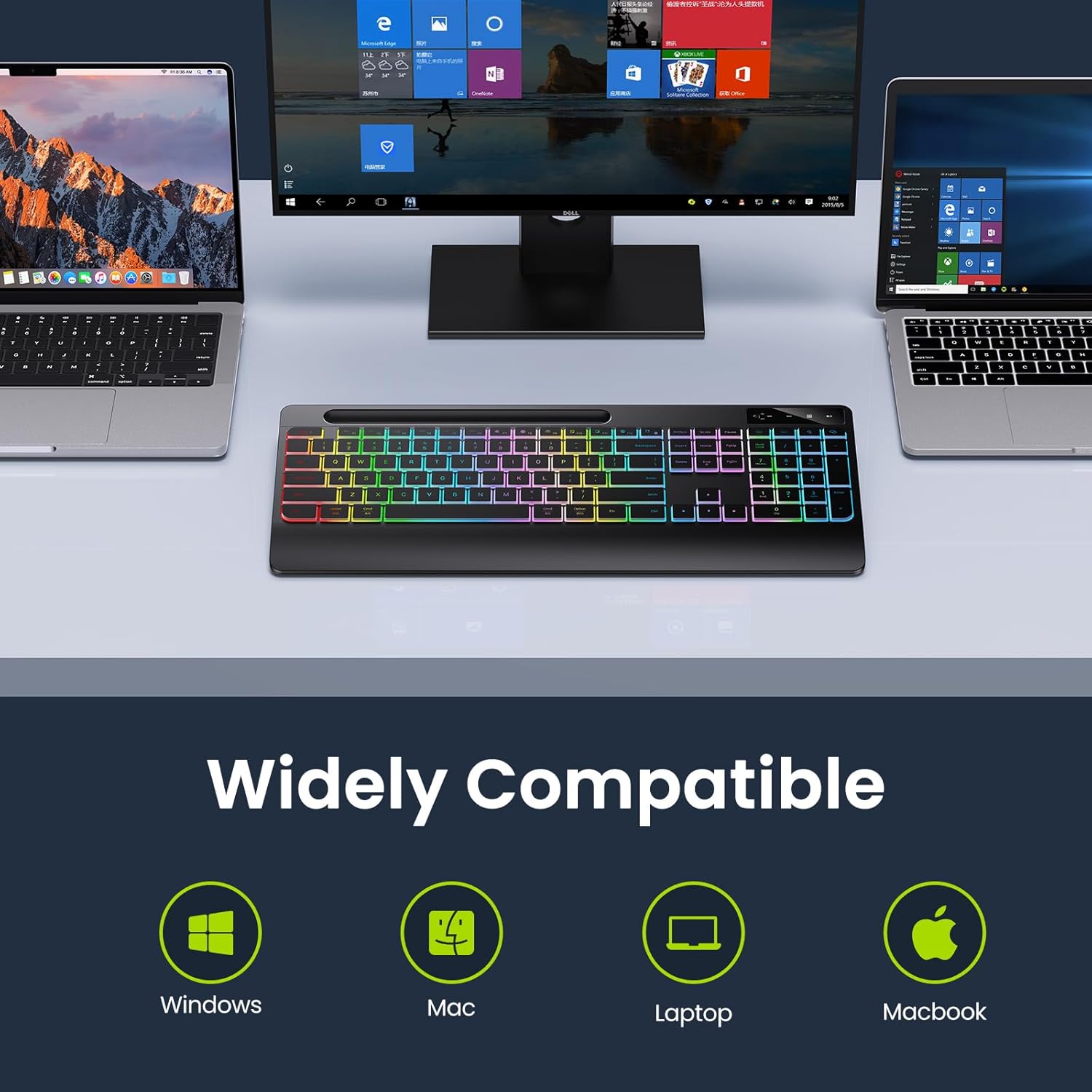
Figure 2: Connecting the USB Type-C charging cable to the keyboard.
3.2. Zure gailura konektatzen
The keyboard connects wirelessly via a 2.4 GHz USB dongle. No drivers are required for installation.
- Locate the 2.4 GHz USB dongle, typically stored in a compartment on the underside of the keyboard.
- If your device has a USB-A port, plug the dongle directly into it.
- If your device has a USB-C port, attach the included Type-C adapter to the USB-A dongle, then plug the assembly into the USB-C port.
- Turn on the keyboard using the ON/OFF switch located on the top right side of the keyboard.
- Teklatua automatikoki konektatu beharko litzateke zure gailura.

Figure 3: Wireless dongle and compatibility with USB-A and Type-C ports.
1. bideoa: Amaitu daview of the TECURS Wireless Keyboard features, including connectivity and ergonomic design.
4. Funtzionamendu-argibideak
4.1. Atzeko argiaren kontrola
The keyboard features adjustable LED backlighting with multiple brightness levels.
- To turn on/off the backlight or adjust brightness: Sakatu Fn + amaiera repeatedly to cycle through brightness levels (Low, Medium, High, Off).
- Gaitzeko Atzeko argia beti piztuta: Sakatu Fn + Esc.

Figure 4: Backlight brightness adjustment controls.
4.2. Phone/Tablet Holder
The integrated slot at the top of the keyboard serves as a convenient holder for your smartphone or tablet, allowing for easy viewidazten ari den bitartean.

Figure 5: Using the integrated phone/tablet holder.
4.3. Sistema aldaketa
The keyboard supports both Windows and Mac operating systems. Use the dedicated system indicator buttons to switch between modes:
- Sakatu IRABAZI button to activate Windows mode.
- Sakatu MAC button to activate Mac mode.
4.4. Diseinu Ergonomikoa
The keyboard features an 8-degree tilt angle and a wrist rest to promote a more comfortable typing posture and reduce strain during extended use.

Figure 6: Ergonomic design with 8-degree tilt.
4.5. Silent Flat Keys
The keyboard is equipped with responsive low-profile keys designed to minimize typing noise, providing a quiet and comfortable input experience.

Figure 7: Silent flat keys for quiet operation.
5. Mantentzea
Zure teklatuaren iraupena eta errendimendu optimoa bermatzeko, jarraitu mantentze-jarraibide hauek:
- Garbiketa: Erabili zapi leun, lehor eta lihorik gabeko bat teklatuaren gainazala garbitzeko. Zikinkeria egoskorra bada, garbitu pixka batampGarbitu zapi bat urarekin edo garbitzaile leun eta ez-urratzaile batekin. Saihestu gehiegizko hezetasuna.
- Hautsa kentzea: Erabili aire konprimatua teklen arteko hautsa eta hondakinak kentzeko.
- Biltegiratzea: Denbora luzez erabiltzen ez duzunean, gorde teklatua leku fresko eta lehor batean, eguzki-argitik eta muturreko tenperaturetatik babestuta.
- Bateria zaintzea: Avoid fully discharging the battery frequently. Recharge the keyboard when the low battery indicator appears.
6. Arazoak
Teklatuarekin arazoak badituzu, jo ezazu honako arazo eta irtenbide ohikoenei:
| Arazoa | Kausa posiblea | Irtenbidea |
|---|---|---|
| Teklatuak ez du erantzuten | Low battery; Dongle not properly connected; Keyboard OFF. | Charge the keyboard; Re-insert the USB dongle; Ensure keyboard is ON. |
| Atzeko argiak ez du funtzionatzen | Atzeko argia itzalita; Bateria gutxi. | Press Fn + End to cycle backlight modes; Charge the keyboard. |
| Input lag or intermittent connection | Interference; Dongle too far from keyboard. | Move closer to the dongle (within 33 feet); Avoid placing near other wireless devices. |
| Keys rubbing off | Denborarekin gertatzen den higadura normala. | This is a cosmetic issue and does not affect functionality. Consider keycap stickers if desired. |
7. Zehaztapenak
- Modelo zenbakia: TCK-2.4G-WRIST-PHONE-HLDR
- Konektibitate Teknologia: 2.4 GHz Wireless (USB-A, USB-C compatible dongle)
- Teklatuaren deskribapena: Mintza
- Gako kopurua: 109
- Ezaugarri bereziak: Backlit, Rechargeable, Wrist Rest, Phone Holder
- Teklatuaren atzeko argiaren kolore-laguntza: Single Color (Rainbow effect)
- Energia iturria: 1 litio ioizko bateria (barne)
- Bateriaren edukiera: 1000 mAh (approximate, based on typical usage)
- Bateriaren iraupena: Up to 15 days (no backlight), Up to 10 hours (with backlight)
- Gailu bateragarriak: Laptop, PC, iPad, Smart TV, Tablet, Smartphone
- Sistema eragileak: Windows, Mac
- Kolorea: Beltza
- Elementuaren pisua: 1.83 libra (gutxi gorabehera 0.83 kg)
- Paketearen neurriak: 17.32 x 8.7 x 1.3 hazbete (gutxi gorabehera 44 x 22.1 x 3.3 cm)
8. Bermea eta Laguntza
For warranty information and customer support, please refer to the documentation included with your product packaging or visit the official TECURS website. You can also visit the TECURS store on Amazon for more product details and support resources: