
1. Sarrera eta Overview
This manual provides detailed instructions for the setup, operation, maintenance, and troubleshooting of your AOC 16T3EA 15.6-inch USB-C Ultra-Slim Portable Monitor. Designed for enhanced productivity and entertainment on the go, this monitor offers Full HD 1920x1080 resolution with an IPS panel for wide viewing angles and consistent colors.
Its ultra-slim design and single USB-C cable connectivity make it an ideal companion for laptops, PCs, and other compatible devices, ensuring a seamless dual-screen experience wherever you are.
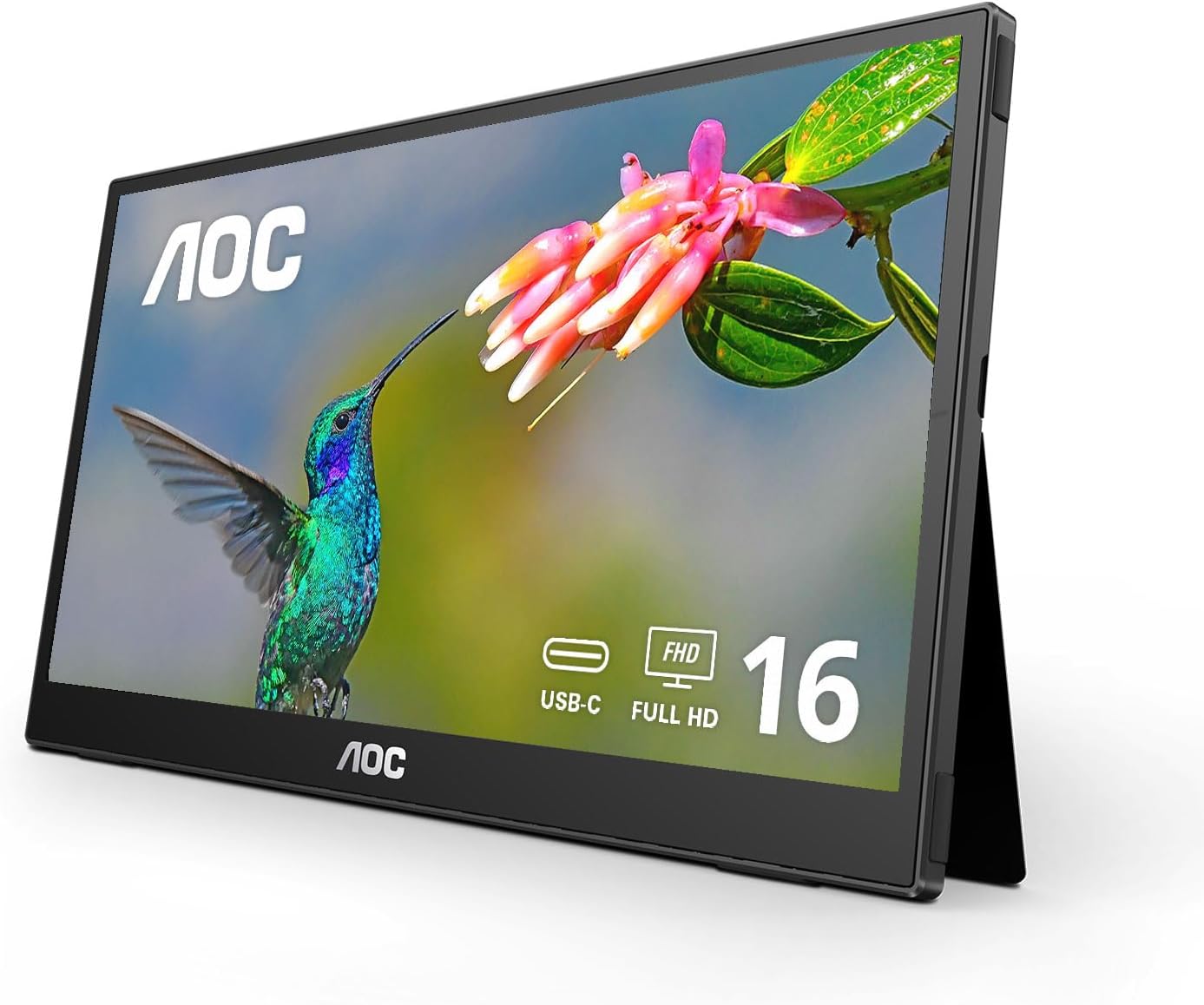
Figure 1.1: The AOC 16T3EA portable monitor, showcasing its sleek design and integrated kickstand.
2. Zer dago kutxan
Mesedez, egiaztatu behean zerrendatutako elementu guztiak zure produktuaren ontzian daudela:
- AOC 16T3EA Portable Monitor
- USB-C Cable (for power and signal)
- Garraio Poltsa
- Erabiltzailearen eskuliburua (dokumentu hau)
Note: This monitor is designed for single-cable USB-C connectivity for both power and video signal (USB-C DP Alt Mode required).
3. Konfiguratzeko argibideak
3.1 Monitorea konektatzea
The AOC 16T3EA monitor utilizes a single USB-C cable for both power and video signal, simplifying your setup. Ensure your device (laptop, PC, etc.) supports USB-C DisplayPort Alternate Mode (DP Alt Mode) for full functionality.
- Connect one end of the provided USB-C cable to the USB-C port on your AOC 16T3EA monitor.
- Connect the other end of the USB-C cable to a compatible USB-C port on your source device (laptop, PC, etc.).
- The monitor should automatically detect the signal and power on. If not, press the power button located on the side of the monitor.
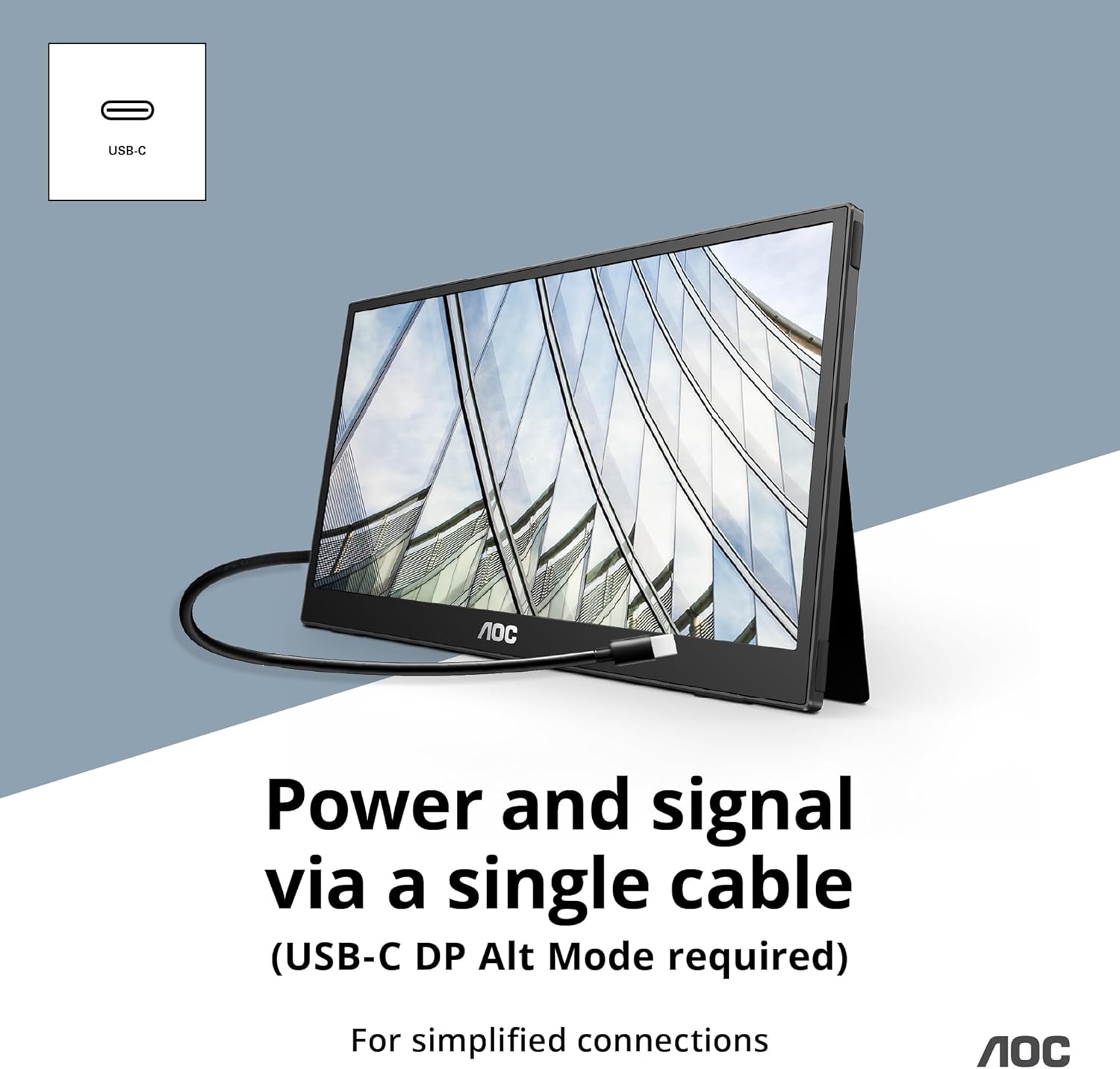
Figure 3.1: Connecting the monitor using a single USB-C cable for power and signal.
3.2 Using the Built-in Kickstands
The monitor features dual built-in kickstands, allowing for flexible positioning in both landscape and portrait orientations.
- Paisaia modua: Extend the kickstands from the back of the monitor to prop it up horizontally.
- Erretratu modua: Rotate the monitor 90 degrees and extend the kickstands to support it vertically.

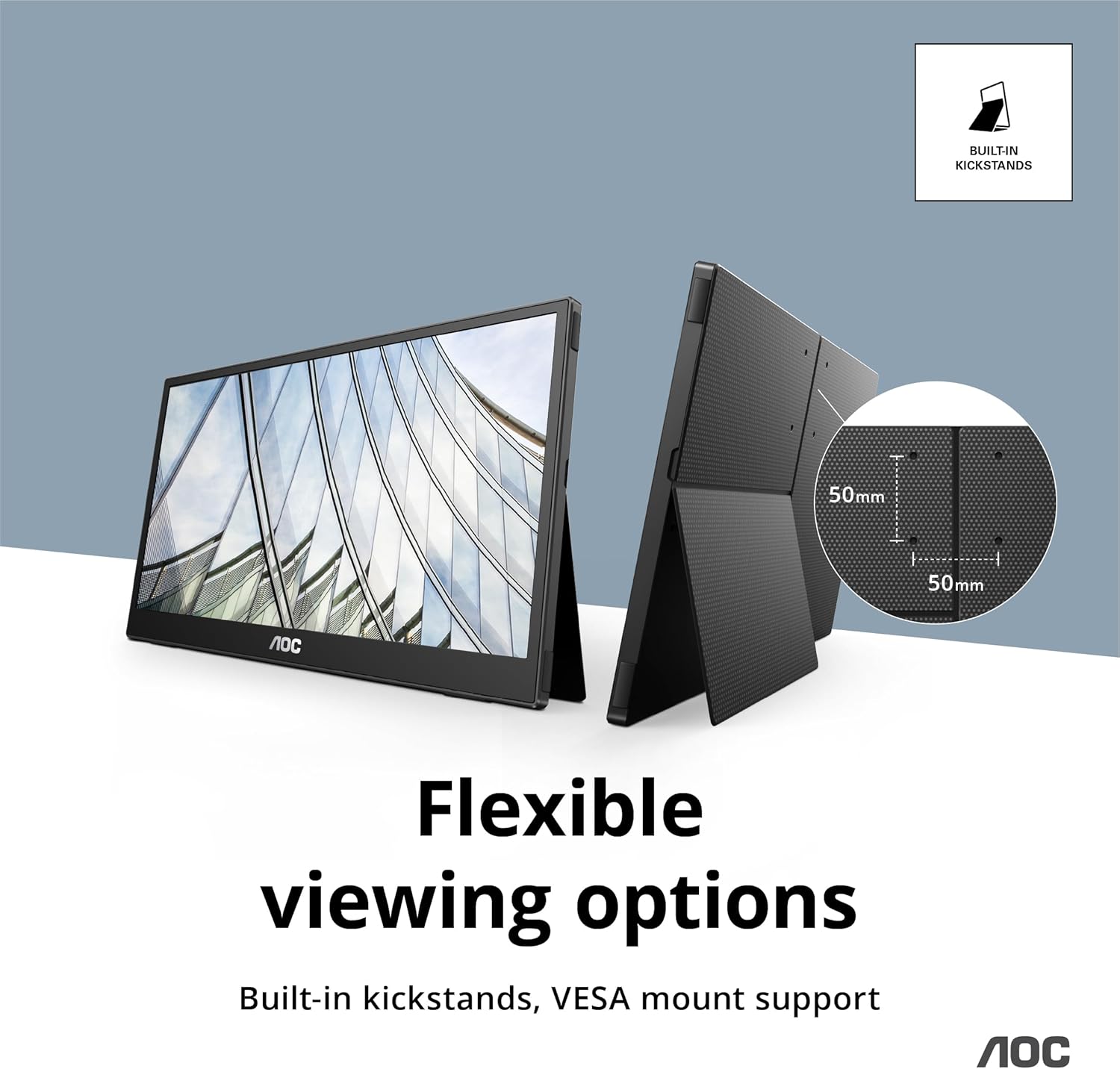
Figure 3.2: The monitor can be easily positioned in portrait mode (left) or landscape mode using its integrated kickstands (right).
3.3 VESA Mount Support
For more permanent installations, the monitor supports VESA mounting (50x50 mm). This allows you to attach it to compatible monitor arms or wall mounts (sold separately).

Figure 3.3: Detail of the 50x50mm VESA mount pattern on the rear of the monitor.
4. Funtzionamendu-argibideak
4.1 Oinarrizko funtzionamendua
Once connected, your AOC 16T3EA monitor should function as an extended or duplicated display for your source device. You can adjust display settings (e.g., resolution, orientation) through your computer's operating system display settings.

Figure 4.1: The AOC 16T3EA seamlessly integrates as a second screen for enhanced productivity.
4.2 Pantailan bistaratzeko (OSD) menua
The monitor features an On-Screen Display (OSD) menu for adjusting various settings such as brightness, contrast, color temperature, and input source. Access the OSD menu using the buttons located on the side or bottom of the monitor. Refer to the quick start guide for specific button functions.
4.3 IPS Panel and Flicker-Free Technology
The IPS panel ensures consistent colors and wide viewing angles (178°/178°), making it suitable for sharing content or viewing from various positions. Additionally, AOC's Flicker-Free technology uses a Direct Current (DC) backlight system to reduce screen flickering, providing a more comfortable viewing experience and minimizing eye strain during prolonged use.

Figure 4.2: The IPS panel ensures consistent color reproduction and wide viewangeluak.
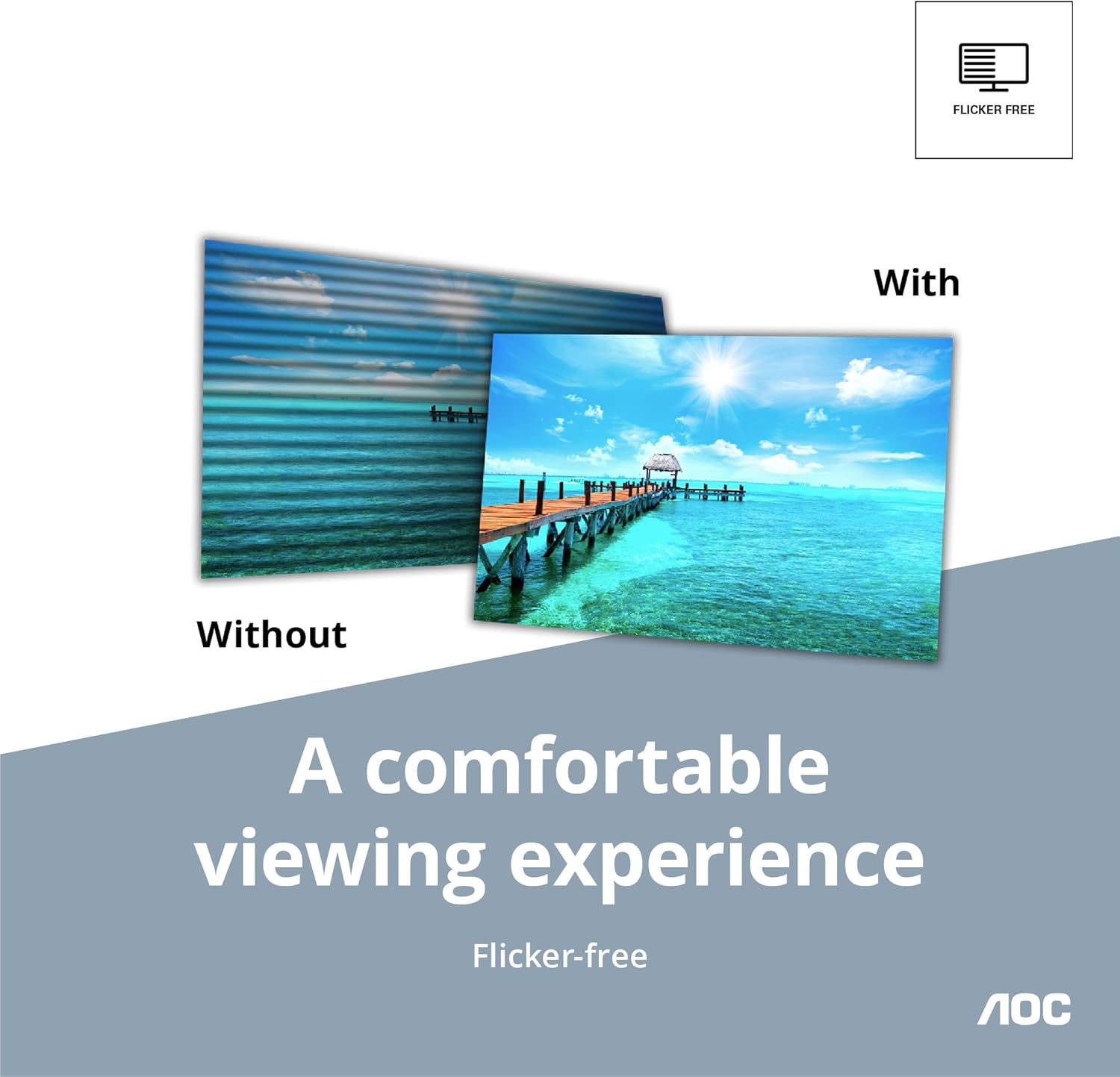
Figure 4.3: Visual representation of the benefit of Flicker-Free technology for eye comfort.
5. Mantentzea
5.1 Monitorea garbitzea
- Deskonektatu beti monitorea garbitu aurretik.
- Erabili lipurrik gabeko zapi leun bat dampUrarekin edo pantaila-garbitzaile ez-urratzaile batekin garbitu.
- Ez ihinztatu garbitzailea zuzenean pantailan.
- Saihestu produktu kimiko gogorrak, disolbatzaileak edo material urratzaileak erabiltzea.
5.2 Biltegiratzea eta eramangarritasuna
When not in use or during travel, store the monitor in its included carrying bag to protect it from scratches and impacts. Its ultra-slim profile makes it easy to pack.

Figure 5.1: The included carrying bag provides protection for the monitor during transport.
6. Arazoak
If you encounter issues with your AOC 16T3EA monitor, please refer to the following common troubleshooting steps:
| Arazoa | Kausa posiblea | Irtenbidea |
|---|---|---|
| No signal / Display not turning on |
|
|
| Irudia lausoa edo distortsionatua dago |
|
|
| Monitorearen keinuak |
|
|
Urrats hauek saiatu ondoren arazoa konpontzen ez bada, jo ezazu Bermea eta Laguntza atalera laguntza gehiago lortzeko.
7. Zehaztapenak
| Ezaugarri | Xehetasuna |
|---|---|
| Pantailaren tamaina | 15.6 hazbete |
| Panel mota | IPS |
| Ebazpena | Full HD 1920x1080 Pixels |
| Aspektu-erlazioa | 16:9 |
| Viewangelua | 178°/178° (H/V) |
| Konektibitatea | USB-C (DisplayPort Alternate Mode) |
| Eraikitako Ezaugarriak | Dual Kickstands, VESA Mount (50x50 mm) |
| Ezaugarri bereziak | Flicker-Free Technology, Ultra-Slim Design |
| Elementuaren pisua | 1 kilo |
| Produktuaren neurriak (LxWxH) | 0.49 x 14.32 x 9.03 hazbete |
| Kolorea | Beltza |
| Modelo zenbakia | 16T3EA |
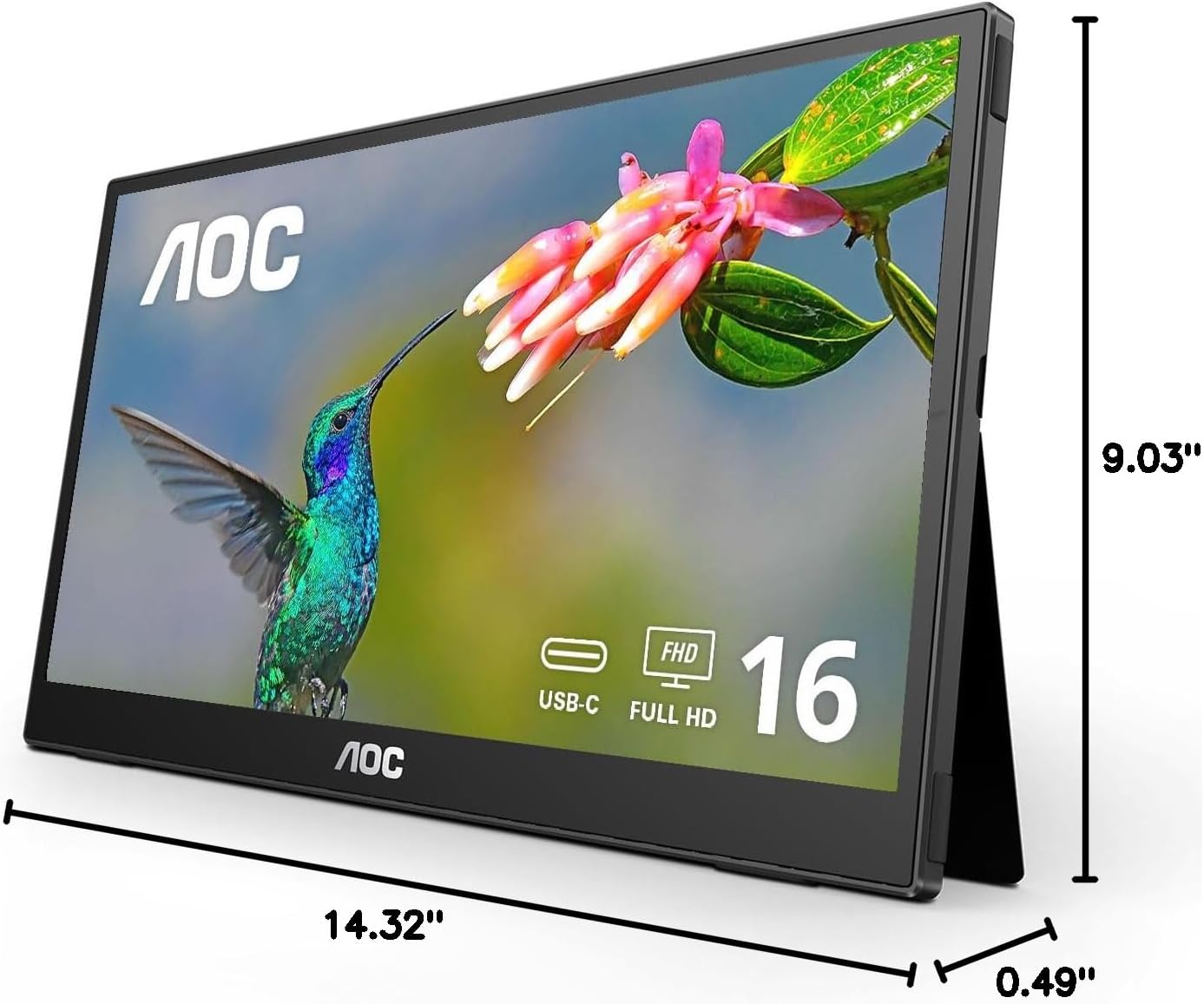
Figure 7.1: Key dimensions of the AOC 16T3EA portable monitor.
8. Bermea eta Laguntza
8.1 Bermearen informazioa
All AOC monitors sold within the US are covered by a generous three-year warranty and a 90-day replacement program. If your monitor malfunctions at any time during the first three months from the original date of purchase, AOC will provide a replacement monitor within 72 hours.

Figure 8.1: Summary of AOC's warranty and replacement policy.
8.2 Bezeroarentzako laguntza
For technical support, warranty claims, or further assistance, please visit the official AOC support website or contact their customer service. Refer to the AOC webgunea kontaktu-informazio eta laguntza-baliabide eguneratuenak lortzeko.
9. Produktu Ofizialen Bideoak
No official product videos from the seller were found in the provided data for this model. Please check the product page or manufacturer's webbideo baliabide eskuragarrien gunea.


