
Sarrera
This user manual provides comprehensive instructions for the Macally Wired Keyboard for Mac (USB C + A), model UCABLZKEYLPSG. Designed specifically for Apple devices, this keyboard features large print keys, backlighting, and versatile USB-A and USB-C connectivity to enhance your typing experience.
Zer sartzen da
- Kable bidezko teklatua
- Erabiltzailearen Gida

Figure 1: Macally Wired Keyboard for Mac (USB C + A)
Konfigurazioa
The Macally Wired Keyboard offers plug-and-play functionality, requiring no additional drivers for most Mac operating systems. Simply connect the keyboard to your device using the appropriate USB port.
Teklatua konektatzea
- Identify the available USB port on your Mac device. The keyboard features a dual-port plug compatible with both USB-A and USB-C ports.
- USB-A ataketarako, erabili USB-A konektore estandarra.
- For USB-C ports, connect the USB-C adapter attached to the cable.
- Insert the appropriate connector firmly into the USB port on your Mac. The keyboard will be automatically recognized and ready for use.

Figure 2: Dual USB-A and USB-C Connectivity
Video 1: Demonstrates the dual port plug for USB-A and USB-C connectivity, showing how to connect the keyboard to different Mac devices.
Funtzionamendu-argibideak
Ezaugarri nagusiak
- Oversized Key Print: The keyboard features print 4x larger than on traditional keyboards, making it easier to locate any key and type confidently.

Figure 3: Easy to See Keys with Extra Large Print
- Atzeko argiztatutako teklak: The keys are equipped with clear LED backlighting, offering 3 levels of brightness. This allows for comfortable typing in various lighting conditions.
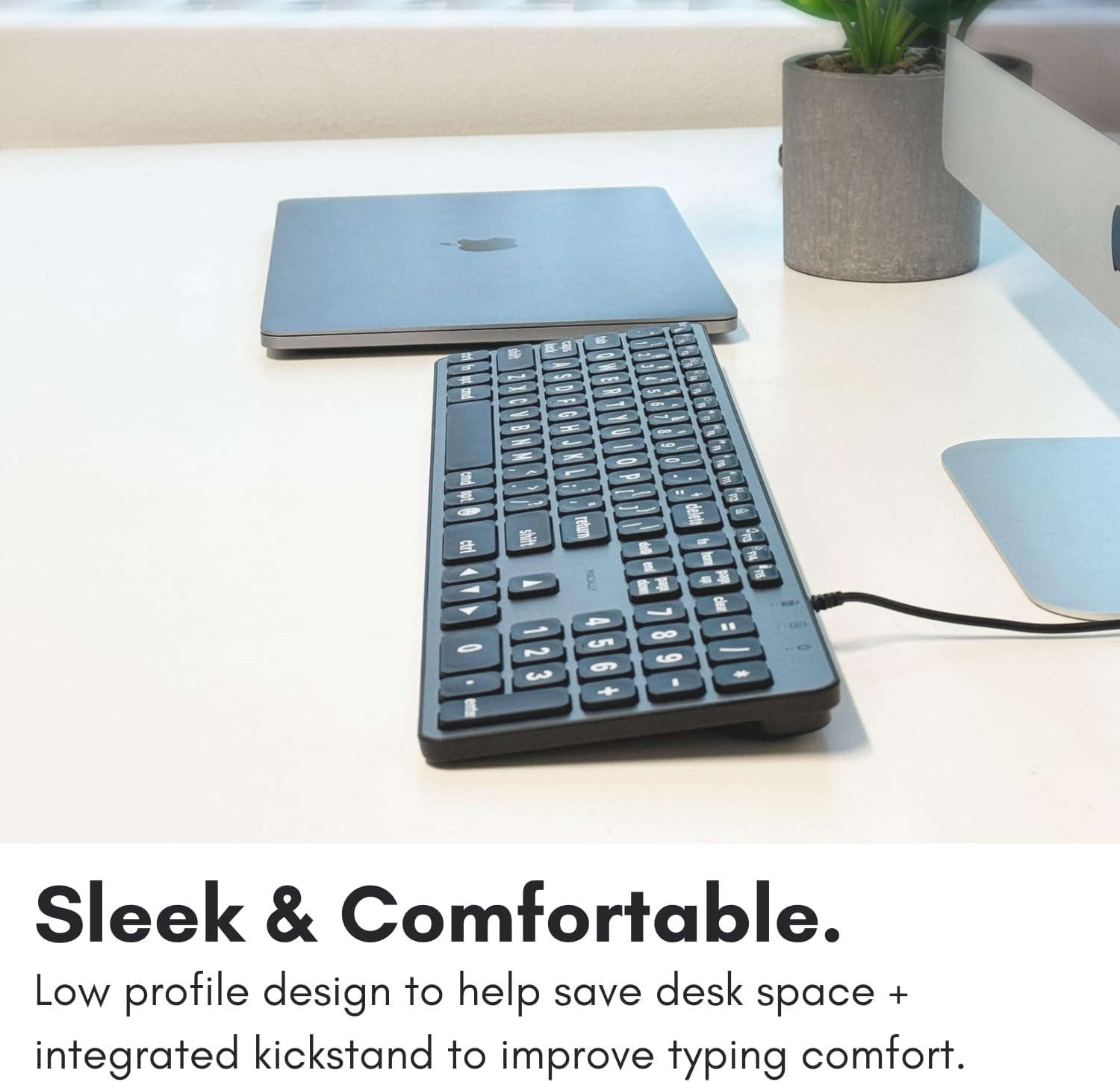
Figure 4: Clear Backlit Keys with Adjustable Brightness
To adjust the backlight brightness, use the dedicated brightness control keys (usually F1 and F2, indicated by sun icons) on the top row of the keyboard.
- MacOS Layout with Shortcut Keys: The keyboard features a familiar 107-key MacOS layout, including 16 shortcut keys designed to streamline your workflow.

Figure 5: Purpose-Built for Mac Layout
Function Keys and Shortcuts
The top row of keys (F1-F15) provides quick access to various Mac functions. These include:
- F1/F2: Backlight brightness adjustment
- F3: Misioaren Kontrola
- F4: Launchpad
- F7/F8/F9: Media playback controls (Previous, Play/Pause, Next)
- F10/F11/F12: Volume controls (Mute, Volume Down, Volume Up)
- Eject key (top right): Eject disc or media
- Power key (top right): Sleep/Wake or Power Off (functionality may vary by Mac model)
To use the standard F1-F15 functions instead of the media/shortcut functions, you may need to press the Fn key in conjunction with the desired function key, or adjust your keyboard settings in macOS System Preferences.
Mantentzea
To ensure the longevity and optimal performance of your Macally keyboard, follow these simple maintenance guidelines:
- Garbiketa: Erabili lipurrik gabeko zapi leun bat dampened with water or a mild, non-abrasive cleaner to wipe down the keys and surface of the keyboard. Avoid excessive moisture.
- Hautsa kentzea: Use compressed air to remove dust and debris from between the keys. Hold the can upright to prevent propellant from spraying onto the keyboard.
- Saihestu isurketak: Mantendu likidoak teklatutik urrun barneko osagaiei kalterik ez egiteko.
- Biltegiratzea: Denbora luzez erabiltzen ez duzunean, gorde teklatua leku garbi eta lehor batean, muturreko tenperaturetatik urrun.
Arazoak konpontzea
If you encounter issues with your Macally keyboard, please refer to the following common solutions:
| Arazoa | Irtenbidea |
|---|---|
| Teklatuak ez du erantzuten. |
|
| Backlight is not working or is too dim/bright. |
|
| Some keys are not functioning correctly. |
|
Zehaztapenak
| Ezaugarri | Xehetasuna |
|---|---|
| Modelo zenbakia | UCABLZKEYLPSG |
| Produktuaren neurriak | 17.52 x 5.51 x 0.79 hazbete |
| Elementuaren pisua | 1.57 kilo |
| Fabrikatzailea | Mace Group Inc / Macally Peripherals |
| Konektibitate Teknologia | USB-A, USB-C (Wired) |
| Teklatuaren deskribapena | Scissor Key Wired USB C Keyboard |
| Gako kopurua | 107 |
| Atzeko argiztapena | Single Color LED, 3 Brightness Levels |
| Gailu bateragarriak | Apple Mac Pro / Mini, MacBook Pro / Air, iMac |
| Jatorrizko Herrialdea | Txina |
Bermea eta Laguntza
Macally products are designed for reliability and performance. For information regarding warranty coverage, technical support, or service inquiries, please visit the official Macally webwebgunera edo jarri harremanetan bezeroarentzako arreta-zerbitzuarekin. Gorde erosketa-agiria berme-erreklamazioetarako.
For the most up-to-date support information, please refer to the Macally webgunea: www.macally.com