
Sarrera
Thank you for choosing the Verilux Wireless Mouse M103. This manual provides detailed instructions for setting up, operating, and maintaining your new mouse. Please read this manual carefully before use to ensure optimal performance and longevity of your device.
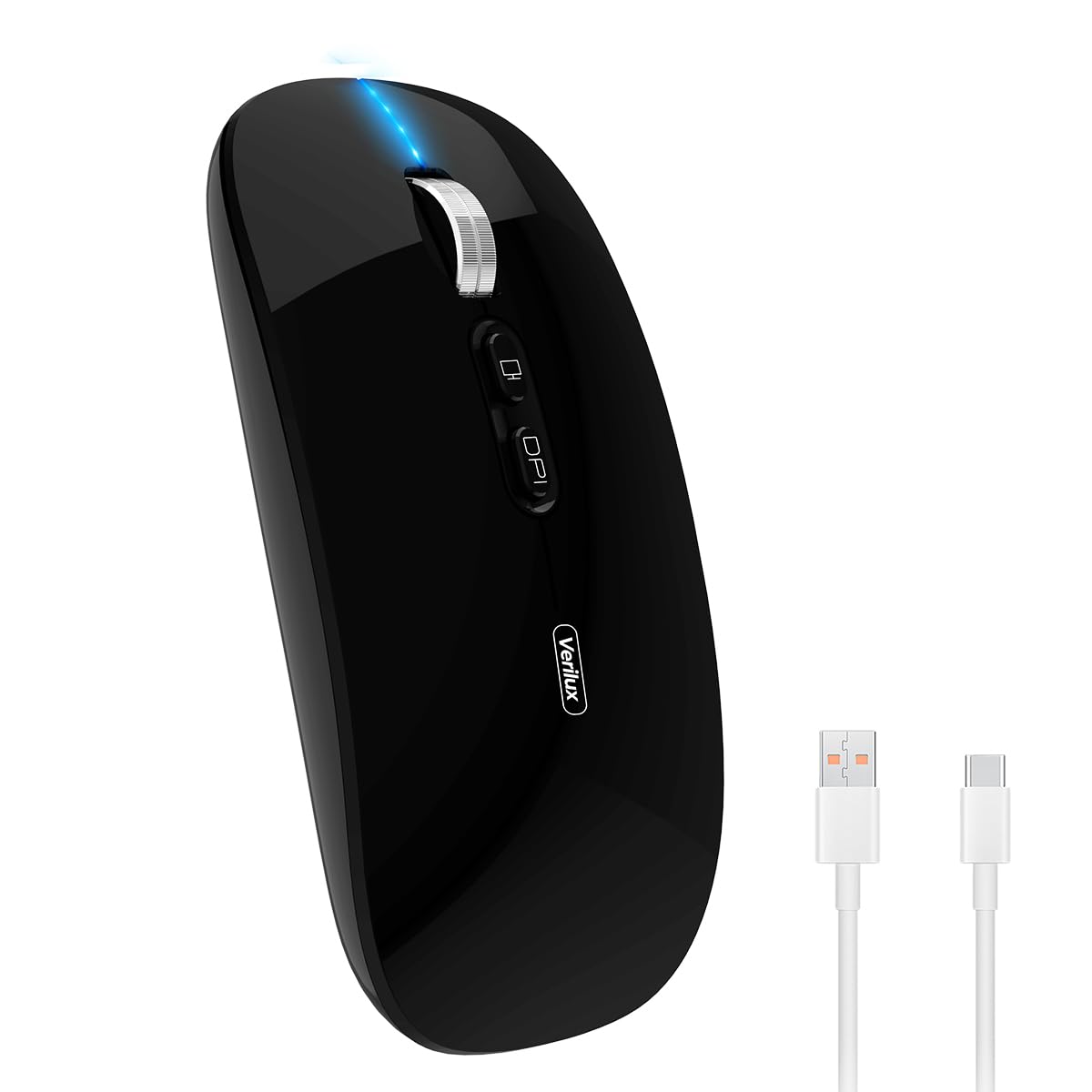
Image: Verilux Wireless Mouse M103 in black.
Produktua amaituview
The Verilux M103 is a versatile wireless mouse offering dual-mode connectivity (2.4G USB and Bluetooth 5.1), a rechargeable battery, and an ergonomic, silent design. It is compatible with a wide range of devices and operating systems.

Image: The Verilux M103 mouse demonstrating its dual Bluetooth connectivity with a laptop and tablet.
Ezaugarri nagusiak:
- Konexio bikoitzeko modua: Seamlessly switch between 2.4G USB and Bluetooth 5.1.
- Bateria kargagarria: Built-in 500mAh battery with 4-level power indicator.
- Ergonomic & Silent Design: Comfortable grip with silent clicks for a quiet working environment.
- Bateragarritasun Unibertsala: Supports Android, Windows, MacOS, iOS 12 and above, PC, laptops, and tablets.
- DPI erregulagarria: Customize mouse sensitivity for precise control.
Konfigurazioa
1. 2.4G Mode Setup:
- Locate the USB receiver stored in the mouse's bottom compartment.
- Plug the USB receiver into an available USB port on your device (laptop, PC).
- Piztu sagua beheko aldean dagoen pizteko/itzaltzeko etengailua erabiliz.
- Sagua automatikoki konektatu beharko litzateke zure gailura.
Video: Demonstrates unboxing, identifying the USB receiver, and connecting the mouse via 2.4G USB to a laptop.
2. Bluetooth Mode Setup:
The mouse supports two Bluetooth channels: Bluetooth 3.0 and Bluetooth 5.1.
- Piztu sagua beheko pizte/itzaltze etengailua erabiliz.
- Switch the mode selector on the bottom of the mouse to either BT3.0 (center blue light) or BT5.1 (right blue light).
- Activate Bluetooth on your device (laptop, PC, iPad, phone).
- Bilatu available Bluetooth devices and select 'BT5.1 Mouse' to connect.
- If the indicator light blinks and the connection is unsuccessful, restart both your device and the mouse, then try again.
Funtzionamendu-argibideak
Saguaren botoiak:
- Ezkerreko klik: Standard selection.
- Egin klik eskuineko botoiarekin: Testuinguru menua.
- Scroll Wheel (Middle Button/Roller): Scroll up/down, click for middle-click functions.
- DPI botoia: Saguaren sentikortasuna (DPI) doitzen du.
- One-Click Desktop Button: Quickly minimizes all open windows to show the desktop.

Image: Close-up of the Verilux M103 mouse, highlighting the scroll wheel, DPI button, and one-click desktop button.
DPI doikuntza:
Press the DPI button (located behind the scroll wheel) to cycle through different sensitivity levels (e.g., 800, 1200, 1600 DPI). Choose the setting that best suits your preference and task.
Karga eta bateria
The Verilux M103 mouse features a built-in 500mAh rechargeable battery. It is equipped with 4-level power indicator lights to show the remaining battery life.
Kargatzeko jarraibideak:
- Connect the mouse to a power source using the provided USB-C charging cable. The charging port is located at the front of the mouse.
- A flashing light on the mouse indicates normal charging.
- Charge the mouse using a 5V 1A, 5V 2A, or an adapter with no more than 10W of power. It can also be charged by connecting it to a computer's USB port.
- The mouse can be used while charging.
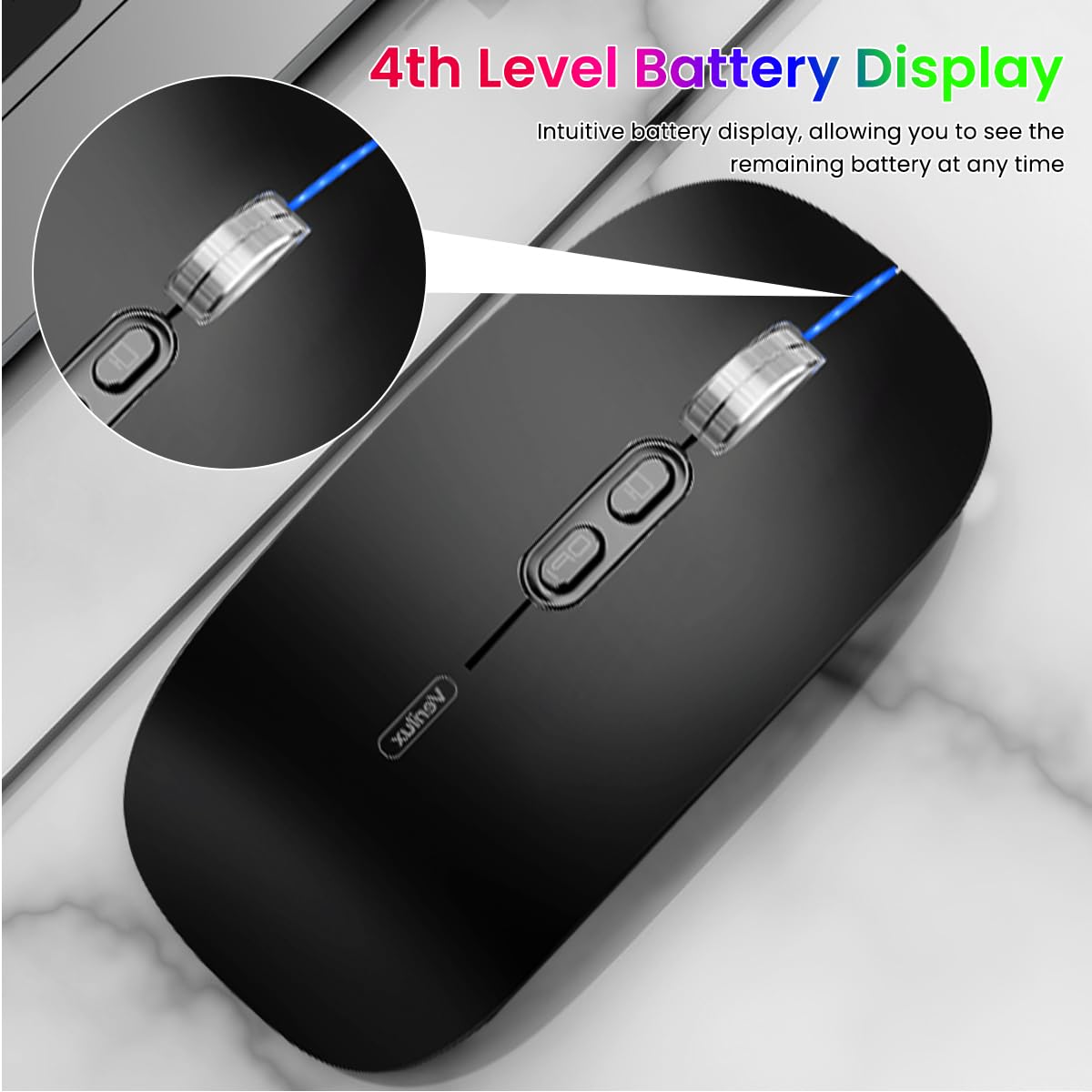
Image: The Verilux M103 mouse displaying its 4-level battery indicator lights.

Image: The Verilux M103 mouse connected to a laptop for charging via its USB-C port.
Bateragarritasuna
The Verilux M103 Wireless Mouse offers broad compatibility with various devices and operating systems:
- Sistema eragileak: Android, Windows (7, XP, 8, 10), MacOS, iOS 12 and above, Linux.
- Gailuak: Laptops, Personal Computers, Tablets, iPads, MacBooks.

Image: The Verilux M103 mouse shown with a laptop, desktop monitor, iPad, and smartphone, illustrating its wide compatibility.
Mantentzea
To ensure the longevity and optimal performance of your Verilux Wireless Mouse M103, follow these maintenance guidelines:
- Garbiketa: Erabili zapi leun eta lehor bat sagua garbitzeko. Zikinkeria egoskorra bada, garbitu pixka bat.ampGarbitu zapi bat urarekin edo garbiketa-soluzio leun batekin. Saihestu produktu kimiko gogorrak edo material urratzaileak.
- Biltegiratzea: When not in use, especially during travel, store the USB receiver in its designated compartment at the bottom of the mouse to prevent loss.
- Bateria zaintzea: Avoid fully discharging the battery frequently. Charge the mouse when the power indicator shows low battery. Do not expose the mouse to extreme temperatures.
- Ingurumen-baldintzak: Keep the mouse away from excessive dust, moisture, and direct sunlight.
Arazoak konpontzea
If you encounter issues with your Verilux Wireless Mouse M103, please refer to the following common solutions:
| Arazoa | Irtenbidea |
|---|---|
| Mouse not connecting (2.4G Mode) |
|
| Mouse not connecting (Bluetooth Mode) |
|
| Mouse cursor lagging or erratic movement |
|
| Sagua ez da kargatzen |
|
Zehaztapenak
| Ezaugarri | Xehetasuna |
|---|---|
| Marka | Verilux |
| Modelo zenbakia | M103 (AZEM4-0K5FZ5C) |
| Konektibitate Teknologia | Bluetooth (3.0 & 5.1), 2.4G Wireless |
| Mugimenduak detektatzeko teknologia | Optikoa |
| DPI ezarpenak | 1600 DPI arte (erregulagarria) |
| Bateria | 500mAh kargagarria |
| Energia iturria | Bateriaz elikatua (USB-C kargatzea) |
| Botoiak | 4 (Left, Right, Scroll Wheel/Middle, DPI, One-Click Desktop) |
| Eskuen Orientazioa | Anbidistroa |
| Elementuaren pisua | 119 gramo |
| Elementuaren neurriak (L x W) | 12L x 7Z zentimetro |
| Kolorea | Black (Standard Black variant) |
Bermea eta Laguntza
For warranty information and customer support, please refer to the documentation included with your product packaging or visit the official Verilux webgunea. Saltzailearekin zuzenean ere harremanetan jar zaitezke laguntza eskatzeko.
Fabrikatzailea: Verilux, Yiwu Kaiming Industrial Co., Ltd.
Inportatzailea/Ontziratzailea: Verilux
Informazio gehiago lortzeko, bisita dezakezu Verilux Store on Amazon.