
d5443bdc-81fa-41ee-a2aa-fe45a5b7f2ab
User Manual: Car Stereo Radio for Isuzu D-max 2020
Model: d5443bdc-81fa-41ee-a2aa-fe45a5b7f2ab
Sarrera
This manual provides comprehensive instructions for the installation, operation, and maintenance of your new Car Stereo Radio designed specifically for the Isuzu D-max 2020 model. Please read this manual thoroughly before using the product to ensure proper functionality and safety.
Segurtasun Informazioa
- Ensure the vehicle is turned off and the battery is disconnected before beginning installation.
- Instalaziorako, kontsultatu profesional bati urratsen bat zalantzan bazaude.
- Ez erabili gailua gidatzeaz distraitzen zaituen moduan.
- Avoid exposing the unit to extreme temperatures, moisture, or direct sunlight for prolonged periods.
- Use only specified accessories and parts.
Produktua amaituview
The Car Stereo Radio features an 8-Core CPU, 4GB RAM, and 64GB ROM, providing enhanced performance and storage. It comes with a 13.1-inch large display for intuitive control and includes built-in CarPlay and Android Auto functionality.

Irudia: Gainetikview of the car stereo radio highlighting its main features such as Android OS, 4GB RAM, 64GB ROM, 8-Core processor, 1280x720 IPS display, AV Output, DSP+RDS, and Carplay+Auto compatibility.
Osagarriak barne
The package includes the car stereo radio unit and various cables and connectors necessary for installation.
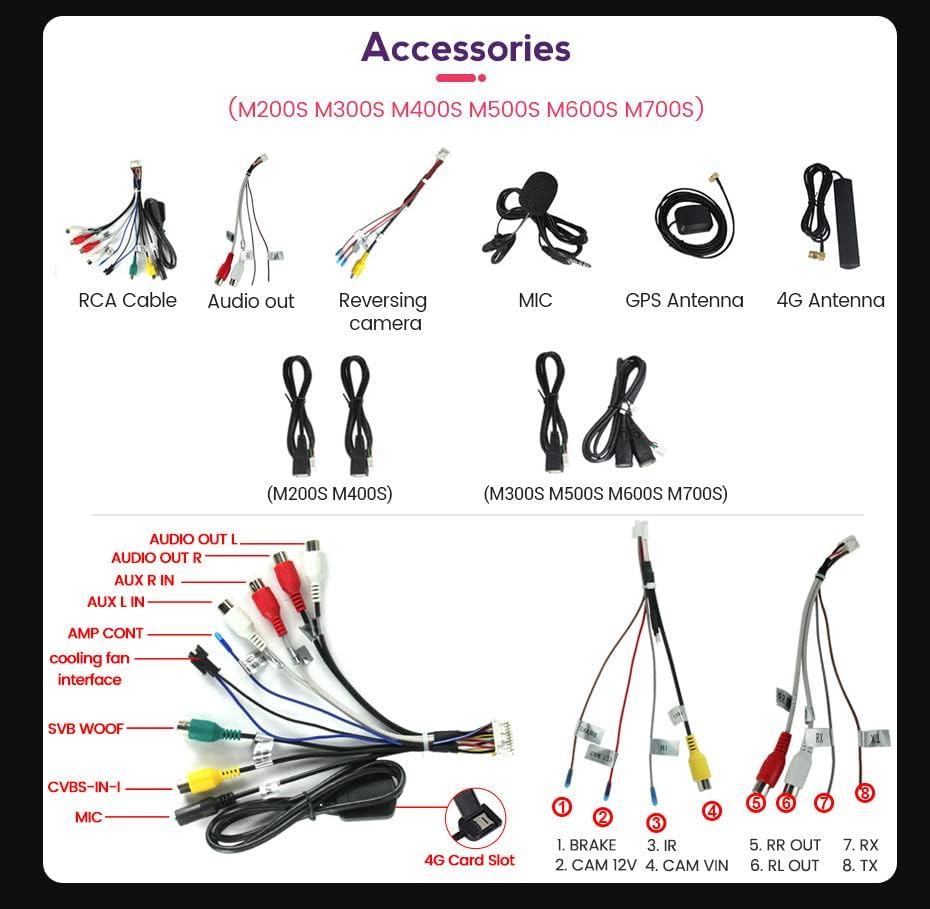
Image: A collection of accessories including RCA cables, audio output cables, reversing camera cable, microphone, GPS antenna, 4G antenna, and various wiring harnesses for different models (M200S, M300S, M400S, M500S, M600S, M700S).
- Car Stereo Radio Unit
- RCA Kablea
- Audio Irteerako kablea
- Atzerako kameraren kablea
- Mikrofonoa
- GPS antena
- 4G Antena
- USB Cables (2x)
- Wiring Harnesses (model specific)
Konfigurazioa eta Instalazioa
Follow these steps for proper installation of the car stereo radio in your Isuzu D-max 2020.
1. Kableatu konexioak
Identify the correct ports on the back of the host device and connect the corresponding cables. Refer to the wiring diagram for detailed connections.

Image: Detailed diagram of the rear panel of the car stereo, illustrating connection points for GPS, 5G WiFi, Radio, 4G Antenna, USB ports, and various audio/video inputs and outputs. It also shows the cooling fan and main power harness connections.
Konexio nagusiak:
- GPSa: Connect the GPS antenna.
- Irratia: Konektatu ibilgailuaren irrati-antena.
- 4G antena: Connect the provided 4G antenna for network connectivity.
- USBa: Connect USB devices via the USB ports.
- Energia-arnesa: Connect the main power harness to the vehicle's wiring. Ensure correct connections for ACC, Battery +12V, Battery GND, and speaker outputs (FL, FR, RL, RR).
- Hozte haizagailua: Ensure the cooling fan is properly connected.
- CANBUS: If your car requires a CANBUS decoder, ensure it is connected correctly.
2. Instalazio fisikoa
Carefully integrate the stereo unit into the dashboard of your Isuzu D-max 2020. Ensure all cables are securely connected and routed to avoid interference.

Image: The car stereo unit seamlessly integrated into the center console of an Isuzu D-max 2020, demonstrating its fit and appearance after installation.
3. Hasierako konfigurazioa eta softwarearen instalazioa
After physical installation, power on the unit and proceed with initial software setup, such as installing the DVR application if applicable.

Image: A four-panel guide showing the steps for connecting a USB device, navigating to the File Manager, installing an application (e.g., uCarDvr.apk) from the USB drive, and confirming successful installation of the DVR software.
- Connection via USB Cable: Connect your USB device (e.g., USB drive with software) to the unit's USB port.
- File Kudeatzailea: On the unit's screen, navigate to the "FileManager" application.
- Instalatu softwarea: Browse to the location of the software file (e.g., uCarDvr.apk) on your USB device and tap to install.
- Berrespena: Once installed, a confirmation message will appear.

Image: A four-panel guide illustrating setup steps: 1. Connecting cables to the device. 2. Navigating to Settings > Device > Sound. 3. Activating the AMP (Amplifier) by setting "AMP ON/OFF" to ON. 4. Confirmation that the cooling fan starts working after AMP aktibazioa.
- Konektatu: Ensure all necessary cables are connected to the device.
- Settings Navigation: Joan zaitez Ezarpenak > Gailua > Soinua.
- Aktibatu AMP: Within the Sound settings, locate and set AMP ON/OFF to ON.
- Hozte haizagailua: The cooling fan will activate, indicating proper ampfuntzionatzailea.
Funtzionamendu-argibideak
This section covers the basic operation of your car stereo radio, including navigation, media playback, and smartphone integration.
Erabiltzaile Interfazea

Image: The car stereo display showing the Apple CarPlay interface with icons for Phone, Music, Maps, Messages, Now Playing, Settings, Podcasts, and Audiobooks, indicating smartphone integration capabilities.
The large 13.1-inch touchscreen provides an intuitive interface for accessing various functions. Navigate through applications by tapping their icons.
CarPlay eta Android Auto
The unit supports both wireless CarPlay (for iOS devices) and wired Android Auto (for Android devices), allowing seamless integration of your smartphone's features.

Image: A multi-panel image demonstrating how to connect Wireless CarPlay (iOS system) via Bluetooth and then selecting "Car Link," and how to connect Wired Android Auto (Android system) by connecting the mobile phone via USB cable and then selecting "Car Link."
Wireless CarPlay (iOS System)
- Konektatu BT: On your iPhone, go to Bluetooth settings and pair with the car stereo unit.
- Select Car Link: On the car stereo, tap the "Car Link" icon and wait for the connection to establish.
Wired Android Auto (Android System)
- Konektatu USBa: Connect your Android phone to the car stereo using a USB cable.
- Select Car Link: On the car stereo, tap the "Car Link" icon and wait for the connection to establish.
Mantentzea
To ensure the longevity and optimal performance of your car stereo radio, follow these maintenance guidelines:
- Garbiketa: Erabili zapi leun eta lehor bat pantaila eta kanpoaldea garbitzeko. Orban egoskorrak garbitzeko, garbitu apur batampen the cloth with water or a screen cleaner. Avoid abrasive cleaners or solvents.
- Tenperatura: Do not expose the unit to extreme temperatures. While designed for automotive use, prolonged exposure to direct sunlight in a parked car can cause damage.
- Aireztapena: Ensure the cooling fan area is not obstructed to allow proper airflow and prevent overheating.
- Software eguneraketak: Periodically check for and install software updates to improve performance and add new features. Refer to the manufacturer's website or the unit's system settings for update procedures.
Arazoak konpontzea
If you encounter issues with your car stereo radio, refer to the following common problems and solutions:
| Arazoa | Kausa posiblea | Irtenbidea |
|---|---|---|
| Botererik ez | Konexio elektriko askea, fusible erreta, ibilgailuaren bateriaren arazoa. | Check power harness connections. Inspect vehicle fuses. Ensure vehicle battery is charged. |
| Soinurik ez | Speaker wires disconnected, volume too low, AMP aktibatu gabe. | Verify speaker wire connections. Increase volume. Check if AMP is ON in settings (refer to Setup section). |
| CarPlay/Android Auto ez da konektatzen | Incorrect connection method, phone settings, incompatible cable. | For Wireless CarPlay, ensure Bluetooth is on and paired. For Wired Android Auto, use a high-quality USB cable. Check phone settings for projection mode. Restart both phone and stereo. |
| GPS seinalea ahula/galduta | GPS antenna not properly installed or obstructed. | Ensure GPS antenna is securely connected and placed in an area with clear sky view. |
| Ukipen-pantailak ez du erantzuten | Software akats aldi baterakoa, tenperatura muturrekoa. | Restart the unit. Allow unit to return to normal operating temperature. |
Irtenbide hauek probatu ondoren arazoa konpontzen ez bada, jarri harremanetan bezeroarentzako arreta-zerbitzuarekin.
Zehaztapenak
| Ezaugarri | Xehetasuna |
|---|---|
| Modelo zenbakia | d5443bdc-81fa-41ee-a2aa-fe45a5b7f2ab |
| CPU | 8 Nukleoa |
| RAM | 4 GB |
| ROM | 64 GB |
| Pantailaren tamaina | 13.1 hazbetekoa |
| Bistaratzeko ebazpena | 1280 * 720 IPS |
| Konektibitate Teknologia | Bluetooth, Wi-Fi, USB |
| Ezaugarri bereziak | Bluetooth, Built-in CarPlay, Built-in Android Auto, DSP+RDS |
| Audio irteera modua | Estereoa |
| Inguruko soinu-kanalaren konfigurazioa | 2.0 |
| Bideo-kodeketa | H.264, H.265/HEVC |
| Gailu bateragarriak | Telebista |
| Konektore mota | USB A mota |
| HDMI portuak guztira | 1 |
| Fabrikatzailea | Generikoa |
| Jatorrizko Herrialdea | Txina |
Bermea eta Laguntza
Bermeari buruzko informazioa eta laguntza teknikoa lortzeko, kontsultatu erosketarekin batera emandako dokumentazioa edo jarri harremanetan saltzailearekin zuzenean. Gorde erosketaren frogagiria bermearen erreklamazioetarako.
Saltzailea: Custom DDT Car Lights
Itzultzeko politika: Erosketa-datatik 30 eguneko itzulketa/ordezkapen politika.
Ask a question about this manual
Ask about setup, troubleshooting, compatibility, parts, safety, or missing instructions. Manuals+ will review the question and use this page’s manual context to help answer it.