
1. Sarrera
The Phomemo P12 Pro is a compact and versatile label printer designed for various labeling needs at home, in the office, or at school. It features Bluetooth connectivity for seamless smartphone integration and supports a wide range of label types. This manual provides detailed instructions for setting up, operating, and maintaining your P12 Pro label printer.
2. Produktua amaitu daview eta Kutxatik ateratzea
The Phomemo P12 Pro label printer comes with essential accessories to get you started. Upon unboxing, you will find the printer unit, a data cable, an instruction manual, and a sample label roll.
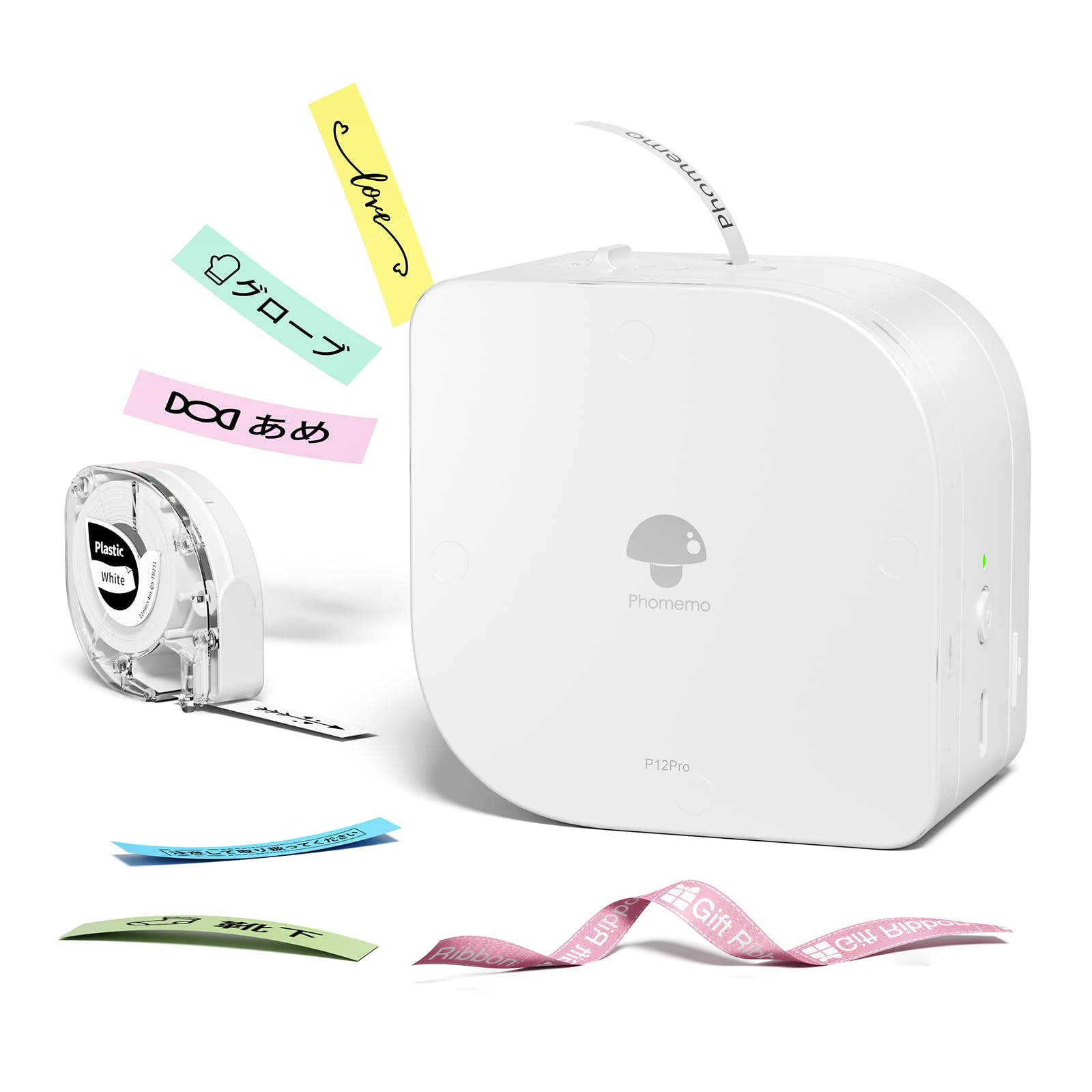
Image: The Phomemo P12 Pro label printer, its packaging, a data cable, and a sample label roll.
Video: This video demonstrates the unboxing of the Phomemo P12 Pro label printer and the installation of a label roll, showing the compact design and ease of setup.
3. Konfigurazio gida
3.1 Aplikazioa deskargatu eta instalatu
The Phomemo P12 Pro operates via the 'Print Master' mobile application. Ensure your smartphone is connected to the internet before proceeding.
- Bilatu 'Print Master' in the Google Play Store (for Android devices) or the Apple App Store (for iOS devices).
- Deskargatu eta instalatu aplikazioa.
- Open the 'Print Master' app after installation.
3.2 Bluetooth konexioa
To connect your printer to your smartphone:
- Ensure the Phomemo P12 Pro printer is charged and powered on. Press and hold the power button for 3 seconds to turn it on.
- Gaitu Bluetootha zure telefonoan.
- Open the 'Print Master' app. The app will automatically search for nearby Phomemo devices.
- Select your P12 Pro printer from the list of available devices to establish a connection. A successful connection will be indicated within the app.
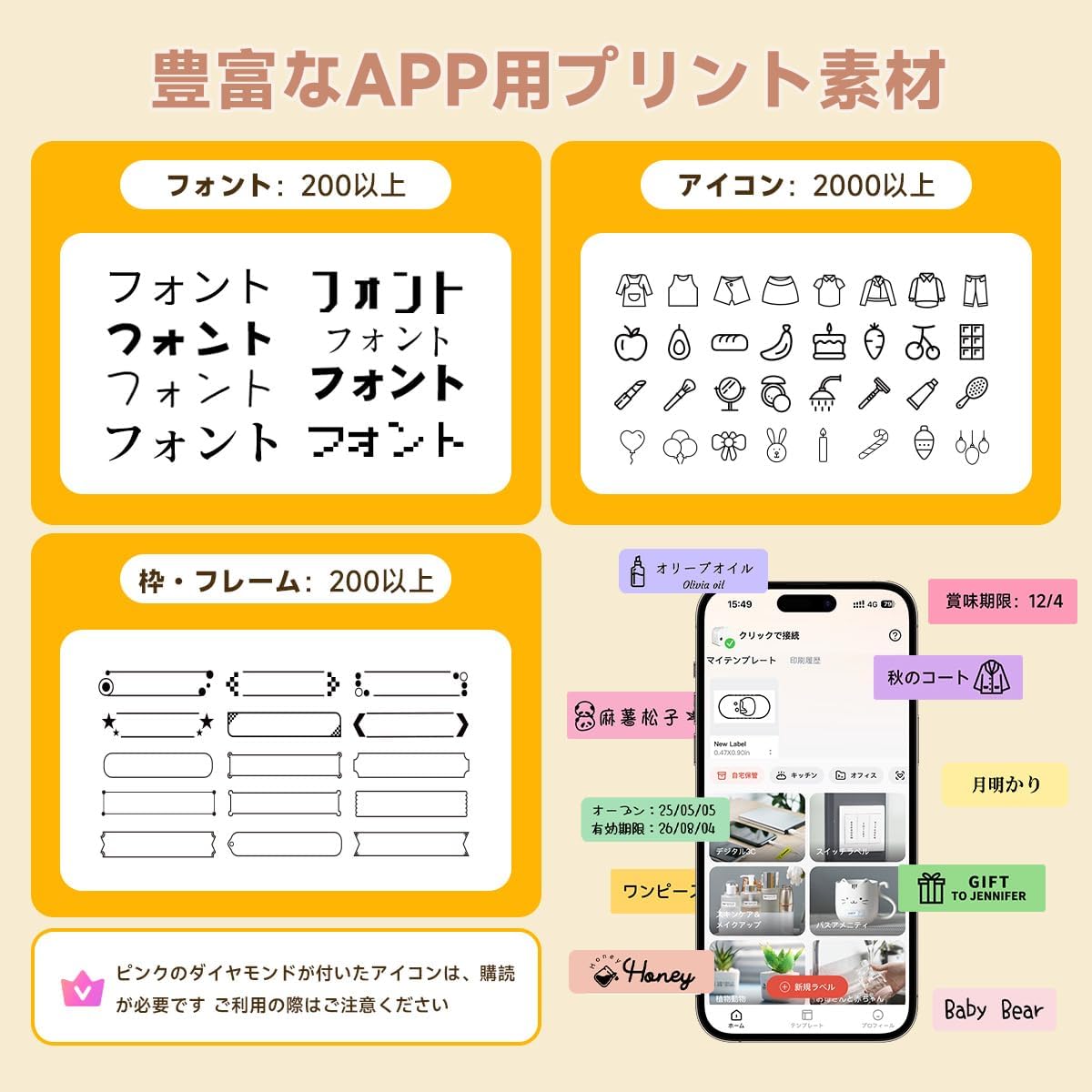
Image: A visual guide showing the four steps: downloading the 'Print Master' app, connecting to the printer via Bluetooth, editing the label content, and finally printing the label.
3.3 Etiketa-erroiluak kargatzea
The P12 Pro supports label rolls up to 12mm wide.
- Ireki inprimagailuaren estalkia.
- Insert the label roll into the designated slot, ensuring the label feeds out correctly.
- Itxi inprimagailuaren estalkia ondo, bere lekuan klik egin arte.

Image: A three-step visual guide demonstrating how to open the printer cover, correctly insert a new label roll, and close the cover for label replacement.
4. Funtzionamendu-argibideak
4.1 Etiketak sortzea eta editatzea
The 'Print Master' app offers extensive customization options for your labels:
- Testu sarrera: Enter your desired text. The app provides over 200 fonts for selection.
- Icons and Frames: Choose from over 2,000 icons and 200 frames to enhance your labels.
- Ezaugarri bereziak: Create barcodes, QR codes, dates, and tables directly within the app.

Image: A screenshot of the 'Print Master' app interface, highlighting the wide selection of fonts, icons, and frames available for label customization.
4.2 Etiketak inprimatzea
After designing your label in the app:
- Review your label design on the app screen.
- Tap the print button in the app.
- The printer will automatically print and cut the label to the specified length.
4.3 Supported Label Types
The P12 Pro is compatible with various label types, offering flexibility for different applications:
- Thermal Labels: Standard labels for general use.
- Transferentzia termikoko etiketak: Durable labels suitable for long-term use.
- Ribbon Labels: Ideal for decorative purposes, such as gift wrapping.
- Fabric Iron-on Labels: For labeling clothing and textiles.
- Glow-in-the-Dark Labels: Argi gutxiko baldintzetan ikusgai izateko.

Image: This image displays various label types supported by the P12 Pro, including thermal labels for general use, thermal transfer labels for durability, ribbon labels for decoration, and fabric iron-on labels for textiles.
4.4 Printing Orientation
The printer supports both vertical and horizontal printing, allowing you to choose the best orientation for your label content.
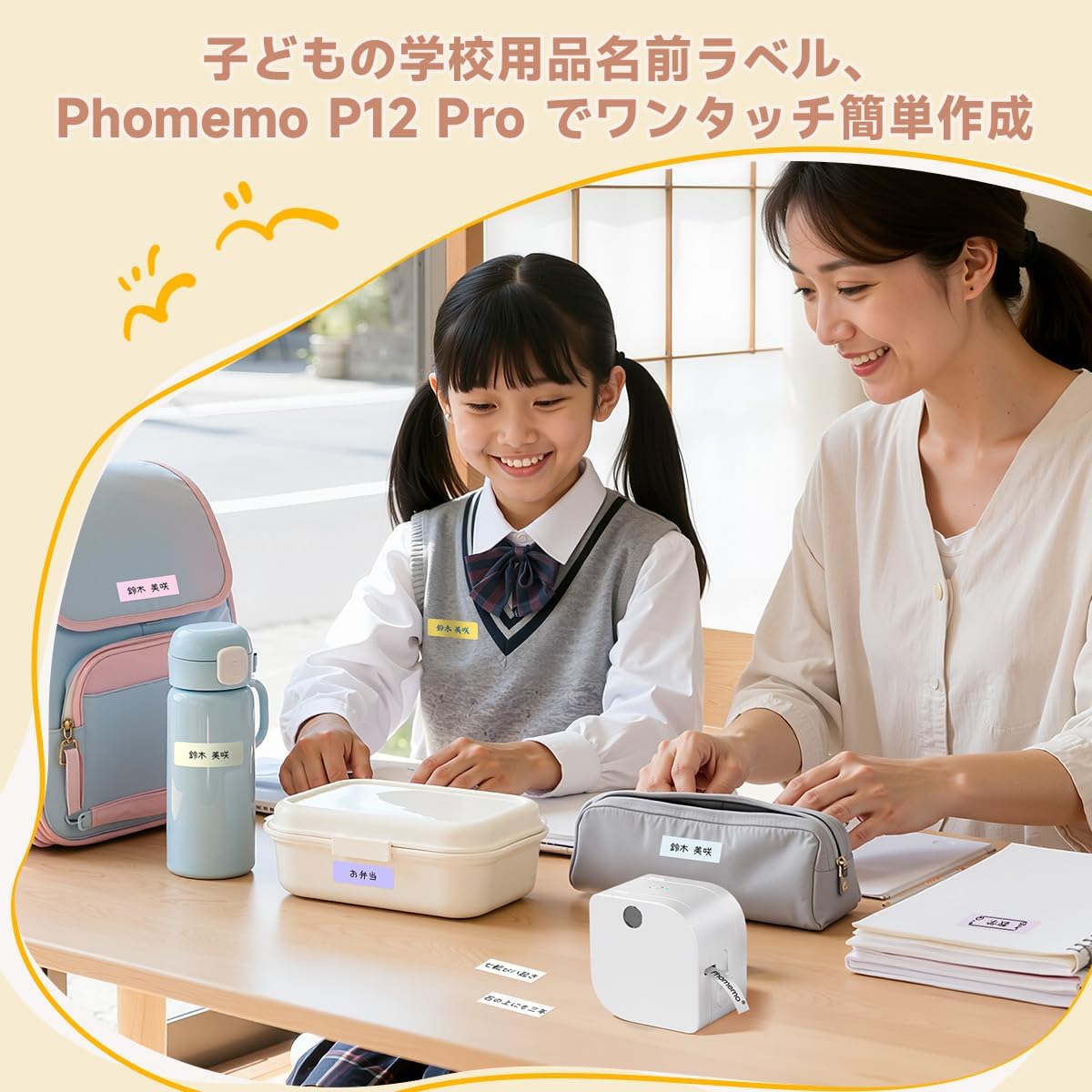
Image: A demonstration of vertical printing, showing labels applied to kitchen containers with text oriented vertically.
4.5 Eskaera Adibamples
The Phomemo P12 Pro is suitable for a wide range of uses:
- Etxeko Antolaketa: Labeling kitchen containers, storage boxes, and managing expiration dates.
- Eskola: Creating name tags for children's belongings.
- Bulegoa: Classifying documents, labeling cables, and managing assets.
- Crafts & Gifts: Personalizing ribbons for gift wrapping and decorative purposes.
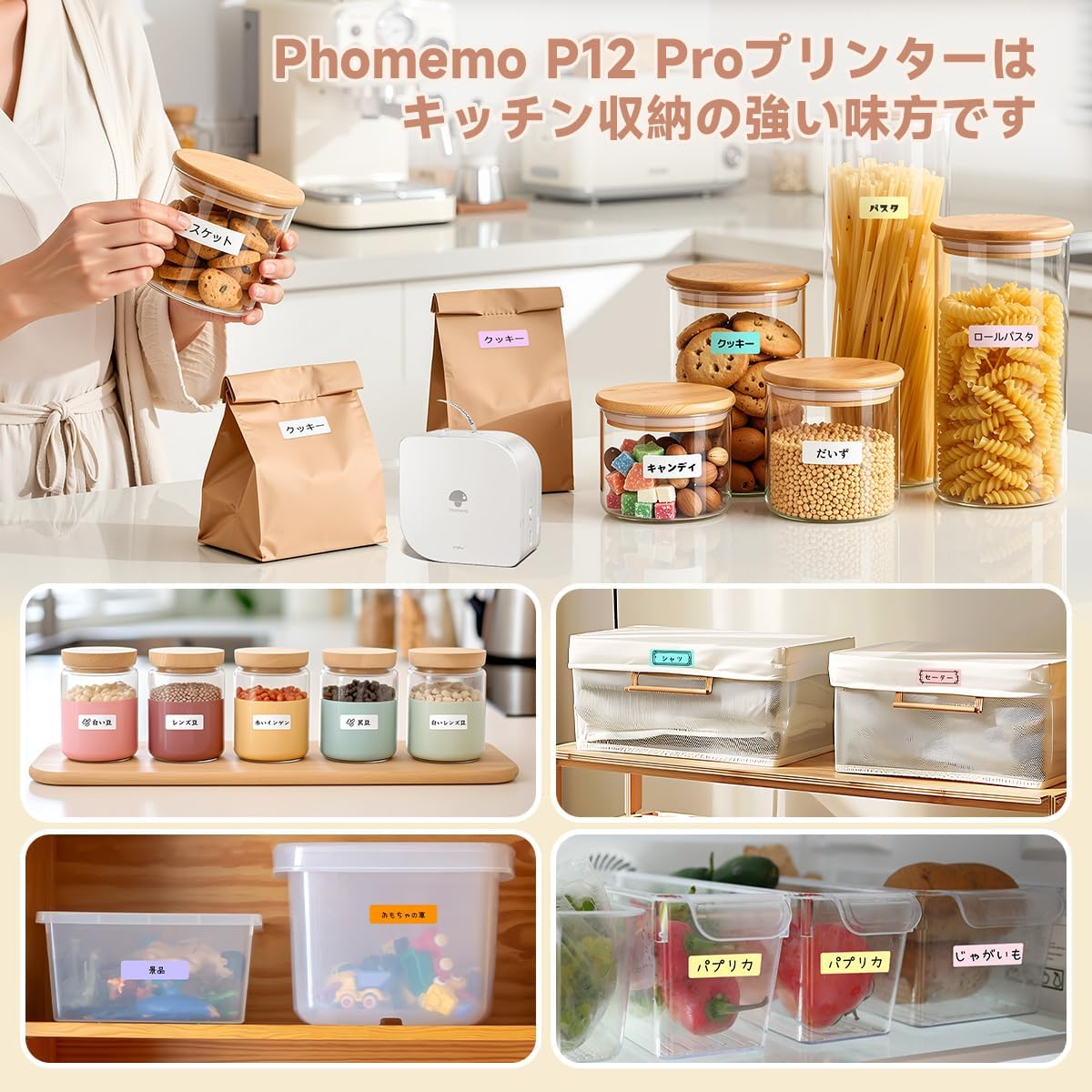
Image: The Phomemo P12 Pro label printer being used to create labels for organizing various items in a kitchen, such as food containers and pantry staples.

Image: The Phomemo P12 Pro label printer in an office setting, demonstrating its use for organizing documents, fileak, eta bestelako bulegoko hornigaiak.

Image: The Phomemo P12 Pro label printer being used to print custom messages on ribbons for gift wrapping, adding a personalized touch to presents.
Video: This video shows the Phomemo P12 Pro label printer being used to print custom text on ribbons for gift wrapping and flower arrangements, demonstrating its versatility for creative applications.
5. Mantentzea
5.1 Bateria kargatzea
The Phomemo P12 Pro features a built-in rechargeable battery. Connect the printer to a USB power source using the provided data cable when the battery is low. The indicator light will show charging status.
5.2 Inprimagailuaren burua garbitzea
To ensure optimal print quality, periodically clean the printer head with a soft, lint-free cloth lightly dampened with isopropyl alcohol. Ensure the printer is turned off before cleaning.
6. Arazoak
If you encounter issues with your Phomemo P12 Pro label printer, please refer to the following common solutions:
- Inprimagailua ez da konektatzen: Ensure Bluetooth is enabled on your smartphone and the printer is powered on and within range. Restart both the printer and the app.
- Inprimatze-kalitate eskasa: Check if the label roll is installed correctly. Clean the printer head as described in the maintenance section. Ensure the label type is compatible with the printer.
- Etiketak ez dira elikatzen: Verify that the label roll is properly seated and not jammed. Ensure the printer cover is securely closed.
- Aplikazioaren arazoak: Update the 'Print Master' app to the latest version. If problems persist, try reinstalling the app.
For further assistance, please contact Phomemo customer support.
7. Zehaztapenak
| Ezaugarri | Zehaztapena |
|---|---|
| Marka | Phomemo |
| Ereduaren izena | P12 Pro |
| Konektibitate Teknologia | Bluetootha |
| Inprimatzeko Teknologia | Termikoak |
| Ezaugarri bereziak | Network Ready, Portable, Thermal Transfer |
| Kolorea | Zuria |
| Inprimagailuaren irteera | Monokromoa |
| Inprimatzeko abiadura maximoa (monokromoa) | 10 mm/s |
| Elementuaren pisua | 198 gramo |
| Gailu bateragarriak | Smartphone (Android & iOS) |
| Tinta kolorea | Beltza |
| Ebazpena | 203 ppp |
| Gehienezko euskarriaren (paperaren) tamaina | 12 mm |
| Produktuaren neurriak (L x W x H) | 8.2 x 8.2 x 6.1 cm |
8. Bermea eta Laguntza
8.1 Fabrikatzailearen bermea
The Phomemo P12 Pro label printer comes with a 1 urteko fabrikatzailearen bermeaGorde erosketaren egiaztagiria bermearen erreklamazioetarako.
8.2 Bezeroarentzako laguntza
For any technical issues, questions, or support needs not covered in this manual, please visit the official Phomemo website or contact their customer service directly. Contact information can typically be found on the product packaging or the official webgunea.