
1. Sarrera
Thank you for choosing the EasySMX T37 Wireless Switch Pro Controller. This manual provides detailed instructions for setting up, operating, maintaining, and troubleshooting your controller. Please read this manual carefully before use to ensure optimal performance and longevity of your device. This controller is compatible with Nintendo Switch, Switch Lite, and Switch OLED consoles.
2. Produktua amaitu daview
The EasySMX T37 is a wireless gamepad designed for an enhanced gaming experience on Nintendo Switch systems. It features an ergonomic design, dual turbo vibration, and 6-axis gyro motion control.

2.1. irudia: Aurrealdea view of the EasySMX T37 Wireless Switch Pro Controller, showcasing its ergonomic shape and button layout.
3. Konfigurazioa
3.1 Nintendo Switch-ekin parekatzea
- Turn on your Nintendo Switch console.
- HOME Menuan, hautatu Kontrolatzaileak > Aldatu heldulekua/ordena.
- On the EasySMX T37 controller, press and hold the SYNC botoia (located on the top edge of the controller) for 3 seconds until the LED indicators start flashing rapidly.
- Once the controller is successfully paired, the player LED(s) on the bottom of the controller will light up solid.
3.2 Kontrolagailua kargatzea
Connect the provided USB-C charging cable to the USB-C port on the controller and the other end to a USB power source (e.g., Switch dock, USB wall adapter, computer USB port). The LED indicators will show charging status and turn off when fully charged.
4. Funtzionamendu-argibideak
4.1 Oinarrizko kontrolak
The controller features standard button layouts for Nintendo Switch compatibility:
- A/B/X/Y botoiak: Ekintza-botoiak.
- D-Pad: Norabideko sarrera.
- Ezkerreko/eskuineko analogikoen makilak: Mugimenduaren eta kameraren kontrola.
- L/R/ZL/ZR Buttons: Sorbaldako eta abiarazleko botoiak.
- HOME botoia: Returns to the Switch HOME Menu.
- CAPTURE Button: Takes screenshots.
- PLUS (+) / MINUS (-) Buttons: Start/Select functions.

Image 4.1: A user holding the EasySMX T37 controller, demonstrating the comfortable grip and accessible button placement during gameplay.
4.2 Turbo funtzioa
The Turbo function allows for rapid, automatic pressing of a button, useful in action or arcade games.
- Turboa aktibatzea: Press and hold the desired action button (A/B/X/Y/L/R/ZL/ZR), then press the Turbo botoia (T button). The button will now auto-fire.
- Doitu Turbo abiadura: eusten duen bitartean Turbo botoia, mugitu Right Analog Stick Up or Down to cycle through three speeds: 5 shots/s, 12 shots/s, and 20 shots/s.
- Desaktibatu Turbo: Repeat the activation step (hold the action button, then press the Turbo button) or press and hold the Turbo botoia for 5 seconds to clear all Turbo settings.
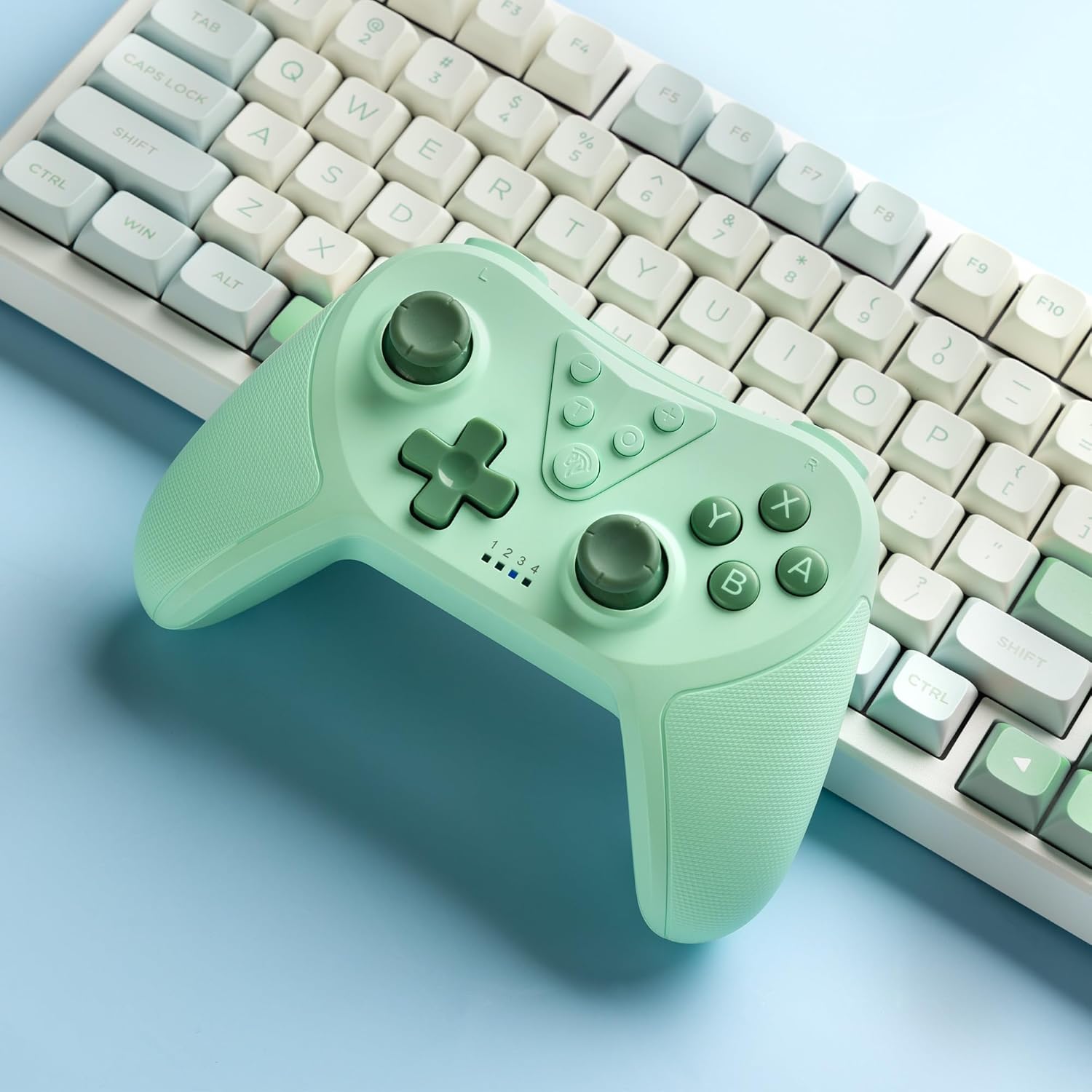
Image 4.2: Illustration of the Turbo function on the EasySMX T37 controller, showing the three adjustable speeds: 5, 12, and 20 shots per second.
4.3 Bibrazioaren doikuntza
The controller features dual motors for adjustable vibration feedback, enhancing immersion in games.
- Doitu bibrazio-intentsitatea: Eduki sakatuta Turbo botoia, gero mugitu Left Analog Stick Up or Down to cycle through four vibration levels: 0% (off), 30%, 70%, and 100%.

Image 4.3: Visual representation of the Dual Vibration feature on the EasySMX T37 controller, indicating four intensity levels from 0% to 100%.
4.4 6-Axis Gyro Motion Control
The built-in 6-axis gyroscope provides precise motion sensing, allowing for intuitive control in games that support motion input.

Image 4.4: Illustration depicting the 6-Axis Gyro Motion Control feature of the EasySMX T37 controller, showing how it interacts with a game on the Nintendo Switch screen.
5. Mantentzea
- Garbiketa: Erabili zapi leun eta lehor bat kontrolatzailea garbitzeko. Saihestu produktu kimiko gogorrak edo material urratzaileak erabiltzea.
- Biltegiratzea: Gorde kontrolatzailea leku fresko eta lehor batean, eguzki-argitik eta muturreko tenperaturetatik babestuta.
- Bateria zaintzea: Bateriaren iraupena luzatzeko, saihestu kontrolagailua maiz erabat deskargatzea. Kargatu aldizka, denbora luzez erabiltzen ez baduzu ere.
- Saihestu tantoak: Babestu kontrolatzailea erorketetatik eta kolpeetatik, barneko osagaiak kaltetu baititzakete.
6. Arazoak
6.1 Kontrolatzailea ez da konektatzen
- Ziurtatu kontrolagailua kargatuta dagoela.
- Verify the Switch console is updated to the latest system version.
- Try re-pairing the controller by following the steps in Section 3.1.
- If issues persist, try resetting the controller by inserting a thin object into the small reset hole (if present, usually on the back) for a few seconds.
6.2 Buttons Unresponsive or Lagging
- Ziurtatu kontrolatzailea guztiz kargatuta dagoela.
- Move closer to the Switch console to ensure a strong wireless connection.
- Begiratu botoien inguruan oztopo fisiko edo hondakinik dagoen.
- Berriro parekatu kontrolatzailea.
6.3 Controller Not Charging
- Ziurtatu USB-C kablea ondo konektatuta dagoela bai kontrolatzailera bai elikatze-iturrira.
- Saiatu beste USB-C kable edo korronte egokitzaile bat erabiltzen.
- Ziurtatu energia-iturria funtzionatzen duela.
7. Zehaztapenak
- Eredua: T37
- Konektibitatea: Haririk gabeko (Bluetooth)
- Bateragarritasuna: Nintendo Switch, Switch Lite, Switch OLED
- Ezaugarriak: Dual Turbo Function, Adjustable Vibration, 6-Axis Gyro Motion Control, Ergonomic Design
- Product Identifier (ASIN): B0CTTWN84L
8. Bermea eta Laguntza
Bermeari buruzko informazioa, laguntza teknikoa edo laguntza gehiago lortzeko, jo ezazu EasySMX ofizialera. webwebgunera edo jarri harremanetan bezeroarentzako arreta-zerbitzuarekin zuzenean. Gorde erosketa-agiria berme-erreklamazioetarako.