
1. Sarrera
This manual provides essential information and instructions for the installation and maintenance of your GENERIC Maintenance Box. This component is designed to collect and store waste ink generated during printer cleaning cycles and normal operation, ensuring your printer continues to function efficiently.
Proper installation and timely replacement of the maintenance box are crucial for preventing ink leaks and maintaining the longevity of your printer.
2. Segurtasun informazioa
- Always turn off and unplug your printer before performing any maintenance or installation.
- Handle the maintenance box carefully to avoid spilling waste ink.
- Mantendu produktua haurren eskura.
- Dispose of used maintenance boxes according to local environmental regulations. Do not attempt to clean or reuse the absorbent pads.
3. Paketearen edukia
Egiaztatu zure paketeak elementu hauek dituela:
- 1 x Replacement Maintenance Tank
- 1 x Extra Sponge Absorbent Pad (pre-installed or separate)
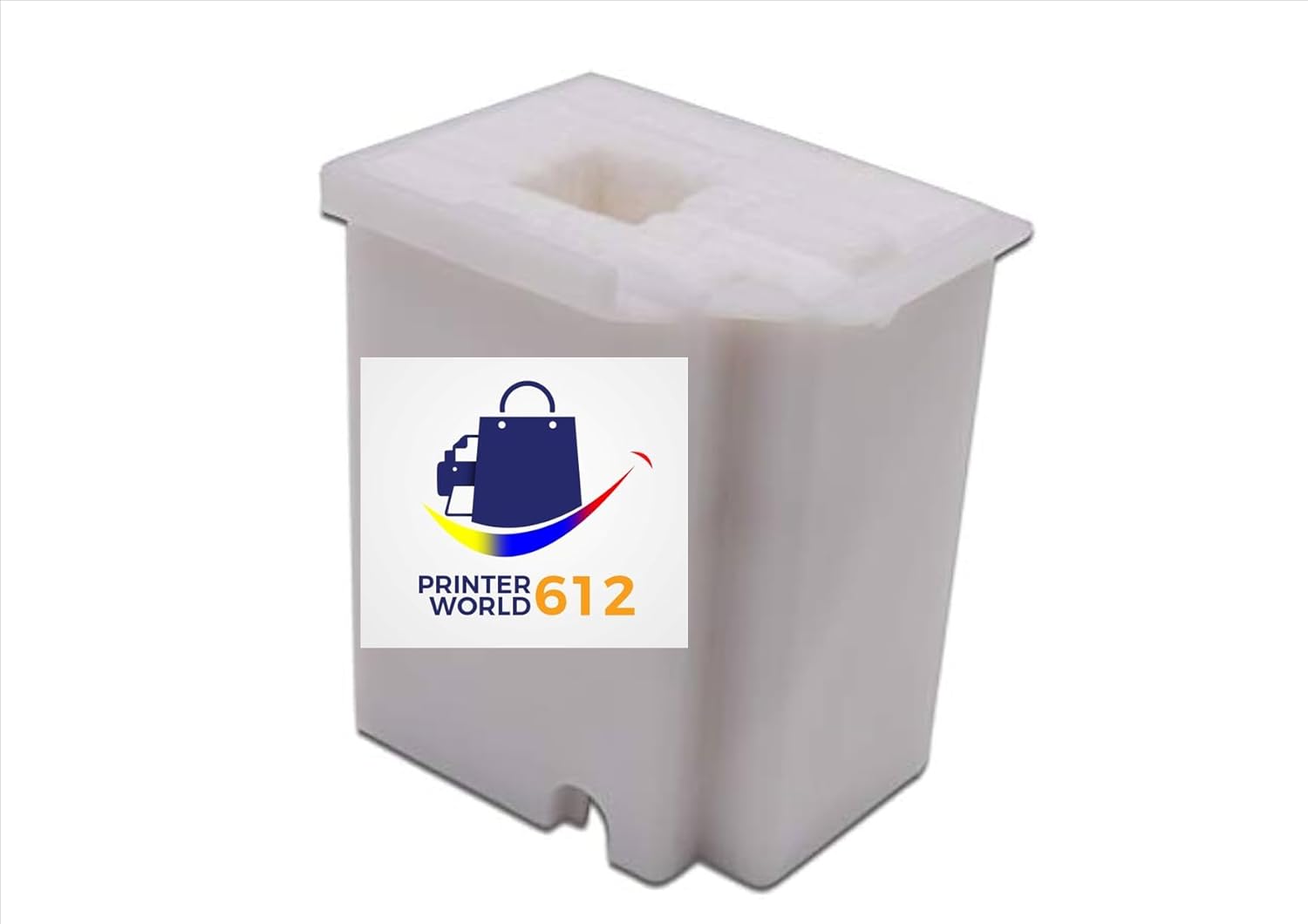
3.1. irudia: The GENERIC Maintenance Box, showing the overall unit with the Printerworld logo.
4. Bateragarritasuna
This GENERIC Maintenance Box is compatible with the following Epson EcoTank printer models:
- Epson EcoTank ET-2800
- Epson EcoTank ET-2803
- Epson EcoTank ET-2720
- Epson EcoTank ET-2711
- Epson EcoTank ET-4700
- Epson EcoTank L3110
- Epson EcoTank L3210
- Epson EcoTank L3150
- Epson EcoTank L3250
If your printer model is not listed, please consult your printer's manual or contact customer support to confirm compatibility.
5. Instalatzeko jarraibideak
Follow these steps to replace the maintenance box in your compatible Epson EcoTank printer:
- Itzali inprimagailua: Ensure your printer is turned off and unplugged from the power outlet.
- Locate Maintenance Box Compartment: Refer to your printer's user manual to locate the maintenance box compartment. This is typically found on the side or rear of the printer.
- Open Compartment Cover: Open the cover of the maintenance box compartment. You may need a small Phillips head screwdriver for some models.
- Remove Used Maintenance Box: Carefully pull out the used maintenance box. It may contain waste ink, so handle it upright to prevent spills.
- Prepare New Maintenance Box: Unpack the new GENERIC Maintenance Box. Ensure the absorbent pads are correctly seated inside.
- Insert New Maintenance Box: Slide the new maintenance box into the compartment until it clicks securely into place.
- Close Compartment Cover: Close the maintenance box compartment cover.
- Piztu inprimagailua: Plug in and turn on your printer.
- Reset Waste Ink Pad Counter (If Necessary): After replacing the maintenance box, your printer may display a "Waste Ink Pad End Of Service Life" message or similar. This requires resetting the waste ink pad counter. This process often requires specific software or a reset key, which is typically not included with the maintenance box. Refer to your printer's documentation or manufacturer's website for instructions on how to reset the counter for your specific model.

5.1. irudia: Goiena view of the maintenance box, illustrating the absorbent pads designed to collect waste ink.

5.2. irudia: Aldea view of the maintenance box, showing the internal structure and absorbent material.
6. Funtzionamendu-printzipioa
The maintenance box functions as a reservoir for waste ink. During various printer operations, such as print head cleaning cycles, excess ink is purged from the print heads to maintain print quality. This waste ink is then directed into the maintenance box, where it is absorbed by the internal pads. When the pads become saturated, the printer will typically display a message indicating that the maintenance box needs replacement.
7. Mantentzea
- Ordezko maiztasuna: The frequency of replacement depends on your printer usage and the number of cleaning cycles performed. Your printer will notify you when the maintenance box is full and requires replacement.
- Xedapena: Dispose of the used maintenance box responsibly according to local waste disposal guidelines. Do not attempt to empty or clean the box for reuse, as this can lead to ink spills and damage to your printer or environment.
8. Arazoak
"Waste Ink Pad End Of Service Life" Error
This is the most common error message related to the maintenance box. It indicates that the waste ink pads are full and need replacement. Follow these steps:
- Replace the maintenance box as per the "Installation Instructions" in Section 5.
- Reset the Waste Ink Pad Counter: This step is critical. Replacing the physical box alone will not clear the error. You must reset the printer's internal counter. This usually requires a utility program provided by the printer manufacturer or a third-party reset tool. Consult your printer's official support resources for specific instructions for your model.
Ink Leakage
If you observe ink leakage, immediately turn off and unplug your printer. Check the following:
- Ensure the maintenance box is correctly seated and fully inserted into its compartment.
- Verify that the compartment cover is securely closed.
- Inspect the maintenance box for any visible damage or cracks. If damaged, replace it.
9. Zehaztapenak
| Ezaugarri | Xehetasuna |
|---|---|
| Produktu Mota | Maintenance Box / Waste Ink Collector |
| Inprimagailu modelo bateragarriak | Epson EcoTank ET-2800, ET-2803, ET-2720, ET-2711, ET-4700, L3110, L3210, L3150, L3250 |
| Elementuaren pisua | 2.08 ontza |
| Produktuaren neurriak | 2 x 3 x 3 hazbete |
| Ezaugarri Berezia | Waste Ink Collector Replacement |
10. Bermea eta Laguntza
For warranty information or technical support, please refer to the seller's contact information provided at the point of purchase. Keep your purchase receipt as proof of purchase.
For printer-specific issues or waste ink counter reset procedures, please consult the official documentation or support channels for your Epson printer model.