
MAXHUB MaxHub Interactive Flat Panel 75" | OPS
MAXHUB 75 hazbeteko pantaila lau interaktiboaren erabiltzailearen eskuliburua
Model: MaxHub Interactive Flat Panel 75" | OPS
1. Sarrera
This manual provides comprehensive instructions for the setup, operation, maintenance, and troubleshooting of your MAXHUB Interactive Flat Panel 75". Please read this manual thoroughly before using the product to ensure proper functionality and safety.

1.1. irudia: Aurrealdea view of the MAXHUB Interactive Flat Panel 75". This image shows the large display screen with a digital clock and icons for folders, settings, notes, and more, indicating its interactive capabilities.
2. Segurtasun informazioa
Always adhere to the following safety guidelines to prevent damage to the product or injury to yourself and others:
- Do not expose the panel to water or excessive humidity.
- Ensure proper ventilation around the panel.
- Erabili gailuarekin hornitutako korronte-egokigailua soilik.
- Avoid placing heavy objects on the panel.
- Deskonektatu korrontea garbiketa edo mantentze-lanak egin aurretik.
3. Produktuaren osagaiak eta ezaugarriak
The MAXHUB Interactive Flat Panel 75" is designed with several key features for enhanced usability and durability.
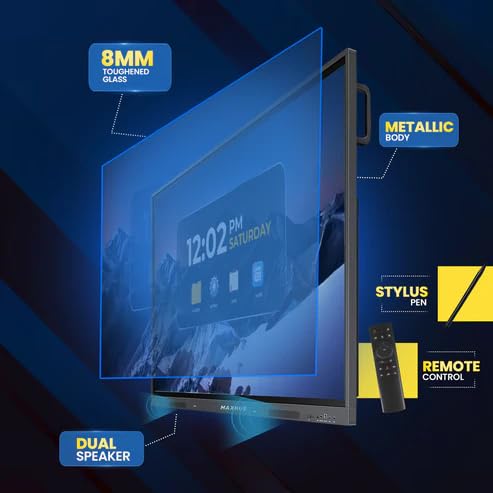
3.1. Irudia: Lehertuta view diagram highlighting key components. This image illustrates the 8mm toughened glass, metallic body, dual speakers, stylus pen, and remote control that come with the interactive flat panel.
- 8mm Toughened Glass: Provides durability and protection for the display.
- Metallic Body: Ensures structural integrity and a premium finish.
- Bozgorailu bikoitza: Delivers clear audio output.
- Stylus Pen: For precise interaction and writing on the screen.
- Urruneko kontrola: Urrutiko funtzionamendu erosoa izateko.
3.2. irudia: Aldea view detailing connectivity options. This image shows the power supply input, VGA connection, OPS slot, connecting port, and front connectors for easy access.
- OPS zirrikitua: For integrating an optional OPS (Open Pluggable Specification) module.
- VGA konexioa: For traditional video input.
- Elikatze-iturria: Energia-sarrera nagusia.
- Front Connectors: Easily accessible ports for peripherals.
4. Konfigurazioa eta instalazioa
Follow these steps for proper installation of your MAXHUB Interactive Flat Panel:
- Despaketatzea: Carefully remove the panel from its packaging. Retain all packaging materials for future transport or storage.
- Muntaketa: Securely mount the panel using a compatible VESA wall mount or floor stand (sold separately). Ensure the mounting surface can support the weight of the panel.
- Konektatzeko potentzia: Connect the power cable to the panel's power input and then to a grounded electrical outlet.
- Periferikoak konektatzea: Connect any necessary peripherals such as computers, cameras, or external storage devices to the appropriate ports (HDMI, USB, USB Type-C). The versatile USB Type-C integrates 65-watt power charge, video, audio, touch, and internet access features into one interface.
- Hasierako piztea: Press the power button on the panel or remote control to turn on the device.
5. Funtzionamendu-argibideak
The MAXHUB Interactive Flat Panel offers a user-friendly interface and advanced features for various applications.
5.1 Oinarrizko funtzionamendua
- Piztu/Itzali: Use the power button on the panel or remote.
- Iturburuaren hautaketa: Navigate through input sources (HDMI, VGA, OPS) using the input button on the remote or on-screen menu.
- Ukipen-elkarrekintza: Use your finger or the provided stylus for direct interaction with the screen. The panel features less than 40ms writing latency for a natural writing experience.
5.2 Ezaugarri aurreratuak
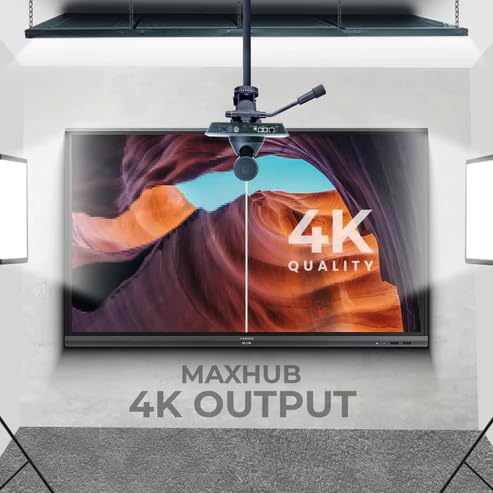
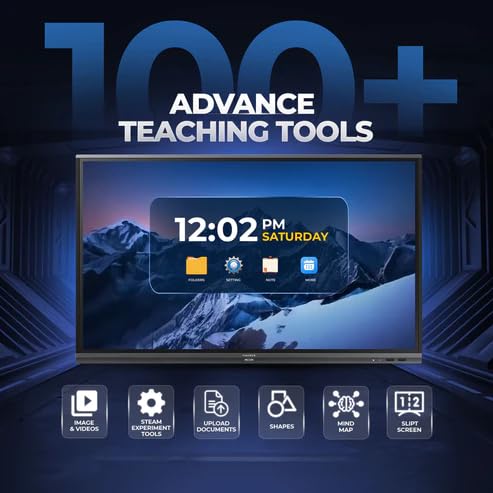
Figure 5.1: Display showing a variety of advanced teaching tools. This image highlights features like image and video integration, STEAM experiment tools, document upload, shapes, mind mapping, and split screen functionality.
- Professional 4K Display: Experience high color accuracy (AE≤2) and NTSC 72% wide color gamut for vivid visuals.
- Pre-installed Course Delivery Apps: Utilize built-in applications and widgets for productive teaching and presentations.
- Begiak zaintzeko teknologia: Features TUV Low Blue light and TUV Flicker-free with an ambient light sensor and anti-glare glass to reduce eye strain.
- Responsive Hardware: Equipped with a powerful built-in 2.0Ghz quad-core CPU and 4GB RAM, along with a high-speed 1000Base-T network adapter for smooth performance.
- Diseinu higienikoa: Incorporates SGS-certified antibacterial components for a cleaner environment.

Figure 5.2: The interactive flat panel being used in a hybrid teaching environment. This image demonstrates its suitability for both in-person and online educational settings.
6. Mantentzea eta Zainketa
Regular maintenance ensures the longevity and optimal performance of your interactive flat panel.
- Pantaila garbitzea: Erabili lipurrik gabeko zapi leun bat dampened with a non-abrasive, screen-safe cleaner. Do not spray cleaner directly onto the screen.
- Gorputza garbitzea: Wipe the exterior with a dry, soft cloth. Avoid harsh chemicals.
- Aireztapena: Ensure ventilation slots are clear of dust and debris to prevent overheating.
- Software eguneraketak: Periodically check for and install software updates to ensure optimal performance and security.
7. Arazoak
This section addresses common issues you might encounter with your MAXHUB Interactive Flat Panel.
| Arazoa | Kausa posiblea | Irtenbidea |
|---|---|---|
| Botererik ez | Kable elektrikoa deskonektatuta; Entxufearen arazoa. | Egiaztatu kablearen konexioa; Saiatu beste entxufe batekin. |
| Ez dago pantailarik | Incorrect input source selected; Cable connection issue. | Verify input source; Check HDMI/VGA/USB-C cable connections. |
| Ukipen-pantailak ez du erantzuten | Calibration needed; Software glitch. | Recalibrate touchscreen via settings; Restart the panel. |
| Irudiaren kalitate eskasa | Resolution mismatch; Dirty screen. | Adjust display resolution on connected device; Clean the screen. |
8. Zehaztapen Teknikoak
| Ezaugarri | Zehaztapena |
|---|---|
| Marka | MAXHUB |
| Modelo zenbakia | MaxHub Interactive Flat Panel 75" | OPS |
| Bistaratzeko tamaina | 75 hazbete |
| Bistaratzeko Teknologia | LCDa |
| Bistaratzeko ebazpena | 3840 x 2160 (4K UHD) |
| Erantzun Denbora | 40 milisegundo |
| CPU | 2.0Ghz Quad-core |
| RAM | 4 GB |
| Konektibitatea | Wi-Fi, USB Type-C, HDMI, USB 3.0 |
| Ezaugarri bereziak | Ultrawide Screen, TUV Low Blue Light, TUV Flicker-free, Anti-glare glass, SGS-certified antibacterial components |
| Paketearen neurriak | 180 x 114 x 20 cm |
9. Bermearen informazioa
The MAXHUB Interactive Flat Panel 75" comes with a standard manufacturer's warranty. Please refer to the warranty card included with your product for specific terms and conditions, including coverage duration and limitations.
An extended warranty option may be available. For details, please contact your retailer or visit the official MAXHUB webgunea.
10. Bezeroarentzako arreta
For technical assistance, service, or further inquiries, please contact MAXHUB customer support through the following channels:
- Webgunea: Visit the official MAXHUB webMaiz egiten diren galderen, gidarien eta laguntza-baliabideen gunea.
- Posta elektronikoa: Refer to your product documentation for the support email address.
- Telefonoa: Contact the customer service hotline provided in your product's packaging.
When contacting support, please have your product model number (MaxHub Interactive Flat Panel 75" | OPS) and serial number ready.
Ask a question about this manual
Ask about setup, troubleshooting, compatibility, parts, safety, or missing instructions. Manuals+ will review the question and use this page’s manual context to help answer it.