
1. Sarrera
Welcome to the instruction manual for your new Xiaomi Curved Gaming Monitor G34WQi. This guide provides essential information for the safe and optimal setup, operation, and maintenance of your monitor. Please read this manual thoroughly before use to ensure you get the best experience from your device.
The Xiaomi G34WQi features a 34-inch UWQHD (3440x1440) ultrawide curved display with a 1500R curvature, designed to provide an immersive viewing experience. It boasts a high 180Hz refresh rate and a rapid 1ms response time (MPRT) for smooth, fluid gameplay. With FreeSync Premium technology, it minimizes screen tearing and stuttering. The monitor also offers a wide color gamut (95% DCI-P3, 100% sRGB) and a low blue light mode for eye comfort.
2. Konfigurazioa
2.1 Paketearen edukia
Before assembly, please verify that all components are present:
- Xiaomi Curved Gaming Monitor G34WQi
- Monitorearen euskarria (oinarria eta besoa)
- Korronte egokitzailea eta kablea
- DisplayPort kablea
- HDMI kablea
- Erabiltzailearen eskuliburua
2.2 Standa muntatzea
- Kontu handiz jarri monitorearen aurpegia behera gainazal leun eta garbi batean, marradurak saihesteko.
- Attach the stand arm to the back of the monitor using the provided screws. Ensure it is securely fastened.
- Connect the stand base to the arm and tighten the thumb screw at the bottom of the base.
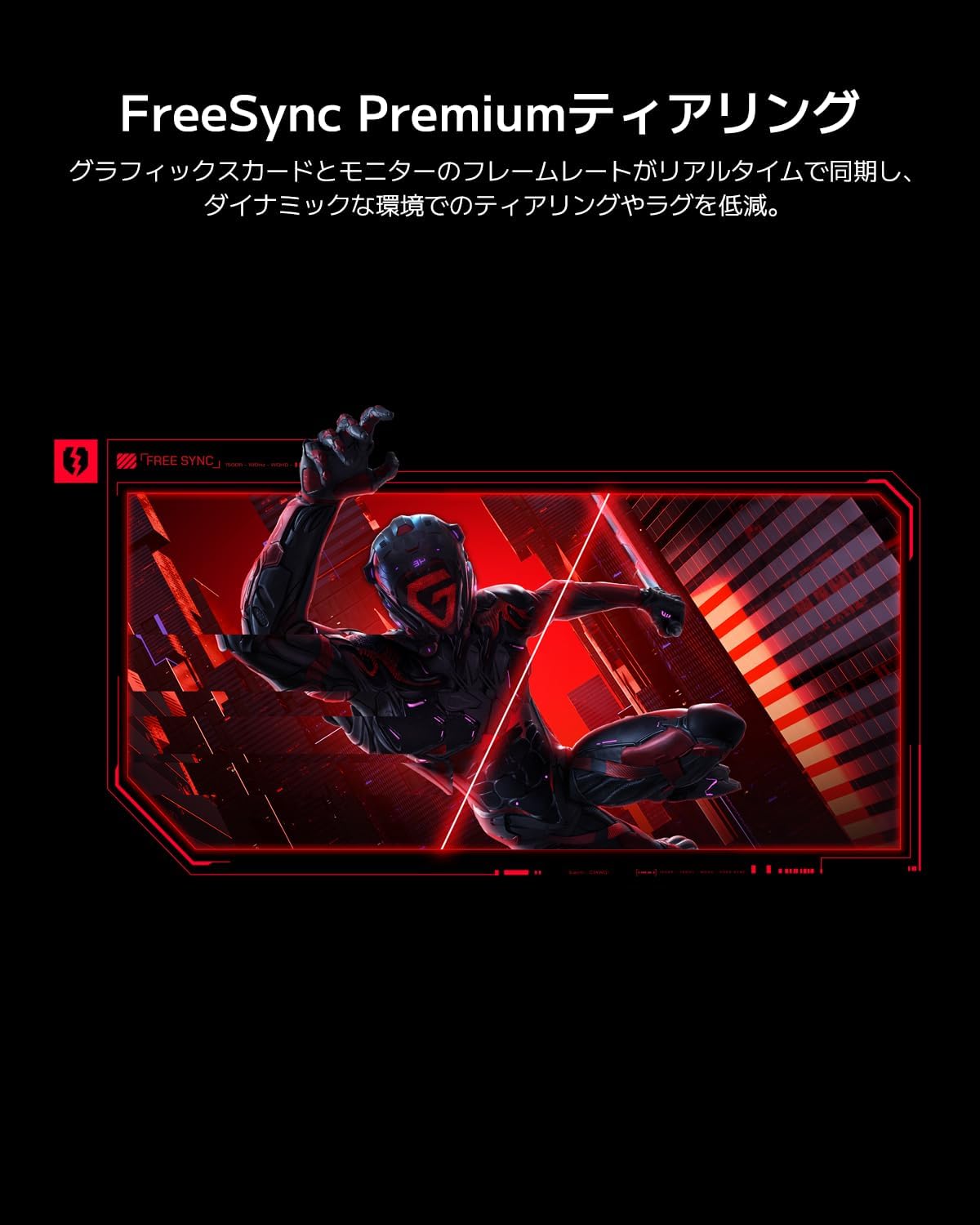
Image: The Xiaomi G34WQi monitor securely mounted on its adjustable stand.
2.3 Konektatzeko kableak
Connect the necessary cables to the monitor's rear ports:
- Sare elektrikoa Connect the power adapter to the monitor's power input, then plug the power cable into a wall outlet.
- DisplayPort (Recommended for Gaming): For optimal performance, including 180Hz refresh rate and FreeSync Premium, connect the DisplayPort cable from your computer's graphics card to the monitor's DisplayPort input.
- HDMI: Alternatively, connect an HDMI cable from your computer to one of the monitor's HDMI inputs. Note that HDMI may have limitations on refresh rate at UWQHD resolution compared to DisplayPort.
- Audio irteera: If desired, connect external speakers or headphones to the 3.5mm audio output jack.

Irudia: Atzealdea view of the monitor highlighting the input ports for connectivity.
2.4 Hasierako piztea
After connecting all cables, press the power button, usually located on the back or bottom of the monitor, to turn it on. The monitor should automatically detect the input signal. If not, you may need to manually select the input source using the OSD menu.
3. Funtzionamendu-argibideak
3.1 Piztu/Itzali
Press the power button to turn the monitor on or off. A status indicator light will show the monitor's power state.
3.2 Pantailan bistaratzeko (OSD) menua
The OSD menu allows you to adjust various monitor settings. It is typically controlled by a joystick or a set of buttons located on the back or bottom of the monitor.
Nabigazioa:
- Press the joystick/center button to open the OSD menu.
- Move the joystick (up/down/left/right) or use the directional buttons to navigate through menu options.
- Press the joystick/center button again to select an option or confirm a setting.
- Move the joystick left or press a dedicated 'Back' button to exit a sub-menu or the OSD.
3.3 Ezarpen nagusiak
- Distira/Kontrastea: Egokitu ezarpen hauek zure beharretara egokitzeko viewingurunea.
- Kolore ezarpenak: Fine-tune color temperature, gamma, and saturation. The monitor supports 95% DCI-P3 and 100% sRGB for accurate color reproduction.
- Freskatze-tasa: Ensure your refresh rate is set to 180Hz in both the monitor's OSD and your computer's display settings for the smoothest experience.
- Erantzun denbora: The monitor offers a 1ms MPRT (Moving Picture Response Time). This can often be adjusted in the OSD, sometimes referred to as 'Overdrive' or 'Response Speed'.
- FreeSync Premium: Enable FreeSync Premium in the OSD menu and in your AMD graphics card settings to synchronize the monitor's refresh rate with your GPU's frame rate, eliminating screen tearing and stuttering.

Image: Visual representation of FreeSync Premium preventing screen tearing.
- Argi urdin baxuko modua: Activate this mode to reduce blue light emissions, which can help reduce eye strain during prolonged use.

Image: The monitor displaying content with low blue light mode enabled for eye protection.
4. Mantentzea
4.1 Pantaila garbitzea
Pantaila garbitzeko, astiro-astiro zapi leun eta pelusik gabeko batekin garbitu. Orban egoskorrak izanez gero, astiro-astiro garbitu.ampGarbitu zapi bat urarekin edo pantaila-garbitzaile espezializatu batekin. Ez bota inoiz likidorik zuzenean pantailan.
4.2 Cleaning the Monitor Body
Use a soft, dry cloth to wipe the monitor's body. Avoid using abrasive cleaners or solvents, as they can damage the surface.
4.3 Arreta orokorra
- Saihestu objektu astunak monitorearen edo haren kableen gainean jartzea.
- Mantendu monitoreak eguzki-argitik, bero-iturrietatik eta gehiegizko hezetasunetik urrun.
- Ziurtatu aireztapen egokia monitorearen inguruan, gehiegi berotu ez dadin.
5. Arazoak
Monitorearekin arazoak badituzu, jo ezazu honako arazo eta irtenbide ohikoenei:
5.1 No Power / No Display
- Egiaztatu elikadura-kablea monitoreari zein korronte-hartuneari ongi konektatuta dagoen.
- Egiaztatu energia-egokitzailea behar bezala funtzionatzen duela.
- Press the power button on the monitor to ensure it is turned on.
5.2 Seinalerik ez
- Ensure the video cable (DisplayPort or HDMI) is securely connected to both the monitor and your computer's graphics card.
- Egiaztatu zure ordenagailua piztuta dagoen eta lo moduan ez dagoen.
- Use the OSD menu to manually select the correct input source (e.g., DisplayPort 1, HDMI 1).
- Try a different video cable or port on your graphics card/monitor to rule out a faulty connection.
5.3 Flickering or Tearing Screen
- Ensure FreeSync Premium is enabled in both the monitor's OSD and your graphics card settings.
- Egiaztatu zure txartel grafikoaren kontrolatzaileak eguneratuta daudela.
- Check the video cable. Some users have reported better stability with DisplayPort cables for high resolutions and refresh rates compared to HDMI.
- If using multiple monitors, ensure your system can handle the combined load, as some configurations might cause instability.
5.4 Incorrect Resolution or Refresh Rate
- Go to your computer's display settings (e.g., Windows Display Settings, NVIDIA Control Panel, AMD Radeon Software) and set the resolution to 3440x1440 and the refresh rate to 180Hz.
- Ensure you are using a DisplayPort cable, as some HDMI versions may not support UWQHD at 180Hz.
5.5 Image Reflection
- The monitor has a non-glare (VA) panel, but reflections can still occur in brightly lit environments. Adjust the monitor's position or room lighting to minimize reflections.
6. Zehaztapenak
| Ezaugarri | Zehaztapena |
|---|---|
| Marka | Xiaomi |
| Modelo zenbakia | G34WQi |
| Pantailaren tamaina | 34 hazbetekoa |
| Ebazpena | UWQHD (3440 x 1440 pixels) |
| Aspektu-erlazioa | 21:9 |
| Kurbadura | 1500R |
| Panel mota | VA (Non-glare) |
| Freskatze tasa | 180 Hz |
| Erantzun Denbora | 1 ms (MPRT) |
| Kolore gama | % 95 DCI-P3, % 100 sRGB |
| Konektibitatea | HDMI, DisplayPort, 3.5mm Audio Out |
| Potentzia Voltage | 12 Volt |
| Produktuaren neurriak (L x W x H) | 99.1 x 18.8 x 46 cm (gutxi gorabehera) |
| Produktuaren pisua | 6.9 kg |
| Muntatze Mota | Hormako euskarria (VESA bateragarria) |
7. Bermearen informazioa
This Xiaomi Curved Gaming Monitor G34WQi comes with a 1 urteko fabrikatzailearen bermea. Please retain your proof of purchase for warranty claims. For detailed terms and conditions, refer to the warranty card included in your product packaging or visit the official Xiaomi support webgunea.
8. Laguntza
For further assistance, technical support, or service inquiries, please contact Xiaomi customer service:
- Telefono-laguntza: 0120-767-378 (Reception hours: 9:00-18:00, excluding year-end and New Year holidays)
- Posta elektronikoko laguntza: service.jp@support.mi.com
You can also visit a Xiaomi Service Center for in-person support:
Xiaomi Service Center Akihabara Store
Address: 4-6-7 Kanda Sakumacho, Chiyoda-ku, Tokyo
Business Hours: 10:00-19:00
Closed: Wednesdays
(Last reception is at 18:00)

Image: A collection of Xiaomi products, showcasing the brand's commitment to smart living.