
1. Sarrera
This manual provides comprehensive instructions for the MokerLink 16-Port 2.5G Managed Ethernet Switch. It covers essential information regarding product setup, operation, maintenance, and troubleshooting to ensure you can effectively utilize its features. This device is designed to enhance network performance with its 16x 2.5 Gigabit Ethernet ports and 2x 10 Gigabit SFP+ uplink ports, supporting advanced Layer 2 management functions such as VLAN, QoS, LACP, and IGMP in a fanless, web-managed design.
2. Paketearen edukia
Instalazioarekin jarraitu aurretik, egiaztatu paketean elementu guztiak daudela:
- MokerLink 16-Port 2.5G Managed Ethernet Switch
- Korronte-egokitzailea/kablea
- Muntatzeko osagarriak (hala badagokio)
- Instalazio azkarraren gida
3. Physical Description and Port Configuration
The switch features a robust metal casing and a fanless design for silent operation. Familiarize yourself with the front and rear panels of the device.

Irudia: Aurrealdea eta atzekoa view of the MokerLink 16-Port 2.5G Managed Ethernet Switch. The front panel displays 16x 2.5G RJ45 ports (Ports 1-16) and 2x 10G SFP+ ports (Ports 17-18). LED indicators for Power, System Status (SYS), and individual port status are visible. The rear panel shows the AC power input (100-240V, 12V 4A, Max 36W).
LED adierazleak:
- PWR (Power Indicator):
- Berdea: piztu
- Argirik gabekoa: botererik gabe
- SYS (System Indicator):
- Slow Flash: System is operating normally
- 2.5Gbps Port (Ports 1-16):
- Orange: 10/100/1000Mbps link/activity
- Green: 2.5Gbps link/activity
- Keinuka: Datuak transmititzea
- Desaktibatuta: esteka desaktibatuta
- 10Gbps SFP+ Port (Ports 17-18):
- Blue On: 10Gbps link/activity
- Green On: 2.5/1Gbps link/activity
- Keinuka: Datuak transmititzea
- Desaktibatuta: esteka desaktibatuta
Berrezarri botoia:
- Prentsa laburra: Gailua berrabiarazten du.
- Sakatu 5 segundoz: Restores factory default settings.
4. Konfigurazioa
Follow these steps to set up your MokerLink Ethernet Switch:
- Lekua: Place the switch on a stable, flat surface or mount it in a rack using the provided accessories. Ensure adequate ventilation around the device.
- Potentzia-konexioa: Connect the power adapter to the switch's AC input port and then plug it into a standard power outlet. The PWR LED should illuminate green.
- Sare-konexioak:
- Connect your network devices (computers, servers, NAS, Wi-Fi 6 APs, etc.) to the 2.5G RJ45 ports (Ports 1-16) using CAT5e, CAT6, or CAT6a Ethernet cables. The switch supports auto MDI/MDIX, so straight-through or crossover cables can be used.
- For high-speed uplinks or connections to other 10G devices, insert compatible SFP+ modules (not included) into the 10G SFP+ ports (Ports 17-18) and connect appropriate fiber optic cables. The SFP+ ports are compatible with 1G/2.5G/10G modules.

Irudia: Illustration of the MokerLink switch connecting to various high-performance devices such as 2.5G/10G NAS, WiFi 6 AP, WiFi 6 Router, Laptops with 2.5G Ethernet Adapters, 2.5G/10G Servers, and 4K Video devices. It also highlights the use of CAT5e, CAT6, and CAT6a cables for optimal performance and shows SFP+ modules for 1G, 2.5G, and 10G speeds.
- Initial Access to Web Kudeaketa:
- Konektatu ordenagailu bat switch-aren edozein RJ45 atakara.
- Configure your computer's IP address to be in the same subnet as the switch's default IP address (e.g., if the switch is 192.168.2.1, set your computer to 192.168.2.X, where X is not 1, with a subnet mask of 255.255.255.0).
- Ireki a web arakatzailea eta idatzi lehenetsitako IP helbidea: 192.168.2.1.
- Log in using the default credentials: Username: admin, Pasahitza: admin.
- It is highly recommended to change the default password immediately after the first login for security reasons.

Irudia: A computer screen displaying the web management interface of the MokerLink switch, showing system information and port status. The image also indicates the default IP address (192.168.2.1), Username (admin), and Password (admin) for initial access.
5. Etengailuaren funtzionamendua
The MokerLink switch offers a range of Layer 2 management features accessible via its web interfazea.

Irudia: A visual representation of the powerful L2 software features supported by the MokerLink Web Managed Ethernet Switches. These features include IGMP, Mirroring, LACP, Multicast, STP/RSTP, ERPS, VLAN, QOS, and Trunking.
Key Features and Configuration:
- VLAN (Sare Lokal Birtuala): Allows you to segment your network into smaller, isolated broadcast domains, improving security and performance. Configure port-based or tag-based VLANs through the web interfazea.
- QoS (zerbitzuaren kalitatea): Prioritizes network traffic to ensure critical applications (e.g., VoIP, video streaming) receive sufficient bandwidth, reducing latency and jitter.
- LACP (Lotura Agregazio Kontrol Protokoloa): Combines multiple physical links into a single logical link, increasing bandwidth and providing link redundancy.
- IGMP (Internet Group Management Protocol): Optimizes multicast traffic delivery, preventing unnecessary flooding of multicast packets to all ports.
- Portu ispilua: Copies network traffic from one or more source ports to a destination port for monitoring and analysis.
- STP/RSTP (Spanning Tree Protocol/Rapid Spanning Tree Protocol): Prevents network loops and ensures network redundancy.
- Sistemaren jarraipena: The web interface provides real-time status of the device, including port status, traffic statistics, and system logs.
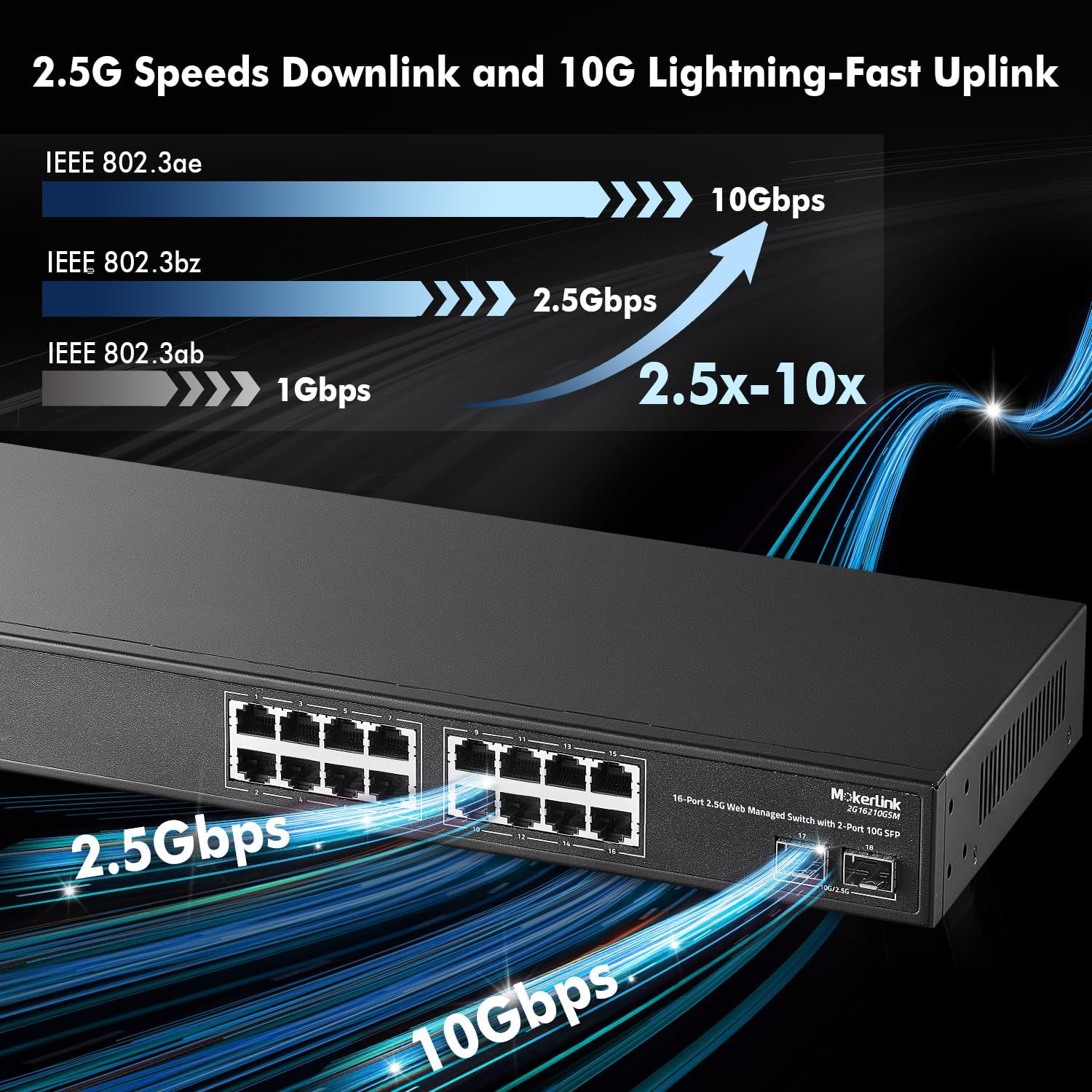
Irudia: A graphic demonstrating the speed capabilities of the switch, highlighting 2.5Gbps downlink speeds (IEEE 802.3bz) and 10Gbps lightning-fast uplink speeds (IEEE 802.3ae). It shows a comparison of 1Gbps, 2.5Gbps, and 10Gbps data rates, indicating a 2.5x to 10x speed improvement.
6. Mantentzea
To ensure the longevity and optimal performance of your MokerLink switch, consider the following maintenance guidelines:
- Ingurumen-baldintzak: Operate the switch within its specified temperature range (0°C to 70°C) and humidity levels. Avoid exposing it to direct sunlight, excessive heat, or moisture.
- Garbiketa: As the switch is fanless, dust accumulation is less of a concern internally. However, periodically clean the exterior of the device with a soft, dry cloth. Ensure ventilation openings are clear of obstructions.
- Kableen kudeaketa: Ensure all network cables are securely connected and properly routed to prevent accidental disconnections or damage.
- Firmware eguneraketak: Check the MokerLink official website periodically for firmware updates. Keeping the firmware up-to-date can provide new features, performance improvements, and security enhancements. Follow the instructions provided with the firmware update package carefully.
- Ohiko jarraipena: Erabili web management interface to regularly monitor port status, traffic, and system logs to identify and address potential issues proactively.
7. Arazoak
If you encounter issues with your MokerLink switch, refer to the following troubleshooting tips:
- Potentziarik gabe:
- Ziurtatu korronte-egokitzailea ondo konektatuta dagoela etengailura eta funtzionatzen duen entxufe batera.
- Egiaztatu entxufea funtzionatzen duela beste gailu bat konektatuz.
- Egiaztatu aurrealdeko paneleko PWR LEDa berdez piztuta dagoen.
- Ez dago estekarik portu batean:
- Egiaztatu Ethernet kablearen konexioa bi muturretan (etengailua eta konektatutako gailua). Saiatu beste kable batekin.
- Ziurtatu konektatutako gailua piztuta dagoela eta behar bezala funtzionatzen duela.
- Verify the port status LED on the switch. If it's off, there's no link. If it's orange/green but not flashing, there's a link but no activity.
- For SFP+ ports, ensure the SFP+ module is correctly inserted and compatible, and the fiber cable is not damaged.
- Sarearen abiadura motela:
- Ensure you are using appropriate cables (CAT5e/6/6a for 2.5G/10G connections).
- Verify that the connected devices support 2.5G or 10G speeds.
- Check the port status LED color to confirm the negotiated speed (Green for 2.5G, Blue for 10G).
- Monitor network traffic via the web interface to identify potential bottlenecks or excessive broadcast/multicast traffic.
- Ezin da sartu Web Kudeaketa Interfazea:
- Ensure your computer's IP address is in the same subnet as the switch (default: 192.168.2.1).
- Verify the physical connection between your computer and the switch.
- Saiatu zure arakatzailearen cachea garbitzen edo beste arakatzaile bat erabiltzen.
- If you forgot the password, perform a factory reset by pressing and holding the Reset button for 5 seconds. Oharra: This will erase all configurations.
8. Zehaztapenak
Below are the technical specifications for the MokerLink 16-Port 2.5G Managed Ethernet Switch:
| Ezaugarri | Deskribapena |
|---|---|
| Modelo zenbakia | 16*2.5G Managed |
| Zati zenbakia | 2G16210GSM |
| Portuak | 16x 2.5G Base-T RJ45 Ports, 2x 10G SFP+ Ports |
| Sareko estandarrak | IEEE802.3bz (2.5G) |
| Atzeko planoko banda-zabalera | 120 Gbps (blokeatzen ez dena) |
| Paketeen birbidaltze-tasa | 89.28 Mpps |
| MAC helbide taularen tamaina | 16K |
| Markoa Jumbo | 12K byte |
| Kudeaketa Mota | Web Kudeatua (2. geruza) |
| L2 Ezaugarriak | VLAN, QoS, LACP, IGMP, Mirroring, STP/RSTP, ERPS, Trunk |
| Potentzia Sarrera | AC 100-240V, 12V 4A |
| Energia-kontsumo maximoa | 36W |
| Hoztea | Fanless |
| Casing Materiala | Metala |
| Funtzionamendu-tenperatura | 0°C eta 70°C artean |
| Elementuaren pisua | 3.06 kilogramo |
| Gailu bateragarriak | 4K Video devices, Desktops, NAS, Computers, Laptops, Gaming PCs, WiFi 6 APs, Servers |
9. Bermea eta Laguntza
For information regarding warranty coverage, technical support, and service options for your MokerLink 16-Port 2.5G Managed Ethernet Switch, please refer to the warranty card included with your product or visit the official MokerLink website. You may also contact your point of purchase for specific details regarding return policies and support services.


