
1. Sarrera
The Yesido TV12 Gaming TV Box is a versatile device designed to transform your television into a smart entertainment hub. It combines 4K media streaming capabilities with extensive gaming emulation, offering a comprehensive entertainment experience. This manual provides essential information for setting up, operating, maintaining, and troubleshooting your device.
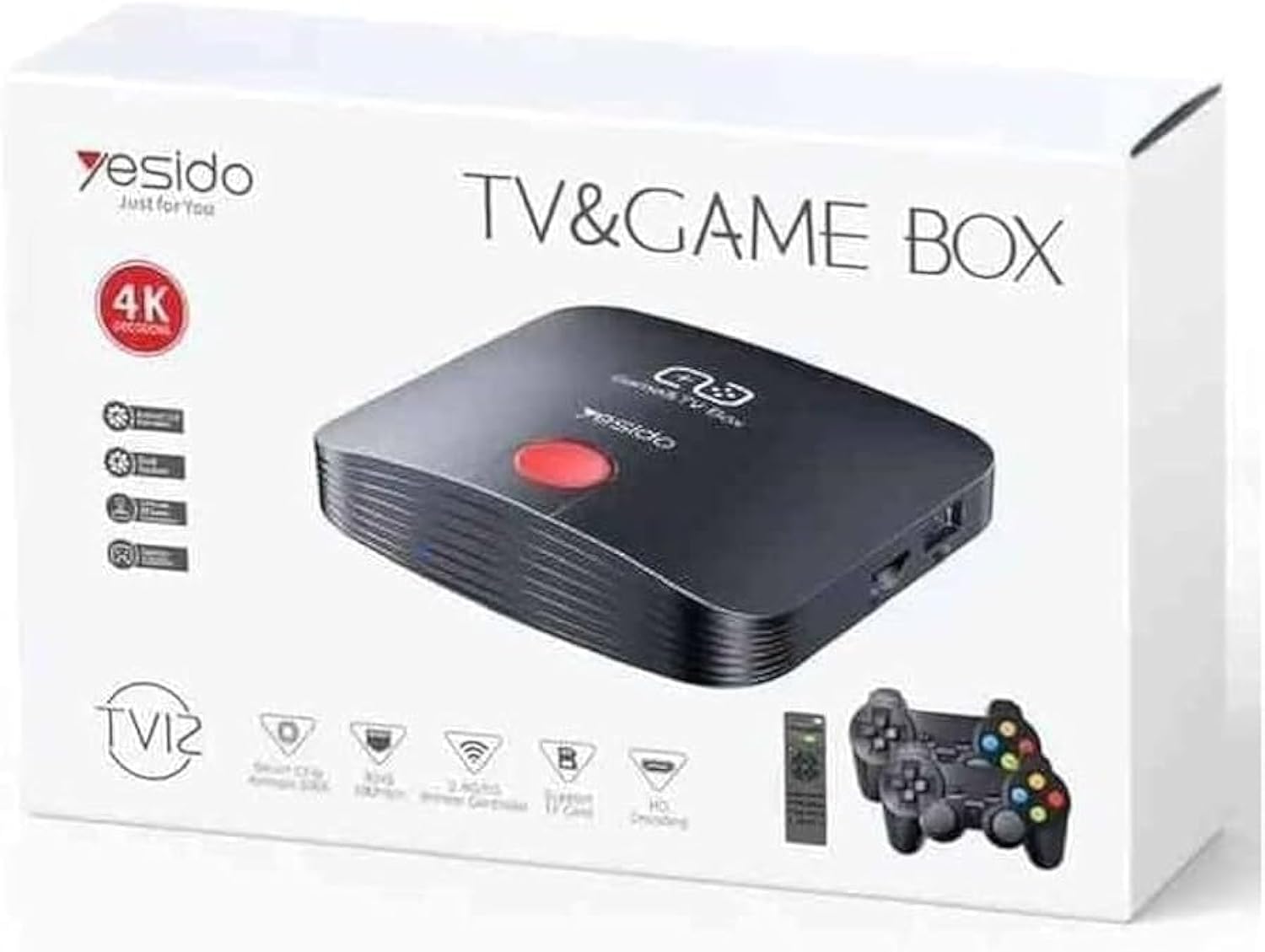
Image 1.1: The Yesido TV12 Gaming TV Box and included game controllers.
2. Produktua amaitu daview
The Yesido TV12 is a high-tech smart TV box that supports high-definition 4K resolution, allowing you to enjoy movies and TV shows with stunning clarity. It features an Amlogic S905 smart chip and runs on an Android 12.0 dual system. The device is equipped with 2GB RAM and 16GB internal storage, facilitating multitasking and storage of your favorite media and games. A powerful Mali-G31 MP2 GPU ensures smooth performance for demanding games.
Ezaugarri nagusiak:
- 4K HD Resolution Support (1080P to 4K)
- Android 12.0 Dual System
- Amlogic S905 Smart Chip
- Mali-G31 MP2 GPU
- 2GB RAM and 16GB Storage
- Supports over 10,000 game emulations (14 types)
- Integrated 2.4G/5G Wi-Fi and 100Mbps RJ45 Ethernet
- Compatible with popular streaming services (Netflix, Hulu, Amazon Prime Video, Disney+)
- Voice-controlled remote for easy navigation
- Compatible with two game controllers
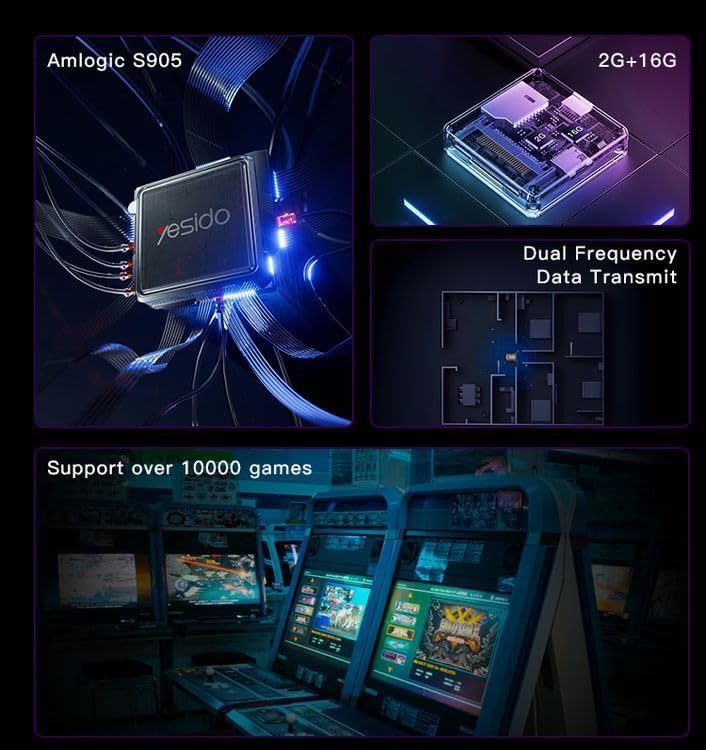
Image 2.1: Internal architecture highlighting the Amlogic S905 chip, memory, and data transmission capabilities.
3. Konfigurazio gida
3.1 Kutxatik ateratzea eta osagaiak
Kontu handiz atera elementu guztiak paketetik. Ziurtatu osagai hauek daudela:
- Yesido TV12 Gaming TV Box
- Elikatze-moldagailua
- HDMI kablea
- Urruneko Kontrola
- Game Controllers (quantity may vary)
- Erabiltzailearen eskuliburua (dokumentu hau)
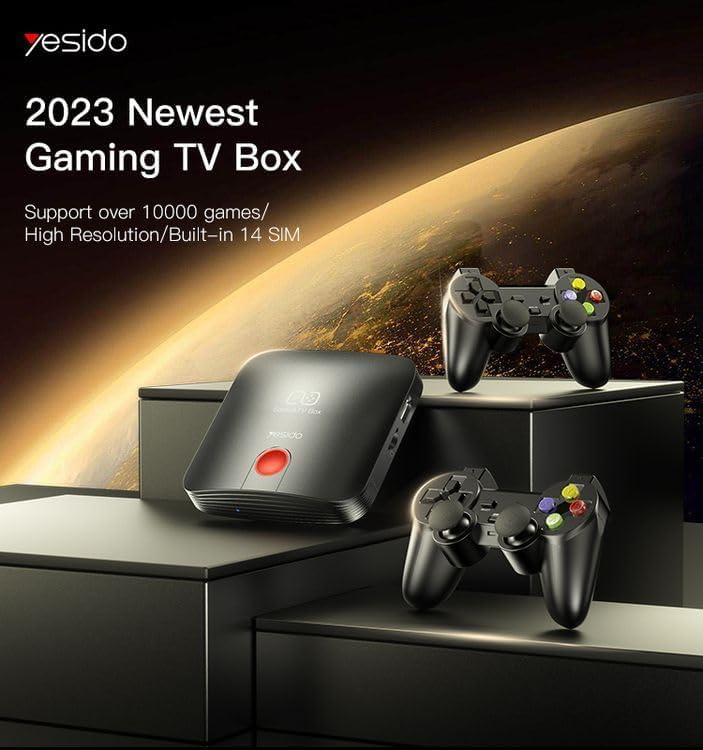
Image 3.1: The TV Box and game controllers, ready for setup.
3.2 Zure telebistara konektatzea
- Connect one end of the HDMI cable to the HDMI port on the Yesido TV12.
- Konektatu HDMI kablearen beste muturra telebistako HDMI sarrera-ataka libre batera. Hartu nota HDMI sarreraren zenbakia (adibidez, HDMI 1, HDMI 2).
3.3 Piztea
- Connect the power adapter to the DC IN port on the TV Box.
- Entxufatu korronte-egokigailua hormako entxufe batera.
- Turn on your television and select the corresponding HDMI input using your TV remote.
- The TV Box will automatically power on and display the boot-up screen.
3.4 Sareko konexioa
For internet access, you can connect via Wi-Fi or Ethernet.
- Wi-Fi: Navigate to Settings > Network > Wi-Fi. Select your network from the list, enter the password, and connect.
- Ethernet: Connect an Ethernet cable from your router to the RJ45 port on the TV Box. The connection should be established automatically.
3.5 Remote Control and Gamepad Pairing
The included remote control is typically pre-paired. If not, or if pairing gamepads:
- Ensure batteries are inserted correctly into the remote/gamepad.
- For Bluetooth gamepads, go to Settings > Connected Devices > Pair new device and follow the on-screen instructions.
4. Funtzionamendu-argibideak
4.1 Interfazean nabigatzea
Use the remote control to navigate the Android 12.0 interface. The directional buttons move the cursor, the OK button selects, and the Back button returns to the previous screen. The Home button returns to the main launcher screen.
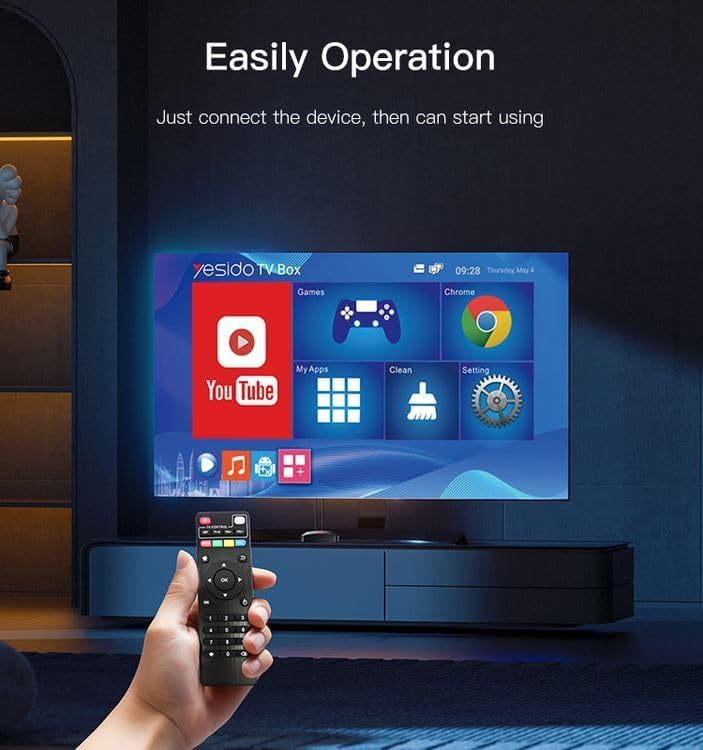
Image 4.1: Navigating the Yesido TV Box interface with the remote control.
4.2 Multimedia erreproduzitzea
The TV Box supports various streaming applications. Pre-installed apps like YouTube are available, and you can download more from the app store (e.g., Netflix, Hulu, Amazon Prime Video, Disney+).
- Select the desired streaming app from the home screen or 'My Apps' section.
- Hasi saioa zure kontuko kredentzialekin.
- Browse and select content to watch.
4.3 Jokoa
The Yesido TV12 is designed for gaming, supporting over 10,000 game emulations. Connect your game controllers as described in Section 3.5.
- Access the 'Games' or 'Emulator' section from the home screen.
- Select your desired game or emulator.
- Use the connected game controllers for an immersive gaming experience.

Image 4.2: The wireless gamepads compatible with the TV Box.
4.4 Ahots kontrola
If your remote control supports voice input, press the voice button and speak your commands or search queries. This allows for hands-free content search and device control.
5. Mantentzea
5.1 Gailua garbitzea
To maintain optimal performance and appearance, regularly clean the TV Box:
- Deskonektatu gailua korronte-hartunetik garbitu aurretik.
- Erabili zapi leun eta lehor bat kanpoko gainazalak garbitzeko.
- Do not use liquid cleaners, aerosols, or abrasive materials, as they may damage the device.
5.2 Software eguneraketak
Keep your device's software updated to ensure the best performance and access to new features:
- Connect the TV Box to the internet.
- Navigate to Settings > About > System Update.
- Follow the on-screen prompts to check for and install any available updates.
5.3 Biltegiratze kudeaketa
With 16GB of internal storage, managing your space is important:
- Joan Ezarpenak > Biltegiratzea atalera view biltegiratze erabilera.
- Uninstall unused applications or delete unnecessary files lekua askatzeko.
- The device supports TF cards for expandable storage.
6. Arazoak
6.1 Potentziarik gabe
- Ensure the power adapter is securely connected to the TV Box and a working power outlet.
- Saiatu beste korronte bat.
6.2 No Signal / No Display
- Egiaztatu HDMI kablea telebista-kutxara eta telebistara ondo konektatuta dagoela.
- Ziurtatu telebista HDMI sarrera-iturri zuzenera konfiguratuta dagoela.
- Saiatu beste HDMI kable edo HDMI ataka bat zure telebistan.
6.3 Sare konexio arazoak
- Wi-Fi: Check if your Wi-Fi router is working correctly. Re-enter the Wi-Fi password in Settings > Network.
- Ethernet: Ensure the Ethernet cable is properly connected to both the TV Box and the router.
- Berrabiarazi zure bideratzailea eta telebista-kutxa.
6.4 Urrutiko agintea ez da erantzuten
- Egiaztatu eta ordezkatu urrutiko agintearen bateriak.
- Ziurtatu ez dagoela oztoporik urrutiko agintearen eta telebista-kutxaren artean.
- Re-pair the remote control if necessary (refer to Section 3.5).
6.5 Game Performance Issues
- Close any background applications to free up RAM.
- Ziurtatu biltegiratze leku nahikoa dagoela eskuragarri.
- For online games, check your internet connection stability.
7. Zehaztapenak
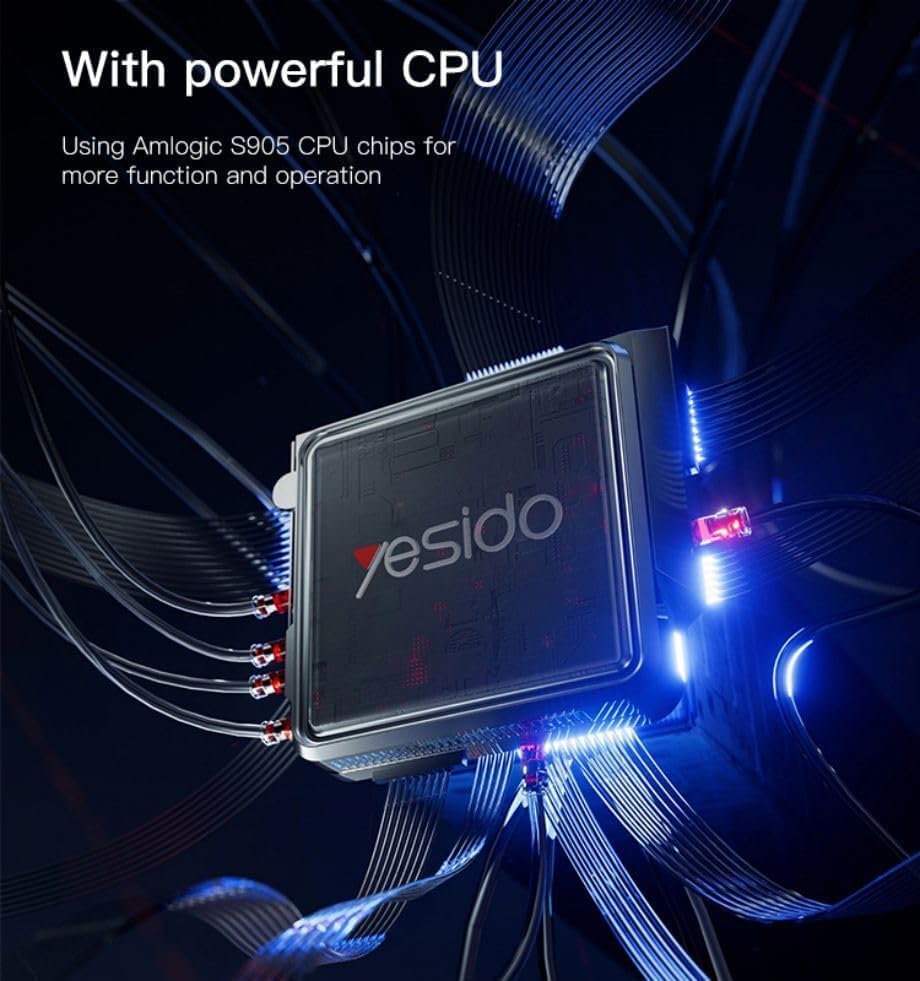
Image 7.1: The powerful Amlogic S905 CPU at the core of the TV Box.
| Ezaugarri | Deskribapena |
|---|---|
| Marka Izena | Yesido |
| Ereduaren izena | TV12 |
| Sistema eragilea | Android 12.0 Dual System |
| CPU | Amlogic S905 |
| GPU | Mali-G31 MP2 |
| RAM instalatua | 2 GB |
| Memoria Biltegiratzeko Ahalmena | 16 GB |
| Bideoaren irteeraren bereizmena | 1080P to 4K |
| Konektibitate Teknologia | HDMI, Wi-Fi (2.4G/5G), RJ45 (100Mbps) |
| Konektore mota | HDMI |
| Onartutako Interneteko zerbitzuak | Netflix, Hulu, Amazon Prime Video, Disney+ |
| Gailu bateragarriak | Telebista |
| Dakarten osagaiak | TV Box, Controllers |
| Kolorea | Beltza |
| Elementuaren pisua | 1200 gramo |
| Produktuaren neurriak (L x W x H) | 20 x 5 x 10 cm |
8. Bermea eta Laguntza
8.1 Bermearen informazioa
The Yesido TV12 Gaming TV Box comes with a standard manufacturer's warranty. Please refer to the warranty card included in your product packaging for specific terms, conditions, and duration. Keep your proof of purchase for warranty claims.
8.2 Bezeroarentzako laguntza
If you encounter any issues not covered in this manual or require further assistance, please contact Yesido customer support. Contact details can typically be found on the product packaging, the official Yesido webgunea edo zure dendariaren laguntza-orria.