
Trueque 59d4d2fe-b8ae-465b-8653-26919cf8a1e2
Trueque Wireless Ergonomic Keyboard Instruction Manual
Model: 59d4d2fe-b8ae-465b-8653-26919cf8a1e2
Marka: Trueque
1. Sarrera
This manual provides essential information for the setup, operation, and maintenance of your Trueque Wireless Ergonomic Keyboard. Designed for comfort and efficiency, this keyboard features 7-color backlighting, a built-in phone holder, and broad compatibility with various operating systems.

Image 1: Trueque Wireless Ergonomic Keyboard in white, showcasing its full layout and illuminated keys.
2. Zer dago kutxan
Mesedez, egiaztatu elementu guztiak paketean daudela:
- 1 x haririk gabeko teklatua
- 1 x USB hargailu (2.4 GHz)
- 1 x C motako kargatzeko kablea
- 1 x Erabiltzailearen eskuliburua

Image 2: Visual representation of the items included in the keyboard package.
3. Konfigurazioa
3.1. Teklatua konektatzea
- Locate the 2.4 GHz USB receiver.
- Insert the USB receiver into an available USB port on your computer (PC, Laptop, Desktop, Chromebook, Smart TV).
- Turn on the keyboard using the power switch located on the back or side of the device.
- The keyboard should automatically connect. No additional drivers are typically required.

Image 3: Illustration of the keyboard's 2.4 GHz wireless connection setup.
3.2. Teklatua kargatzea
The keyboard is equipped with a rechargeable battery. Use the provided Type-C charging cable to charge the device when the battery is low.
- Connect the Type-C cable to the keyboard's charging port.
- Konektatu kablearen beste muturra USB elikadura-iturri batera.
- A blue light indicates charging. The power indicator turns off when fully charged.

Image 4: Detail of the Type-C charging port and cable connection.

Image 5: Smart LED indicators for Power, Caps Lock, and Num Lock. The power indicator flashes when the battery is low.
4. Funtzionamendu-argibideak
4.1. Atzeko argiaren kontrola
The keyboard features 7 distinct backlight colors and 3 adjustable brightness levels to enhance your typing experience.
- To turn ON/OFF the backlight and switch between 7 colors: Sakatu Fn + Desplazamendu blokeoa.
- To adjust backlight brightness (3 levels): Sakatu Fn + Gora gezia (handitu) edo Fn + Behera gezia (gutxitzea).

Image 6: Instructions for adjusting backlight colors and brightness.
4.2. Ergonomic Design and Wrist Rest
The keyboard is designed with an ergonomic typing angle and an integrated wrist rest to provide support and reduce strain during extended use. This promotes a comfortable typing posture.

Image 7: Visual comparison highlighting the ergonomic design and wrist rest for improved comfort.
4.3. Device Holder
A convenient slot is integrated into the keyboard to securely hold your phone or tablet, keeping your workspace tidy and your devices accessible.

Image 8: The keyboard's integrated phone and tablet holder.
4.4. Lasterbide-teklak
The full-size keyboard includes a numeric keypad, 12 function keys, and 6 independent shortcut keys for quick access to common functions like music, email, and more, enhancing efficiency.

9. irudia: Amaituview of the keyboard's shortcut keys and numeric pad for high efficiency.
4.5. Smart Energy-Saving Features
To conserve battery life, the keyboard automatically turns off its backlight after 90 seconds of inactivity and enters a smart sleep mode after 15 minutes. Simply type or click any key to wake it up.
4.6. Bateragarritasuna
The keyboard is compatible with a wide range of devices and operating systems, including PCs, Laptops, Desktops, Chromebooks, Smart TVs, Windows, Linux, Chrome, and Mac.
4.7. Produktuaren bideoa
Watch this video for a visual demonstration of the keyboard's features, including its 7-color backlights, wrist rest, and wireless functionality.
Video 1: Demonstration of the Trueque Wireless Keyboard's 7-color backlights, ergonomic wrist rest, and wireless operation.
5. Mantentzea
5.1. Garbiketa
Teklatua garbitzeko, garbitu gainazala astiro-astiro zapi leun etaamp cloth. Avoid using harsh chemicals or abrasive materials that could damage the finish or key legends. The keyboard is designed to be spill-resistant, but excessive liquid exposure should be avoided.
5.2. Bateria zaintzea
To prolong battery life, fully charge the keyboard before first use. Recharge when the low battery indicator flashes. Avoid exposing the keyboard to extreme temperatures.
6. Arazoak
- Teklatua ez da konektatzen: Ensure the USB receiver is securely plugged into your device and the keyboard is powered on. Try plugging the receiver into a different USB port.
- Atzeko argia ez dabil: Sakatu Fn + Desplazamendu blokeoa to ensure the backlight is turned on. Check battery level and recharge if necessary.
- Keys wearing off: While the keyboard is designed for durability, prolonged heavy use may cause some key legends to fade over time. This is typically cosmetic and does not affect functionality.
- Cursor jumping unexpectedly: This issue is usually software-related. Ensure your operating system and drivers are up to date. If using a mouse, ensure it is not interfering.
7. Zehaztapenak
| Ezaugarri | Xehetasuna |
|---|---|
| Produktuaren neurriak | 16.6 x 8.42 x 1.53 hazbete |
| Elementuaren pisua | 1.92 kilo |
| Konektibitate Teknologia | 2.4 GHz haririk gabea |
| Teklatuaren atzeko argia | 7 Colors, 3 Brightness Levels (RGB support) |
| Ezaugarri bereziak | Ergonomic, Wrist Rest, Phone Holder, Rechargeable, Silent Keys, Spill Resistant |
| Bateriaren egonean denbora | Gehienez 2000 ordu |
| Gailu bateragarriak | PC, Laptop, Desktop, Chromebooks, Smart TV |
| Sistema Eragileak | Windows, Linux, Chrome, Mac |
8. Bermea eta Laguntza
Trueque offers comprehensive customer support for your product:
- Online Response: 24-hour online response for inquiries.
- Bermea: 12 hilabeteko doako bermea.
- Brand Service: 360 days of dedicated brand service.
Laguntza lortzeko, jar zaitez gurekin harremanetan:
Telefonoa: 1-866-608-6766 (AEB)
Ordutegia: Mon-Fri, 9am-1pm, 2pm-6pm (PST)
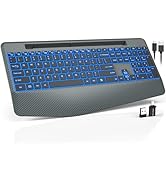
Image 10: Trueque customer support details, including warranty and contact information.
Ask a question about this manual
Ask about setup, troubleshooting, compatibility, parts, safety, or missing instructions. Manuals+ will review the question and use this page’s manual context to help answer it.