
1. Produktua amaitu daview
The WiZ Connected Smart Light Bulb is an A19 full-color LED bulb designed for indoor use. It offers smart lighting capabilities including 16 million colors, adjustable warm to cool white light, dimming, and various preset moods. Control is available via the WiZ app, WiZ remote, or voice commands through compatible smart home platforms. The bulbs connect directly to your existing 2.4 GHz Wi-Fi network without requiring additional hardware.
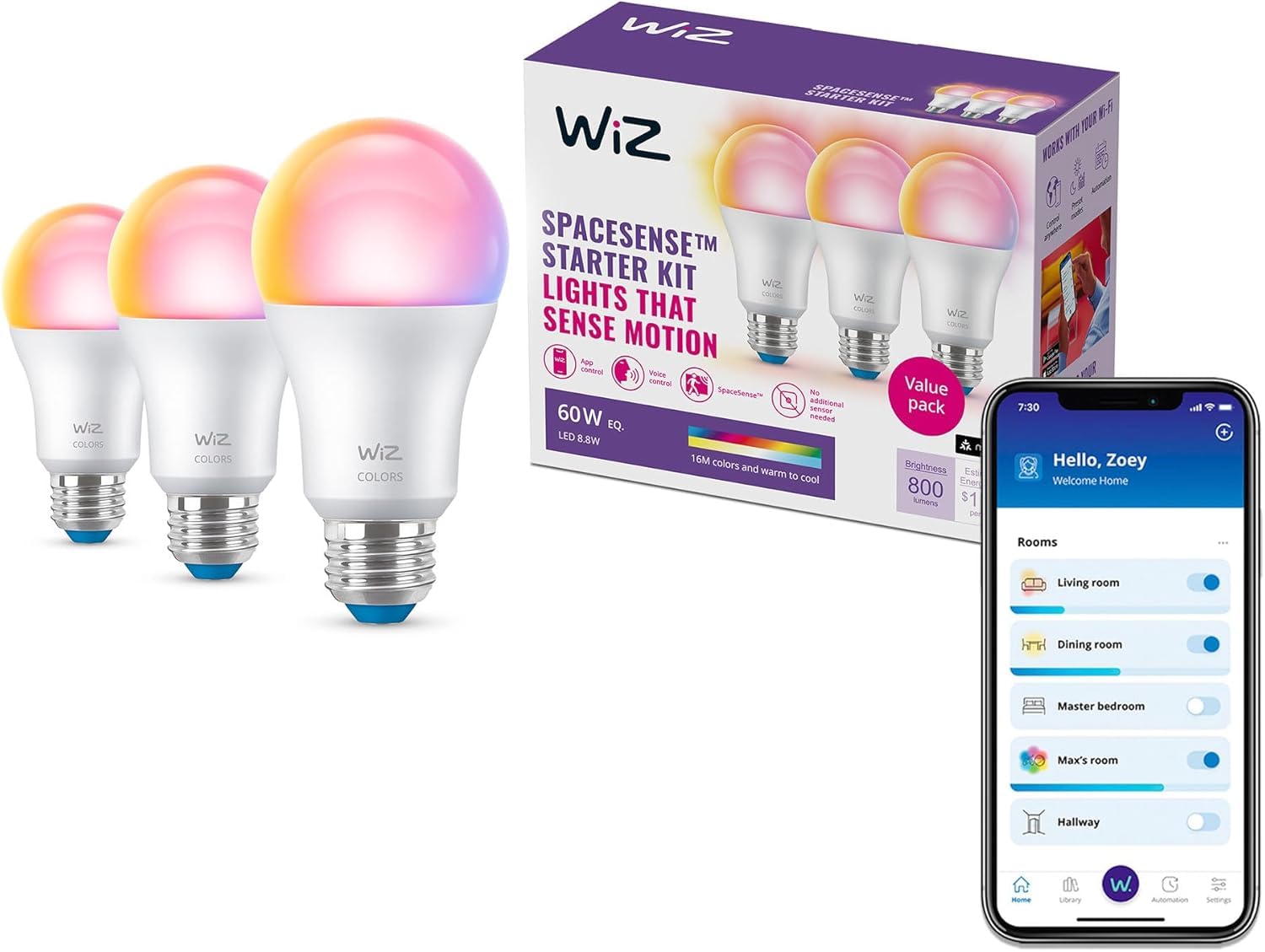
Image: WiZ Connected Smart Light Bulb A19 in packaging, showing its full color capabilities and app control.
2. Zehaztapenak
| Marka | WiZ konektatuta |
| Argi Mota | LED |
| Ezaugarri Berezia | Color Changing, Dimmable, Energy Efficient |
| Wattage | 8.8 watt |
| Bonbilla Forma Tamaina | A19 |
| Bonbilla Oinarria | E26 |
| Goritasun baliokidea Wattage | 60 Watt |
| Argi Kolorea | Kolore anitzekoa |
| liburukiatage | 120 Volt |
| Distira | 800 lumen |
| Barruko/Kanpoko erabilera | Barruan |
| Kontrol-metodoa | Aplikazioa, Urrunekoa, Ahotsa |
| Etxe adimendunen bateragarritasuna | Matter Compatible |
| Elementuaren eredu-zenbakia | 605634 |
| Elementuaren pisua | 8.4 ontza |

Image: Dimensions of the WiZ Connected Smart Light Bulb A19.
3. Konfiguratzeko argibideak
- Instalatu bonbilla: Screw the WiZ smart bulb into any standard E26 light fixture. Ensure the fixture is powered off before installation.
- Deskargatu WiZ aplikazioa: Download the WiZ Connected app from the App Store (iOS) or Google Play Store (Android).
- Konektatu wifira: Open the WiZ app and follow the on-screen instructions to connect the bulb to your 2.4 GHz Wi-Fi network. No additional hub or gateway is required.
- Konfiguratu ezarpenak: Once connected, you can name your light, assign it to a room, and begin customizing its settings.

Image: A hand screwing a WiZ smart bulb into a light fixture.
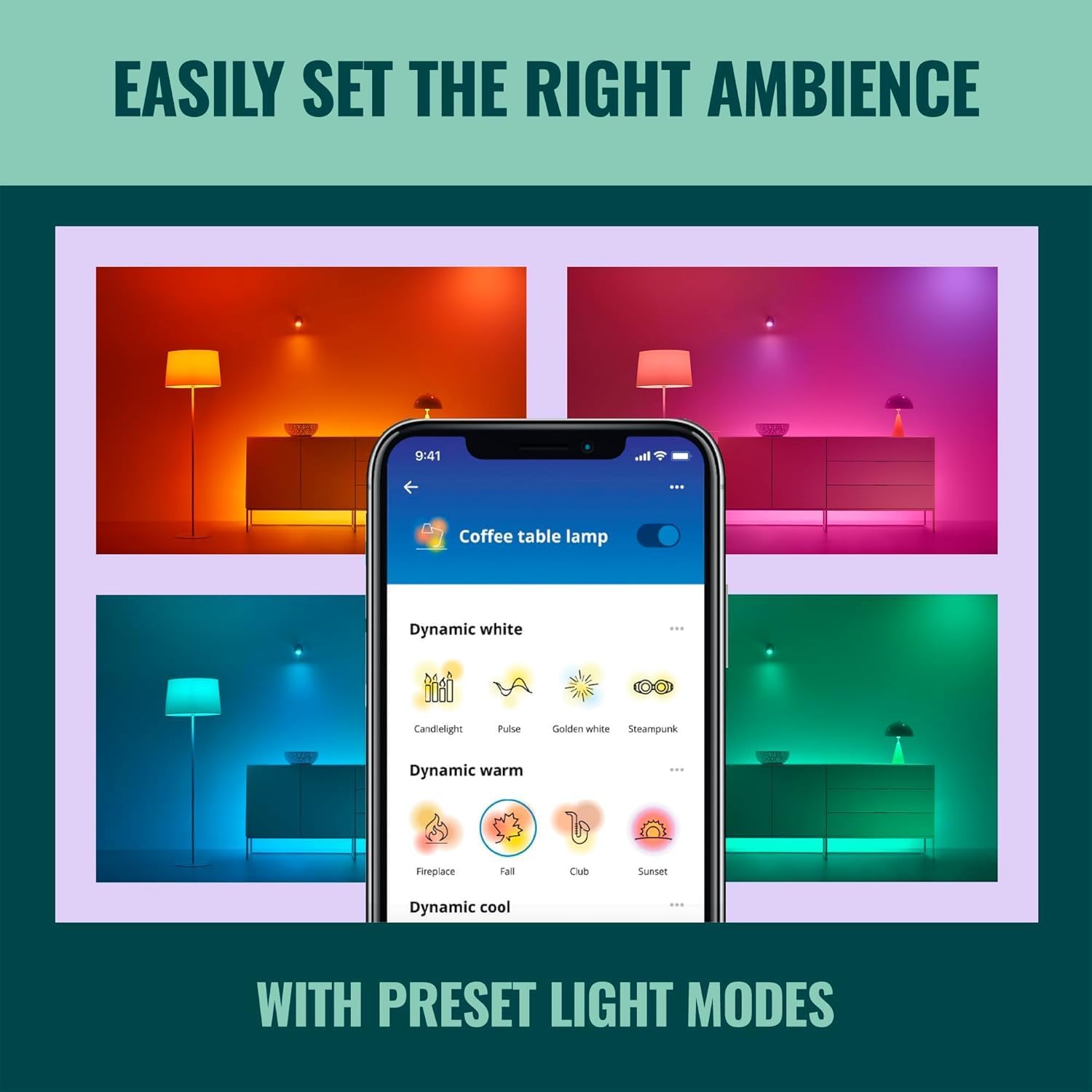
Image: A smartphone displaying the WiZ app setup screen.
4. Funtzionamendu-argibideak
4.1 Kontrol-metodoak
- WiZ App: Use the WiZ Connected app on your smartphone or tablet to control all aspects of your lighting.
- Ahots kontrola: Integrate with Amazon Alexa, Google Home, or Apple HomeKit for hands-free control.
- WiZ Remote: (Sold separately) Use a dedicated WiZ remote for quick access to your favorite light modes.

Image: A person using voice commands to control WiZ lights.
4.2 Customizing Light Settings
- Color and White Adjustment: Choose from 16 million colors or adjust white light from warm (2200K) to cool (6500K).
- Distira kontrola: Dim or brighten your lights to your desired level (800 lumens maximum).
- Preset Moods: Select from a variety of pre-programmed light modes to create the perfect ambiance for any occasion.
- Ordutegiak: Set schedules to automatically turn lights on/off or change modes according to your daily or weekly routines.
- Sunset to Sunrise Automation: Configure lights to turn on automatically at sunset and off at sunrise when connected to Alexa.
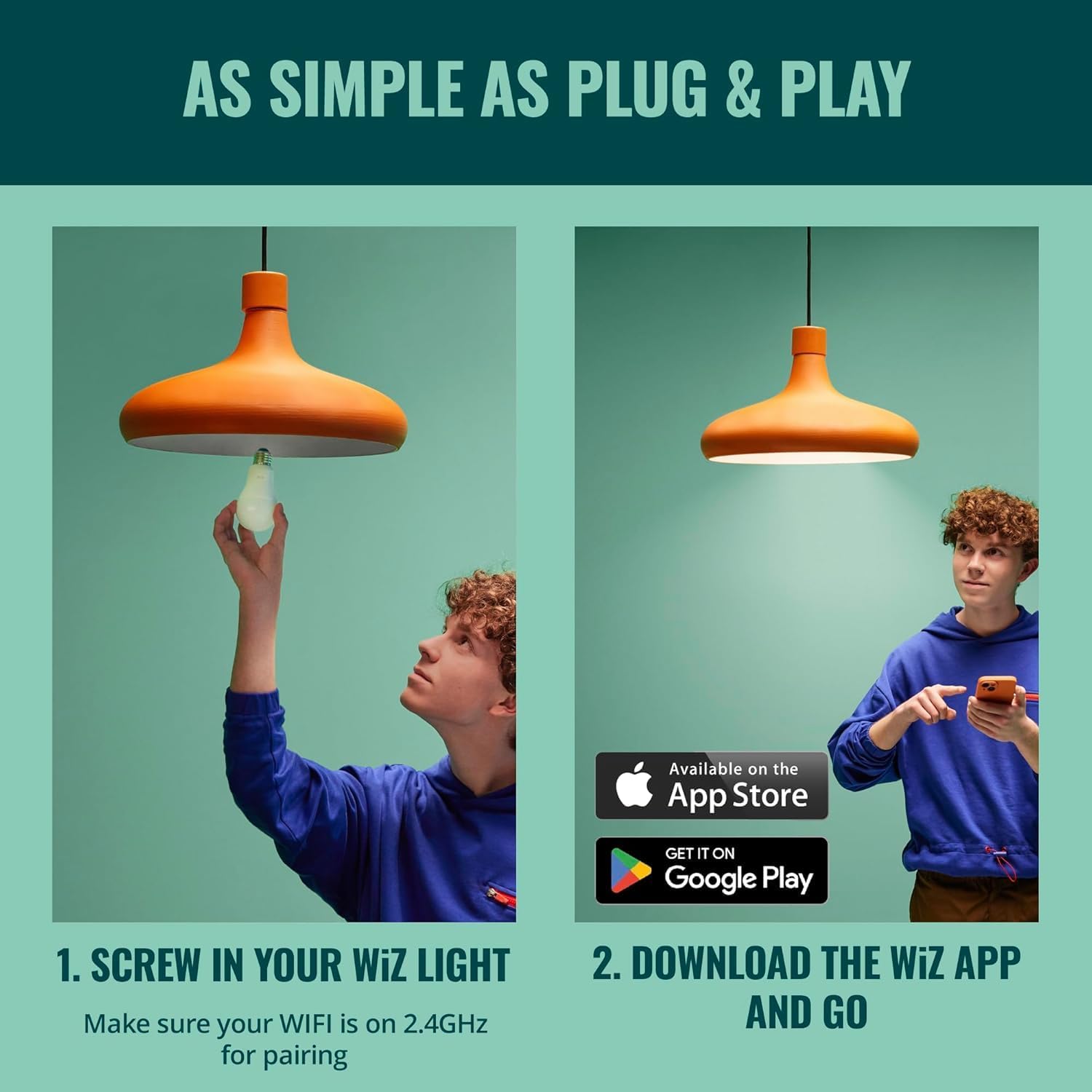
Irudia: Adibamples of various color settings available for WiZ smart bulbs.

Image: Illustration of different brightness levels for WiZ smart bulbs in a room setting.
4.3 SpaceSense Motion Detection
SpaceSense technology allows your WiZ lights to act as motion sensors, illuminating rooms automatically. This feature requires at least two WiZ devices in the same room to function effectively. It uses Wi-Fi waves to detect movement without the need for physical motion sensors.
Video: Official WiZ video demonstrating SpaceSense motion detection, showing lights turning on automatically as a person enters a room.
5. Mantentzea
To maintain optimal performance and longevity of your WiZ Smart Light Bulbs, follow these general guidelines:
- Garbiketa: Ensure the bulb is cool and the power is off before cleaning. Wipe the bulb with a soft, dry cloth. Avoid using liquid or abrasive cleaners.
- Ingurumena: Use the bulbs in dry, indoor environments within the specified operating temperature range. Avoid exposure to excessive moisture or extreme temperatures.
- Firmware eguneraketak: Regularly check the WiZ app for firmware updates to ensure your bulbs have the latest features and security enhancements.
6. Arazoak
- Konektibitate arazoak:
- Ensure your Wi-Fi network is 2.4 GHz. WiZ bulbs do not support 5 GHz networks.
- Check your Wi-Fi signal strength in the area where the bulb is installed.
- If using a mesh router, ensure that all WiZ bulbs intended for SpaceSense are connected to the same mesh router satellite for consistent performance.
- Restart your Wi-Fi router and the WiZ bulb by turning it off and on at the switch.
- SpaceSense Not Working:
- Verify that at least two WiZ devices are installed and configured in the same room.
- Ensure both devices are connected to the same Wi-Fi network and are within range of each other.
- Check SpaceSense settings in the WiZ app for proper configuration and sensitivity levels.
- Kolore/distira ez-koherentea:
- If mixing WiZ bulbs from different manufacturers or older models, slight variations in color or response time may occur. For best results, use bulbs from the same batch or manufacturer.
- Ensure all bulbs are updated to the latest firmware.
- Ahots-kontrolak ez du erantzuten:
- Confirm that your WiZ account is correctly linked to your Alexa, Google Home, or Apple HomeKit account.
- Check your internet connection and the status of your smart assistant device.
7. Bermea eta Laguntza
This WiZ Connected Smart Light Bulb comes with a 2 urteko fabrikatzailearen bermea.
For technical support, warranty claims, or further assistance, please refer to the official WiZ Connected webwebgunera edo jarri harremanetan zuzenean bezeroarentzako arreta-zerbitzuarekin. Gorde erosketaren frogagiria bermearen ondorioetarako.