
1. Sarrera
This manual provides essential information for the proper setup, operation, and maintenance of your Gawfolk 34-inch UWQHD 144Hz Curved Gaming Monitor, Model GF340A. Please read this manual thoroughly before using the product to ensure optimal performance and safety.
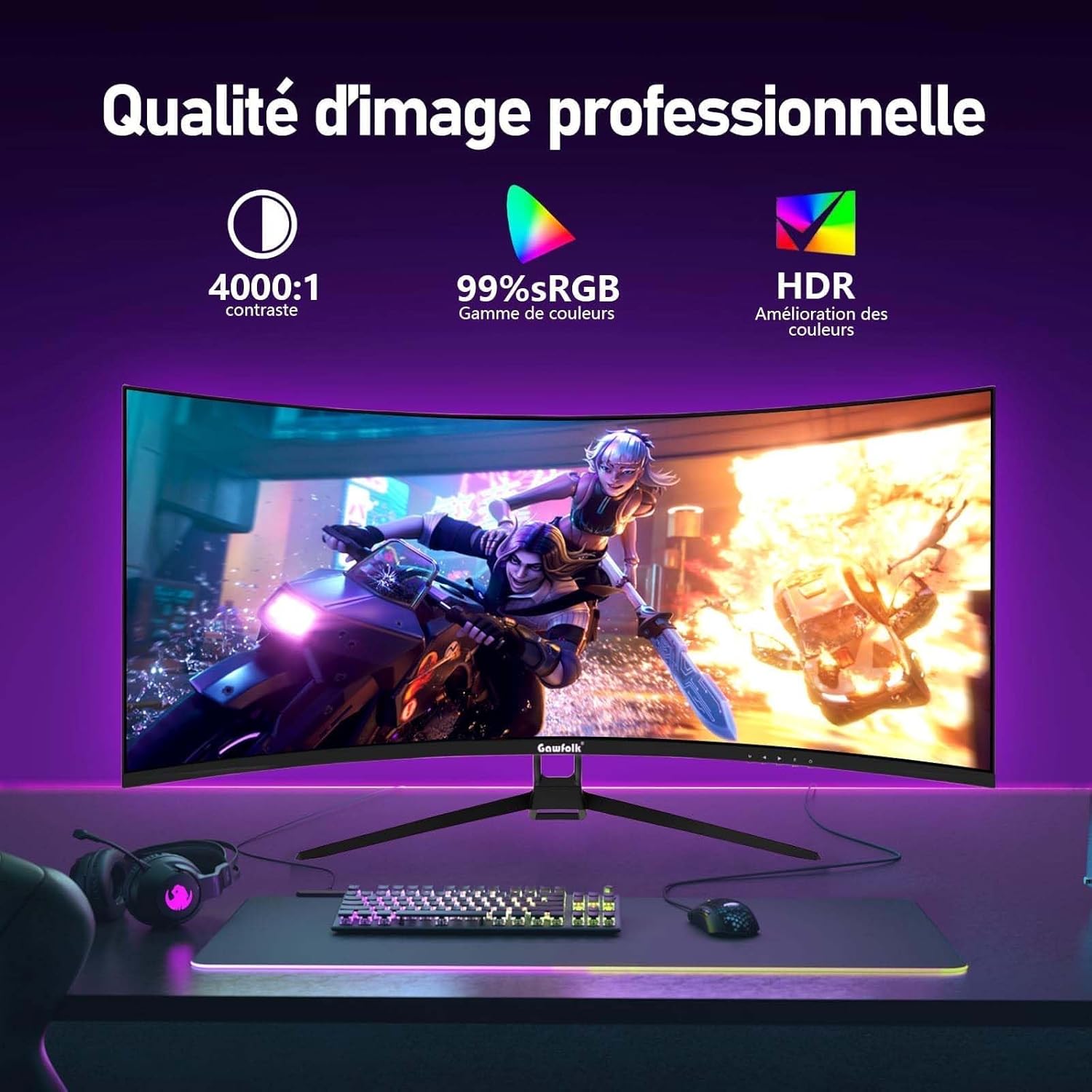
The Gawfolk GF340A is a 34-inch ultrawide (21:9) curved gaming monitor featuring a 1500R curvature for an immersive viewing experience. It offers a UWQHD (3440x1440) resolution, a high refresh rate of 144Hz, and supports Adaptive Sync technology to minimize screen tearing and stuttering. With HDR support, 4000:1 contrast ratio, and 99% sRGB color gamut, it delivers vibrant and detailed visuals. The monitor also incorporates low blue light and flicker-free technologies for enhanced eye comfort during extended use.
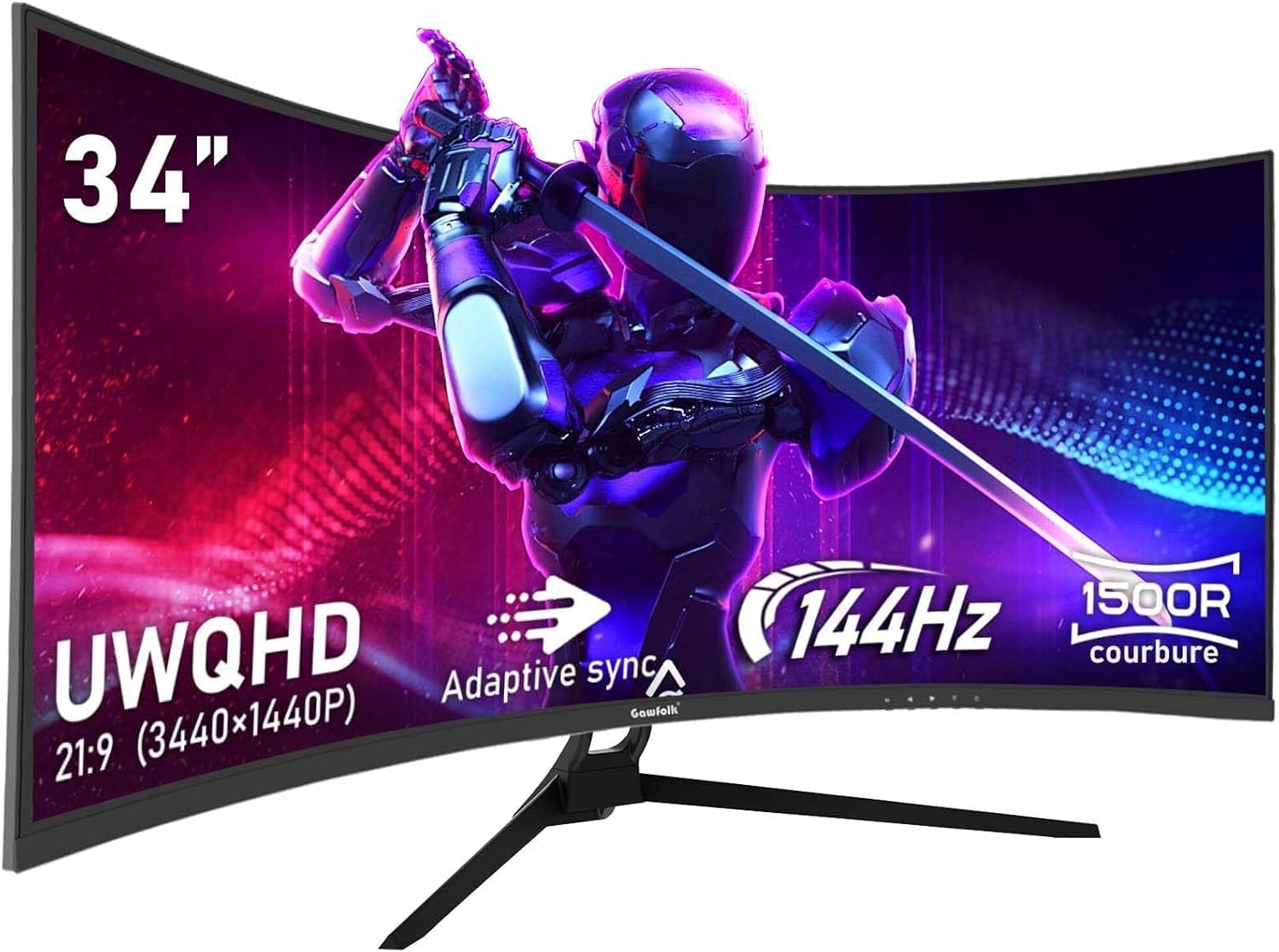
Figure 1: Gawfolk 34-inch UWQHD 144Hz Curved Gaming Monitor.
2. Segurtasun informazioa
- Read all instructions carefully before using the monitor.
- Ez jarri monitoreari euri edo hezetasun eraginpean sute edo deskarga elektrikoen arriskuak saihesteko.
- Ez ireki monitorearen casing. Ez dago erabiltzaileak konpondu beharreko piezarik barruan. Konponketa guztiak langile kualifikatuen esku utzi.
- Jarri monitoreak gainazal egonkor eta lau batean, eror ez dadin.
- Ziurtatu monitorearen inguruan behar bezala aireztatuta dagoela. Ez blokeatu aireztapen-irekidurak.
- Erabili monitorearekin batera datozen korronte-egokitzailea eta kableak soilik.
- Deskonektatu entxufea entxufetik monitoreak denbora luzez erabiliko ez badu.
- Saihestu monitoreak bero-iturrien ondoan edo eguzki-argiaren eraginpean jartzea.
- Handle the screen with care. Avoid applying pressure or sharp objects to the display panel.
3. Paketearen edukia
Mesedez, egiaztatu paketearen edukia despaketatzean. Elementuren bat falta bada edo hondatuta badago, jarri harremanetan zure saltzailearekin.
- Gawfolk 34-inch UWQHD 144Hz Curved Gaming Monitor (GF340A)
- Monitorearen euskarria (oinarria eta lepoa)
- Energia egokitzailea eta energia kablea
- DisplayPort (DP) kablea
- HDMI kablea
- Erabiltzailearen eskuliburua (dokumentu hau)
- Euskarri muntaketarako torlojuak
4. Konfigurazioa
4.1 Standa muntatzea
- Kontu handiz atera monitorearen paketea, pantaila babestuta mantenduz.
- Lotu euskarriaren lepoa monitorearen panelera emandako torlojuak erabiliz.
- Attach the stand base to the stand neck, securing it with the thumb screw or screws provided.
- Jarri muntatutako monitorea gainazal egonkor eta lau batean.
2. Irudia: Atzealdea view of the monitor, showing stand attachment area and input ports.
4.2 Konektatzeko kableak
- Potentzia-konexioa: Connect the power cable to the power adapter, then connect the adapter to the monitor's power input and a wall outlet.
- Bideo-konexioa:
- For optimal performance (144Hz refresh rate), connect the monitor to your computer's graphics card using the supplied DisplayPort (DP) kablea.
- Bestela, erabili bat HDMI kablea. Note that HDMI connections support up to 100Hz refresh rate on this monitor.
- When connecting to gaming consoles like PS5 or Xbox, the maximum supported resolution is 1920x1080 at 60Hz.
- Audio konexioa: If desired, connect external speakers or headphones to the 3.5mm audio output jack on the monitor.
4.3 VESA muntatzea
The monitor supports VESA 75x75mm mounting. To mount the monitor on a wall or an articulating arm, remove the stand and attach the VESA-compatible mount (sold separately) to the designated holes on the back of the monitor.
5. Funtzionamendu-argibideak
5.1 Piztu/Itzaltzea
Sakatu pizteko botoia, normalean monitorearen behealdean edo atzealdean dagoena, monitorearen pizteko edo itzaltzeko. Pizteko adierazlearen argia piztuko da monitorearen piztuta dagoenean.
5.2 Pantailan bistaratzeko (OSD) menua
The OSD menu allows you to adjust various monitor settings. Typically, there are buttons or a joystick on the back or bottom of the monitor to navigate the OSD.
- Menuko botoia: OSD menua irekitzen du.
- Nabigazio botoiak: Menuko aukeren artean mugitzeko erabiltzen da (Gora/Behera, Ezkerra/Eskuina).
- Hautatu/Sartu botoia: Hautaketa bat berresten du edo azpimenu batera sartzen da.
- Irten botoia: Uneko menutik edo OSDtik irteten da.
5.3 Pantailaren ezarpenak doitzea
Common settings you can adjust via the OSD include:
- Distira/Kontrastea: Doitu luminantzia orokorra eta eremu argi eta ilunen arteko aldea.
- Kolore ezarpenak: Doitu kolore-tenperatura, gamma eta banakako RGB mailak.
- Sarrera iturria: Manually select between DisplayPort and HDMI inputs.
- Freskatze-tasa: Ensure your computer's display settings are configured to 144Hz (via DP) or 100Hz (via HDMI) for optimal performance. The monitor's default refresh rate is 60Hz.
- Sinkronizazio egokitzailea: Enable this feature in the OSD and your graphics card settings to synchronize the monitor's refresh rate with your GPU's frame rate, preventing screen tearing.
- HDR: Enable High Dynamic Range for enhanced contrast and color depth.
- Argi urdin baxuko modua: Activates a filter to reduce blue light emissions, promoting eye comfort.
- Keinurik gabekoa: The monitor uses DC dimming technology to eliminate screen flickering, reducing eye strain.
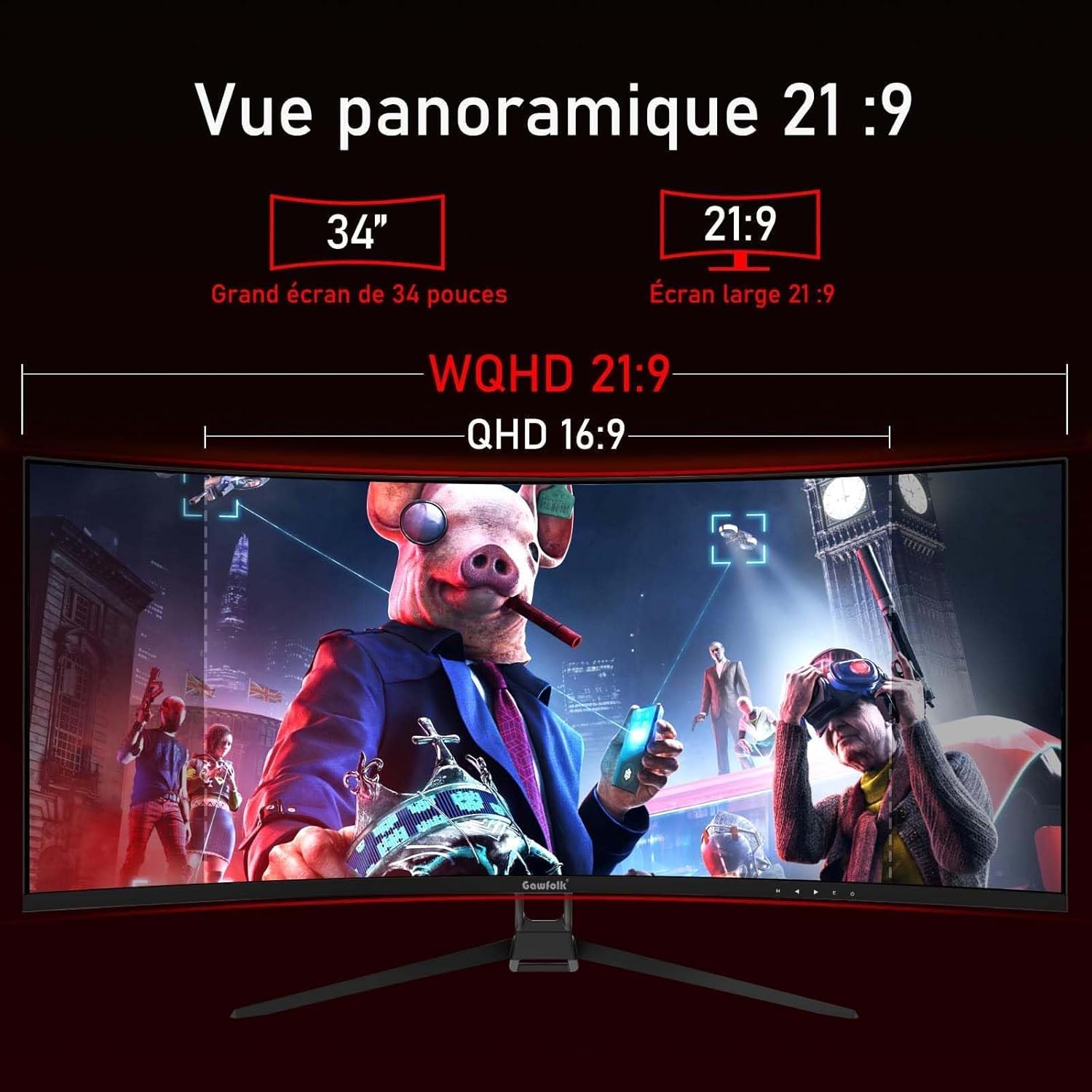
Figure 3: Illustration of 144Hz refresh rate and Adaptive Sync feature.

Figure 4: Visual representation of image quality features like contrast, sRGB, and HDR.
6. Mantentzea
- Pantaila garbitzea:
- Itzali monitorea eta deskonektatu korronte-kablea.
- Garbitu astiro-astiro pantaila lilurik gabeko zapi leun batekin.
- Marka egoskorretarako, dampen the cloth lightly with water or a mild, non-abrasive screen cleaner. Do not spray cleaner directly onto the screen.
- C garbiketaasing: Erabili zapi leun eta lehor bat monitorearen c garbitzeko.asing. Saihestu detergente indartsuak edo garbitzaile urratzaileak erabiltzea.
- Biltegiratzea: If storing the monitor for an extended period, unplug it and cover it to protect it from dust.
7. Arazoak
| Arazoa | Kausa posiblea | Irtenbidea |
|---|---|---|
| Ez dago irudirik pantailan | Monitorea ez dago piztuta; bideo-kablea askatuta edo deskonektatuta; sarrera-iturri okerra hautatuta. | Ensure power cable is connected and monitor is on. Check video cable connections. Select correct input source via OSD. |
| Irudia keinuka edo distortsionatuta | Video cable issue; refresh rate mismatch; graphics driver outdated. | Check video cable. Ensure refresh rate is set correctly in OS display settings. Update graphics drivers. Enable Adaptive Sync. |
| Bereizmen edo freskatze-tasa okerra | OS display settings not configured correctly. | Go to your computer's display settings and set the resolution to 3440x1440 and refresh rate to 144Hz (for DP) or 100Hz (for HDMI). |
| Koloreak garbitu edo oker agertzen dira | Color settings in OSD or OS are incorrect; HDR not enabled. | Adjust color settings in the OSD. Ensure HDR is enabled in both monitor OSD and OS display settings if desired. |
| No audio from headphones/speakers | Audio cable not connected; volume too low; incorrect audio output selected in OS. | Check audio cable connection. Adjust volume. Select monitor's audio output in your computer's sound settings. |
8. Zehaztapenak
| Ezaugarri | Xehetasuna |
|---|---|
| Modelo zenbakia | GF340A |
| Pantailaren tamaina | 34 hazbete |
| Panel mota | VA (lerrokadura bertikala) |
| Kurbadura | 1500R |
| Ebazpena | UWQHD (3440 x 1440 Pixels) |
| Aspektu-erlazioa | 21:9 (2.35:1) |
| Freskatze tasa | 144 Hz (DisplayPort), 100 Hz (HDMI) |
| Erantzun Denbora | 4 milisegundo |
| Kontraste-erlazioa | 4000:1 |
| Distira | 300 nits (typical) / 350 (from specs) |
| Kolore gama | %99 sRGB |
| Viewangelua | 178 Degrees (Horizontal/Vertical) |
| Ezaugarri bereziak | Adaptive Sync (FreeSync Premium), HDR, Low Blue Light, Flicker-Free |
| Konektibitatea | DisplayPort, HDMI (x2), 3.5mm Audio Out |
| VESA muntaiaren bateragarritasuna | 75 x 75 mm |
| Dimensions (P x L x H) | 19P x 80.7L x 46.8H centimeters |
| Pisua | 5.2 kilogramo |
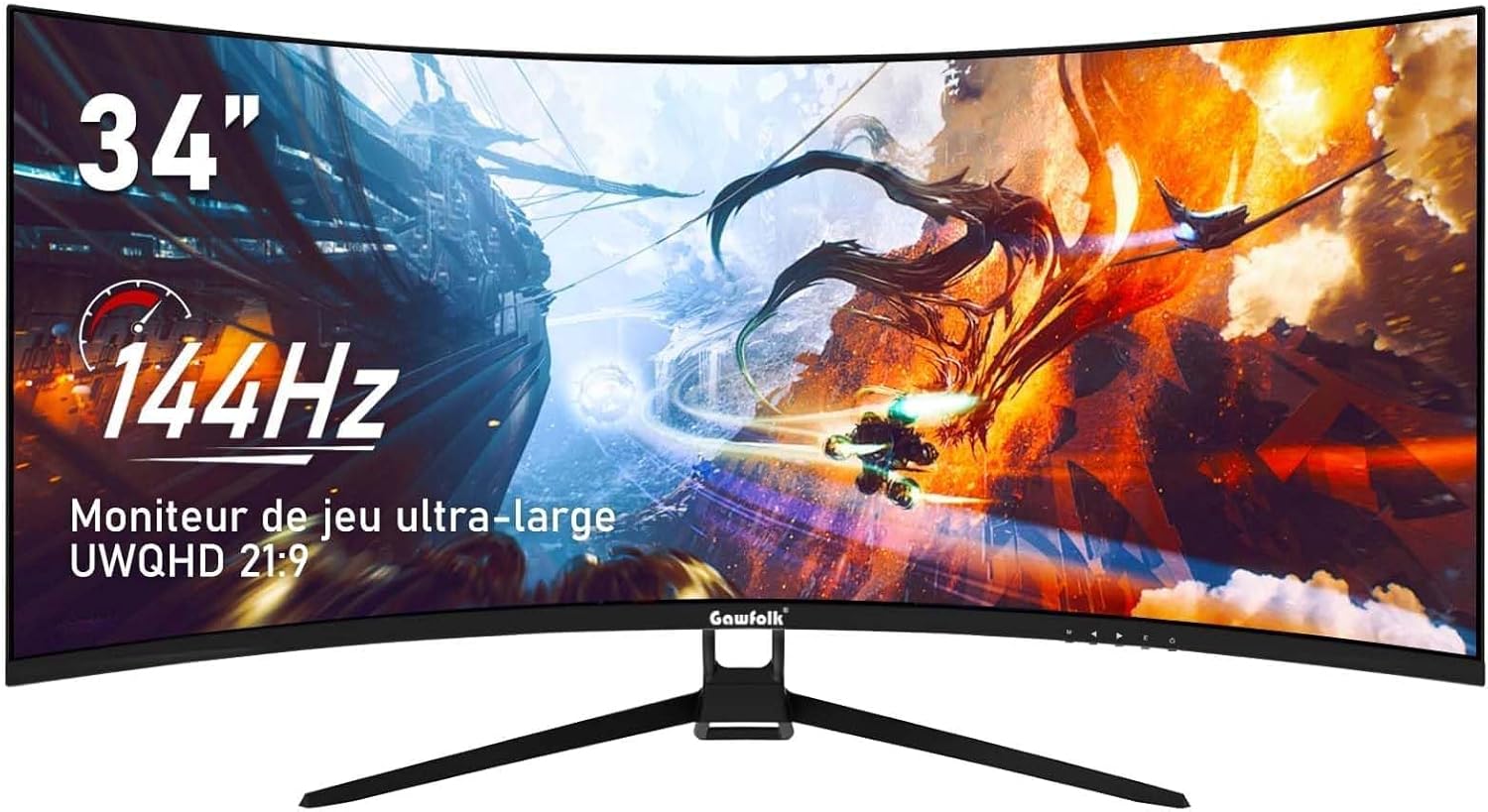
Figure 5: The 21:9 ultrawide aspect ratio provides an expansive panoramic view.
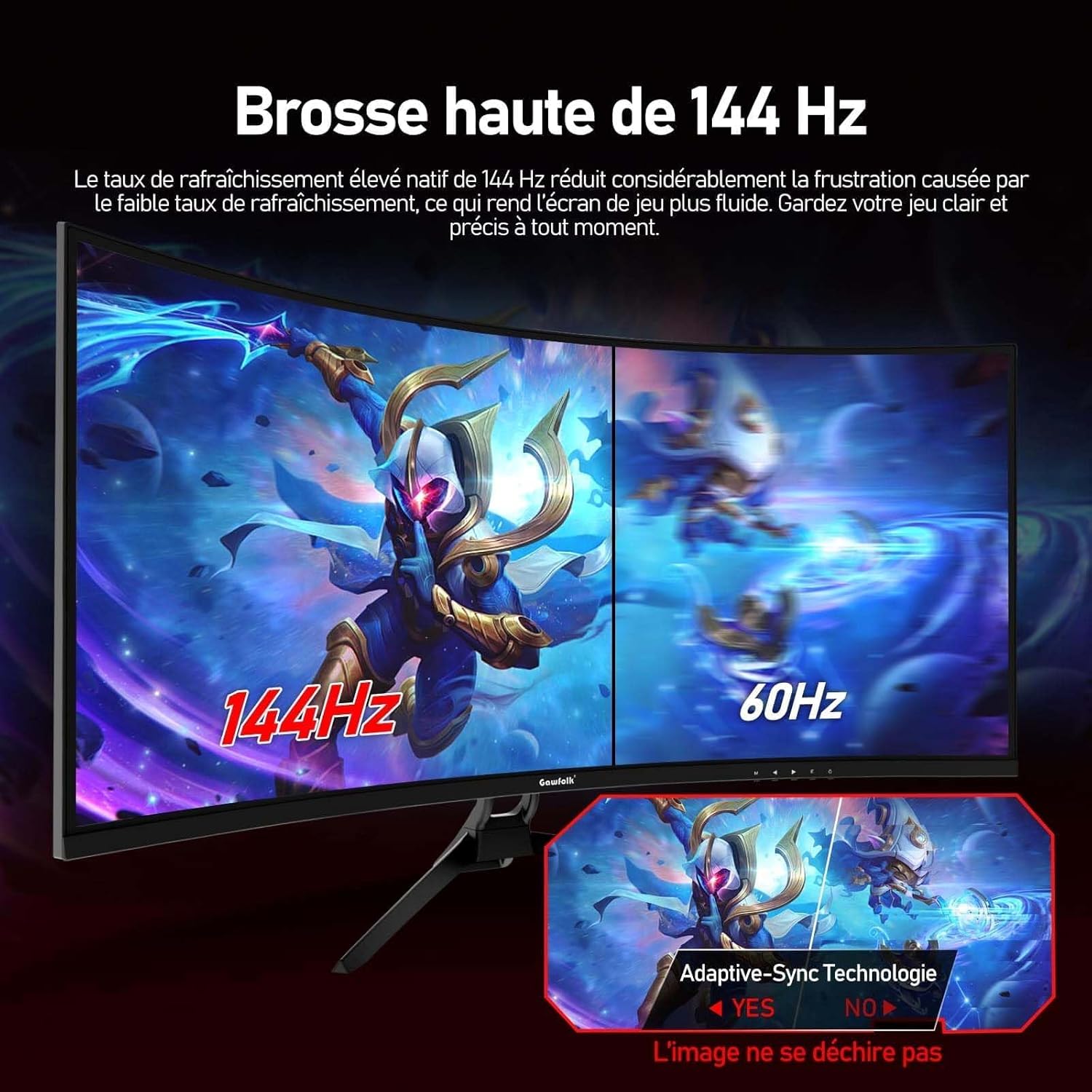
Figure 6: The 1500R curvature and wide 178-degree viewing angles enhance immersion.
9. Bermea eta Laguntza
Gawfolk offers a 12-month worry-free warranty service for this monitor. If you have any questions or encounter any issues during the use of your monitor, please do not hesitate to contact our customer support. Refer to your purchase documentation or the official Gawfolk webharremanetarako datuak lortzeko gunea.