
Sarrera
Eskerrik asko erosketagatik.asing the KTC H27S17 27-inch WQHD 180Hz Curved Gaming Monitor. This manual provides essential information for the safe and efficient use of your new monitor. Please read it thoroughly before use and retain it for future reference.
Produktua amaituview Bideoa
Bideoa: Produktu ofizial baten bideo-erakustaldiaasing the key features and design of the KTC H27S17 27-inch Curved Gaming Monitor.
Paketearen edukia
Egiaztatu behean zerrendatutako elementu guztiak zure paketean sartuta daudela:
- Elikatze-kablea
- DisplayPort kablea
- Elikatze-moldagailua
- Monitore Stand
- Oinarria
- Driver CD (or download link)
- Muntatzeko Torlojuak
- Instruction Manual (Japanese version)
- Hasierako gida azkarra
- Berme Txartela
Konfigurazio Argibideak
1. Standa muntatzea
Attach the stand base to the monitor stand using the provided screws. Then, securely attach the assembled stand to the back of the monitor.
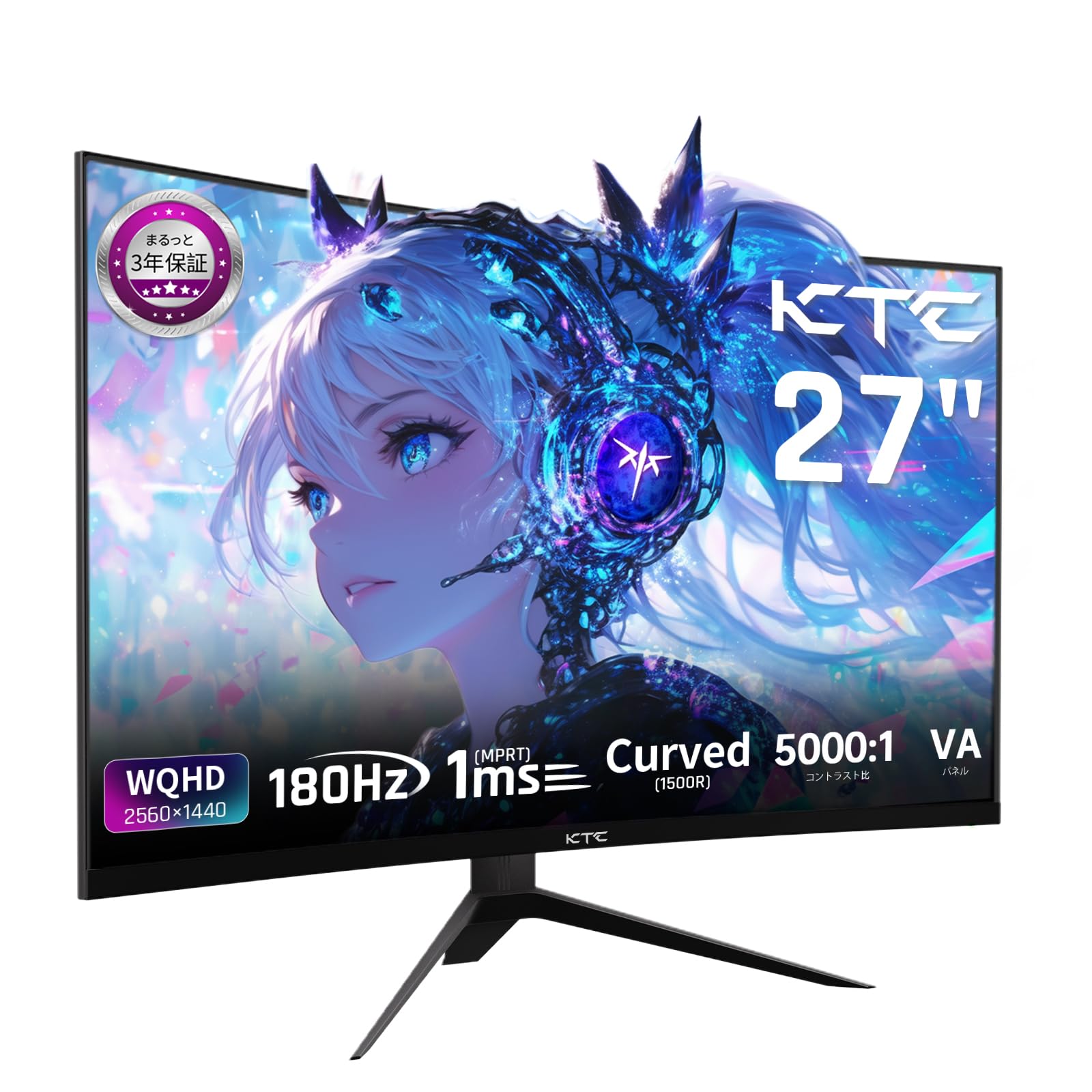
Image: The KTC H27S17 monitor fully assembled with its stand, viewed aurrealdetik.
2. Energia iturri batera konektatzea
Connect the power adapter to the monitor's DC input port, then plug the power cable into a wall outlet.
3. Gailu batera konektatzea
Use the appropriate cable (DisplayPort or HDMI) to connect your computer or gaming console to the monitor. Ensure the cable is securely connected to both the monitor and your device.

Irudia: Atzealdea view of the monitor showing the various input ports including DC, USB, HDMI, DisplayPort, and headphone jack.
4. VESA muntaketa (aukerakoa)
The monitor supports VESA 100mm x 100mm mounting. If using a VESA mount, remove the stand and attach the monitor to your VESA-compatible arm or wall mount using appropriate screws.
Image: Diagram illustrating the VESA 100x100mm mounting pattern and tilt adjustment range on the back of the monitor.
Funtzionamendu-argibideak
Piztu/Itzali
Press the power button, usually located on the back or bottom of the monitor, to turn it on or off. The power indicator light will illuminate when the monitor is on.
Pantailako pantailan (OSD) menua
Use the joystick or buttons on the monitor to navigate the OSD menu. This menu allows you to adjust various display settings such as brightness, contrast, color temperature, input source, and gaming features.
Sarrera-iturria hautatzea
If multiple devices are connected, use the OSD menu to select the desired input source (HDMI 1, HDMI 2, DisplayPort 1, DisplayPort 2).
Bistaratzeko Ezaugarriak
Curved Display (1500R)
The 1500R curvature provides an immersive viewing experience, reducing eye strain during extended use by matching the natural curve of the human eye.

Image: A curved monitor displaying a vibrant image, highlighting the 1500R curvature for an immersive experience.
WQHD Resolution (2560x1440)
Experience detailed visuals with WQHD (2560x1440) resolution, offering approximately 1.7 times the pixel density of Full HD displays.

Image: A monitor displaying a high-resolution image, emphasizing the clarity of WQHD (2560x1440) compared to lower resolutions.
High Refresh Rate (180Hz) and Fast Response Time (1ms MPRT)
The 180Hz refresh rate and 1ms (MPRT) response time ensure smooth, blur-free visuals, crucial for fast-paced gaming and action scenes.

Image: A split screen comparison on the monitor, demonstrating the difference between 180Hz/1ms and 60Hz/5ms, highlighting reduced motion blur.
Vibrant Color Reproduction and HDR10
With sRGB 132%, DCI-P3 104%, Adobe RGB 112% color volume, and HDR10 support, the monitor delivers accurate and vivid colors with enhanced contrast between bright and dark areas.

Image: A monitor displaying a colorful scene, illustrating the wide color gamut and high contrast ratio (5000:1).
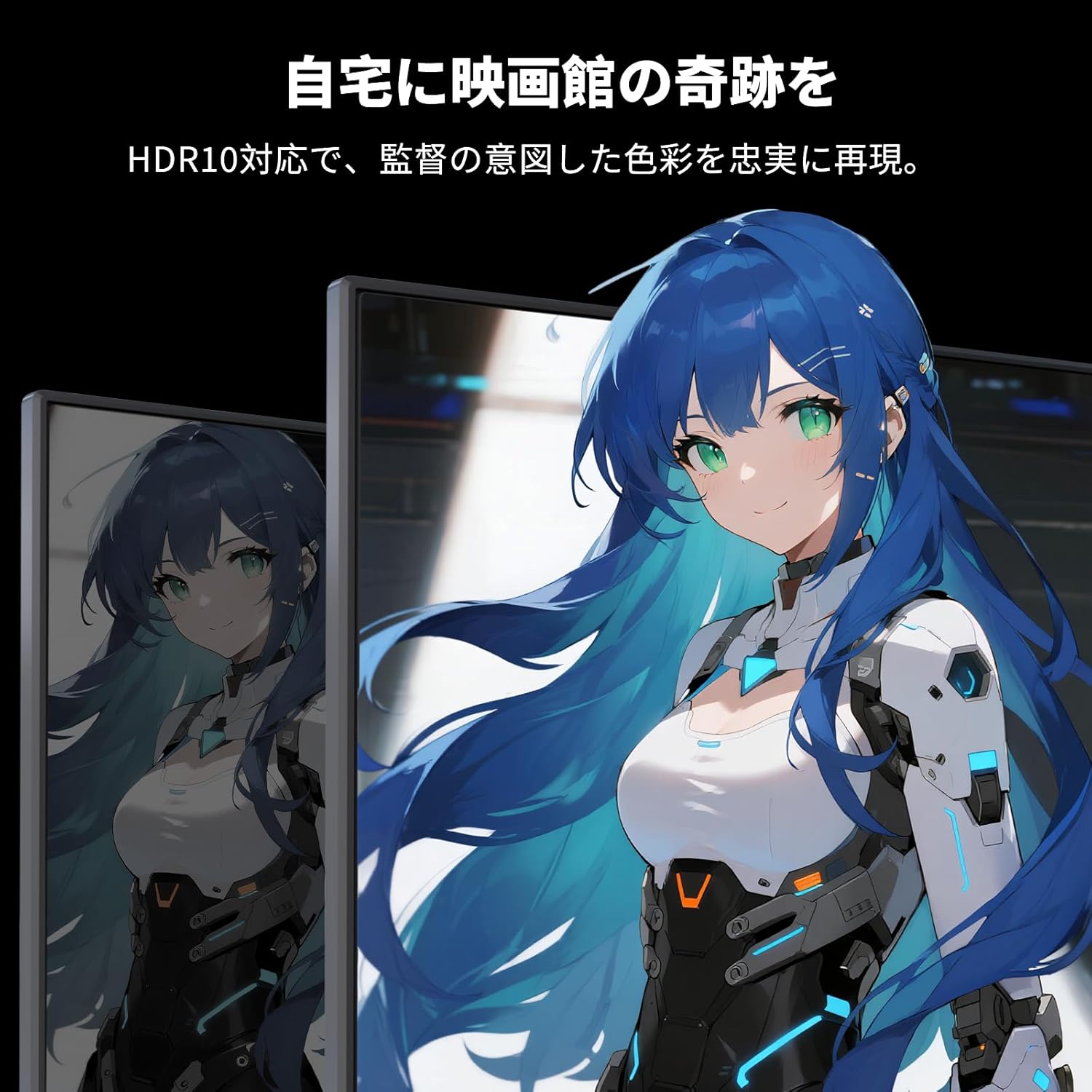
Image: A monitor showing a scene with HDR10 enabled, demonstrating improved dynamic range and detail in both bright and dark areas.
Adaptive Sync Teknologia
Adaptive Sync (FreeSync and G-Sync compatible) eliminates screen tearing and stuttering, providing a fluid gaming experience.

Image: A split screen comparison on the monitor, showing the difference between Adaptive Sync OFF (screen tearing) and ON (smooth image).
Begien Zaintza Ezaugarriak
The monitor includes Flicker-Free technology and a Low Blue Light mode to reduce eye strain during prolonged use.

Image: Illustrations demonstrating Flicker-Free technology and Low Blue Light mode, designed to reduce eye fatigue.
Konektibitatea
The KTC H27S17 monitor offers multiple connectivity options:
- 2 x HDMI 2.0: Supports WQHD (2560x1440) at 144Hz.
- 2 x DisplayPort 1.4: Supports WQHD (2560x1440) at 180Hz.
- 1 x USB 2.0: For firmware upgrades only.
- 1 x 3.5mm Headphone Jack: Audio irteerarako.
- 1 x DC Input: Energia konexiorako.
Irudia: Xehetasun handikoa view of the monitor's rear panel, highlighting the DC input, USB port, HDMI ports, DisplayPort inputs, and headphone jack.
Physical Adjustments
Inklinazioa doitzea
The monitor stand allows for tilt adjustment from -5 to 15 degrees, enabling you to find an optimal viewangelua erosotasuna lortzeko.
Image: Diagram illustrating the tilt adjustment range of the monitor stand.
VESA bateragarritasuna
The monitor is compatible with VESA 100mm x 100mm mounting standards, allowing for flexible installation with monitor arms or wall mounts.
Mantentzea
Pantaila garbitzea
Garbitu pantaila astiro-astiro zapi leun eta pelusik gabeko batekin. Orbanik egoskorrak izanez gero, garbitu astiro-astiro.ampGarbitu zapi bat urarekin edo pantaila garbitzeko soluzio batekin. Saihestu produktu kimiko gogorrak edo material urratzaileak erabiltzea.
Monitorearen gorputza garbitzea
Wipe the monitor body with a soft, dry cloth. Do not use liquid cleaners directly on the monitor.
Biltegiratzea
Denbora luzez erabiltzen ez baduzu, gorde monitoreak leku fresko eta lehor batean, eguzki-argitik eta muturreko tenperaturetatik urrun.
Arazoak konpontzea
Monitorearekin arazoak badituzu, jo ezazu ohiko irtenbide hauetara:
- Potentziarik gabe: Ensure the power cable and adapter are securely connected and the power outlet is functional.
- Seinalerik ez: Verify that the input cable (HDMI/DisplayPort) is correctly connected to both the monitor and the source device. Select the correct input source via the OSD menu.
- Irudi keinukaria/distortsionatua: Check cable connections. Ensure your graphics card drivers are up to date. Try adjusting the refresh rate in your device's display settings.
- Pixel hilak: While rare, a small number of dead pixels may be within manufacturing tolerances. Refer to the warranty policy for details.
- Audio Issues (Headphone Jack): Ensure headphones are fully plugged in. Check audio settings on your connected device.
For further assistance, please contact KTC customer support.
Zehaztapenak
| Ezaugarri | Zehaztapena |
|---|---|
| Marka | CTC |
| Eredua | H27S17 |
| Pantailaren tamaina | 27 hazbetekoa |
| Ebazpena | WQHD (2560 x 1440 pixels) |
| Aspektu-erlazioa | 16:9 |
| Kurbadura | 1500R |
| Panel mota | VA |
| Freskatze tasa | 180 Hz |
| Erantzun Denbora | 1 ms (MPRT) |
| Kontraste-erlazioa | 5000:1 |
| Distira | 300 cd/m² |
| Kolore gama | sRGB 132% / DCI-P3 104% / Adobe RGB 112% |
| HDR euskarria | HDR10 |
| Sinkronizazio egokitzailea | FreeSync, G-Sync Compatible |
| Konektibitatea | 2x HDMI 2.0, 2x DisplayPort 1.4, 1x USB 2.0 (Upgrade only), 1x Headphone Jack |
| VESA mendia | 100 mm x 100 mm |
| Inklinazioa doitzea | -5 eta 15 gradu artean |
| Begien Zaintza Ezaugarriak | Flicker-Free, Low Blue Light |
Bermea eta Laguntza
KTC provides a 3-year warranty and a 12-month exchange service for this product. For any questions or issues, please contact customer support.
- Telefonoa: 050-3606-8990
- Posta elektronikoa: support@ktcplay.com

Image: Information regarding KTC's 3-year warranty and contact details for customer support.
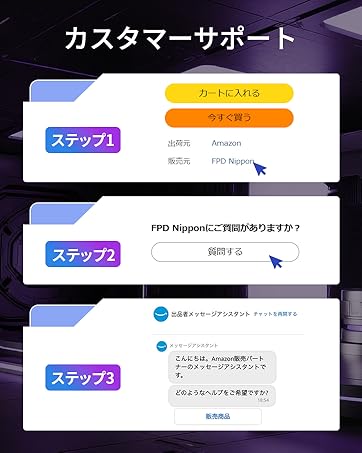
Image: Step-by-step guide on how to contact customer support via Amazon.