
Epson XP-8800
Epson Expression Photo XP-8800 Wireless Printer User Manual
Modeloa: XP-8800 | Marka: Epson
Sarrera
The Epson Expression Photo XP-8800 is a versatile all-in-one wireless printer designed for high-quality photo and document printing, scanning, and copying. It features a 6-color Claria Photo HD ink system for vibrant, professional-quality borderless prints up to 8.5" x 11". Its compact design and intuitive 4.3" color touchscreen make it suitable for various home and creative projects. This manual provides essential information for setting up, operating, maintaining, and troubleshooting your printer.
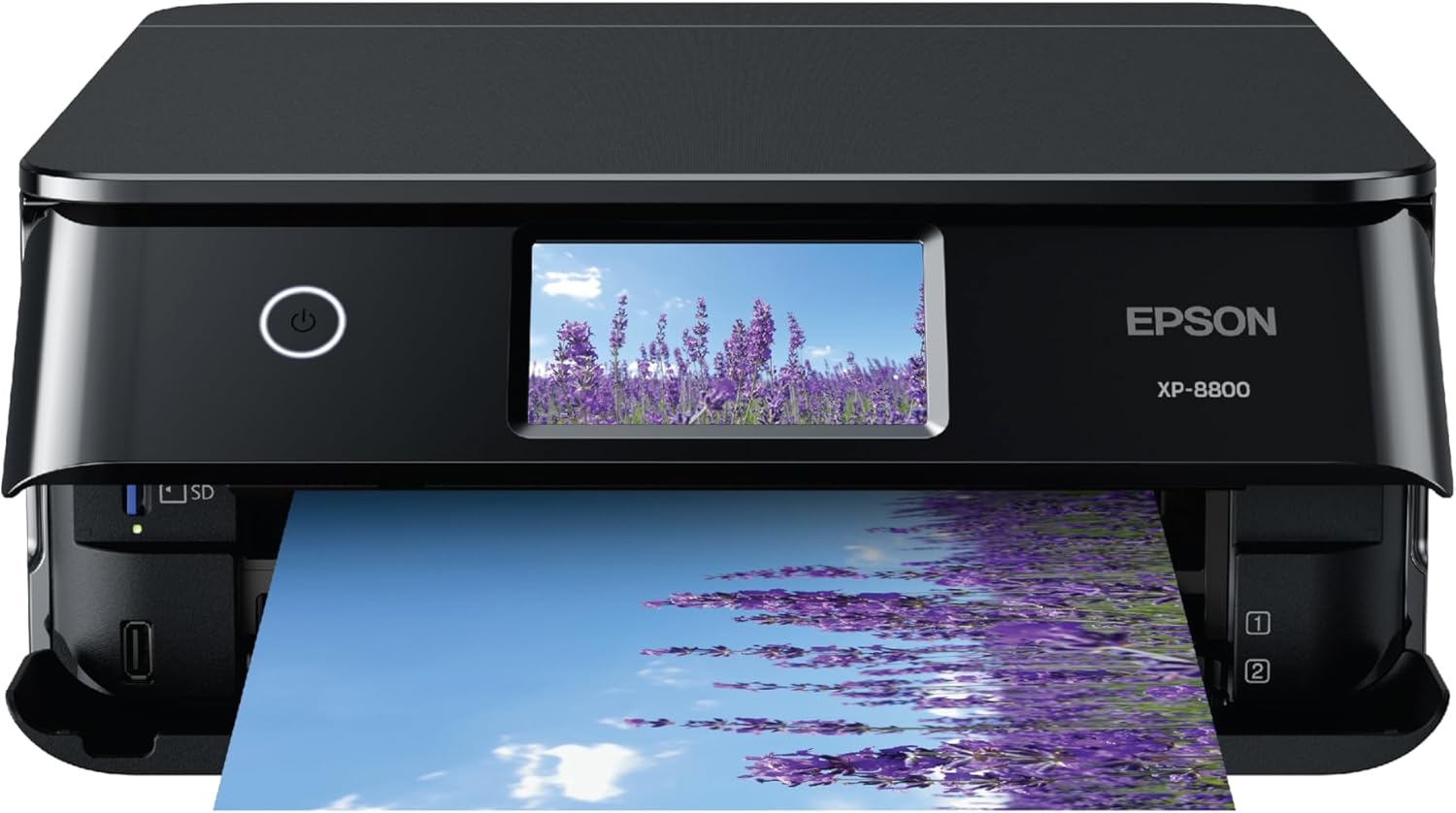
Irudia: Aurrealdea view of the Epson Expression Photo XP-8800 Wireless Printer with a photo of lavender fields being printed.
Ezaugarri nagusiak Begirada batean
- Lab-quality photos and prints: Utilizes 6-color Claria Photo HD ink for stunning borderless prints up to 8.5" x 11".
- Fast photo printing: Produces 4" x 6" borderless photos in as fast as 10 seconds.
- Eragiketa erosoa: Features a 4.3" color touchscreen with an Easy Mode for simplified navigation.
- Versatile paper handling: Includes separate trays for plain and photo paper, plus a rear feed for specialty media.
- Easy wireless printing: Print from laptops, desktops, smartphones, or tablets, with Wi-Fi Direct for router-free printing.
- Built-in scanner and copier: High-resolution flatbed scanner for crisp scans and copies.
- Epson Smart Panel app: Control your printer and access smart setup features from your smart device.
- Creative Print mobile app: Create custom cards, stationery, and more.
- Photo adjustment tools: Includes features for red-eye removal and photo restoration.
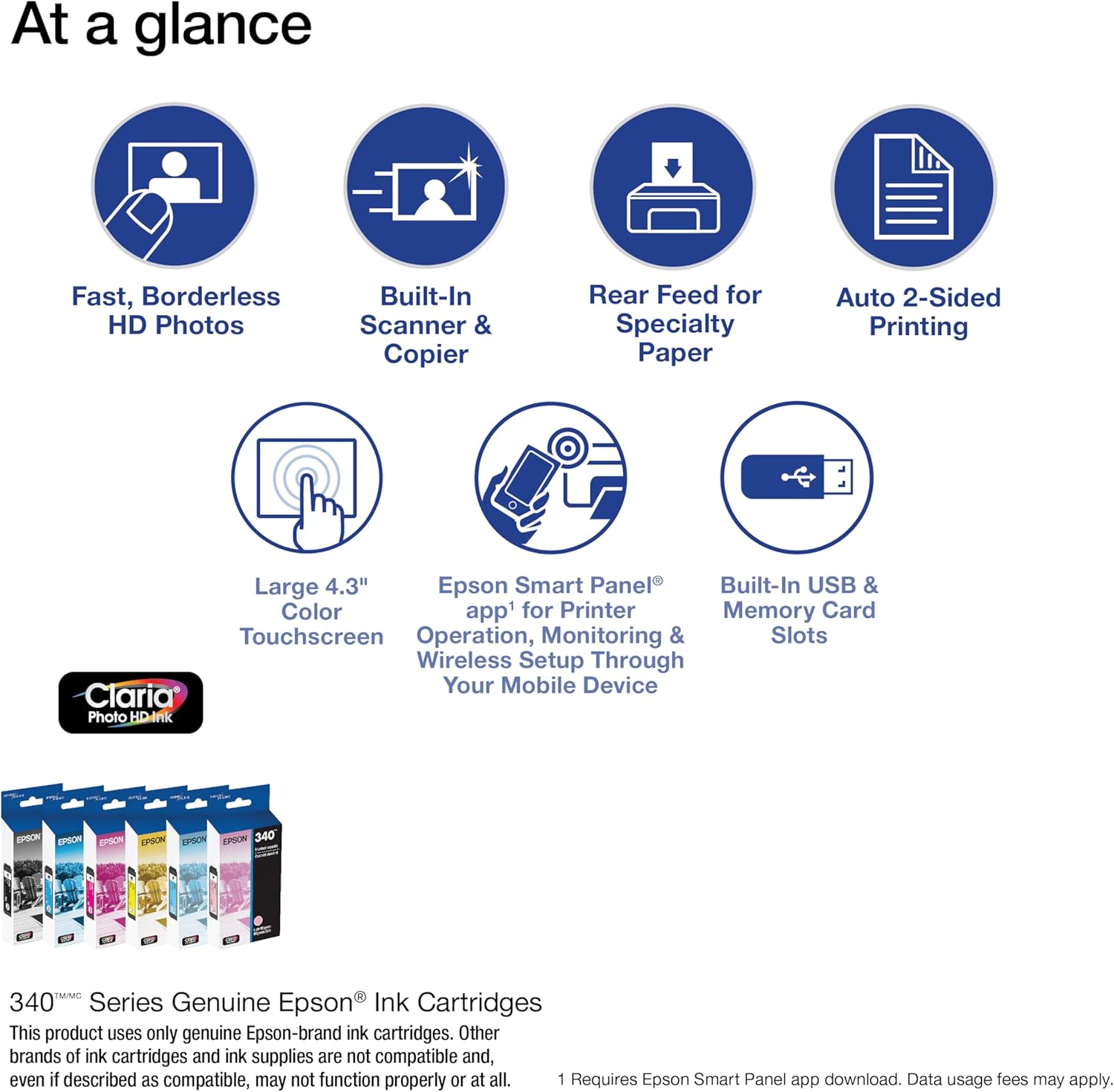
Image: Visual representation of key features including fast HD photos, built-in scanner/copier, rear feed, auto 2-sided printing, touchscreen, Smart Panel app, and USB/memory card slots.
Kutxan dagoena
Upon unboxing your Epson Expression Photo XP-8800, verify that all the following components are included:
- Expression Photo XP-8800 All-in-One printer
- Produktua konfiguratzeko CD-ROMa (kontrolatzaileak eta softwarea)
- Elikatze-kablea
- 6x Claria Photo HD Ink cartridges (1x Black, 1x Cyan, 1x Magenta, 1x Yellow, 1x Light Cyan, 1x Light Magenta)
Note: A USB cable is not included and may be required for certain setup or connection methods.

Image: Diagram showing the printer, ink cartridges, and power cord, indicating what is included in the package.
Konfigurazio Gida
1. Desontziratzea eta kokatzea
- Kendu babes-material eta zinta itsasgarri guztiak inprimagailutik.
- Place the printer on a flat, stable surface with adequate space around it for ventilation and paper trays.
2. Energia-konexioa
- Konektatu elikatze-kablea inprimagailura eta gero lurrera konektatutako entxufe elektriko batera.
- Sakatu pizteko botoia inprimagailua pizteko.
3. Initial Ink Cartridge Installation
- Follow the on-screen instructions on the 4.3" color touchscreen to install the initial set of 6 Claria Photo HD ink cartridges.
- Ensure each cartridge is securely seated to prevent printing issues.
Important: This Epson printer is designed to work only with Epson Genuine Cartridges. Use of non-genuine ink could cause damage not covered under the printer's limited warranty.

Image: Epson Genuine Ink Promise logo, emphasizing the use of authentic Epson ink cartridges.
4. Software eta Driver Instalazioa
- Insert the provided CD-ROM into your computer and follow the on-screen instructions to install the necessary drivers and software.
- Alternatively, visit the official Epson support webgunea (www.epson.com/support) to download the latest software for your operating system.
5. Network Connection (Wireless)
- On the printer's touchscreen, navigate to the Wi-Fi setup menu.
- Select your wireless network (SSID) from the list and enter the network password.
- Confirm the connection. The printer supports Wi-Fi Direct for router-free printing.

Image: A smartphone displaying the Epson Smart Panel app, connected wirelessly to the printer, demonstrating wireless printing capabilities.
Inprimagailuaren funtzionamendua
Dokumentuak eta argazkiak inprimatzea
- Papera kargatzea: Load paper into the appropriate tray (plain paper tray or photo paper tray). The rear feed can be used for specialty paper.
- Ordenagailutik: Open the document or photo you wish to print. Select "Print" from the application's menu. Choose your Epson XP-8800 printer, adjust print settings (paper type, size, quality, borderless options), and click "Print".
- From Smart Device: Download the Epson Smart Panel app or Creative Print mobile app. Select the photo or document, choose your printer, and adjust settings before printing.
- Mugarik gabeko inprimaketa: The printer supports borderless printing up to 8.5" x 11" for photos. Ensure your paper size and print settings are configured for borderless output.

Image: The printer with numbered callouts highlighting features like fast photo printing, lab-quality borderless photos, rear feed, touchscreen, built-in scanner/copier, and tablet/smartphone printing.
Dokumentuak eta argazkiak eskaneatzea
- Jarri dokumentua edo argazkia aurpegia behera eskaneraren beiraren gainean.
- From the printer's touchscreen, select "Scan". Choose your scan destination (e.g., computer, cloud service).
- Egokitu eskaneatze-ezarpenak, hala nola bereizmena, kolore-modua eta file format. Initiate the scan.
Dokumentuak kopiatzea
- Jarri dokumentua aurpegia behera eskaneraren beiraren gainean.
- From the printer's touchscreen, select "Copy".
- Choose settings like number of copies, color or black & white, and paper size. Press "Copy" to begin.
Mantentzea
Tinta-kartutxoak ordezkatzea
- When an ink cartridge is low or empty, a message will appear on the printer's screen.
- Open the printer cover and remove the empty cartridge by squeezing the tab and lifting it out.
- Unpack a new genuine Epson ink cartridge, shake it gently, and insert it into the correct slot until it clicks into place.
- Close the printer cover. The printer will automatically begin charging the ink.
Inprimatu buruaren garbiketa
- Inprimatze-kalitatea okertzen bada (adibidez, lerroak falta badira, inprimatze-koloreak desagertzen badira), garbitu inprimatze-burua.
- Access this function through the printer's control panel or the printer utility software on your computer.
- Run a nozzle check pattern after cleaning to verify improvement. Repeat if necessary.
Inprimatu buruaren lerrokatzea
- Inprimaketak lausoak edo gaizki lerrokatuta badaude, egin inprimatze-buruaren lerrokatzea.
- This function is also available via the printer's control panel or utility software.
Arazoak konpontzea
Ohiko arazoak eta irtenbideak
| Gaia | Kausa eta irtenbide posiblea |
|---|---|
| Inprimagailuak ez du erantzuten |
|
| Inprimatze-kalitate eskasa (marrak, kolore desagertzen direnak) |
|
| Paper ataskatzeak |
|
| Ezin da wifira konektatu |
|
For more detailed troubleshooting, refer to the full electronic manual on the Epson support webgunearekin edo jarri harremanetan Epson bezeroarentzako arreta-zerbitzuarekin.
Zehaztapenak
| Ezaugarri | Xehetasuna |
|---|---|
| Ereduaren izena | Expression Photo XP-8800 |
| Produktuaren neurriak | 20.8" L x 13.7" W x 7.2" H |
| Elementuaren pisua | 14.6 kilo |
| Inprimatzeko Teknologia | Inkjet |
| Tinta mota | 6-color Claria Photo HD Ink (Dye-based) |
| Inprimatze-bereizmen maximoa | 5760 x 1440 ppp |
| Gehienezko euskarriaren tamaina | 8.5 x 14 inch (Borderless up to 8.5" x 11") |
| Inprimatze-abiadura (koloretan) | 9 ppm (ISO) |
| Inprimatzeko abiadura (Monokromoa) | 9.5 ppm (ISO) |
| Eskaner mota | Ohe laua |
| Color Depth (Scan) | 48-bit input, 24-bit output |
| Bistaratzeko mota | 4.3" Color Touchscreen LCD |
| Konektibitate Teknologia | Wi-Fi, USBa |
| Bi aldeetatik inprimatzea | Automatic (Duplex) |
| Gehienezko sarrera-orriaren edukiera | 120 fitxa |
| Energia-kontsumoa | 20 watt (piztuta) |
| Kartutxo bateragarria | T340 seriea |
Bermea eta Laguntza
The Epson Expression Photo XP-8800 comes with a Limited Warranty. For specific terms and conditions, please refer to the warranty documentation included with your product or visit the official Epson support webgunea.
You can also download the Epson Smart Panel app for convenient control and setup features directly from your smart device.
Erlazionatutako dokumentuak - XP-8800
 |
Epson Jatorrizko Tinta: Inprimagailuaren Tinta eta Modeloen Bateragarritasunari buruzko Gida Osoa Arakatu Epsonen jatorrizko inprimagailu-tintak, besteak beste, DURABrite Ultra, Claria, EcoTank eta WorkForce serieak. Aurkitu zure Epson inprimagailu-modeloarentzako tinta ezin hobea bateragarritasun-gida zehatz honekin. |
 |
Epson XP-530/XP-630/XP-830 inprimagailua: Hasiera azkarreko gida eta konfigurazioa Epson XP-530, XP-630 edo XP-830 Small-in-One inprimagailua konfiguratzeko eta erabiltzeko gida osoa, tinta instalatzea, papera kargatzea, softwarearen konfigurazioa eta arazoak konpontzea barne. |
 |
Epson XP-8800 Quick Start Guide: Setup and Installation Comprehensive guide to setting up and installing your Epson XP-8800 printer, including unpacking, ink installation, paper loading, software setup, and troubleshooting. |
 |
Epson XP-5200: Hasiera Azkarreko Gida eta Konfigurazio Argibideak Konfiguratu zure Epson XP-5200 inprimagailua hasiera azkarreko gida oso honekin. Epson inprimagailu guztiak-batean desontziratzea, tinta instalatzea, papera kargatzea, softwarearen konfigurazioa eta oinarrizko arazoak konpontzea lantzen ditu. |
 |
Epson XP-2150 Seriea: Hasiera Azkarreko Gida eta Konfigurazio Argibideak Epson XP-2150 serieko inprimagailua konfiguratzeko eta erabiltzeko gida osoa, desontziratzea, instalazioa, kontrol-paneleko funtzioak, tinta-kartutxoen ordezkapena eta oinarrizko arazoak konpontzea barne. |
 |
Epson XP-980 Series Benutzerhandbuch Umfassendes Benutzerhandbuch für den Epson XP-980 Series Drucker, das detaillierte Anleitungen zu Druck-, Kopier-, Scanfunktionen, Wartung und Fehlerbehebung bietet. |