
Sarrera
This manual provides detailed instructions for setting up and operating your TUTT S6 (New Generation) 15.6" Triple Portable Monitor Screen Extender. Please read this guide thoroughly to ensure proper usage and to maximize your productivity with this versatile device.
Kutxaren edukia
- 1 x TUTT S6 Monitor Extender-Host (Rose Gold)
- 2 x USB-A to USB-C cables
- 2 x USB-C to USB-C cables
- 1 x HDMI to Type-C cable
- 1 x H5 2-in-1 High Definition Video Transmission Conversion Cable
- 1 x garraiatzeko poltsa
- 1 x Sleeve Stand
- 1 x Single Screen Stand
- 2 x User Guides

Figure 1: Contents of the TUTT S6 product box.
Konfigurazioa eta Konektibitatea
The TUTT S6 monitor offers flexible connectivity options to suit various devices. Ensure your laptop or device has the necessary ports for video output and power.
Direct USB-C Connection (Full-Featured)
For laptops with a full-featured USB-C port (supporting both video and power delivery, often indicated by a Thunderbolt symbol), a single USB-C to USB-C cable is sufficient for both video transmission and power. Simply connect one end of the USB-C to USB-C cable to your laptop's full-featured USB-C port and the other end to one of the USB-C ports on the monitor.
H5 2-in-1 Cable Connection (for USB-A or non-full-featured USB-C)
If your laptop does not have a full-featured USB-C port, or if you prefer to use an HDMI connection, utilize the H5 2-in-1 High Definition Video Transmission Conversion Cable. This cable converts regular USB-A or USB-C signals to HDMI for video output.
- Connect the USB-A or USB-C end of the H5 cable to your laptop.
- Connect the HDMI end of the H5 cable to the HDMI port on the back of the TUTT S6 monitor.
- Provide power to the monitor using a separate USB-C to USB-A cable connected to a power source (e.g., wall charger, laptop's USB-A port).

Figure 2: Rear ports of the TUTT S6 monitor.
Video 1: This video demonstrates how to connect the TUTT S6 monitor using the H5 converter cable, including identifying the correct ports on the monitor and laptop, and ensuring proper power supply. It also covers driver installation and changing display orientation.
Gidariaren instalazioa
Upon initial connection, your computer may automatically recognize the monitor and install necessary drivers. If a 'USB Display' notification appears, click on it to initiate the driver installation. If not, follow these steps:
- Go to 'This PC' or 'My Computer' on your system.
- Locate the 'CD Drive (D:) USB Display' (or similar) under 'Devices and drives'.
- Double-click to open and run the installer for the 'USB Display' driver.
- Follow the on-screen prompts to complete the installation. You may need administrator permissions for installation on company or government computers.
Bistaratzeko orientazioa
To adjust the display orientation (e.g., from landscape to portrait):
- Right-click on your desktop and select 'Display settings'.
- Identify the monitor you wish to adjust (usually labeled 1, 2, or 3).
- Scroll down to 'Display orientation' and select your desired orientation (e.g., 'Portrait').
- Berretsi aldaketak eskatzen zaizunean.
Funtzionamendu-argibideak
Multiataza eraginkorra
The TUTT S6 Triple-Screen Monitor supports various display modes to enhance productivity:
- Luzapen modua: Zabaldu mahaigaina hainbat pantailatan lan-eremua handitzeko.
- Islatze modua: Duplicate your main screen's content onto the portable monitors, ideal for presentations.
- Erretratu modua: Rotate the display for vertical viewing, beneficial for documents or coding.
- Paisaia modua: Standard horizontal viewing.
These modes can be configured in your computer's display settings.

Figure 3: Efficient multitasking with multiple displays.
Flexible Stand Design
The monitor features a lightweight all-aluminum frame and an adjustable stand for personalized comfort. You can adjust height, pivot, swivel, and tilt. The intelligent cooling base also serves as a stable stand and enhances heat dissipation for your laptop.

Figure 4: Flexible stand design for optimal viewing.
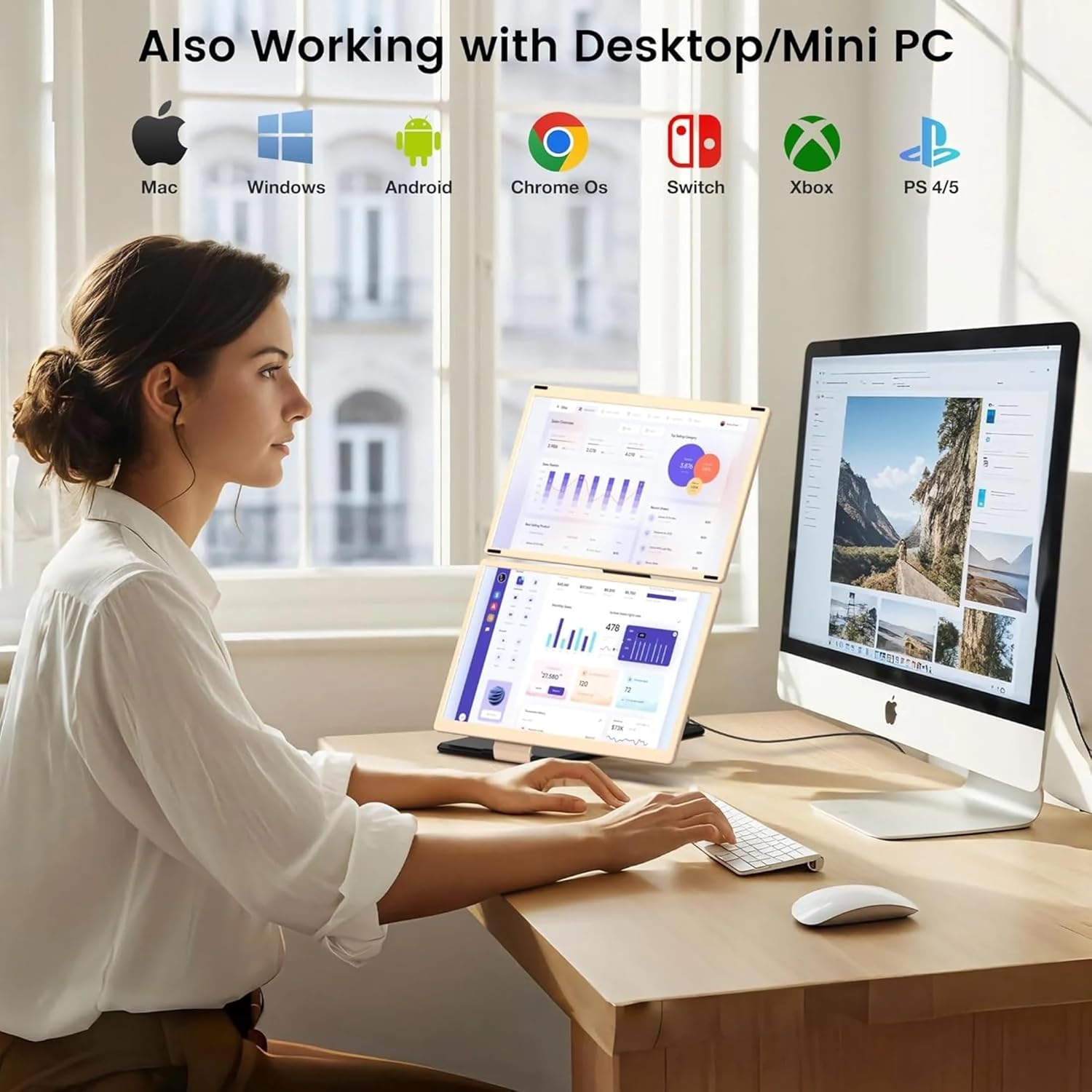
Figure 5: DIY various styles for personalized setup.
Zehaztapenak
- Pantailaren tamaina: 15.6 hazbete
- Ebazpena: FHD 1080p (1920x1080 Pixels)
- Aspektu-erlazioa: 16:9
- Distira: 220 cd/m²
- Freskatze-tasa: 60 Hz
- Erantzun denbora: 25 milisegundo
- Bistaratzeko mota: IPS
- ViewAngelua: 178 gradu
- Konektibitate Teknologia: HDMI, USB-C
- Total Number of HDMI Ports: 1
- Kolorea: Beltza
- Muntatze mota: Mahaia
- Gailu bateragarriak: Laptops, Desktops, Gaming Consoles, Multimedia Devices
- Ezaugarri nagusiak: Portable design, Glossy screen, Pivot adjustment, Swivel adjustment, Tilt adjustment, Flicker-free technology, Built-in speakers, 16.7 million colors

Figure 6: Key display specifications.
Bermea eta Laguntza
For any technical support inquiries regarding connection or operation, please refer to the dedicated technical support line provided on the product package. Text "Monitor" to the number provided, and a technician will contact you within 90 minutes (text only).