
1. Sarrera
This manual provides essential information for the installation, operation, and maintenance of your NVIDIA RTX A1000 Professional Graphics Card. Please read this manual thoroughly before installing and using the product to ensure optimal performance and safety.
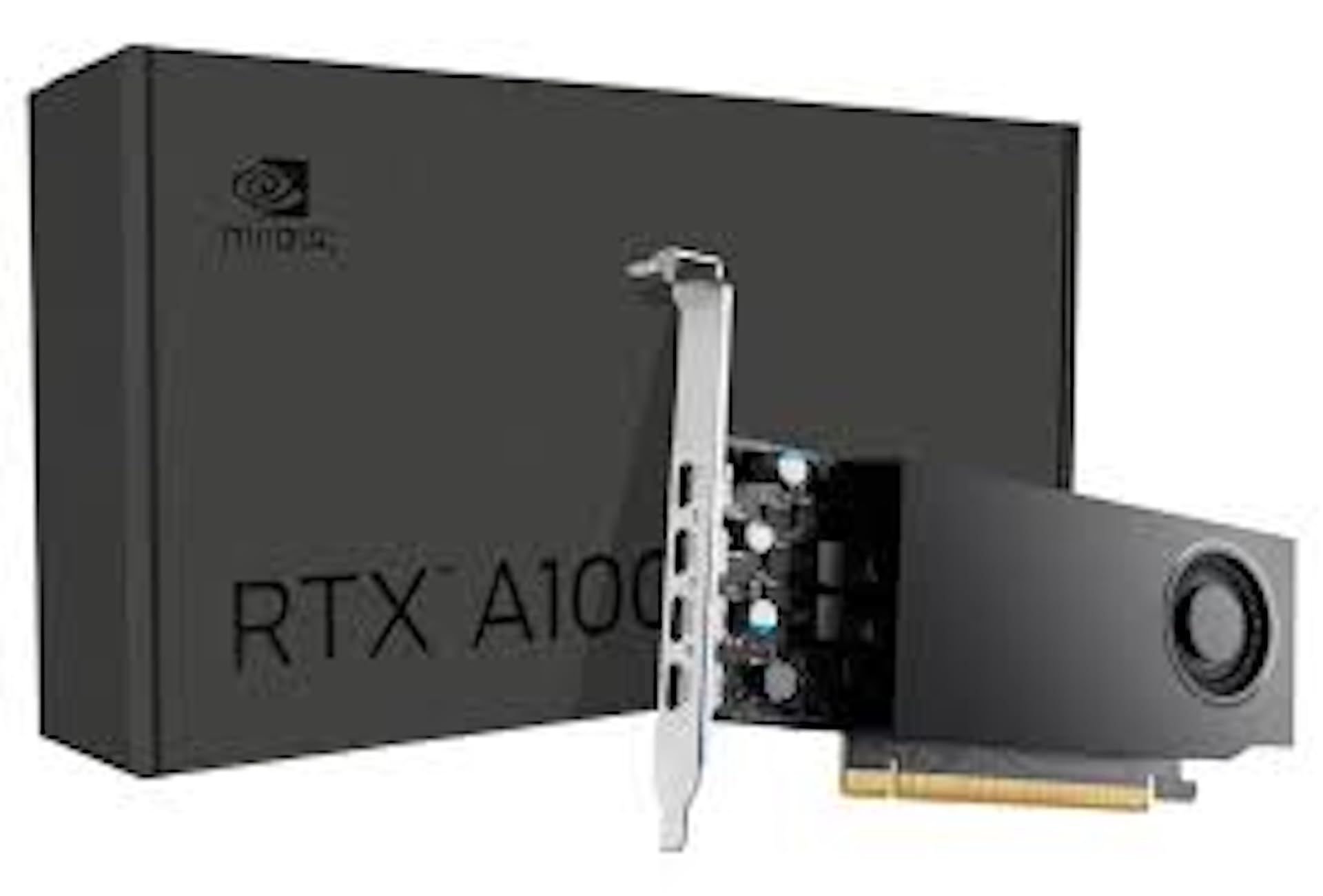
Figure 1: NVIDIA RTX A1000 Professional Graphics Card. This image shows the overall design of the graphics card, highlighting its compact form factor.
2. Produktua amaitu daview
The NVIDIA RTX A1000 is a low-profile graphics processing unit (GPU) designed for professional workstations. It integrates NVIDIA's Ampere GPU architecture, featuring 2,304 CUDA Cores, 72 third-generation Tensor Cores, and 18 second-generation RT Cores, along with 8GB of GDDR6 graphics memory. This card is engineered to enhance visual creation, accelerate AI-powered workflows, and boost productivity within a small-form-factor solution.

2. irudia: Angeludun view of the NVIDIA RTX A1000. This perspective showcases the cooling fan and the sleek design of the card.
3. Ezaugarri nagusiak
- Advanced Core Architecture: Features 3rd generation Tensor Cores and 2nd generation RT Cores, providing enhanced graphic CAD performance and accelerated rendering and AI generation capabilities compared to previous models.
- Real-time Ray Tracing: Delivers up to twice the real-time ray-tracing performance of previous generations, facilitating complex 3D model processing and realistic image rendering.
- AI errendimendua: Offers up to 3.6 times higher generative AI performance, enabling rapid creation of high-quality images, videos, and 3D assets.
- Pantaila anitzeko euskarria: Equipped with four Mini DisplayPort connectors, supporting multi-application workflows and up to two 8K displays simultaneously for increased productivity.
- 8 GB GDDR6 memoria: Ematen du ample memory for demanding professional applications and complex datasets.
- Low-Profile, Single-Slot Design: Optimizes space within workstations, making it suitable for a wide range of system configurations.
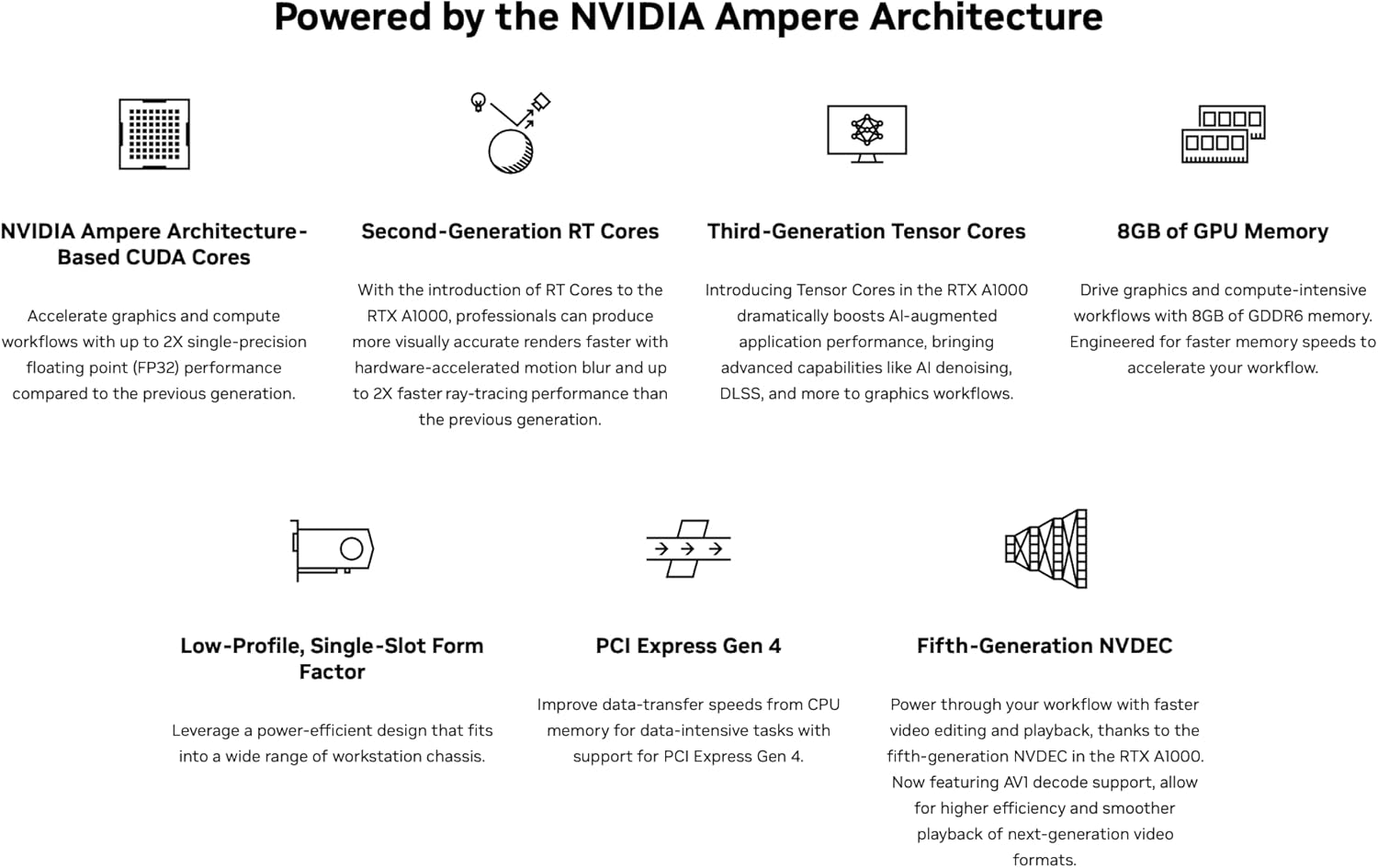
3 Irudia: Gainetikview of NVIDIA Ampere Architecture features. This graphic details the core components like CUDA Cores, RT Cores, Tensor Cores, and memory, which power the RTX A1000.

4. irudia: Adibamples of professional workloads supported by the NVIDIA RTX A1000. This image illustrates applications in design, digital content creation, generative AI, productivity, edge computing, and multi-display environments.
4. Instalazioa eta konfigurazioa
4.1. Sistemaren eskakizunak
- Available PCI-Express x8 or x16 slot.
- Sistema eragile bateragarria (Windows 10/11 64 bitekoa, Linux 64 bitekoa).
- Sufficient power supply unit (PSU) with adequate wattage (typically 300W or higher recommended for system stability, as the card itself draws 50W).
- Minimum 8GB system RAM.
4.2. Hardware-instalazioa
- Itzali eta deskonektatu: Ziurtatu ordenagailua guztiz itzalita eta hormako entxufetik deskonektatuta dagoela.
- Ordenagailuaren kaxa irekia: Kendu ordenagailuaren karkasaren alboko panela plaka basera sartzeko.
- Aurkitu PCIe zirrikitua: Identify an available PCI-Express x8 or x16 slot on your motherboard. Remove any slot covers if necessary.
- Txertatu txartel grafikoa: Carefully align the NVIDIA RTX A1000 card with the chosen PCIe slot and press down firmly until it is securely seated. Ensure the retention clip clicks into place.
- Txartel segurua: Use a screw or the case's retention mechanism to secure the graphics card to the computer case.
- Itxi kasua eta berriro konektatu: Replace the computer case side panel, reconnect all cables, and plug the power cord back into the wall outlet.
4.3. Gidariaren instalazioa
- Power On Computer: Turn on your computer. The operating system may automatically detect new hardware.
- Deskargatu gidariak: Bisitatu NVIDIA ofiziala webgunea (www.nvidia.com/drivers) to download the latest professional drivers for the RTX A1000. Select your operating system and product series.
- Instalatu kontrolatzaileak: Exekutatu deskargatutako kontrolatzailearen instalatzailea eta jarraitu pantailan agertzen diren argibideei. Baliteke sistema berrabiarazi behar izatea instalazioa osatzeko.
- Egiaztatu instalazioa: After restarting, open NVIDIA Control Panel or NVIDIA Settings to verify that the graphics card is recognized and drivers are correctly installed.
5. Funtzionamendua
5.1. Pantailak konektatzea
The NVIDIA RTX A1000 features four Mini DisplayPort (mDP) outputs. Use appropriate mDP to DisplayPort, HDMI, or DVI adapters/cables to connect your monitors. Ensure your displays are powered on and set to the correct input source.

5. irudia: hurbileko planoa view of the four Mini DisplayPort outputs on the NVIDIA RTX A1000. These ports allow connection to multiple high-resolution displays.
5.2. NVIDIA Control Panel / Settings
The NVIDIA Control Panel (Windows) or NVIDIA Settings (Linux) provides comprehensive options for configuring your graphics card. Here you can adjust display settings, manage 3D application profiles, set up multiple displays, and monitor GPU performance.
- Pantailaren bereizmena: Adjust screen resolution and refresh rates.
- Hainbat pantaila: Configure display modes (extended desktop, duplicate displays).
- 3D ezarpenak: Optimize graphics settings for specific applications or global performance.
- GPU Monitoring: View GPU temperature, clock speeds, and memory usage.
6. Mantentzea
- Mantendu gidariak eguneratuta: Egiaztatu aldizka NVIDIA website for the latest drivers to ensure optimal performance, stability, and access to new features.
- Hautsa kentzea: Aldian-aldian, garbitu hautsa txartel grafikoaren haizagailutik eta bero-hustugailutik aire konprimitua erabiliz. Ziurtatu ordenagailua itzalita eta deskonektatuta dagoela garbitu aurretik.
- Ziurtatu aire fluxu egokia: Maintain good airflow within your computer case to prevent overheating. Ensure case fans are functioning correctly and cables are neatly managed.
7. Arazoak
7.1. Ez dago pantaila-irteerarik
- Ensure the monitor is powered on and connected to the correct Mini DisplayPort on the graphics card.
- Egiaztatu txartel grafikoa PCIe zirrikituan guztiz sartuta dagoela.
- Egiaztatu zure monitorearen sarrera-iturri zuzena konfiguratuta dagoen.
- Try connecting to a different display output on the card or a different monitor.
7.2. Driver Installation Issues
- Deskargatu azken kontrolatzaileak zuzenean NVIDIA ofizialetik webgunea.
- Desgaitu aldi baterako antibirusa kontrolatzailea instalatzen ari zaren bitartean.
- If upgrading from a different GPU brand or older NVIDIA drivers, consider using a display driver uninstaller (DDU) in safe mode to remove old drivers before installing new ones.
7.3. Performance Issues or Crashes
- Ensure your drivers are up to date.
- Monitor GPU temperature using software like NVIDIA Control Panel or third-party tools. Overheating can cause performance degradation or crashes.
- Verify your system meets the recommended power supply requirements.
- Check for conflicting software or background processes that might be consuming resources.
8. Zehaztapen Teknikoak

Figure 6: Detailed specifications for the NVIDIA RTX A1000. This table provides key technical data such as GPU memory, display ports, power consumption, and form factor.
| Ezaugarri | Xehetasuna |
|---|---|
| Koprozesadore grafikoa | NVIDIA RTX A1000 |
| GPU Memoria | 8 GB GDDR6 |
| CUDA Nukleoak | 2304 |
| Tentsore Nukleoak | 72 (3. belaunaldia) |
| RT nukleoak | 18 (2. belaunaldia) |
| Bideo Irteerako Interfazea | 4x Mini DisplayPort 1.4a |
| Graphics Bus | PCI-Express Gen 4 x8 |
| Energia-kontsumo maximoa | 50 W |
| Forma-faktorea | Low-Profile, Single-Slot |
| Memoria Erlojuaren Abiadura | 1200 MHz |
| Maximum Digital Resolution | 7680 x 4320 |
| Modelo zenbakia | 900-5G172-2580-000 |
| Elementuaren pisua | 453 gramo |

Figure 7: Performance comparison of NVIDIA RTX A1000 against previous generation. This chart illustrates performance gains in graphics, rendering, and generative AI workloads.

Figure 8: Industry-leading performance highlights of the NVIDIA RTX A1000, including Single-Precision, RT Core, and Tensor Performance metrics.
9. Zer dago kutxan
Produktuaren ontzia irekitzean, honako elementu hau aurkitu beharko zenuke:
- NVIDIA RTX A1000 Professional Graphics Card
Note: Additional accessories such as Mini DisplayPort adapters or documentation may be included depending on the specific retailer or bundle.
10. Bermea eta Laguntza
10.1. Produktuen bermea
NVIDIA products typically come with a limited manufacturer's warranty. The duration and terms of the warranty may vary by region and retailer. Please refer to the warranty information provided with your purchase or visit the official NVIDIA webwebgunea berme-politika zehatzak ikusteko.
10.2. Laguntza Teknikoa
For technical assistance, driver downloads, and frequently asked questions, please visit the official NVIDIA support webgunea:
You may also contact your retailer or system integrator for support related to your specific purchase.


