
1. Sarrera
Thank you for choosing the MEETION BTM011 Ergonomic Wireless Bluetooth Vertical Mouse. This device is designed to provide a comfortable and efficient computing experience by promoting a natural hand position, reducing wrist strain. It offers versatile connectivity options for multiple devices and adjustable precision to suit various tasks.

The ergonomic design of the MEETION vertical mouse helps maintain a natural hand and wrist posture, reducing discomfort compared to traditional mice.
2. Paketearen edukia
- MEETION BTM011 Ergonomic Wireless Bluetooth Vertical Mouse
- USB 2.4G Receiver (stored in the mouse battery compartment)
- USB-A USB-C egokitzailea
- Erabiltzailearen eskuliburua
3. Produktua amaitu daview
Familiarize yourself with the various components and buttons of your MEETION BTM011 mouse.

Xehetasuna view of the mouse components, including the Mode Switching Button, Power Switch (ON/OFF), Low Battery Indicator, Charging Indicator, DPI Speed Switch Button, 2.4G Connection Indicator, Bluetooth 1 Connection Indicator, and Bluetooth 2 Connection Indicator.
- Ezkerreko botoia: Ezkerreko klik funtzio estandarra.
- Eskuineko botoia: Eskuineko botoiarekin klik egiteko funtzio estandarra.
- Korritzeko gurpila: For scrolling up and down.
- Aurrera egiteko botoia: Aurrera nabigatzen du web nabigatzaileak edo file esploratzaileak.
- Atzera botoia: Atzeraka nabigatzen du web nabigatzaileak edo file esploratzaileak.
- DPI aldatzeko botoia: Kurtsorearen sentikortasuna doitzen du.
- Modu aldaketa botoia: Switches between 2.4G, Bluetooth 1, and Bluetooth 2 modes.
- Pizteko etengailua (ON/OFF): Sagua pizten edo itzaltzen du.
- Bateriaren konpartimendua: Located at the bottom, for 1x AA battery and USB receiver storage.
4. Konfiguratzeko argibideak
4.1 Bateriaren instalazioa
Saguak AA bateria bat behar du (ez dago barne).
- Locate the battery compartment cover on the bottom of the mouse.
- Lerratu estalkia ireki.
- Sartu AA pila bat, polaritate zuzena ziurtatuz (+/-).
- Itxi bateriaren konpartimenduaren estalkia ondo.

Insert one AA battery into the compartment. The USB receiver is also stored here.
4.2 Piztu/Itzali
Slide the power switch located on the bottom of the mouse to the "ON" position to turn it on. Slide to "OFF" to conserve battery when not in use.
4.3 Konexio moduak
The MEETION BTM011 mouse supports three connection modes: 2.4GHz wireless (via USB receiver) and two independent Bluetooth 5.3 channels (BT1 and BT2). You can connect to up to three devices simultaneously and switch between them.

The mouse supports 2.4G wireless and two Bluetooth 5.3 connections for seamless switching between devices.
4.4 2.4GHz USB Connection
- Take out the USB receiver from the battery compartment of the mouse.
- Insert the USB receiver into an available USB-A port on your computer. If your computer only has USB-C ports, use the provided USB-A to USB-C adapter.
- Piztu sagua pizteko etengailua erabiliz.
- Press the Mode Switching Button until the 2.4G Connection Indicator (green light) lights up. The mouse should now be connected.
4.5 Bluetooth konexioa (BT1 / BT2)
- Piztu sagua pizteko etengailua erabiliz.
- Press the Mode Switching Button to select either Bluetooth 1 (BT1) or Bluetooth 2 (BT2). The corresponding blue indicator light will blink, indicating pairing mode.
- On your device (computer, laptop, tablet, smartphone), go to Bluetooth settings.
- Bilatu new devices. You should find "Meetion_MS_BT1" or "Meetion_MS_BT2".
- Select the device to pair. Once paired, the blue indicator light will stop blinking and remain solid for a few seconds.

Visual guide for connecting the mouse via 2.4G USB receiver and Bluetooth modes.
5. Funtzionamendu-argibideak
5.1 DPI doikuntza
The mouse features 4 adjustable DPI levels: 1200, 1600, 2400, and 3200. Press the DPI Switch Button (located behind the scroll wheel) to cycle through these settings. Each press changes the cursor speed, allowing you to select the precision suitable for your task.
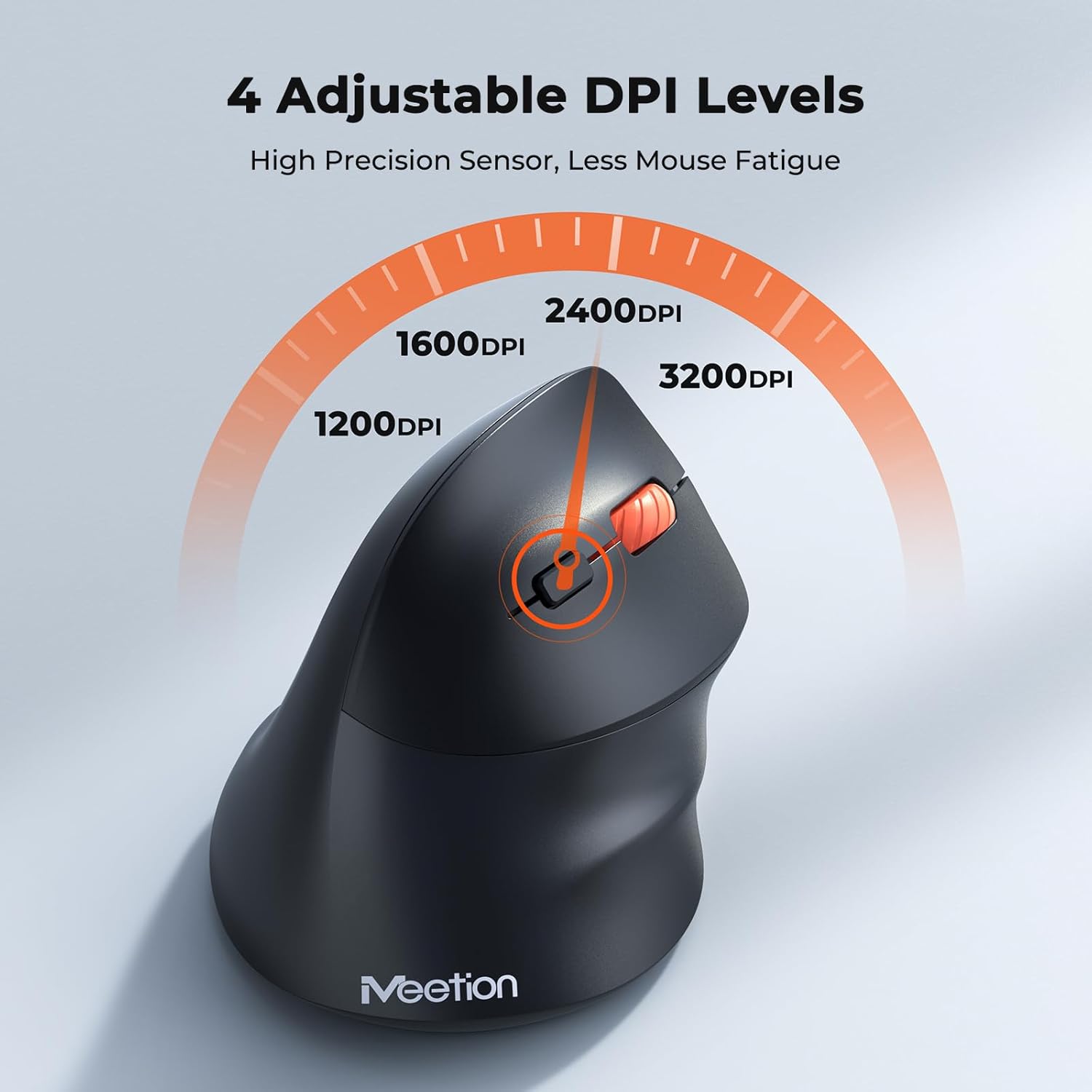
Adjust the DPI to match your preference for cursor speed and precision.
5.2 Gailu Anitzeko Kommutazioa
To switch between connected devices, simply press the Mode Switching Button located on the bottom of the mouse. The corresponding indicator light (green for 2.4G, blue for BT1/BT2) will illuminate to show the active connection.
5.3 Forward/Back Buttons
Use the Forward and Back buttons, conveniently located on the side of the mouse, for quick navigation in web nabigatzaileak, file esploratzaileak eta funtzio hauek onartzen dituzten beste aplikazio batzuk.
6. Energiaren kudeaketa
6.1 Auto-Sleep Mode
To conserve battery life, the mouse will automatically enter sleep mode after 20 minutes of inactivity. This intelligent feature helps extend the battery's operational time.
6.2 Waking the Mouse
To wake the mouse from sleep mode, simply press any button. It will instantly reconnect to the last active device.
6.3 Bateriaren iraupena
With typical usage, a single AA battery can power the mouse for up to 3 months. Actual battery life may vary based on usage patterns and battery quality.
7. Mantentzea
To ensure optimal performance and longevity of your mouse, follow these maintenance guidelines:
- Garbiketa: Erabili zapi leun eta lehor bat saguaren gainazala garbitzeko. Zikinkeria egoskorra bada, garbitu zapi pixka bat.amp oihal bat erabil daiteke, baina ziurtatu hezetasunik ez sartzen gailuan. Saihestu produktu kimiko gogorrak edo garbitzaile urratzaileak.
- Bateria ordezkatzea: Replace the AA battery when the low battery indicator lights up or when mouse performance degrades. Always dispose of used batteries responsibly.
- Biltegiratzea: Denbora luzez erabiltzen ez baduzu, itzali sagua eta gorde leku lehor eta fresko batean.
8. Arazoak
If you encounter issues with your MEETION BTM011 mouse, refer to the following solutions:
| Arazoa | Irtenbidea |
|---|---|
| Sagua ez du erantzuten |
|
| Kurtsorearen mugimendua irregularra edo motela da |
|
| Ezin da Bluetooth bidez konektatu |
|
| Forward/Back buttons not working |
|
9. Zehaztapenak
| Ezaugarri | Xehetasuna |
|---|---|
| Eredua | BTM011 |
| Konektibitatea | 2.4GHz Wireless, Bluetooth 5.3 (BT1, BT2) |
| DPI mailak | 1200 / 1600 / 2400 / 3200 |
| Botoiak | 7 (Left, Right, Scroll Wheel, Forward, Back, DPI Switch, Mode Switch) |
| Energia iturria | 1x AA bateria (ez dago barne) |
| Lo automatikoa | 20 minuturik gabe egon ondoren |
| Bateragarritasuna | Windows, Mac OS, Linux, Android, iOS (for iPad/iPhone) |
| Materiala | Plastikoa |
| Neurriak (gutxi gorabehera) | 4.4 x 3.29 x 2.74 hazbete (11.18 x 8.36 x 6.96 cm) |
10. Bermea eta Laguntza
10.1 Bermearen informazioa
MEETION products are designed and manufactured to the highest quality standards. This product is covered by a limited warranty against defects in materials and workmanship. Please retain your proof of purchase for warranty claims. Specific warranty terms may vary by region; refer to your local retailer or the official MEETION webxehetasunak lortzeko gunea.
10.2 Bezeroarentzako laguntza
For technical assistance, troubleshooting, or general inquiries, please contact MEETION customer support:
- Posta elektronikoa: service@meetion.com
- Webgunea: Visit the official MEETION webmaiz egiten diren galderen eta baliabide gehigarrien gunea.