
Sarrera
This manual provides detailed instructions for the setup, operation, maintenance, and troubleshooting of your KOORUI S2721XO 27-inch QD-OLED Gaming Monitor. Please read this manual thoroughly before using the product to ensure proper functionality and to prevent damage.

Image: KOORUI S2721XO 27-inch QD-OLED Gaming Monitor showcasing its main features like 240Hz refresh rate, 0.03ms response time, QHD resolution, QD-OLED panel, VESA compatibility, 99% DCI-P3 color gamut, Eye Care, and Adaptive Sync.
Paketearen edukia
Egiaztatu osagai guztiak paketean daudela:
- KOORUI S2721XO 27-inch QD-OLED Gaming Monitor
- Monitorearen euskarria (oinarria eta lepoa)
- Elikatze-kablea
- HDMI kablea
- DisplayPort kablea
- Erabiltzailearen eskuliburua (dokumentu hau)
- Berme txartela (hala badagokio)
Konfigurazio Argibideak
1. Standa muntatzea
- Kontu handiz atera monitorearen eta euskarriaren osagaiak paketetik.
- Lotu euskarriaren lepoa monitorearen panelari. Ziurtatu ondo sartzen dela klik eginez edo torlojuekin lotuta dagoela hasiera azkarreko gida adierazten den bezala.
- Lotu euskarriaren oinarria euskarriaren lepoari, emandako torlojuarekin finkatuz.
- Jarri muntatutako monitorea gainazal egonkor eta lau batean.
Alternatively, the monitor supports VESA 75mm x 75mm mounting for wall mounts or monitor arms. Ensure the VESA mount is rated for the monitor's weight (3 kg).

Image: Illustrations showing the monitor's ergonomic adjustments including height adjustment (110mm), tilt (-20° to 20°), 90° pivot for vertical viewing, and swivel (-5° to 20°).
2. Konektatzeko kableak
Identify the ports on the back of your monitor and connect the necessary cables.

Irudia: Atzealdea view of the KOORUI S2721XO monitor showing the connectivity ports: 1. Power cable input, 2. HDMI 2.1, 3. HDMI 2.1, 4. DisplayPort 1.4, 5. Audio output interface. Also shows VESA 100x100mm mounting points.
- Sare elektrikoa Konektatu kablearen mutur bat monitorearen elikatze-sarrerara eta beste muturra entxufe batera.
- Bideoaren sarrera:
- For HDMI connection, use the provided HDMI cable to connect your computer's HDMI output to one of the monitor's HDMI 2.1 ports.
- For DisplayPort connection, use the provided DisplayPort cable to connect your computer's DisplayPort output to the monitor's DisplayPort 1.4 port.
- Audio irteera: If desired, connect external speakers or headphones to the audio output jack.
3. Hasierako piztea
- Sakatu monitorearen pizteko botoia.
- Turn on your computer. The monitor should automatically detect the input signal. If not, you may need to manually select the input source using the OSD menu.
Funtzionamendu-argibideak
Pantailako pantailan (OSD) menua
The OSD menu allows you to adjust various monitor settings. Typically, a joystick or a set of buttons located on the back or bottom of the monitor is used to navigate the OSD.
- Press the OSD button/joystick to open the menu.
- Use the navigation controls to move through options.
- Sakatu hautatzeko botoia hautaketa berresteko.
- Sakatu irteteko botoia OSD menua ixteko.
Irudiaren ezarpenak
- Distira/Kontrastea: Egokitu ezarpen hauek zure beharretara egokitzeko viewingurunea.
- Kolore Tenperatura: Aukeratu aurrezarritako moduetatik (adibidez, Epela, Hotza, Erabiltzailea) edo pertsonalizatu RGB balioak.
- HDR (Barruti Dinamiko Handia): The monitor supports HDR 400. Enable HDR in your operating system and monitor settings for enhanced contrast and color detail.
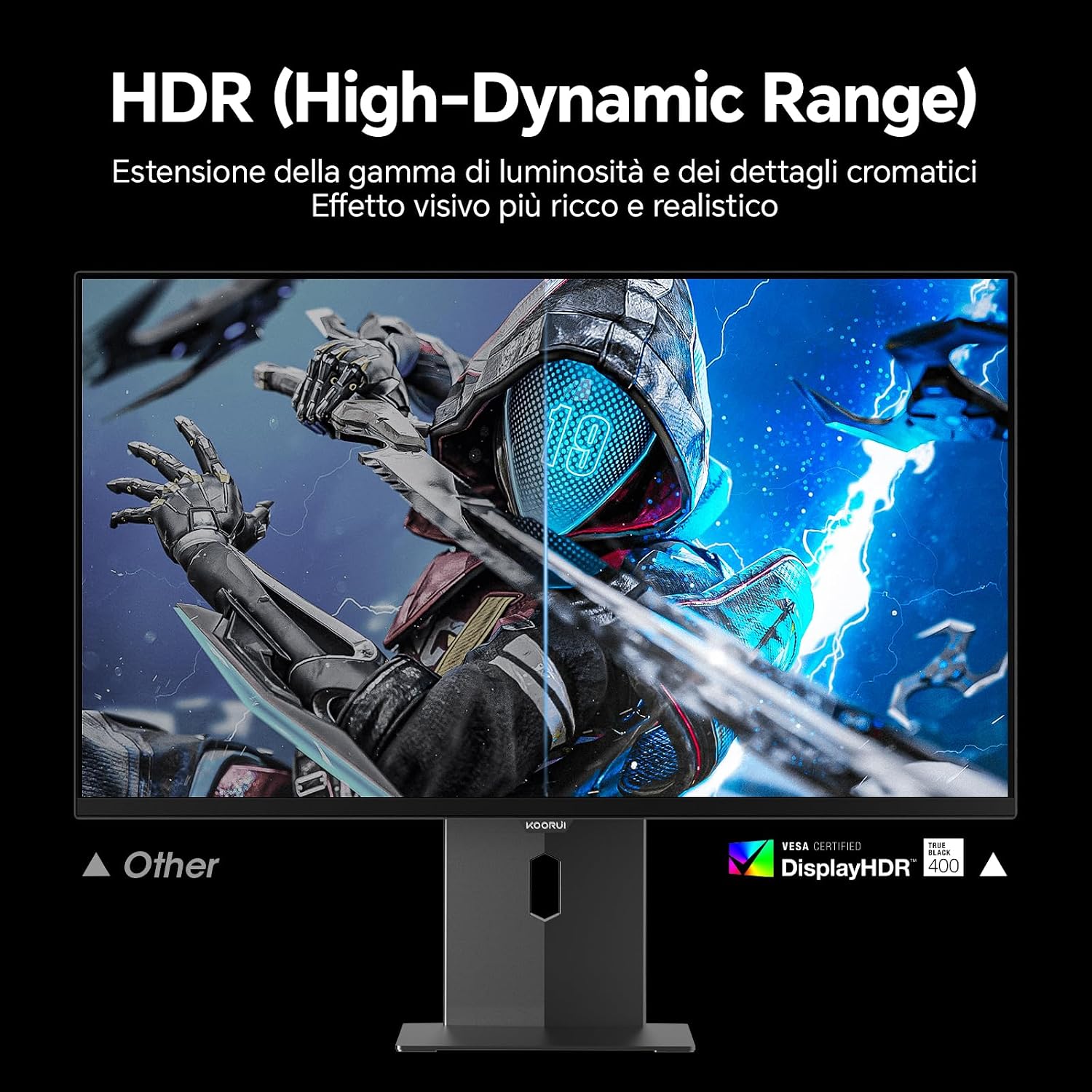
Image: Comparison of a standard display versus the KOORUI S2721XO monitor with HDR (High-Dynamic Range) enabled, showing richer visual effects and realistic details.
Joko Ezaugarriak
- Freskatze-tasa: The monitor supports up to 240Hz. Ensure your graphics card and system settings are configured to utilize this refresh rate for smooth gameplay.
- Erantzun denbora: With a 0.03ms response time, motion blur is significantly reduced.
- Sinkronizazio egokitzailea: This technology synchronizes the monitor's refresh rate with your GPU's frame rate, eliminating screen tearing and stuttering. Enable Adaptive Sync in the OSD menu and your graphics card control panel.
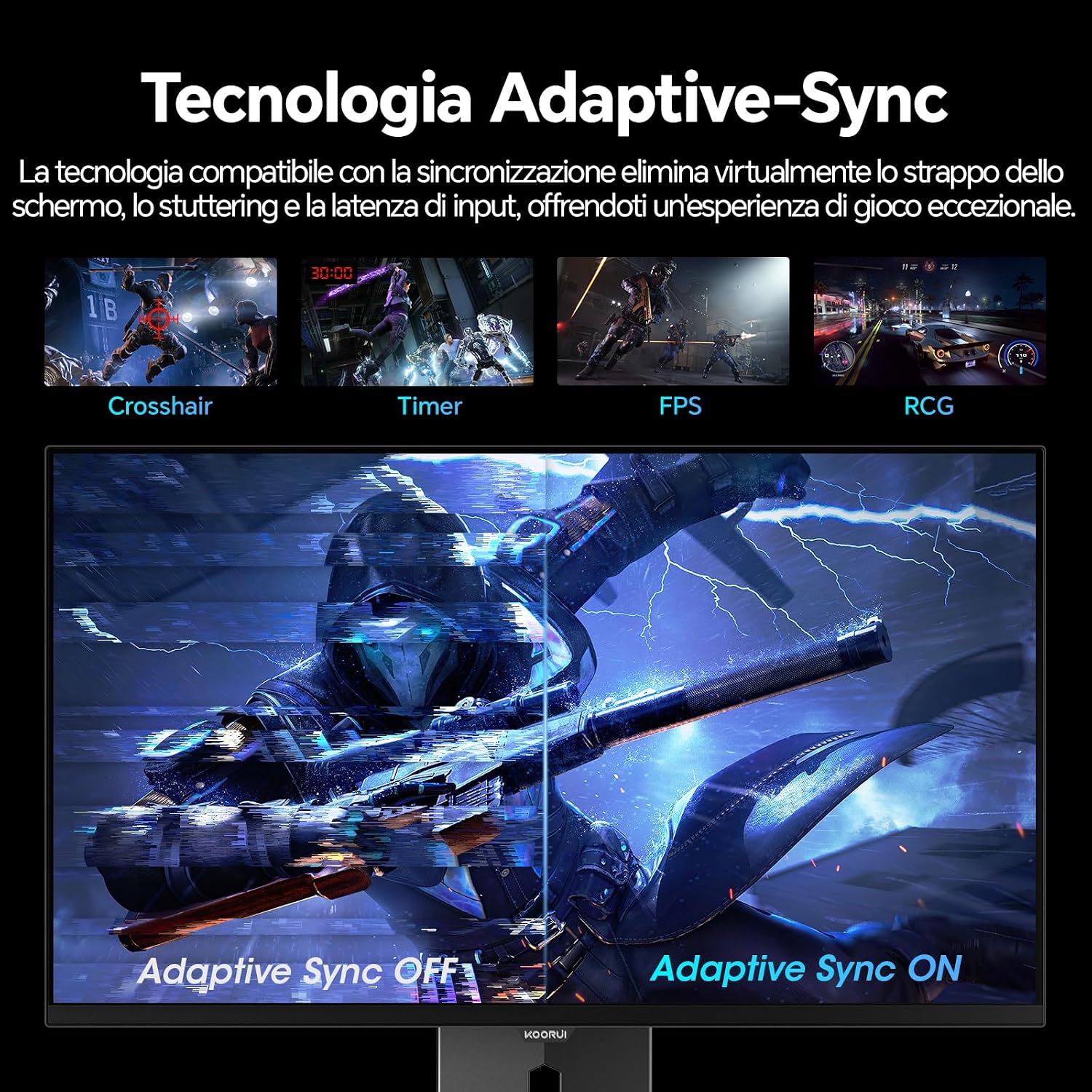
Image: A visual demonstration of Adaptive Sync technology, showing the difference between Adaptive Sync OFF (with screen tearing and stuttering) and Adaptive Sync ON (with smooth, tear-free visuals).

Image: A visual comparison illustrating the ultra-high refresh rate of 240Hz and 0.03ms response time, contrasting it with a 100Hz 5ms display to show the improved fluidity and reduced ghosting.
Begiak zaintzeko modua
The monitor includes features designed to reduce eye strain during extended use. Access the Eye Care settings in the OSD menu to enable modes that reduce blue light emission or adjust flicker-free settings.
Mantentzea
Monitorea garbitzea
- Itzali beti monitorearen energia eta deskonektatu elikatze-kablea garbitu aurretik.
- Erabili lipurrik gabeko zapi leun bat dampUrarekin edo pantaila-garbitzaile espezializatu batekin garbitu.
- Ez ihinztatu garbitzailea zuzenean pantailan.
- Saihestu garbitzaile, argizari edo disolbatzaile urratzaileak erabiltzea, pantailaren gainazala kaltetu baitezakete.
- Garbitu monitorearen casinoihal leun eta lehor batekin garbitu.
Biltegiratzea
When storing the monitor for an extended period, ensure it is powered off, unplugged, and stored in a cool, dry place away from direct sunlight and extreme temperatures. Use original packaging if available for best protection.
Arazoak konpontzea
| Arazoa | Kausa posiblea | Irtenbidea |
|---|---|---|
| Botererik ez | Kablea ez dago konektatuta; Entxufea ez dabil; Monitorearen pizteko botoia itzalita. | Ensure power cable is securely connected. Test power outlet with another device. Press the monitor's power button. |
| Seinalerik ez | Video cable not connected; Incorrect input source selected; Computer not powered on. | Check video cable connections (HDMI/DisplayPort). Select the correct input source via the OSD menu. Ensure your computer is powered on and outputting a signal. |
| Pantaila keinukaria | Incorrect refresh rate; Faulty cable; Graphics card driver issues. | Adjust refresh rate in display settings. Try a different video cable. Update graphics card drivers. |
| Irudi kalitate eskasa | Incorrect resolution; Picture settings misconfigured; Dirty screen. | Set display resolution to 2560x1440. Adjust brightness, contrast, and color settings in the OSD. Clean the screen as per maintenance instructions. |
Zehaztapenak
| Marka | KOORUI |
| Modelo zenbakia | S2721XO |
| Pantailaren tamaina | 27 hazbetekoa |
| Panel mota | QD-OLED |
| Ebazpena | QHD Wide 1440p (2560 x 1440) |
| Aspektu-erlazioa | 16:9 |
| Freskatze tasa | 240 Hz |
| Erantzun Denbora | 0.03 ms |
| Kontraste-erlazioa | 1,500,000:1 |
| Distira | 280 cd/m² |
| Viewangelua | 178 gradu |
| Kolore Gamut balioa | % 99 DCI-P3 (% 100 sRGB) |
| Konektibitatea | 2x HDMI 2.1, 1x DisplayPort 1.4, Audio Out |
| Sinkronizazio egokitzailea | FreeSync compatible |
| Ezaugarri bereziak | HDR 400, Eye Care, Height Adjustment, Tilt Adjustment, Swivel Adjustment, Pivot Adjustment |
| VESA bateragarritasuna | 75 mm x 75 mm |
| Neurriak (W x H x D) | 610.11 mm x 521.84 mm x 215.82 mm (24.02 x 20.54 x 8.50 hazbete) |
| Pisua | 3 kilogramo |
Bermearen informazioa
The KOORUI S2721XO monitor comes with a 2 urteko bermea from the date of purchase. This warranty covers manufacturing defects and malfunctions under normal use. Please retain your proof of purchase for warranty claims. For detailed terms and conditions, refer to the warranty card included in your package or visit the official KOORUI webgunea.
Laguntza eta Harremana
For further assistance, technical support, or customer service inquiries, please visit the official KOORUI website or contact their customer support team. You can also refer to the official PDF instructions for use: