
1. Sarrera
This manual provides essential information for the proper installation, operation, and maintenance of your GAMEON Pro Series 27-inch Fast IPS Gaming Monitor (Model: GOAE27QHD165IPS). Please read this manual thoroughly before using the product to ensure optimal performance and safety. Keep this manual for future reference.

1.1. irudia: Aurrealdea view of the GAMEON Pro Series 27-inch Fast IPS Gaming Monitor, showcasinbere marko meheak eta euskarria.
The GAMEON Pro Series 27-inch Fast IPS Gaming Monitor features a QHD 2K (2560x1440p) resolution, a 165Hz refresh rate, and a 0.5ms MPRT response time. It supports Adaptive-Sync and Variable Refresh Rate (VRR) technologies for smooth, tear-free gameplay. Connectivity options include dual HDMI 2.1 ports and dual DisplayPort 1.4 ports, along with an audio-out jack and integrated speakers. This monitor is compatible with various gaming consoles and PCs, including PS5.
2. Paketearen edukia
Mesedez, egiaztatu paketearen edukia kutxa irekitzean. Elementuren bat falta bada edo hondatuta badago, jarri harremanetan zure saltzailearekin.
- GAMEON Pro Series 27-inch Fast IPS Gaming Monitor
- Monitorearen euskarria (oinarria eta lepoa)
- Energia egokitzailea eta energia kablea
- HDMI kablea
- DisplayPort kablea
- Erabiltzailearen eskuliburua
3. Konfigurazioa
3.1 Monitorearen Muntaketa
- Kontu handiz atera monitorearen paketea, pantaila babestuta mantenduz.
- Lotu euskarriaren lepoa monitorearen panelari. Ziurtatu ondo sartzen dela klik eginez edo torlojuekin lotuta dagoela, baldin badaude.
- Lotu euskarriaren oinarria euskarriaren lepoan eta estutu oinarriaren behealdeko torlojua.
- Jarri muntatutako monitorea gainazal egonkor eta lau batean.
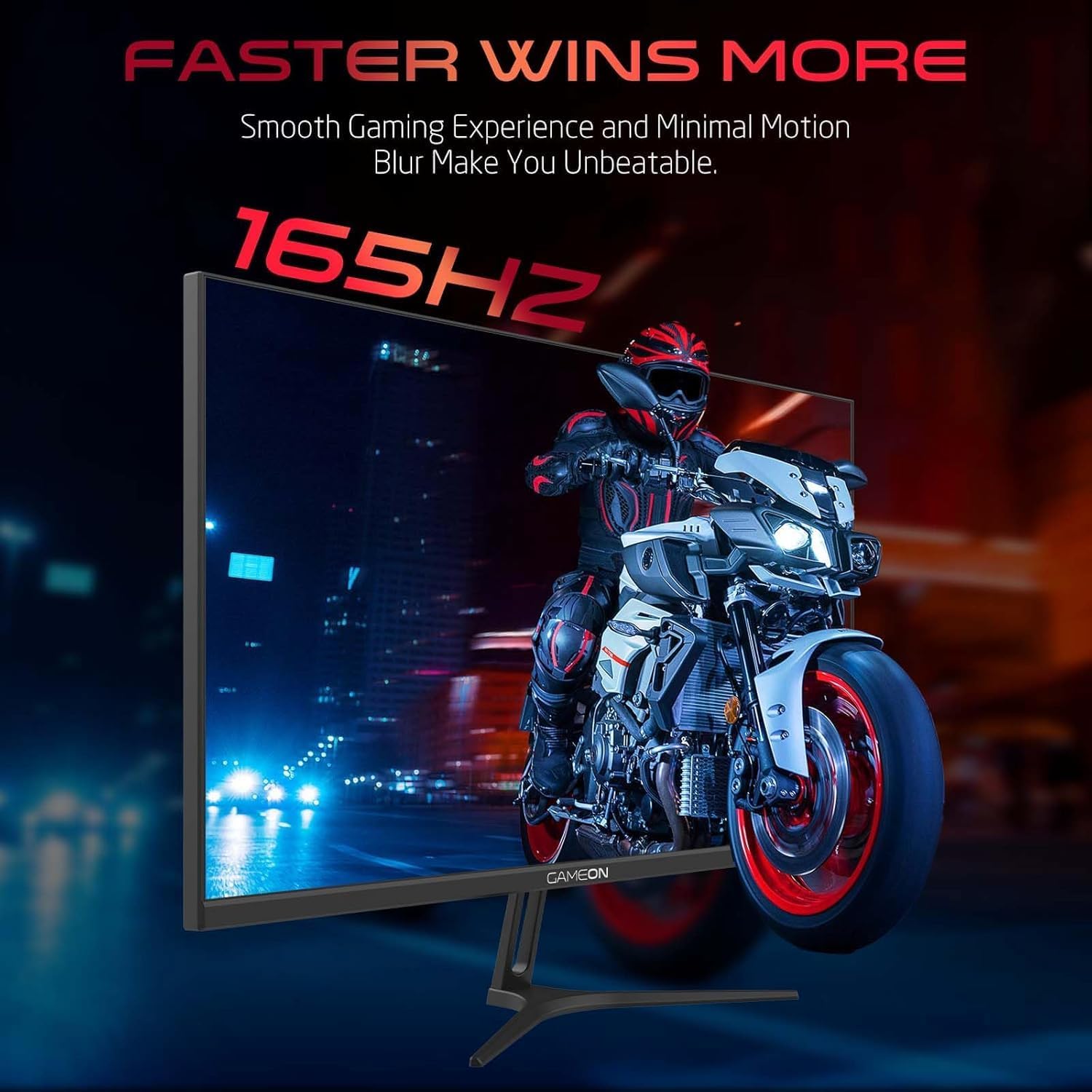
Image 3.1: Illustration of the monitor with its stand, ready for assembly.
3.2 Gailuetara konektatzea
The monitor offers multiple input options. Choose the appropriate cable for your device (PC, gaming console, etc.).

3.2. irudia: Atzekoa view of the monitor, highlighting the input ports and VESA mounting points.

Image 3.3: Detailed diagram illustrating the various input/output ports and their corresponding devices.
- HDMI konexioa: Connect one end of the HDMI cable to the HDMI output port of your device (PC, PS5, Xbox, TV box) and the other end to one of the HDMI 2.1 ports on the monitor.
- DisplayPort konexioa: Connect one end of the DisplayPort cable to the DisplayPort output of your PC and the other end to one of the DisplayPort 1.4 ports on the monitor.
- Audio irteera: For external audio, connect headphones or external speakers to the 3.5mm audio-out jack on the monitor.
3.3 Energia-konexioa
- Connect the power adapter to the DC IN port on the monitor.
- Plug the power cable into the power adapter, then plug the other end of the power cable into a power outlet.
4. Funtzionamendu-argibideak
4.1 Piztu/Itzali
Sakatu monitorearen gainean dagoen pizteko botoia pizteko edo itzaltzeko. Pizteko adierazlearen argia piztuko da monitorearen piztuta dagoenean.
4.2 Pantailan bistaratzeko (OSD) menua
The monitor features a menu button (often a joystick or a series of buttons) usually located on the back or bottom right of the monitor. Use this to navigate the OSD menu and adjust settings.
- Press the menu button to open the OSD menu.
- Erabili nabigazio-kontrolak menuko aukeren artean mugitzeko.
- Press the menu button again (or a designated 'Enter' button) to select an option.
- Use the navigation controls to adjust values or select sub-menus.
- Select 'Exit' or press the menu button repeatedly to close the OSD menu.
4.3 OSD ezarpen arruntak
- Irudiaren ezarpenak: Doitu distira, kontrastea, zorroztasuna, gamma eta kolore-tenperatura.
- Kolore ezarpenak: Fine-tune RGB values, hue, and saturation.
- Sarrera iturria: Manually select between HDMI 1, HDMI 2, DisplayPort 1, or DisplayPort 2.
- Audioa: Adjust volume for built-in speakers or connected headphones.
- Jokoen Ezaugarriak: Enable/disable Adaptive-Sync/FreeSync, adjust overdrive settings, and activate crosshair overlays if available.
4.4 PS5 120Hz Setup Guide
To enable 120Hz output on your PlayStation 5 with this monitor, follow these steps:

Image 4.1: Visual guide for configuring 120Hz refresh rate on a PlayStation 5 console.
- Enable 120Hz from PS5 Settings:
- Joan zaitez Ezarpenak > Screen and Video > Bideo Irteera.
- Ezarri Enable 120Hz Output to Automatikoa.
- Ezarri Ebazpena to 1080p or Automatikoa. (Note: While the monitor supports 1440p, some PS5 games may require 1080p for 120Hz output.)
- Enable Performance Mode for Gamers:
- Joan zaitez Ezarpenak > Save Data and Game App Settings > Joko aurrezarpenak.
- Ezarri Errendimendu modua lehenetsi gisa.
- Check In-Game Settings:
- Go to the specific game's Jokoen ezarpenak > Bideo ezarpenak eta hautatu 120 fps or Errendimendu modua.
5. Mantentzea
5.1 Pantaila garbitzea
- Itzali monitorearen entxufea eta deskonektatu kablea.
- Erabili lipurrik gabeko zapi leun bat dampUrarekin edo pantaila-garbitzaile espezializatu batekin garbitu.
- Wipe the screen gently. Do not press hard or use abrasive materials.
- Avoid using alcohol, ammonia, or benzene-based cleaners, as they may damage the screen surface.
5.2 C garbitzeaasing
- Erabili zapi leun eta lehor bat monitorearen c garbitzeko.asing.
- Orban egoskorretarako, arin dampGarbitu oihal bat urarekin eta detergente leun batekin, eta gero lehortu.
6. Arazoak
Monitorearekin arazoak badituzu, jo ezazu arazoak konpontzeko gida honetara:
| Arazoa | Kausa posiblea | Irtenbidea |
|---|---|---|
| Ez dago irudirik pantailan | Energiarik ez; Sarrera-iturri okerra; Bideo-kablea soltea | Ensure power cable is securely connected and power outlet is active. Press power button. Check OSD menu to select correct input source (HDMI/DP). Reconnect video cable firmly. |
| Irudia lausoa edo distortsionatua dago | Incorrect resolution; Video cable issue | Set display resolution to 2560x1440p in your device's display settings. Try a different video cable. |
| Soinurik ez | Volume too low; Incorrect audio output selected; Loose audio cable | Adjust monitor volume via OSD. Ensure monitor is selected as the audio output device on your PC/console. Check external audio cable connection if using headphones/speakers. |
| Pantaila keinuka | Refresh rate mismatch; Adaptive-Sync/VRR issue | Ensure your device's refresh rate is set to 165Hz. If flickering persists with Adaptive-Sync/VRR enabled, try disabling it in the OSD or your graphics card settings. |
| Monitor not detected by PC/console | Video cable issue; Driver issue | Try a different video cable or port. Update your graphics card drivers. Restart your PC/console. |
7. Zehaztapenak
Below are the technical specifications for the GAMEON Pro Series 27-inch Fast IPS Gaming Monitor (GOAE27QHD165IPS):
| Ezaugarri | Zehaztapena |
|---|---|
| Bistaratzeko tamaina | 27 hazbetekoa |
| Panel mota | IPS azkarra |
| Ebazpena | QHD 2K (2560x1440p) |
| Freskatze tasa | 165Hz |
| Erantzun Denbora | 0.5 ms MPRT |
| Kontraste-erlazioa | 1000:1 |
| Distira | 280 (±30) nits typical |
| Viewangeluak | Zabala viewing angles (IPS technology) |
| Adaptive Sync Teknologia | Adaptive-Sync, FreeSync, VRR Compatible |
| Konektibitatea | 2x HDMI 2.1, 2x DisplayPort 1.4, 1x Audio Out (3.5mm) |
| Audioa | Built-in 4Ω2W speakers |
| VESA muntaiaren bateragarritasuna | 100x100mm |
| Potentzia Sarrera | Kanpoko DC 12V 4A egokigailua |
| Energia-kontsumo maximoa | 48W |
| Produktuaren neurriak (euskarriarekin) | 16.2 x 61.4 x 45.3 cm |
| Produktuaren pisua | 5.84 kg |
| Modelo zenbakia | GOAE27QHD165IPS |
8. Bermea eta Laguntza
The GAMEON Pro Series 27-inch Fast IPS Gaming Monitor comes with a 2 urteko bermea erosketa-datatik aurrera. Berme honek erabilera normalaren pean fabrikazio-akatsak estaltzen ditu. Gorde erosketaren egiaztagiria berme-erreklamazioetarako.
For technical support, warranty inquiries, or service requests, please contact GAMEON customer service through their official website or the retailer where the product was purchased. Provide your monitor's model number (GOAE27QHD165IPS) and a detailed description of the issue to expedite assistance.