
Samsung LS27D402GANXGO
Samsung 27" (S40GD) Borderless Business Monitor User Manual
Model: LS27D402GANXGO
Sarrera
This manual provides comprehensive instructions for the setup, operation, and maintenance of your Samsung 27" (S40GD) Borderless Business Monitor. Designed for both work and entertainment, this monitor features an IPS panel for vivid colors, a 100Hz refresh rate for smooth performance, and ergonomic adjustments for optimal comfort. Please read this manual thoroughly before using your monitor to ensure proper functionality and longevity.

Figure 1: Samsung 27" (S40GD) Borderless Business Monitor
Konfigurazioa
1. Kutxa irekitzea eta paketearen edukia
Kontu handiz atera osagai guztiak paketetik. Ziurtatu behean zerrendatutako elementu guztiak daudela:
- Samsung 27" (S40GD) Monitor
- Monitorearen euskarria (oinarria eta lepoa)
- HDMI kablea
- DisplayPort kablea
- Elikatze-kablea
- Erabiltzailearen eskuliburua (dokumentu hau)
2. Muntaketa fisikoa
Jarraitu urrats hauek monitorearen euskarria muntatzeko:
- Lotu euskarriaren lepoa monitorearen panelera. Ziurtatu ondo sartzen dela klik eginez.
- Attach the stand base to the stand neck. Tighten the captive screw at the bottom of the base.
- Jarri muntatutako monitorea gainazal egonkor eta lau batean.
For VESA mounting, remove the stand and attach a compatible VESA mount (100x100mm) using M4-0.7 bolts.
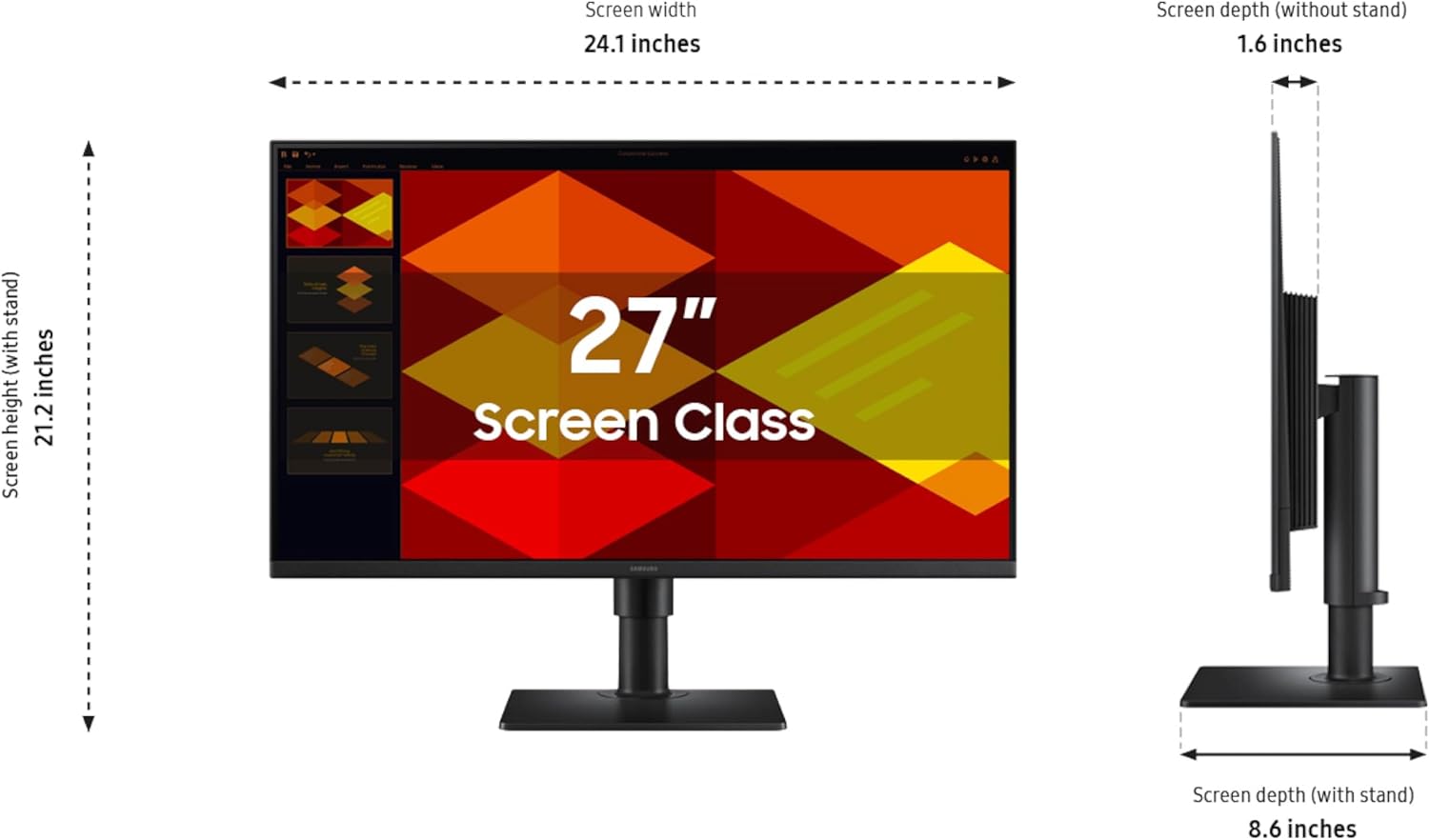
Figure 2: Monitor Dimensions and Assembly Overview
3. Konektatzeko kableak
Connect the necessary cables to the corresponding ports on the back of the monitor:
- Sare elektrikoa Konektatu mutur bat monitorearen elikatze-sarrerara eta bestea entxufe batera.
- Bideoaren sarrera: Connect either the HDMI cable to an HDMI port (HDMI IN 1 or HDMI IN 2) or the DisplayPort cable to the DP IN port on the monitor and the corresponding port on your computer.
- USB Hub-a (Aukerakoa): To utilize the integrated USB hub, connect a USB Type-B Upstream cable (not included) from the monitor's USB Type-B port to a USB Type-A port on your computer.
- Entzungailuak: Connect headphones or external speakers to the Headphone IN port if desired.

Figure 3: Monitor Connectivity Ports
4. Hasierako piztea
Once all cables are connected, press the power button on the monitor. The monitor should power on and display an image from your connected device. If no image appears, ensure the correct input source is selected via the monitor's OSD (On-Screen Display) menu.
Funtzionamendu-argibideak
1. Basic Functions and OSD Navigation
The monitor's functions are controlled via a multi-directional button, typically located on the back or bottom of the monitor. Press the button to access the OSD menu. Use the directional movements to navigate and select options.
2. Pantailaren ezarpenak
- Freskatze-tasa: The monitor supports up to a 100Hz refresh rate. To enable this, you may need to adjust the display settings in your computer's operating system. Navigate to Display Settings > Advanced Display Settings and select 100Hz.
- Begi aurrezteko modua: This mode reduces blue light emissions and screen flicker to minimize eye strain during long viewing sessions. Activate this feature through the OSD menu under Picture settings.
- Game Picture Mode: Optimize color and image contrast for gaming. This mode enhances visibility in dark scenes and adjusts the display to fill the screen with game content. Access this setting in the OSD menu.
- Color and Image Adjustment: Adjust brightness, contrast, sharpness, color, tint, and white balance through the OSD menu to suit your preferences.

Figure 4: Vivid Colors with IPS Panel

Figure 5: Smooth Performance with 100Hz Refresh Rate

Figure 6: Optimized Game Settings

Figure 7: Eye Saver Mode for Reduced Eye Strain
3. Doikuntza ergonomikoak
The monitor stand allows for flexible adjustments to achieve optimal viewerosotasuna:
- Altuera doitzea: Adjust the monitor's height to align the top of the screen with your eye level.
- okertu: Tilt the screen forward or backward to reduce glare and optimize viewangelua.
- Birakaria: Rotate the monitor horizontally on its base to share your screen or adjust your viewposizioa.
- Pibota: The monitor can be pivoted 90 degrees for a vertical view, ideal for document viewtzea edo kodetzea.

Figure 8: Flexible Ergonomic Adjustments
Mantentzea
1. Monitorea garbitzea
Monitorearen itxura eta errendimendua mantentzeko, jarraitu garbiketa-jarraibide hauek:
- Pantaila: Garbitu pantaila astiro-astiro oihal leun eta pelusik gabeko batekin, bereziki elektronikarako diseinatua. Orban egoskorrak izanez gero, garbitu astiro-astiro.ampen the cloth with water or a screen-cleaning solution (do not spray directly onto the screen).
- Gorputza: Erabili zapi leun eta lehor bat monitorearen gainazala garbitzeko.asing. Saihestu garbitzaile edo disolbatzaile urratzaileak.
- Deskonektatu beti monitorearen entxufea korrontetik garbitu aurretik.
2. Biltegiratzea
If storing the monitor for an extended period, ensure it is clean, dry, and stored in a cool, dust-free environment. It is recommended to use the original packaging for protection during storage or transport.
Arazoak konpontzea
This section addresses common issues you might encounter with your Samsung monitor. If the problem persists after attempting these solutions, please contact customer support.
| Arazoa | Kausa posiblea | Irtenbidea |
|---|---|---|
| Ez dago irudirik pantailan | Power cable disconnected; Incorrect input source; Video cable loose or disconnected. | Check power cable connection; Select correct input source via OSD; Reconnect video cable securely. |
| Pantaila keinuka | Refresh rate too high for cable/graphics card; Interference. | Lower refresh rate in display settings; Ensure cables are properly shielded and away from power sources. |
| Colors appear distorted or washed out | Incorrect color settings; Faulty video cable. | Adjust color settings in OSD; Try a different video cable. |
| USB atakak ez dira funtzionatzen | USB upstream cable not connected or faulty. | Ensure USB Type-B Upstream cable is connected from monitor to computer. Replace cable if necessary. |
Zehaztapenak
| Ezaugarri | Xehetasuna |
|---|---|
| Marka | Samsung |
| Modelo zenbakia | LS27D402GANXGO |
| Pantailaren tamaina | 27 hazbete |
| Panel mota | IPS |
| Ebazpena | 1920 x 1080 pixel (FHD 1080p) |
| Gehienezko freskatze-tasa | 100Hz |
| Aspektu-erlazioa | 16:9 |
| Konektibitatea | DisplayPort, 2x HDMI, USB Type-B Upstream, 2x USB Type-A Downstream, Headphone Out |
| Ergonomia | Height Adjustable, Tilt, Swivel, Pivot |
| VESA muntaia bateragarria | Bai (100x100mm) |
| Neurriak (LxWxH) | 8.62 x 24.12 x 21.19 hazbete (euskarriarekin) |
| Pisua | 8.82 kilo |
| Kolorea | Beltza |
Bermea eta Laguntza
1. Bermearen informazioa
This Samsung monitor comes with a 3 urteko bermea. Please refer to the warranty card included with your product for detailed terms and conditions, including coverage and limitations. Keep your proof of purchase for warranty claims.
2. Bezeroarentzako arreta
For technical assistance, troubleshooting beyond this manual, or warranty service, please contact Samsung Customer Support. Visit the official Samsung website for the most up-to-date contact information, including phone numbers, chat support, and service center locations.
Sareko baliabideak: www.samsung.com/us/support/
Ask a question about this manual
Ask about setup, troubleshooting, compatibility, parts, safety, or missing instructions. Manuals+ will review the question and use this page’s manual context to help answer it.