
1. Sarrera
This manual provides detailed instructions for the installation, operation, and maintenance of your CAMECHO 10.1" Android 13 Car Stereo. Please read this manual thoroughly before using the product to ensure proper functionality and to avoid damage. Keep this manual for future reference.
The CAMECHO car stereo is designed to enhance your driving experience with advanced features including Android 13 operating system, Wireless Carplay/Android Auto, GPS navigation, Bluetooth connectivity, FM/RDS radio, and support for a backup camera. It is specifically compatible with Ford Transit 350 Cargo Vans manufactured between 2018 and 2024.
2. Produktuaren ezaugarriak
- Android 13 sistema eragilea: Latest Android 13 for smooth and responsive operation.
- Wireless/Wired Carplay & Android Auto: Seamless integration with your smartphone for navigation, music, calls, and messages.
- 10.1 hazbeteko IPS ukipen-pantaila: High-resolution 2.5D IPS display for clear visuals and intuitive control.
- Built-in GPS Navigation: Supports online and offline maps, ensuring you never get lost.
- WiFi konexioa: Access online content, download apps, and stream media.
- Bluetooth Hands-free Calling & Music: Securely make calls and stream audio wirelessly.
- FM/RDS irratia: Listen to your favorite radio stations with clear reception and real-time information.
- Bolantearen Kontrola (SWC): Control essential functions directly from your vehicle's steering wheel.
- Atzeko kameraren sarrera: Supports AHD camera for safe reversing and parking.
- Ispilu lotura funtzioa: Mirror your iOS (up to 15.3) or Android (up to 12) phone screen to the stereo.
- EQ ezarpenak: Customize audio output with a 15-band graphic equalizer.
- Pantaila zatituaren funtzionaltasuna: Run two applications simultaneously on the display.

Figure 2.1: CAMECHO 10.1 inch Android 13 Car Stereo with included backup camera and microphone.

Figure 2.2: Wireless Carplay and Android Auto interface on the CAMECHO car stereo.
3. Zer dago kutxan
Mesedez, egiaztatu paketearen edukia beheko zerrendarekin:
- 1 x CAMECHO 10.1" Android Car Stereo
- 1 x babeskopia kamera
- 1 x Elikatze-kablea
- 1 x 1m Original USB Cable
- 1 x Instalazio tresna
- 1 x Mikrofonoa
- 1 x GPS antena
- 1 x Canbus (if applicable for your vehicle model)
- 1 x 1m Radio Antenna
- 1 x USB kablea (gehigarria)
- 1 x Camera Input Cable
- 1 x Erabiltzailearen eskuliburua
- 1 x RCA Cable Set
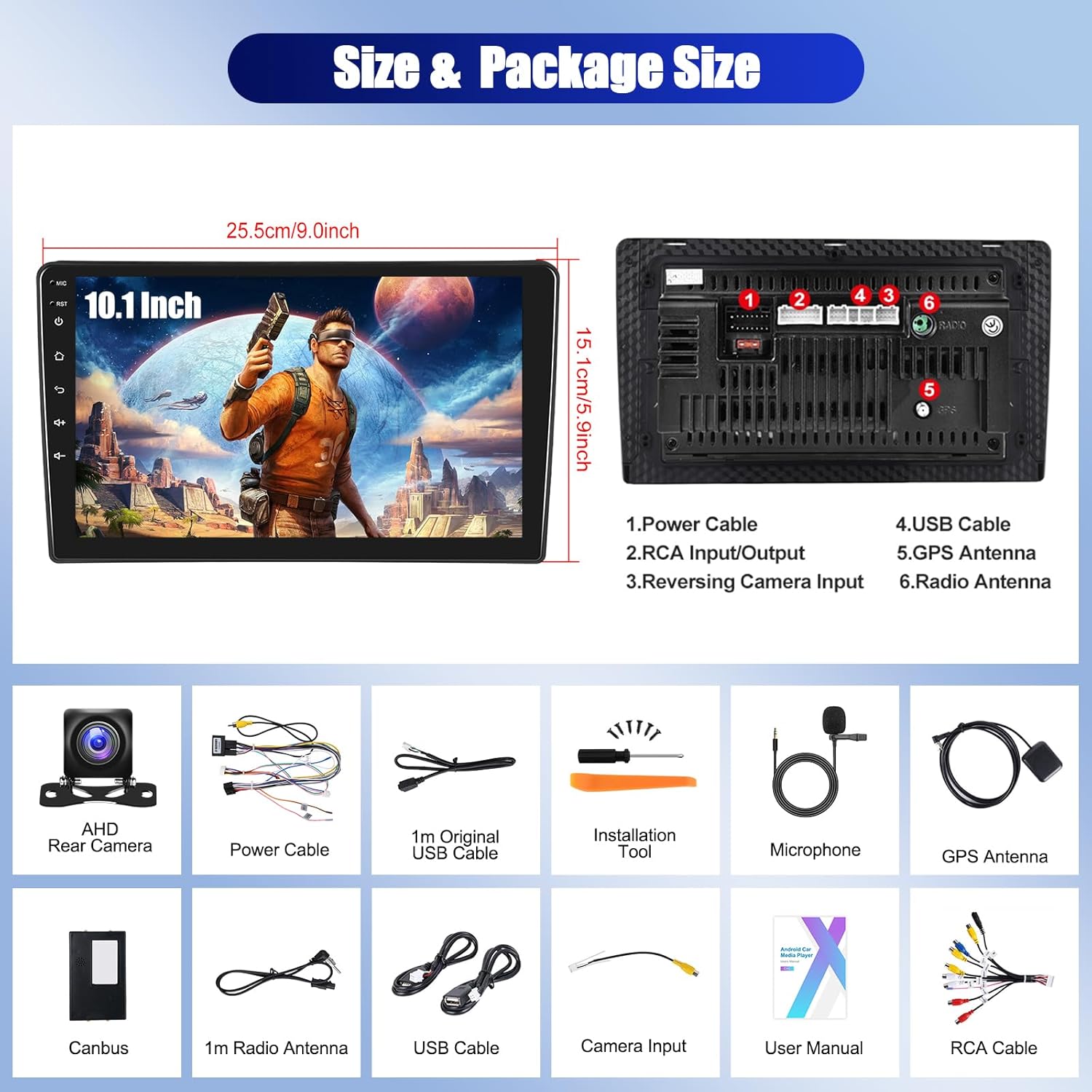
Figure 3.1: Package contents and main unit dimensions.
4. Zehaztapenak
| Ezaugarri | Zehaztapena |
|---|---|
| Bistaratzeko tamaina | 10.1 hazbete |
| Sistema eragilea | Android 13 |
| Memoria Biltegiratzeko Ahalmena | 64 GB |
| Konektibitate Teknologia | Bluetooth, Wi-Fi, USB |
| Kontrol-metodoa | Aplikazioa, Ukimena, Ahotsa |
| Audio irteera modua | Estereoa |
| Elementuaren pisua | 3.32 kilo |
| Paketearen neurriak | 11.77 x 6.93 x 4.61 hazbete |
| Jatorrizko Herrialdea | Txina |
5. Instalazio gida
Professional installation is recommended. Ensure the vehicle's power is disconnected before beginning installation.
5.1 Instalazioaren aurreko egiaztapenak
- Verify compatibility with your Ford Transit 350 Cargo Van (2018-2024). This unit is designed for models with the navigation version of the center console, not the basic version.
- Ziurtatu 3. atalean zerrendatutako osagai guztiak daudela.
- Gather necessary tools (e.g., screwdrivers, wire strippers, electrical tape).
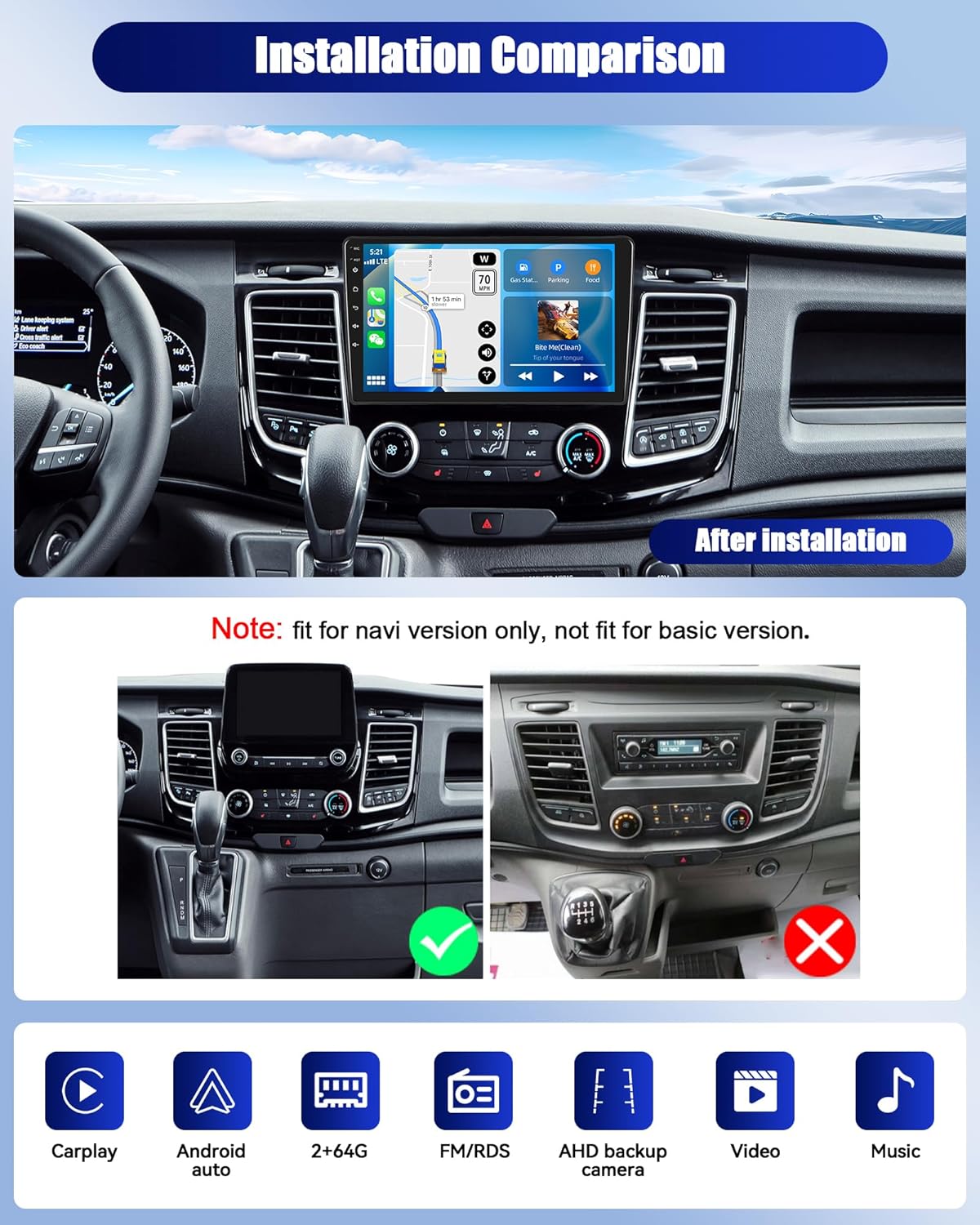
Figure 5.1: Installation comparison and compatibility note for Ford Transit 350 Cargo Vans.
5.2 Wiring Diagram (Backup Camera)
The backup camera requires specific wiring for proper operation. The reversing input must be plugged in even if the camera is not used.
- Red Cable ①: Connect to the positive pole of the car reversing light cable.
- Black Cable ②: Connect to the negative pole of the car reversing light cable.
- The other two red extension cables ③ and ④ do not need to be connected.

Figure 5.2: Backup camera wiring diagram.
6. Funtzionamendu-argibideak
6.1 Haririk gabeko Carplay eta Android Auto
Connect your smartphone wirelessly or via USB to access Carplay or Android Auto features. This allows for voice control, navigation, music playback, and access to messages and calls directly from the stereo.
- Haririk gabeko konexioa: Ensure Bluetooth and Wi-Fi are enabled on your phone. Pair your phone with the car stereo via Bluetooth, then follow the on-screen prompts to activate Carplay or Android Auto.
- Kable bidezko konexioa: Connect your phone to the stereo's USB port using a compatible USB cable.

Figure 6.1: Wireless/Wired Carplay & Android Auto functionality.
6.2 Ispilu-lotura
Mirror Link allows you to display your phone's screen on the car stereo. This feature supports two-way control for iOS devices (up to iOS 15.3) and one-way control for Android devices (up to Android 12).
- Connect your phone via USB or Wi-Fi as prompted by the Mirror Link application on the stereo.
- Follow the on-screen instructions to establish the connection.

Figure 6.2: Mirror Link for iOS and Android devices.
6.3 GPS nabigazioa eta WiFi konexioa
The stereo comes with built-in GPS for navigation. Connect to WiFi to use online maps, download apps, and access other internet features.
- GPSa: Open the navigation app from the main menu. You can use pre-installed offline maps or download new ones.
- WiFi: Go to Settings > Network & Internet > Wi-Fi. Select your desired network and enter the password to connect.
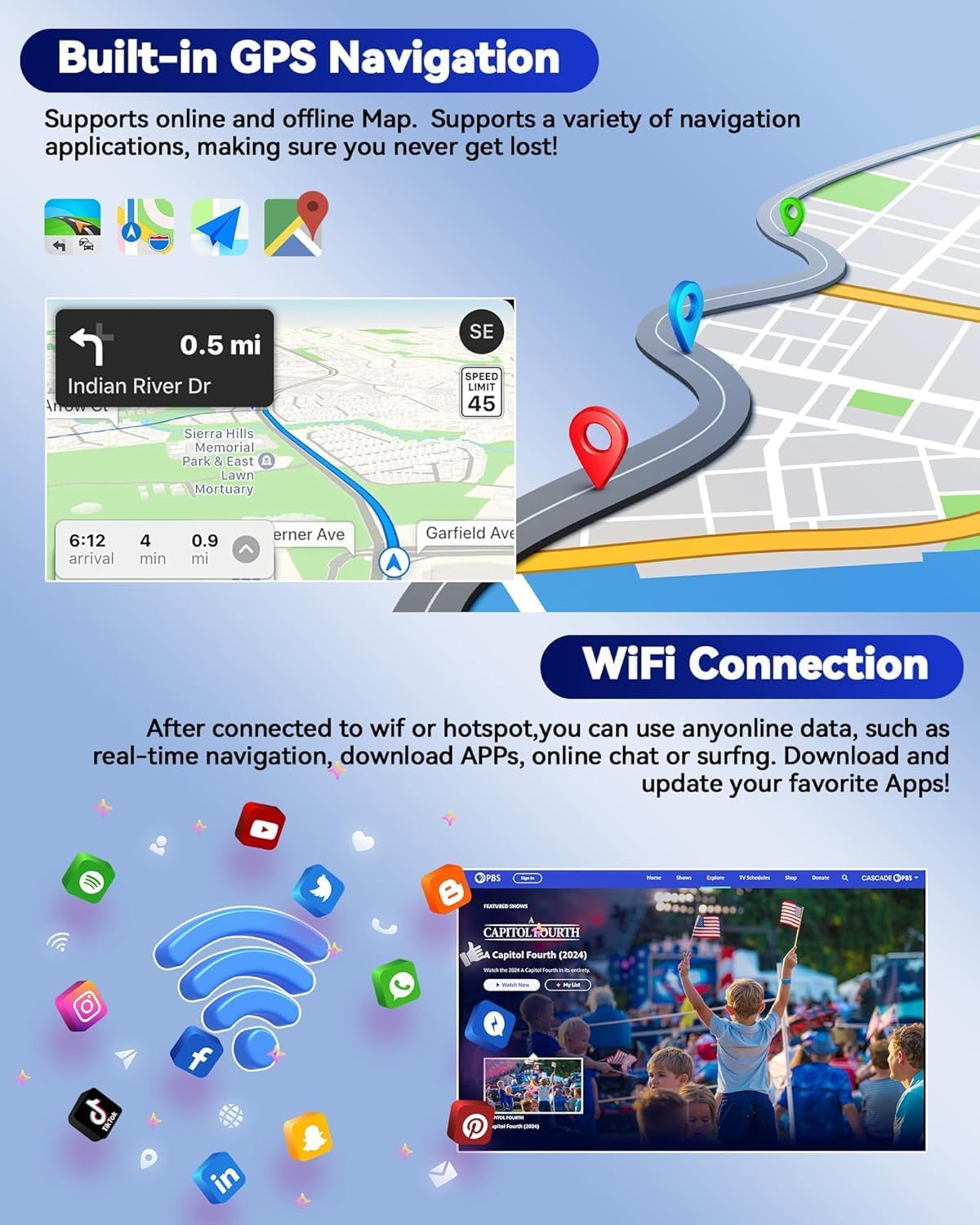
Figure 6.3: Built-in GPS Navigation and WiFi connectivity.
6.4 Bluetooth Hands-free Calling & FM/RDS
Manage calls and enjoy music wirelessly via Bluetooth. Tune into FM radio stations and receive RDS information.
- Bluetootha: Enable Bluetooth on your phone and the stereo. Bilatu the stereo's Bluetooth name (e.g., "CAMECHO") on your phone and pair. You can then make calls, access contacts, and play music.
- FM/RDS: Open the Radio app. Use the scan function to find stations or manually tune to a frequency. RDS provides station information and traffic updates.

6.4. irudia: Bluetooth esku libreko deiak eta FM/RDS irrati interfazea.
6.5 Bolantearen kontrola (SWC)
Configure your steering wheel buttons to control the stereo for convenience and safety.
- Go to Settings > Steering Wheel Control.
- Follow the on-screen instructions to map your vehicle's steering wheel buttons to the stereo's functions (e.g., volume up/down, track skip, mode).

Figure 6.5: Steering Wheel Control setup and backup camera view.
6.6 Pantaila zatitua
The split screen feature allows you to run two applications simultaneously, such as navigation and music playback.
- From the main screen, open the first application.
- Press and hold the recent apps button (usually a square icon) or drag the app to one side of the screen to activate split-screen mode.
- Select the second application to fill the other half of the screen.

Figure 6.6: Split Screen functionality.
7. Mantentzea
To ensure the longevity and optimal performance of your CAMECHO car stereo, follow these maintenance guidelines:
- Garbiketa: Erabili zapi leun eta lehor bat pantaila eta kanpoaldea garbitzeko. Orban egoskorrak garbitzeko, garbitu apur batampGarbitu zapi bat urarekin edo pantaila-garbitzaile batekin. Saihestu material urratzaileak edo produktu kimiko gogorrak.
- Tenperatura: Avoid exposing the unit to extreme temperatures, both hot and cold, as this can affect performance and lifespan.
- Hezetasuna: Keep the unit dry. Do not expose it to water or excessive humidity.
- Software eguneraketak: Aldian-aldian egiaztatu softwarearen eguneraketak, azken funtzioak eta akatsen konponketak dituzula ziurtatzeko. Eguneraketak normalean sistemaren ezarpenetan edo fabrikatzailearen webgunean aurki daitezke. webgunea.
- Itzali: When not in use for extended periods, ensure the vehicle's ignition is off to prevent battery drain.
8. Arazoak
If you encounter issues with your CAMECHO car stereo, refer to the table below for common problems and their solutions.
| Arazoa | Kausa posiblea | Irtenbidea |
|---|---|---|
| Unitatea ez da pizten | Konexio elektriko askea, fusible erreta, ibilgailuaren bateriaren arazoa. | Check all power cables and connections. Inspect vehicle fuses. Ensure vehicle battery is charged. |
| Ez dago soinu irteerarik | Volume too low, incorrect audio source, speaker wiring issue. | Increase volume. Select correct audio source (e.g., FM, Bluetooth). Check speaker wire connections. |
| GPS not working or inaccurate | GPS antenna not connected, poor satellite signal, outdated maps. | Ensure GPS antenna is securely connected and placed in a clear view of the sky. Update maps if necessary. |
| Bluetooth konexio arazoak | Bluetooth not enabled, incorrect pairing, interference. | Ensure Bluetooth is on for both devices. Delete previous pairings and re-pair. Move closer to the unit. |
| Atzeko kamera ez da bistaratzen | Camera not connected, incorrect wiring, camera malfunction. | Check camera cable connections. Verify wiring according to Section 5.2. Test camera if possible. |
| Ukipen-pantailak ez du erantzuten | System freeze, dirt on screen, hardware issue. | Restart the unit (turn vehicle off and on). Clean the screen. If issue persists, contact support. |
Konponbide hauek saiatu ondoren arazoa konpontzen ez bada, jarri harremanetan bezeroarentzako arreta-zerbitzuarekin.
9. Bermea eta Laguntza
9.1 Bermearen informazioa
The CAMECHO 10.1" Android 13 Car Stereo comes with a 1-year manufacturer's warranty from the date of purchase. This warranty covers defects in materials and workmanship under normal use. It does not cover damage caused by improper installation, accident, misuse, abuse, neglect, unauthorized modification, or natural disasters.
Mesedez, gorde zure erosketa-froga berme-erreklamazioetarako.
9.2 Bezeroarentzako laguntza
For technical assistance, troubleshooting, or warranty inquiries, please contact CAMECHO customer support.
Posta elektronikoa: camechovip@126.com
You can also visit the official CAMECHO store on Amazon for additional resources and to ask questions directly to the seller.

Figure 9.1: CAMECHO customer support.