
1. Sarrera eta Overview
The Akko 5098B Santorini Wireless Mechanical Gaming Keyboard is designed with an 1800 compact layout, featuring a number pad and a unique Santorini theme. It incorporates a 1.47-inch TFT LCD screen, hot-swappable switches, RGB lighting, and a gasket-mounted structure for a comfortable typing experience. This manual provides instructions for setting up, operating, and maintaining your keyboard.
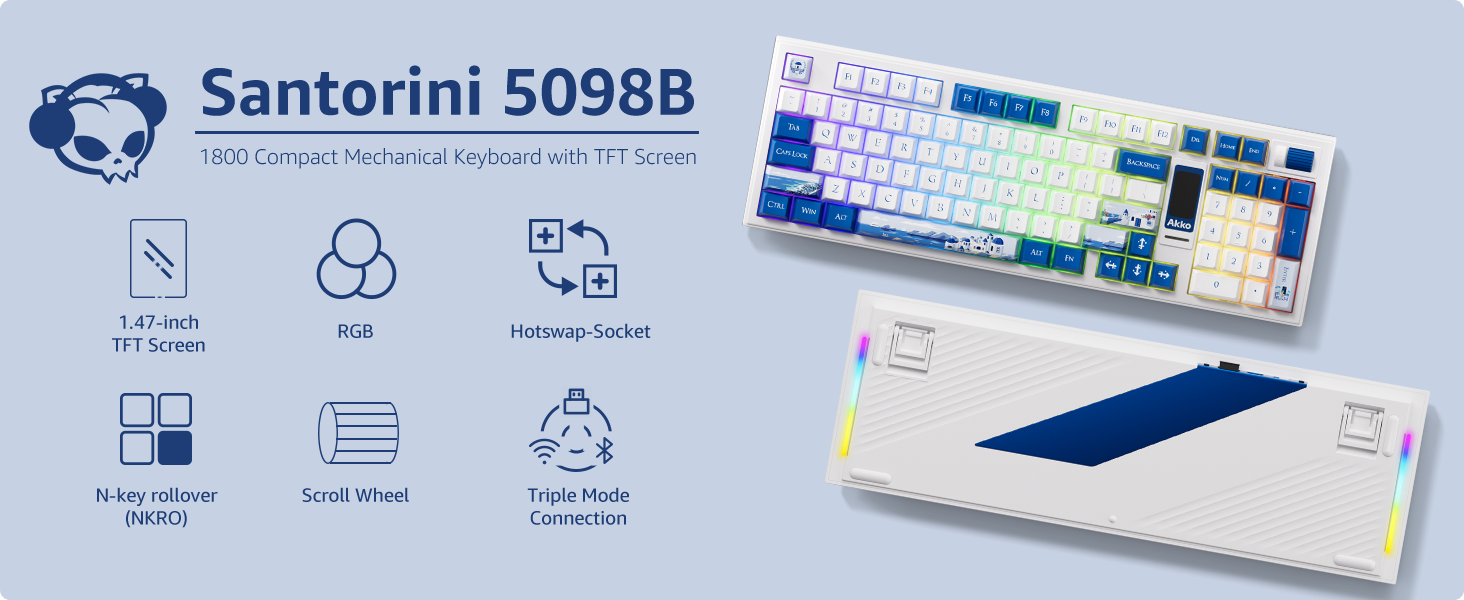
Irudia: Gainetikview of the Akko 5098B Santorini keyboard highlighting its 1800 compact layout, 1.47-inch TFT screen, RGB, hot-swappable sockets, N-key rollover, scroll wheel, and triple mode connection.
2. Konfigurazioa
2.1. Paketearen edukia
Kutxa irekitzean, ziurtatu elementu guztiak daudela:
- Akko 5098B Santorini Mechanical Gaming Keyboard
- USB-C kargatzeko kablea
- Keycap Remover
- Additional Replaceable Switches (Piano Black Series)
- Erabiltzailearen eskuliburua

Image: The Akko 5098B keyboard along with its included USB-C cable, keycap remover, and extra switches.
2.2. Konektibitate-aukerak
The Akko 5098B keyboard supports three connection modes:
- Haririk gabeko (2.4 GHz): Use the included USB adapter for a stable wireless connection.
- Kable bidezkoa (USB C motakoa): Connect the keyboard directly to your device using the USB-C cable.
- Bluetooth 5.0: Pair the keyboard wirelessly with compatible Bluetooth devices.

Image: The Akko 5098B keyboard demonstrating its triple mode connectivity: USB Type-C, 2.4GHz wireless, and Bluetooth.
2.3. Kargatzea
The keyboard is equipped with an 8000mAh battery and supports 2A fast charging, which is up to 4 times faster than standard keyboards. Connect the USB-C cable to charge the device.
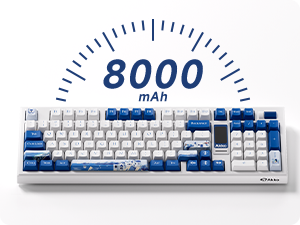
Image: An illustration highlighting the 8000mAh battery capacity of the keyboard.
3. Funtzionamendu-argibideak
3.1. TFT LCD Screen
The 1.47-inch TFT LCD screen allows control over various settings and displays useful information:
- Atzeko argia: Adjust lighting effects, color, brightness, and speed.
- Konexio moduak: Switch between 2.4GHz, Bluetooth, and wired modes.
- Hizkuntza ezarpenak: Configure the display language.
- Custom Images: Upload your favorite emojis or images via the Akko Cloud Driver.
- Informazio bistaratzea: Shows battery level, current mode, time, and date.
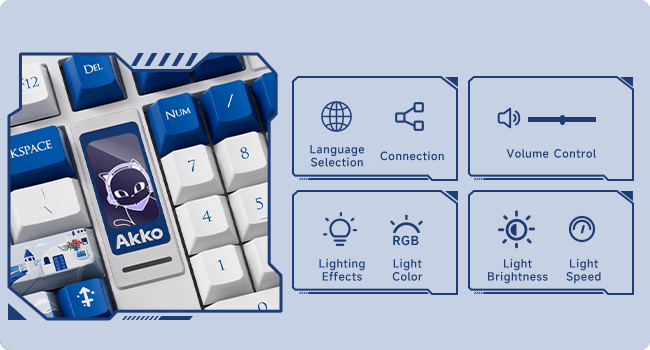
Image: A close-up of the TFT LCD screen on the Akko 5098B keyboard, illustrating its capabilities for language selection, connection status, volume control, RGB lighting effects, color, brightness, and speed adjustments.
3.2. Korritze gurpila
The scroll wheel provides quick access to several functions:
- Bolumen kontrola: Doitu audioaren bolumena.
- Multimedia erreprodukzioa: Pause/play media.
- LCD Screen Navigation: Use in conjunction with the Fn key to navigate and change settings on the LCD screen.
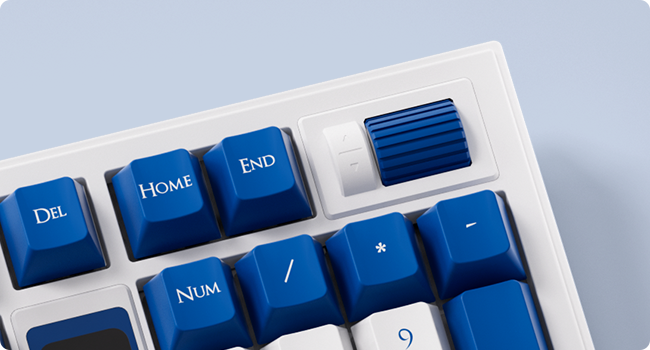
Irudia: Xehetasun zehatza view of the encoder scroll wheel on the Akko 5098B keyboard, used for various controls.
3.3. RGB argiztapena
The keyboard features south-facing RGB lighting, offering vibrant and customizable illumination. The RGB effects can be controlled via the LCD screen or the Akko Cloud Driver software. An RGB bar is also present below the LCD screen for additional visual flair.

Image: The Akko 5098B keyboard showcasinbere RGB atzeko argiztapen pertsonalizagarria.
3.4. Key Switches
The Akko 5098B comes with Piano Pre-Lubed switches, known for their quiet operation. The keyboard's hot-swappable PCB allows users to easily replace switches with other 5-pin compatible mechanical switches without soldering.

Irudia: Gertutik view of the Piano Pre-Lubed mechanical switch.
3.5. Keyboard Risers
The keyboard features adjustable risers on the bottom, offering two different height settings (big and small) to provide a comfortable and ergonomic typing angle.

Image: The underside of the Akko 5098B keyboard, showing the adjustable risers for ergonomic positioning.
4. Pertsonalizazioa
The Akko 5098B keyboard is highly customizable:
- PCB bero-trukagarria: Easily change out the mechanical switches to suit your preference without soldering.
- Tekla-mailaren bateragarritasuna: The south-facing keycap style allows for compatibility with a wide range of aftermarket keycaps, enabling personalized aesthetics.
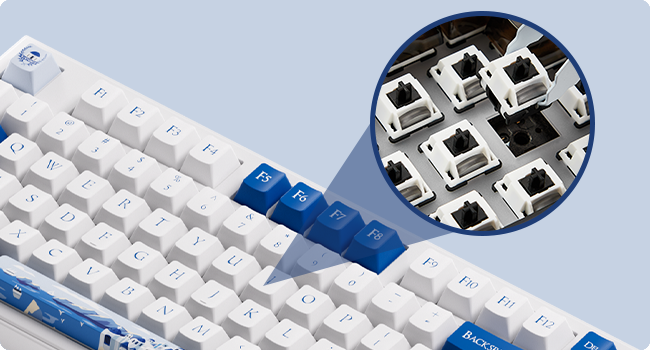
Irudia: Gertutik view of the hot-swappable sockets on the keyboard's PCB.
5. Zehaztapenak
| Ezaugarri | Xehetasuna |
|---|---|
| Marka | Akko |
| Eredua | 5098B |
| Gailu bateragarriak | Ordenagailua, ordenagailu eramangarria |
| Konektibitate Teknologia | USB Type-C, Bluetooth 5.0, 2.4GHz |
| Teklatuaren deskribapena | Ergonomia |
| Kolorea | Santorini |
| Energia iturria | Bateriaz elikatua (8000 mAh) |
| Aldatu mota | Mechanical (Piano Pre Lubed Switch) |
| Teklatuaren diseinua | 1800 Compact (Maltron) |
| Eskuen Orientazioa | Anbidistroa |
| Gako kopurua | 104 |
6. Mantentzea
To ensure the longevity and optimal performance of your Akko 5098B keyboard, regular maintenance is recommended:
- Tekla-tapoiak garbitzea: Use the provided keycap remover to carefully detach keycaps for deep cleaning. Wipe keycaps with a soft, damp oihal.
- Garbiketa etengailuak: Tekla-tapak kenduta, erabili aire konprimatua etengailuen inguruko hautsa eta hondakinak garbitzeko.
- Garbiketa orokorra: Wipe the keyboard surface with a soft, dry cloth. Avoid harsh chemicals or abrasive materials.
7. Arazoak
If you encounter issues with your keyboard, consider the following:
- Akko Cloud Driver Issues: Ensure you download the correct version of the Akko Cloud Driver for your operating system (e.g., "Akko Cloud Driver (Win) 370.1.54" for Windows, not "Akko Cloud Driver v4 (WIN) 370.2.16"). If the software doesn't launch, try reinstalling or checking for system compatibility.
- LCD Screen Time Format: The LCD screen may display time in 24-hour format only. To sync the time with your computer, open the Akko Cloud Driver, navigate to Screen > Customize > Other Settings > "Sync Time on Screen".
- Scroll Wheel Responsiveness: If the scroll wheel is unresponsive, ensure you are holding the correct Fn key combination when attempting to change settings. Check for any physical obstructions or debris around the wheel.
- Dongle Fit: If the USB dongle feels too tight, exercise caution when inserting or removing it to prevent damage. Consider using the wired or Bluetooth connection if preferred.
8. Bermea eta Laguntza
For warranty information, technical support, or service inquiries, please refer to the official Akko webwebgunera edo jarri harremanetan bezeroarentzako arreta-zerbitzura. Gorde erosketaren frogagiria berme-erreklamazioetarako.