
1. Sarrera
This manual provides essential information for the proper installation, operation, and maintenance of your Samsung 9100 PRO NVMe M.2 Solid State Drive. Please read this manual thoroughly before using the product to ensure optimal performance and longevity.
The Samsung 9100 PRO is a high-performance internal SSD designed for demanding applications such as gaming, 4K video editing, and AI content generation. It utilizes the PCIe 5.0 interface for superior speed and efficiency.
2. Segurtasun informazioa
- Heldu beti SSDari ertzetik urrezko konektoreak edo osagaiak ukitzea saihesteko.
- Ensure your system is powered off and unplugged before installation.
- Discharge any static electricity from your body before handling the SSD.
- Ez jarri SSDa hezetasunean, tenperatura altuetan edo eremu magnetiko indartsuetan.
- Keep the SSD away from children.
3. Paketearen edukia
Egiaztatu zure paketeak elementu hauek dituela:
- 1 x Samsung 9100 PRO NVMe M.2 SSD
- Instalazio argibideak
- Erabilera argibideak (eskuliburu hau)

Image: The Samsung 9100 PRO NVMe M.2 SSD shown with its retail packaging.
4. Konfigurazioa
4.1 Sistemaren eskakizunak
- Motherboard with an available M.2 slot (M-key, 2280 form factor).
- PCIe 5.0 x4 interface support for optimal performance. The SSD is backward compatible with PCIe 4.0/3.0, but performance will be limited by the interface.
- Operating System: Windows 10/11, macOS, or Linux with NVMe driver support.
4.2 Instalazio-urratsak
- Prestatu zure sistema: Itzali ordenagailua eta deskonektatu kable guztiak. Ireki ordenagailuaren karkasa.
- Aurkitu M.2 zirrikitua: Identify an available M.2 slot on your motherboard. Consult your motherboard manual for exact locations.
- Txertatu SSDa: Gently insert the Samsung 9100 PRO SSD into the M.2 slot at a 30-degree angle. Ensure the gold connectors are fully seated.

Irudia: Goian view of the Samsung 9100 PRO NVMe M.2 SSD, showing the label and components.

Irudia: Angelua view of the Samsung 9100 PRO NVMe M.2 SSD, highlighting the M.2 connector.
- Segurtatu SSDa: Push the SSD down until it is parallel with the motherboard. Secure it with the screw provided with your motherboard or system.
- Itxi kaxa eta piztu: Reassemble your computer and reconnect all cables. Power on your system.
- Hasieratu eta formatu:
- Windows: Open Disk Management (right-click Start button > Disk Management). Locate the new SSD, initialize it (GPT partition style recommended), and then create a new simple volume.
- MacOS: Erabili Diskoaren utilitatea unitatea ezabatzeko eta formateatzeko.
- Linux: Erabili tresnak bezalakoak.
fdiskorgparteddisko gogorra partizionatu eta formateatzeko.
5. Funtzionamendua
5.1 Instalazioa egiaztatzea
After installation and formatting, the SSD should appear as a new drive in your operating system's file explorer or disk management utility. You can check its properties to confirm the capacity and file sistema.
5.2 Samsung Magician Softwarea
Samsung Magician is a proprietary software suite designed to help users manage and optimize their Samsung SSDs. It provides features such as:
- Gidariaren Osasun Azterketa: Monitor the SSD's health and temperature.
- Errendimenduaren erreferentzia: Test the read/write speeds of your SSD.
- Firmware eguneraketak: Erraz eguneratu SSDaren firmwarea azken bertsiora.
- TRIM Optimization: Ensure optimal performance by managing deleted data blocks.
- Ezabatze segurua: Ezabatu datuak behin betiko SSDtik.
It is recommended to download and install the latest version of Samsung Magician from the official Samsung website for your SSD model.
5.3 Errendimenduaren ezaugarriak
The Samsung 9100 PRO leverages PCIe 5.0 technology to deliver exceptional speeds. Sequential read/write speeds can reach up to 14,800 MB/s and 13,400 MB/s respectively, with random read/write IOPS up to 2,200K/2,600K. Actual performance may vary based on system configuration, workload, and other factors.

Image: A graphic highlighting PCIe 5.0 performance with sequential read/write speeds of up to 14,800/13,400 MB/s.

Image: A graphic emphasizing random read/write speeds of Max 2,200K/2,600K IOPS for enhanced productivity.

Image: A graphic demonstrating how the SSD boosts AI applications, enabling instant content creation.

Image: A collage illustrating the versatility of the SSD, supporting cutting-edge performance across various devices and tasks.
6. Mantentzea
6.1 Firmware eguneraketak
Regularly check for and install firmware updates using the Samsung Magician software. Firmware updates can improve performance, enhance compatibility, and fix potential issues.
6.2 Datuen babeskopia
While SSDs are highly reliable, it is always recommended to regularly back up important data to an external storage device or cloud service to prevent data loss from unforeseen circumstances.
6.3 Kudeaketa Termikoa
The 9100 PRO features advanced thermal management to maintain performance under load. Ensure adequate airflow within your computer case and consider using a motherboard's integrated M.2 heatsink if available, especially for sustained heavy workloads.
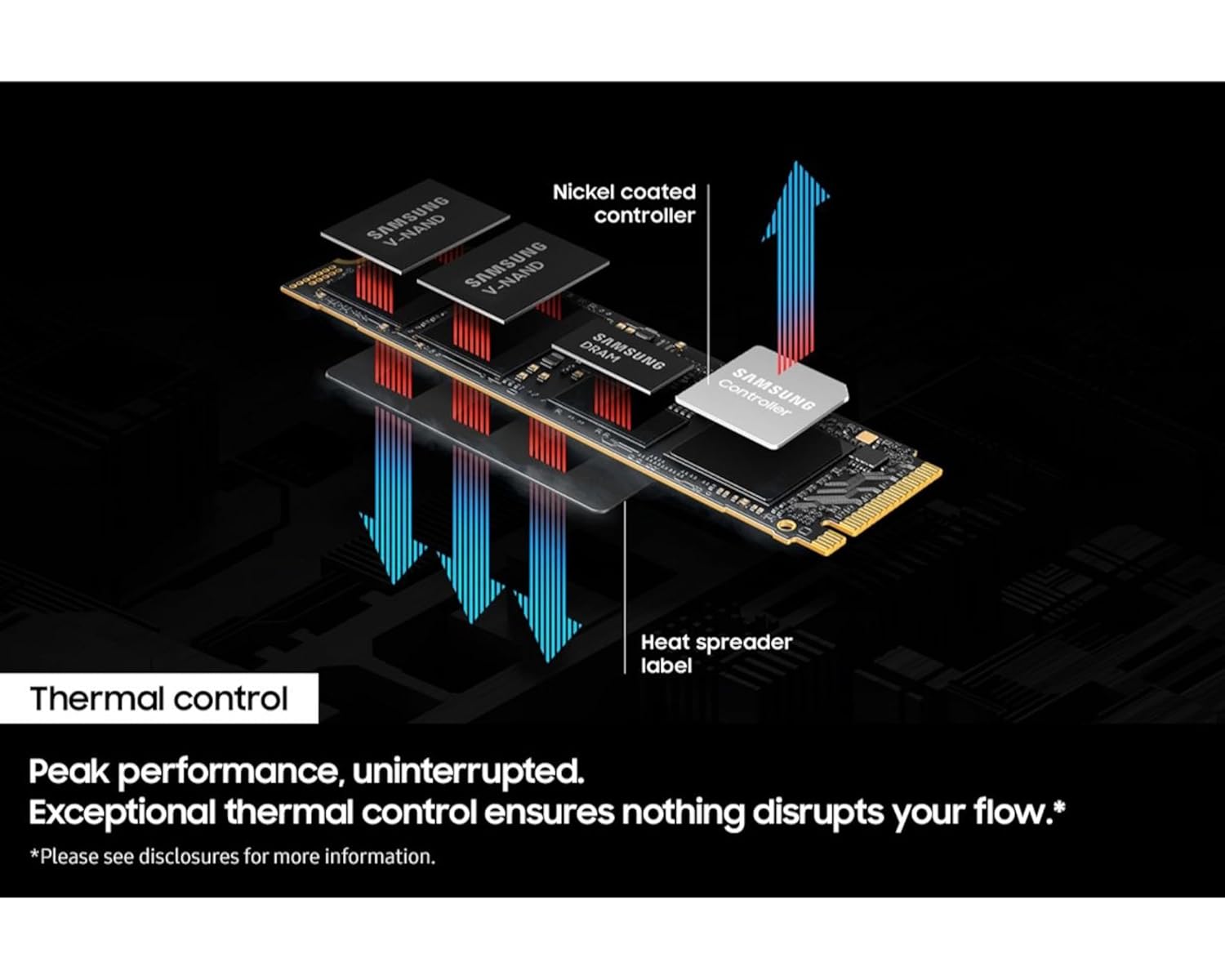
Image: A diagram illustrating the thermal control mechanism of the SSD, showing heat dissipation from the controller and V-NAND components.
7. Arazoak
If you encounter issues with your Samsung 9100 PRO SSD, consider the following troubleshooting steps:
- SSD ez da detektatu:
- Ensure the SSD is correctly seated in the M.2 slot.
- Check your motherboard's BIOS/UEFI settings to confirm the M.2 slot is enabled and configured correctly (e.g., NVMe mode).
- Verify that your motherboard supports NVMe M.2 SSDs.
- Saiatu SSDa beste M.2 zirrikitu batean edo beste sistema bateragarri batean, eskuragarri badago.
- Errendimendu motela:
- Ensure the SSD is installed in a PCIe 5.0 x4 compatible M.2 slot for maximum performance.
- Check if the latest NVMe drivers are installed for your operating system.
- Run Samsung Magician to check drive health and optimize performance (TRIM).
- Monitor SSD temperature; excessive heat can lead to thermal throttling.
- Sistema eragilearen arazoak:
- If using the SSD as a boot drive, ensure your BIOS/UEFI is configured to boot from the NVMe drive.
- Perform a clean installation of your operating system if persistent issues occur.
Laguntza gehiago lortzeko, jo Samsung-en laguntzara webwebgunean edo jarri harremanetan bezeroarentzako zerbitzuarekin.
8. Zehaztapenak
| Ezaugarri | Zehaztapena |
|---|---|
| Ereduaren izena | 9100 PRO |
| Modelo zenbakia | MZ-VAP2T0BW |
| Biltegiratze Digitalaren Ahalmena | 2 TB |
| Interfazea | PCIe Gen 5.0 x4, NVMe 2.0 |
| Forma-faktorea | M.2 (2280) |
| Irakurketa abiadura sekuentziala | Gehienez 14,800 MB/s |
| Idazketa-abiadura sekuentziala | Gehienez 13,400 MB/s |
| Random Read IOPS | 2,200K IOPS arte |
| Random Write IOPS | 2,600K IOPS arte |
| Produktuaren neurriak | 3.16 x 0.87 x 0.11 hazbete (80.3 x 22.1 x 2.8 mm) |
| Pisua | 0.32 ontza (9.07 gramo) |
| Ezaugarri Berezia | Hardware enkriptatzea |
| Gailu bateragarriak | AI PCs, Desktop, Laptop, PC |
9. Bermea eta Laguntza
9.1 Bermearen informazioa
For detailed warranty terms and conditions, please refer to the official Samsung website or the warranty card included with your product. Warranty coverage typically includes defects in materials and workmanship under normal use.
9.2 Bezeroarentzako laguntza
If you require technical assistance, have questions about your product, or need to initiate a warranty claim, please contact Samsung Customer Support. You can find contact information and additional resources on the official Samsung webgunea: