
Sarrera
This manual provides detailed instructions for the setup, operation, and maintenance of your T'nB KBWERGO Ergonomic Wireless Rechargeable Bluetooth Keyboard. This keyboard features an ergonomic wave design, integrated wrist rest, adjustable feet, and dual connectivity modes (Bluetooth and 2.4 GHz USB-A dongle) for compatibility with both PC and Mac systems. It is designed to enhance comfort and reduce wrist strain during extended use.
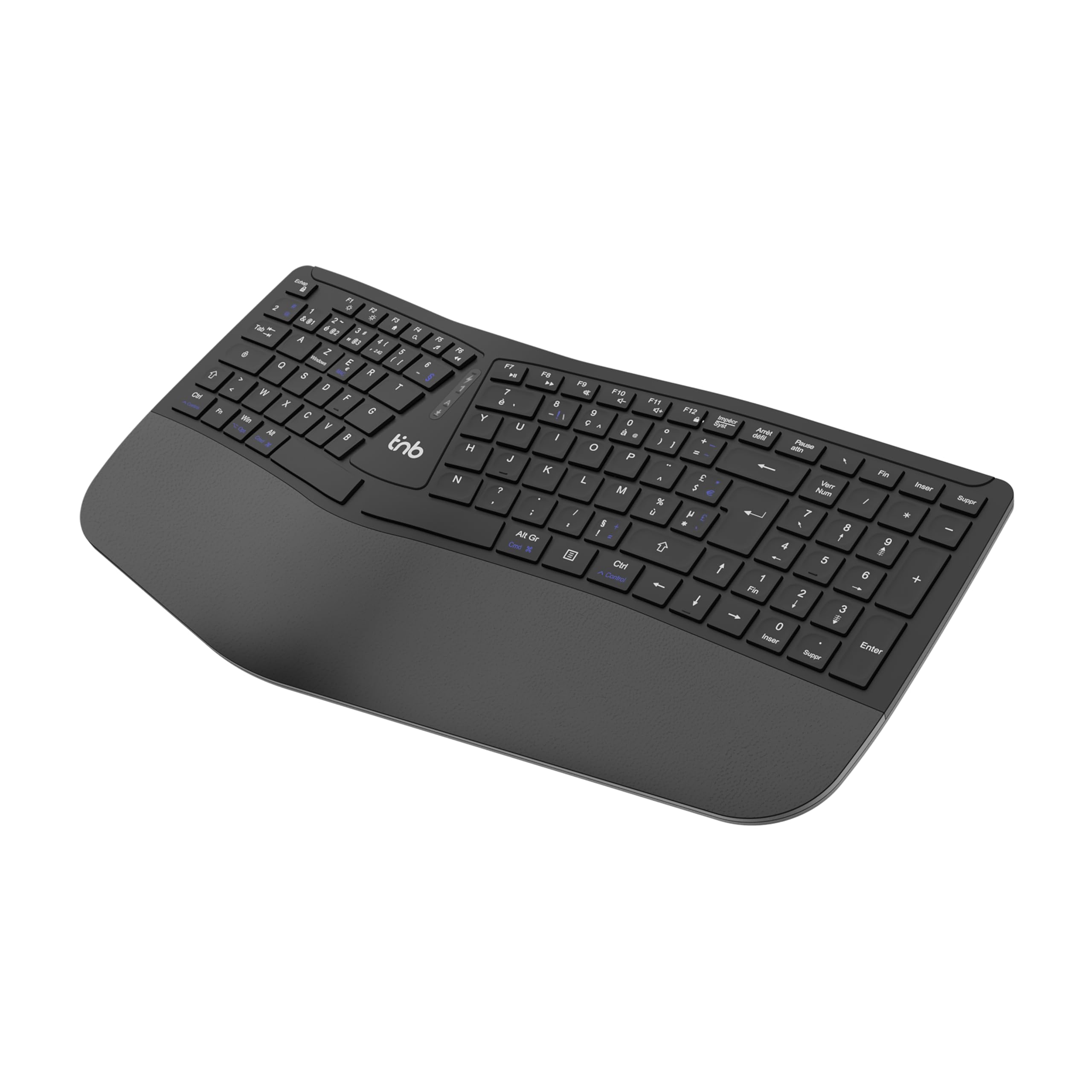
1. irudia: Goikoa view of the T'nB KBWERGO Ergonomic Wireless Keyboard.
Paketearen edukia
Mesedez, ziurtatu elementu guztiak paketean daudela:
- T'nB KBWERGO Ergonomic Wireless Keyboard
- USB-A 2.4 GHz Wireless Dongle (typically stored in the keyboard's battery compartment)
- USB-C kargatzeko kablea
- Erabiltzailearen eskuliburua (dokumentu hau)
Konfigurazioa
1. Teklatua kargatzea
The keyboard is equipped with a rechargeable Lithium-Ion battery. Before first use, it is recommended to fully charge the keyboard.
- Bilatu USB-C kargatzeko ataka teklatuan.
- Connect one end of the provided USB-C cable to the keyboard's charging port.
- Connect the other end of the USB-C cable to a USB-A power source (e.g., computer USB port, USB wall adapter).
- The charging indicator light will illuminate. Once fully charged, the indicator light may change color or turn off.
2. Teklatua konektatzea
The keyboard supports dual-mode connectivity: 2.4 GHz wireless via USB-A dongle and Bluetooth (up to 3 profiles).
2.1. 2.4 GHz Wireless Connection (USB-A Dongle)
- Locate the USB-A wireless dongle, usually stored in a compartment on the underside of the keyboard.
- Insert the USB-A dongle into an available USB-A port on your computer.
- Piztu teklatua etengailua erabiliz (kokapena alda daiteke, normalean atzealdean edo alboan dago).
- The keyboard should automatically connect to your computer. No additional drivers are typically required.
2.2. Bluetooth Connection (Up to 3 Devices)
The keyboard can be paired with up to three Bluetooth-enabled devices.
- Ziurtatu teklatua piztuta dagoela.
- Sakatu eta eutsi Bluetooth parekatze-tekla bat (adibidez, BT1, BT2, BT3, or a dedicated Bluetooth button) for a few seconds until the corresponding indicator light flashes, indicating pairing mode.
- On your device (PC, Mac, tablet, smartphone), go to Bluetooth settings and search for new devices.
- Select "T'nB KBWERGO" or a similar name from the list of available devices.
- Follow any on-screen prompts to complete the pairing process. The indicator light will stop flashing once successfully paired.
- To switch between paired Bluetooth devices, simply press the corresponding Bluetooth key (BT1, BT2, edo BT3).
3. Adjusting Keyboard Tilt
The keyboard features 4 adjustable pads, allowing for two different tilt heights to optimize your typing posture.
- Flip the keyboard over to access the underside.
- Locate the adjustable feet at the front and back of the keyboard.
- Extend the smaller feet for a slight tilt, or extend both the smaller and larger feet for a higher tilt.
- Ensure all four feet are set to the same height for stability.

2. Irudia: Azpialdea view of the keyboard, highlighting the adjustable feet.

Figure 3: Diagram illustrating the ergonomic design and adjustable tilt options.
Teklatua funtzionatzea
Ergonomic Design Benefits
The T'nB KBWERGO keyboard features a wave-shaped ergonomic design and an integrated synthetic leather wrist rest. This design aims to:
- Minimize wrist movement and effort to reach all keys.
- Alleviate wrist strain during prolonged typing sessions.
- Provide a natural and comfortable hand position.
- Reduce muscle tension in the arms and shoulders.

4. irudia: Aldea view illustrating the ergonomic wave design.
Function Keys and Shortcuts
The keyboard includes 12 direct access keys (function keys) for common tasks. These keys are typically located along the top row of the keyboard (F1-F12) and may require pressing the Fn key simultaneously for their secondary functions. Refer to the keycap legends for specific functions such as media control, volume adjustment, and application shortcuts.
The keyboard also features a full numeric keypad for efficient data entry.
Bateragarritasuna
The T'nB KBWERGO keyboard is compatible with both PC (Windows operating systems) and Mac (macOS) systems, offering versatile use across different computing environments.
Mantentzea
Garbiketa
Teklatuaren itxura eta funtzionaltasuna mantentzeko:
- Ziurtatu teklatua itzalita dagoela garbitu aurretik.
- Erabili lipurrik gabeko zapi leun bat dampurarekin edo garbiketa-soluzio leun batekin jarri.
- Avoid harsh chemicals, abrasive cleaners, or spraying liquids directly onto the keyboard.
- Teklen arteko hautsa eta hondakinak lortzeko, erabili aire konprimatua.
- Wipe the synthetic leather wrist rest gently.
Bateria zaintzea
The integrated Lithium-Ion battery requires proper care for longevity:
- Saihestu bateria maiz erabat deskargatzea.
- Charge the keyboard regularly, especially if it will be stored for an extended period.
- Ez jarri teklatua muturreko tenperaturetara.
- Erabili emandako USB-C kablea edo baliokide ziurtatu bat kargatzeko.
Arazoak konpontzea
Teklatuak ez du erantzuten
- Egiaztatu potentzia: Ziurtatu teklatua piztuta dagoela eta bateria nahikoa duela. Beharrezkoa bada, kargatu berriro.
- 2.4 GHz konexioa:
- Verify the USB-A dongle is securely plugged into a working USB port on your computer.
- Saiatu dongle-a beste USB ataka batera konektatzen.
- Bluetooth konexioa:
- Ziurtatu Bluetootha gaituta dagoela zure gailuan.
- Confirm the keyboard is selected as the active Bluetooth device (e.g., by pressing the correct BT1/BT2/BT3 key).
- If connection issues persist, try unpairing and re-pairing the keyboard with your device.
- Interferentzia: Hurbildu teklatua gailura eta urrundu interferentziak sor ditzaketen beste haririk gabeko gailuetatik.
- Berrabiarazi: Berrabiarazi ordenagailua eta teklatua.
Kargatzeko arazoak
- Kablearen egiaztapena: Ensure the USB-C charging cable is securely connected to both the keyboard and the power source.
- Energia iturria: Try a different USB power source or wall adapter.
- Kablearen kalteak: Inspect the charging cable for any signs of damage. Use a different USB-C cable if available.
Zehaztapenak
| Ezaugarri | Xehetasuna |
|---|---|
| Ereduaren izena | KBWERGO |
| Marka | T'nB |
| Konektibitate Teknologia | Bluetooth, 2.4 GHz USB-A |
| Number of Bluetooth Profiles | 3 |
| Energia iturria | Litio-ioizko bateria kargagarria |
| Kargatzeko ataka | USB-C |
| Teklatuaren diseinua | QWERTY (Spanish layout implied by source, but general QWERTY for instructions) |
| Gako kopurua | 104 |
| Ezaugarri Berezia | Ergonomic design, Integrated Wrist Rest, Adjustable Tilt |
| Gailu bateragarriak | Ordenagailu pertsonala, ordenagailu eramangarria |
| Sistema eragile bateragarriak | Windows, macOS |
| Neurriak (L x W x H) | 43 x 21 x 2 cm (16.9 x 8.3 x 0.8 hazbete) |
| Pisua | 1.16 kg (2.56 lb) |
| Materiala | Plastikoa |
| Kolorea | Beltza |
Bermea eta Laguntza
For warranty information or technical support, please refer to the documentation included with your purchase or contact T'nB customer service through their official webproduktua erosi zenuen gunera edo dendara. Gorde erosketaren frogagiria bermearen erreklamazioetarako.
A safety information PDF is available: Segurtasunari buruzko informazioa (PDF)