Sarrera
This manual provides detailed instructions for the setup, operation, and maintenance of your Generic Delux T11 One-Handed Mechanical Keyboard. Designed for left-handed users, this compact keyboard features customizable shortcut keys to enhance your workflow.
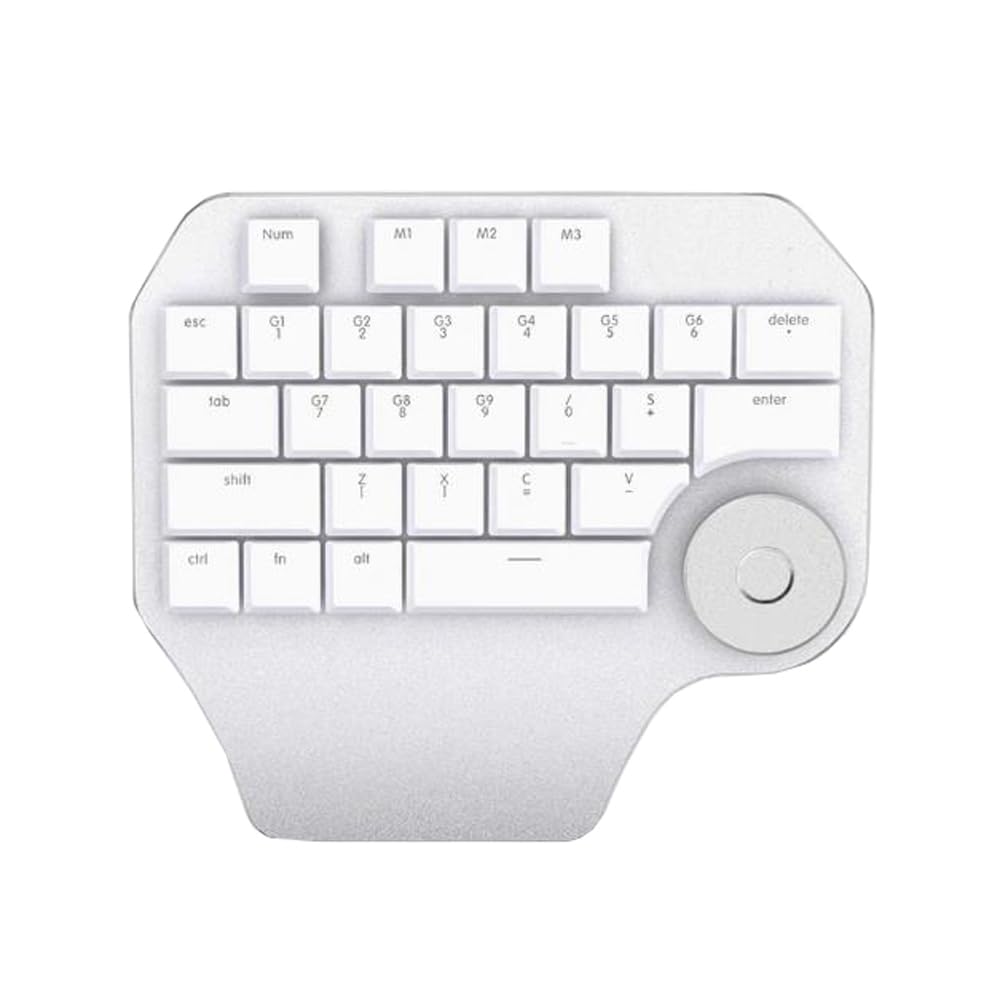
Image: The Delux T11 One-Handed Mechanical Keyboard. This image displays the compact design and key layout of the device, highlighting its ergonomic form factor for single-hand use.
Konfigurazioa
1. Deskargatzea
Carefully remove the keyboard from its packaging. Ensure all components, including the keyboard and any included cables, are present and undamaged.
2. Konektibitate-aukerak
Your Delux T11 keyboard supports two primary connectivity methods: USB-C (kable bidezkoa) eta Bluetootha (haririk gabekoa).
2.1. Kable bidezko konexioa (USB-C)
- Bilatu USB-C ataka teklatuan.
- Konektatu emandako USB-C kablearen mutur bat teklatura.
- Connect the other end of the USB-C cable to an available USB port on your computer or laptop.
- Teklatua automatikoki ezagutu beharko luke zure sistema eragileak. Oinarrizko funtzionalitaterako ez da normalean beharrezkoa izaten kontrolatzaile gehigarririk.
2.2. Bluetooth Connection (Wireless)
- Ensure your computer or laptop has Bluetooth enabled.
- Put the keyboard into Bluetooth pairing mode. (Refer to the specific instructions on the keyboard itself or a small included guide for the exact key combination, as this information is not provided. Typically, this involves holding a function key + a Bluetooth key.)
- On your computer, navigate to Bluetooth ezarpenak.
- Bilatu new devices. The keyboard should appear as "Delux T11" or a similar identifier.
- Select the keyboard and follow any on-screen prompts to complete the pairing process.
Funtzionamendu-argibideak
Oinarrizko erabilera
The Delux T11 is a compact, left-handed mechanical keyboard designed for efficiency. Its QWERTY layout provides familiar key placement for common functions.
Custom Shortcut Keys
A key feature of this keyboard is its customizable shortcut keys. These keys are pre-programmed for common design or editing functions, but can often be remapped using dedicated software (if available from the manufacturer) or operating system settings. Consult the manufacturer's website for any specific software tools.
- Identify Programmable Keys: Look for keys with special markings or those designated as "custom" or "macro" keys.
- Softwarearen konfigurazioa: If manufacturer software is available, install it and follow its instructions to assign new functions or macros to the programmable keys.
- Operating System Shortcuts: For basic remapping, your operating system's keyboard settings may allow some customization.
Mantentzea
Garbiketa
- Itzali: Deskonektatu teklatua ordenagailutik garbitu aurretik.
- Hautsa kentzea: Use a can of compressed air to remove dust and debris from between the keys.
- Gainazalaren garbiketa: Garbitu teklak eta teklatuaren gainazala oihal leun eta pelusik gabeko batekin, astiro-astiro.ampUrarekin edo garbiketa-soluzio leun eta ez-urratzaile batekin garbitu. Saihestu gehiegizko hezetasuna.
- Saihestu produktu kimiko gogorrak: Do not use strong solvents, alcohol, or abrasive cleaners, as these can damage the keyboard's finish or keycap legends.
Biltegiratzea
When not in use, store the keyboard in a clean, dry environment away from direct sunlight and extreme temperatures. Protect it from dust and spills.
Arazoak konpontzea
- Teklatuak ez du erantzuten (kable bidez):
- Ziurtatu USB-C kablea ondo konektatuta dagoela teklatura eta ordenagailura.
- Saiatu teklatua ordenagailuko beste USB ataka batera konektatzen.
- Probatu teklatua beste ordenagailu batean sistemaren arazo espezifiko bat baztertzeko.
- Keyboard Not Responding (Bluetooth):
- Ensure Bluetooth is enabled on your computer and the keyboard is in pairing mode.
- Remove the keyboard from your computer's Bluetooth device list and attempt to re-pair it.
- Check the keyboard's battery level if it's a wireless-only model (though this model is listed as "Wired" for power source, Bluetooth implies a battery for wireless use).
- Giltzak ez dira behar bezala funtzionatzen:
- Clean the keyboard to remove any debris that might be obstructing the key switches.
- Tekla zehatz batzuk ez badabiltza ondo, hardware arazo bat adieraz dezake.
- Custom Shortcuts Not Working:
- Verify that any necessary software for customization is installed and running.
- Check the software settings to ensure the shortcuts are correctly configured.
- Ensure there are no conflicts with other software or operating system shortcuts.
Zehaztapenak
| Produktuaren neurriak | 3.94 x 7.87 x 11.81 hazbete |
| Elementuaren pisua | 2.2 kilo |
| Fabrikatzailea | Generikoa |
| Elementuaren eredu-zenbakia | Laptop Parts-24-1-22-18 |
| Marka | Generikoa |
| Gailu bateragarriak | Ordenagailu eramangarria |
| Konektibitate Teknologia | Bluetooth konexioa, USB-C |
| Teklatuaren deskribapena | Compact, Left-Handed, Mechanical, Customizable |
| Energia iturria | Kableatua |
| Aldatu mota | Mekanikoa |
| Teklatuaren diseinua | QWERTY |
| Eskuen Orientazioa | Ezkerra |
Bermearen informazioa
Produktu hau a 90 eguneko bermea from the date of purchase. This warranty covers manufacturing defects under normal use. It does not cover damage caused by misuse, accidents, unauthorized modifications, or normal wear and tear. Please retain your proof of purchase for warranty claims.
Laguntza
For further assistance, technical support, or warranty inquiries, please refer to the contact information provided with your purchase or visit the manufacturer's official website. When contacting support, please have your product model number (Laptop Parts-24-1-22-18) and proof of purchase readily available.
Note: As this is a generic product, specific support channels may vary.


