
AEEZO 10.1 inch Tablet
AEEZO Android 14 10-inch Tablet User Manual
Model: 10.1 inch Tablet
1. Sarrera
Welcome to the user manual for your new AEEZO Android 14 10-inch Tablet. This manual provides essential information on how to set up, operate, maintain, and troubleshoot your device. Please read this manual thoroughly to ensure optimal performance and longevity of your tablet.
2. Zer dago kutxan
Carefully unpack your new AEEZO tablet and ensure all items are present:
- AEEZO Android 14 10-inch Tablet
- Kargagailua
- Teklatua
- Sagua
- USB kablea
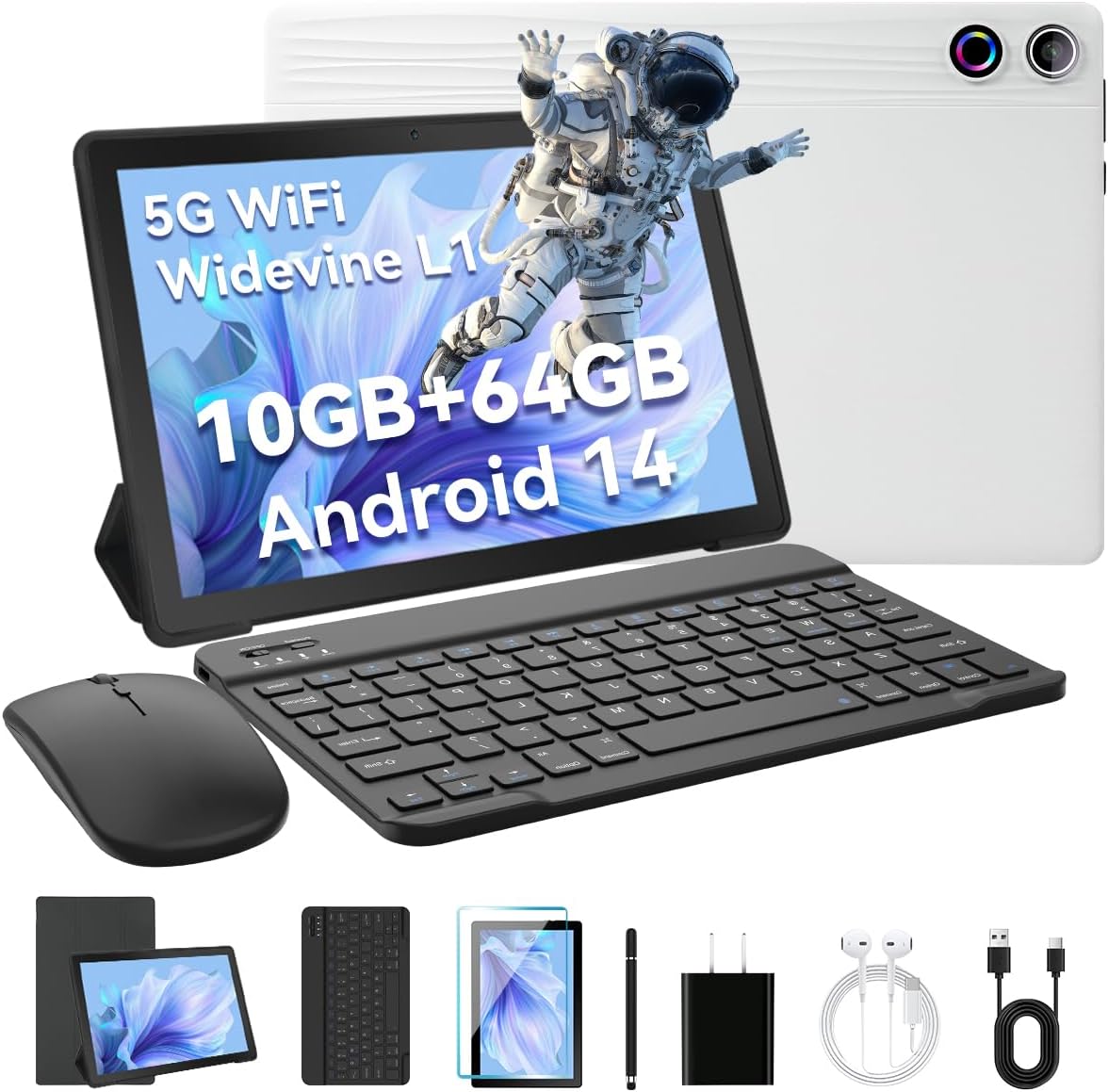
Image: The AEEZO Android 14 10-inch Tablet displayed with its full set of accessories, including the tablet itself, a detachable keyboard, a wireless mouse, a charger, and a USB cable.
3. Produktua amaitu daview
Familiarize yourself with the main components of your AEEZO tablet.

Irudia: Aurrealdea view of the AEEZO Android 14 10-inch Tablet, showcasing its display with various application icons. Below the tablet, key specifications are highlighted, including the Octa-Core Processor, Android 14 operating system, 10GB RAM + 64GB ROM, 1280x800 HD resolution, WiFi 6, and Bluetooth 5.0 connectivity.
3.1. Osagai fisikoak
- Pizteko botoia: Alboan kokatuta, pantaila pizteko/itzaltzeko edo esnatzeko/lo hartzeko erabiltzen da.
- Bolumen-botoiak: Doitu audioaren bolumena.
- USB C motako ataka: Kargatzeko eta datuak transferitzeko.
- 3.5 mm aurikularretarako konektua: Kable bidezko entzungailuak konektatzeko.
- Aurrealdeko kamera: For video calls and selfies (5MP).
- Atzeko kamera: For taking photos and videos (8MP).
- MicroSD txartelaren zirrikitua: Expand storage up to 1TB (TF card sold separately).
- Bozgorailu bikoitza: Provide stereo audio output.

Image: The AEEZO Android 14 10-inch Tablet is shown with graphical representations highlighting its memory specifications: 10GB RAM, 64GB internal memory, and the capability for TF card expansion up to 1TB.
4. Konfigurazioa
4.1. Tableta kargatzea
Before first use, fully charge your tablet. Connect the provided charger to the USB Type-C port on the tablet and plug it into a power outlet. The battery indicator on the screen will show charging status.
4.2. Piztu/Itzaltzea
- Pizteko: Press and hold the Power button until the AEEZO logo appears.
- Itzaltzeko: Press and hold the Power button until a power menu appears, then select "Power off".
- Lo egiteko/esnatzeko: Sakatu labur pizteko botoia.
4.3. Hasierako konfigurazioa
Lehen aldiz piztean, jarraitu pantailan agertzen diren argibideei tableta konfiguratzeko:
- Aukeratu nahi duzun hizkuntza.
- Konektatu Wi-Fi sare batera.
- Hasi saioa zure Google kontuarekin edo sortu berri bat. Hau ezinbestekoa da Google Play Store-tik aplikazioak deskargatzeko.
- Set up screen lock (PIN, pattern, password, or Face Unlock).
- Review eta baldintzak eta zehaztapenak onartu.
4.4. Connecting Keyboard and Mouse
The included keyboard and mouse connect via Bluetooth. Ensure Bluetooth is enabled on your tablet (Settings > Connected devices > Bluetooth).
- Teklatua: Turn on the keyboard. It should appear in the list of available Bluetooth devices. Tap to pair.
- Sagua: Turn on the mouse. It should appear in the list of available Bluetooth devices. Tap to pair.
4.5. Inserting a TF Card (MicroSD)
To expand storage, locate the TF card slot on the side of the tablet. Gently insert a MicroSD card (up to 1TB, sold separately) until it clicks into place. The tablet will recognize the new storage.
5. Tabletaren erabilera
5.1. Oinarrizko nabigazioa
- Sakatu: Hautatu elementu bat edo ireki aplikazio bat.
- Eduki sakatuta: Sartu testuinguru-menuetara edo mugitu ikonoak.
- Pasatu hatza: Pantailetan edo zerrendetan zehar joan.
- Zoom egiteko apur bat egin: Irudiak handitu edo txikitu eta web orrialdeak.
- 3 hatzekin egindako pantaila-argazkia: Swipe down with three fingers to capture a screenshot.
5.2. Wi-Fi konexioa
Joan zaitez Ezarpenak > Sarea eta Internet > Internet. Turn on Wi-Fi, select your desired network, and enter the password if required.
5.3. Bluetooth konexioa
Joan zaitez Ezarpenak > Konektatutako gailuak > Bluetooth. Turn on Bluetooth, and the tablet will scan for nearby devices. Select a device to pair.
5.4. Kamerak erabiltzea
Open the Camera app to take photos or record videos. The tablet features a 5MP front camera and an 8MP rear camera.

Irudia: Xehetasun zehatza view of the AEEZO Android 14 10-inch Tablet's rear, emphasizing its 8MP rear camera and 5MP front camera. The image also illustrates the Face Unlock feature and shows examples of video calls and outdoor scenes, demonstrating the tablet's utility for communication and capturing moments.
5.5. Gurasoen kontrola
Android 14 offers enhanced parental control features. Navigate to Ezarpenak > Ongizate digitala eta gurasoen kontrolak to manage screen time, app access, and content filters for children's accounts.
5.6. Face Unlock
Set up Face Unlock for convenient and secure access to your tablet. Go to Ezarpenak > Segurtasuna eta pribatutasuna > Gailuaren desblokeoa > Aurpegiaren desblokeoa eta jarraitu pantailan agertzen diren argibideei zure aurpegia erregistratzeko.
5.7. Multi-Window Mode
To use two apps simultaneously, open one app, then swipe up from the bottom of the screen to reveal the recent apps. Tap the app icon at the top of the window and select "Split screen". Choose another app to open in the second window.
5.8. Eye Protection Mode
Activate Eye Protection Mode (also known as Night Light or Reading Mode) to reduce blue light emission, which can help reduce eye strain. This setting is typically found in Ezarpenak > Pantaila.
5.9. Audio Ezaugarriak
The tablet features built-in dual speakers for a high-quality audio experience. For private listening, connect headphones to the 3.5mm headphone jack.
5.10. Widevine L1 euskarria
Your tablet supports Widevine L1, enabling high-definition streaming from popular platforms like Netflix, Hulu, and Amazon Prime Video. Ensure your internet connection is stable for optimal streaming quality.
6. Mantentzea
6.1. Tableta garbitzea
Erabili zapi leun eta lihorik gabeko bat tabletaren pantaila eta gorputza garbitzeko. Orban egoskorrak izanez gero, garbitu apur batampGarbitu zapi bat urarekin edo pantaila-garbitzaile batekin. Saihestu produktu kimiko gogorrak edo material urratzaileak.
6.2. Bateria zaintzea
- Saihestu muturreko tenperaturak.
- Ez utzi bateria maiz erabat agortzen.
- Erabili emandako kargagailua kargatze optimoa lortzeko.
6.3. Software eguneraketak
Aldian-aldian egiaztatu sistemaren eguneraketak zure tabletak azken funtzioak eta segurtasun-adabakiak dituela ziurtatzeko. Joan honera Ezarpenak > Sistema > Sistemaren eguneraketa.
6.4. Biltegiratze kudeaketa
Garbitu beharrezkoak ez direnak aldizka files, cache data, and uninstall unused apps to free up storage space and maintain performance. You can manage storage in Ezarpenak > Biltegiratzea.
7. Arazoak
| Arazoa | Irtenbidea |
|---|---|
| Tableta ez da pizten | Ensure the tablet is charged. Press and hold the Power button for 10-15 seconds to force restart. |
| Wi-Fi konexio arazoak | Restart your Wi-Fi router. Forget the network on the tablet and reconnect. Ensure Wi-Fi is enabled. |
| Aplikazioak huts egiten edo blokeatzen | Clear the app's cache (Settings > Apps > [App Name] > Storage & cache > Clear cache). Update the app or reinstall it. |
| Errendimendu motela | Close unused apps. Clear cache. Free up storage space. Restart the tablet. |
| Teklatua/Sagua ez da konektatzen | Ensure devices are charged and in pairing mode. Re-pair them via Bluetooth settings. |
8. Zehaztapenak
Detailed technical specifications for your AEEZO Android 14 10-inch Tablet:
| Ezaugarri | Xehetasuna |
|---|---|
| Ereduaren izena | 10.1 hazbeteko tableta |
| Sistema eragilea | Android 14 |
| Prozesadorea | A523 8-core processor (up to 1.8 GHz) |
| GPU | Mali-G57 |
| RAM | 10GB (8GB built-in + 2GB virtual) |
| Barne Biltegiratzea | 64GB ROM |
| Biltegiratze zabalgarria | TF Card up to 1TB (sold separately) |
| Pantailaren tamaina | 10.1 hazbetekoa |
| Bistaratzeko ebazpena | 1280 x 800 IPS HD |
| Widevine Support | Widevine L1 |
| Aurrealdeko kamera | 5MP |
| Atzeko kamera | 8MP |
| Bateria Edukiera | 5000mAh |
| Wi-Fi | Dual-band Wi-Fi 6 (2.4G/5G) |
| Bluetootha | Bluetooth 5.0 |
| Kargatzeko ataka | USB C motakoa |
| Audio Jack | 3.5 mm-ko aurikularretarako konektua |
| Neurriak (LxWxH) | 9.64 x 6.42 x 0.35 hazbete |

Image: A visual representation of the AEEZO Android 14 10-inch Tablet's internal components, specifically highlighting the Jeazans Octa-Core Processor and its support for WiFi 6. Accompanying text emphasizes key benefits such as large memory expandability up to 1TB via TF card, low power consumption with high performance, and a 2.0GHz main frequency for improved multi-tasking capabilities.
9. Bermea eta Laguntza
Your AEEZO tablet comes with a standard manufacturer's warranty. Please refer to the warranty card included in your packaging for specific terms and conditions. For technical support, product inquiries, or warranty claims, please contact AEEZO customer service through their official webproduktua erosi duzun gunea edo dendaria.
For further assistance, you may visit the AEEZO Store online: AEEZO Official Store
Ask a question about this manual
Ask about setup, troubleshooting, compatibility, parts, safety, or missing instructions. Manuals+ will review the question and use this page’s manual context to help answer it.