
TABWEE T20 Tablet Tabwee
TABWEE T20 Tablet User Manual
Model: T20 Tablet Tabwee
Brand: TABWEE
Sarrera
Thank you for choosing the TABWEE T20 Tablet. This manual provides essential information for setting up, operating, and maintaining your device. The T20 Tablet is designed for versatile use, featuring the latest Android 15 with Gemini AI, a powerful Octa-Core processor, and a comprehensive accessory kit for enhanced productivity and entertainment.
Kutxan dagoena
Mesedez, egiaztatu paketearen edukia. Elementuren bat falta bada edo hondatuta badago, jarri harremanetan bezeroarentzako arreta-zerbitzuarekin.
- TABWEE T20 Tablet
- Teklatua
- Sagua
- Estilista
- Babes-zorroa
- Tabletako euskarria
- Pantaila babeslea
- Kargagailua
- USB kablea
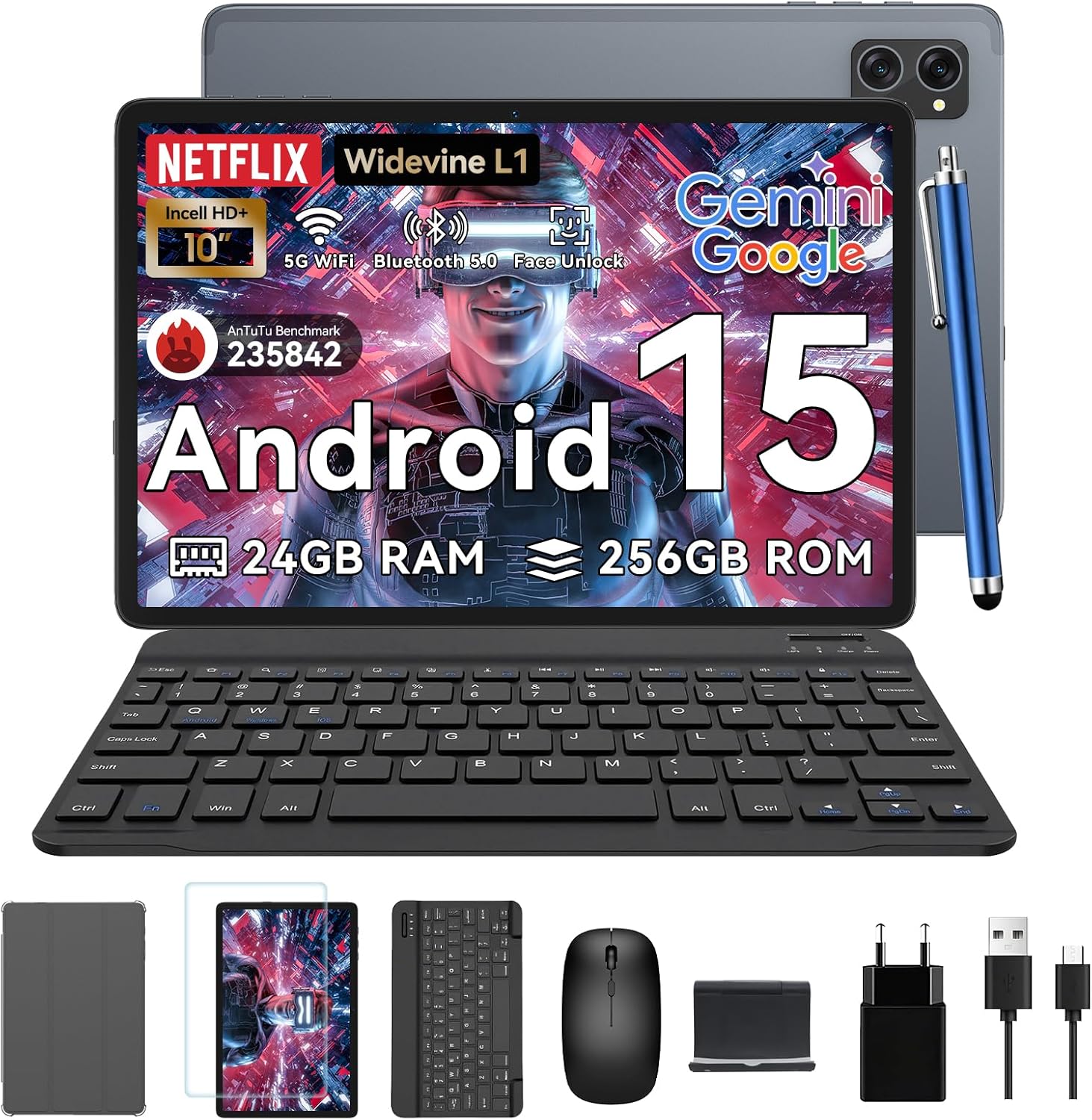
Image: All items included in the TABWEE T20 Tablet package, neatly arranged.
Produktua amaituview
Familiarize yourself with the physical components of your TABWEE T20 Tablet.

Irudia: Aurrealdea eta atzealdea view of the TABWEE T20 Tablet, showing the display and camera module.
Funtsezko osagaiak:
- 10.1 hazbeteko Full HD pantaila: Main screen for interaction and content viewing.
- Aurreko kamera (8MP): Goiko markoan kokatuta dago bideo-deiak eta selfieak egiteko.
- Rear Camera (8MP AI): Located on the back for high-quality photos and Smart Scan functions.
- Pizteko botoia: Typically on the side, used to turn the tablet on/off or wake/sleep.
- Bolumen-botoiak: Doitu audio mailak.
- USB-C ataka: Kargatzeko eta datuak transferitzeko.
- Bozgorailuak: Dual Smart-K BOX speakers for immersive audio.
- MicroSD txartelaren zirrikitua: For storage expansion up to 2TB.
Hasierako konfigurazioa
- Tableta kargatzea:
Connect the provided charger and USB cable to the tablet's USB-C port. Plug the charger into a power outlet. The battery indicator will show charging status. Fully charge the tablet before first use.
- Piztu/Itzaltzea:
Press and hold the Power button until the TABWEE logo appears to turn on. To turn off, press and hold the Power button, then select "Power off" from the options.
- Hasierako konfigurazioa:
Upon first power-on, follow the on-screen prompts to select your language, connect to a Wi-Fi network, sign in with your Google account, and set up security features like Face Unlock.
- Inserting a MicroSD Card (Optional):
Locate the MicroSD card slot. Gently insert a compatible MicroSD card (up to 2TB) until it clicks into place. This expands your tablet's storage capacity.
Tableta erabiltzea
Android 15 with Gemini AI
Your TABWEE T20 runs on Android 15, enhanced with Gemini AI for an intuitive and efficient experience. Features include real-time language translation, intelligent task management, and personalized widget previews.

Image: Visual representation of Android 15 features, including app management and connectivity options.

Irudia: Gainetikview of Gemini AI 2.0 experimental features, including voice control and smart assistance.
Pantaila eta audioa
The 10.1-inch Full HD display with Widevine L1 certification provides vibrant 1080p visuals. Enjoy immersive sound with the Smart-K dual BOX speakers.
- Widevine L1: Enables high-definition streaming from platforms like Netflix, Prime Video, and Hulu.
- Eye-friendly Modes: Access Reading Mode, Night Light, and Dark Mode in display settings for comfortable viewing.

Image: The tablet display showcasing Widevine L1 certification and different eye-friendly viewing moduak.

Image: Illustration of the tablet's dual Smart-K Box speakers, emphasizing sound quality.
Kameraren funtzioak
The tablet features 8MP front and rear AI cameras. Utilize the Smart Scan camera for efficient document scanning.
- Eskaneatu adimenduna: Automatically detects and enhances documents, receipts, or whiteboards.
- Google Lens Integration: Use Google Lens for smart scanning, searching, and exploring.

Image: The tablet's camera system, highlighting 5MP front and 8MP rear AI cameras, along with Google Lens and Face Unlock capabilities.
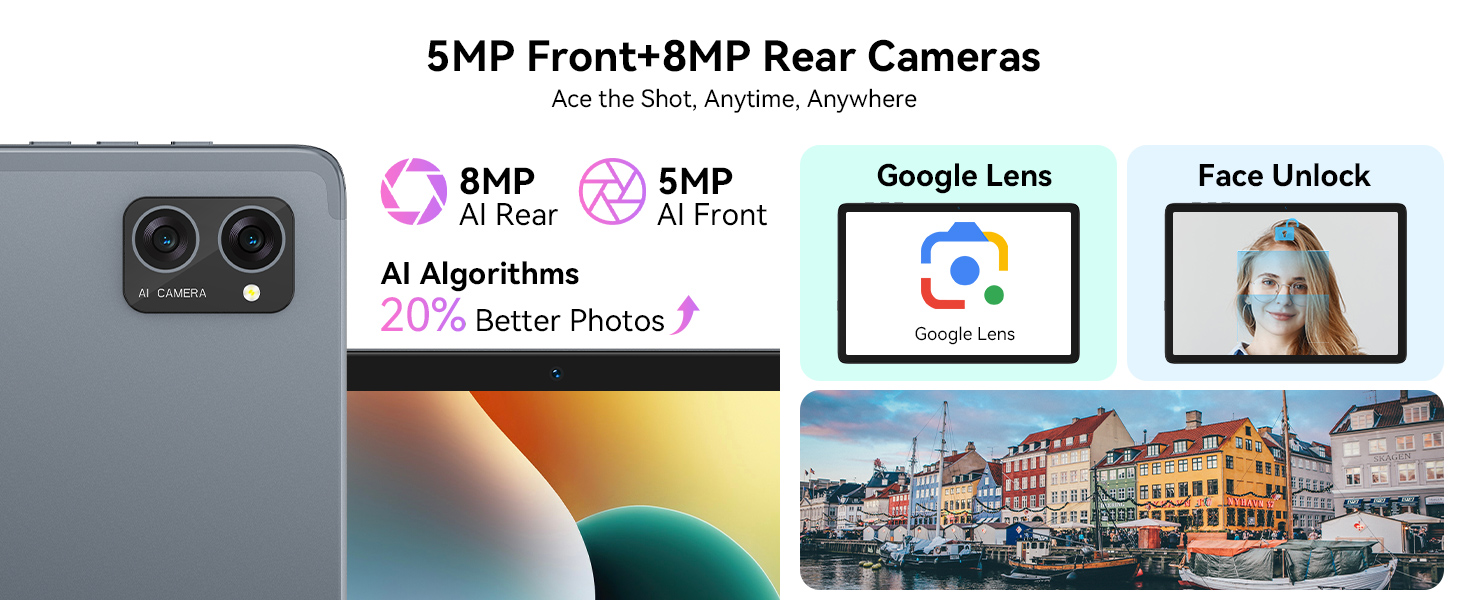
Image: Various applications of Smart Google Lens for scanning, searching, and exploring.
Konektibitatea
- 5G Dual-Band WiFi: Connect to high-speed wireless networks for fast browsing and streaming.
- Bluetooth 5.0: Parekatu haririk gabeko entzungailuekin, bozgorailuekin eta beste Bluetooth gaitutako gailu batzuekin.

Image: The tablet demonstrating fast WiFi 5 connectivity, shown with connected keyboard and mouse.

Image: A user enjoying audio content with wireless earbuds connected to the tablet via Bluetooth 5.0.
Using Included Accessories
The TABWEE T20 Tablet comes with a suite of accessories to enhance your experience.
- Teklatua: Connect the keyboard via Bluetooth. Refer to the keyboard's specific instructions for pairing. It transforms your tablet into a mini-laptop for typing.
- Sagua: Connect the mouse via Bluetooth. This provides precise navigation, similar to a desktop computer.
- Larrua: Use the stylus for precise input, drawing, or note-taking on the touchscreen. No pairing required for basic touch functionality.
- Protective Case & Tablet Stand: The case provides protection, and the integrated stand allows for comfortable viewing angles for media consumption or typing.
- Pantaila babeslea: Apply the screen protector to guard against scratches and minor impacts. Follow the instructions provided with the screen protector for proper application.

Image: The TABWEE T20 Tablet configured with its keyboard and mouse, demonstrating its 2-in-1 versatility.
Zainketa eta Mantentzea
- Garbiketa: Erabili zapi leun eta lihorik gabeko bat pantaila eta gorputza garbitzeko. Orban egoskorrak izanez gero, garbitu pixka batampGarbitu zapi bat urarekin edo pantaila-garbitzaile batekin. Saihestu produktu kimiko gogorrak.
- Bateria zaintzea: To prolong battery life, avoid extreme temperatures. Do not let the battery fully drain frequently. For long-term storage, charge the tablet to about 50% and power it off.
- Software eguneraketak: Egiaztatu eta instalatu sistemaren eguneraketak aldizka errendimendu eta segurtasun optimoa bermatzeko. Joan Ezarpenak > Sistema > Sistemaren eguneraketa atalera.
- Biltegiratze kudeaketa: Aldian-aldian garbitu beharrezkoak ez direnak files and apps to maintain performance. Utilize the 2TB expandable storage for large media files.

Image: The tablet's internal battery, illustrating its 5000mAh capacity and estimated usage durations.
Arazoak konpontzea
| Arazoa | Irtenbide posiblea |
|---|---|
| Tableta ez da pizten. | Ensure the tablet is charged. Connect to charger for at least 30 minutes. Try holding the Power button for 10-15 seconds. |
| Wi-Fi konexio arazoak. | Restart the tablet and your Wi-Fi router. Forget the network and reconnect. Ensure you are within range. |
| Tableta motela da edo ez du erantzuten. | Close unused apps. Clear cache. Restart the tablet. Check for available system updates. |
| Accessories (keyboard/mouse) not connecting. | Ensure Bluetooth is enabled on the tablet. Put the accessory in pairing mode. Check battery levels of accessories. |
| Apps crashing frequently. | Clear the app's cache and data (Settings > Apps > [App Name] > Storage). Reinstall the app. Ensure sufficient storage space. |
Zehaztapen Teknikoak
| Ezaugarri | Xehetasuna |
|---|---|
| Eredua | T20 Tablet Tabwee |
| Sistema eragilea | Android 15 (with Gemini AI) |
| Prozesadorea | UNISOC T606 Octa-Core (2 GHz) |
| RAM | 24GB (8GB base + 16GB expansion) |
| Barne Biltegiratzea | 256 GB |
| Biltegiratze zabalgarria | Gehienez 2 TB MicroSD txartelaren bidez |
| Bistaratzeko tamaina | 10.1 hazbete |
| Bistaratzeko ebazpena | 1280 x 800 Pixels (Full HD, Widevine L1) |
| Atzeko kamera | 8MP AI Kamera |
| Aurrealdeko kamera | 8MP |
| Bateria | 5000mAh litio-polimeroa |
| Konektibitatea | 5G Dual-Band Wi-Fi (802.11ac), Bluetooth 5.0 |
| Neurriak | 24.64 x 15.49 x 0.76 cm |
| Pisua | 500 g |

Image: Internal memory architecture of the TABWEE T20 Tablet, detailing RAM and ROM capacities.

Image: The Unisoc T606 Octa-Core processor, highlighting its core configuration and GPU.
Bermea eta Laguntza
Your TABWEE T20 Tablet comes with a 2-year UK warranty, ensuring peace of mind. TABWEE is committed to quality and customer satisfaction.
- 24-Month Free Repair Warranty: Covers manufacturing defects and ensures free repairs for two years from the date of purchase.
- Bizi osorako laguntza teknikoa: Expert assistance is available whenever you need it.
- Hassle-Free Service: Support is provided through the TABWEE Official Flagship Store.
For technical support, warranty claims, or general inquiries, please contact TABWEE customer service through the official channels provided at the point of purchase or on the TABWEE brand webgunea.

Image: Information regarding TABWEE's 2-year warranty and lifetime customer support.
Lotutako dokumentuakT20 Tablet Tabwee


Ask a question about this manual
Ask about setup, troubleshooting, compatibility, parts, safety, or missing instructions. Manuals+ will review the question and use this page’s manual context to help answer it.